# Composio Documentation
> Composio powers 800+ toolkits, tool search, context management, authentication, and a sandboxed workbench to help you build AI agents that turn intent into action.
# Documentation
---
# Quickstart (/docs/quickstart)
Build your first AI agent with Composio Tools.
## OpenAI Agents
### Native Tools
#### Install
**Python:**
```bash
pip install python-dotenv composio composio-openai-agents openai-agents
```
**TypeScript:**
```bash
npm install @composio/core @composio/openai-agents @openai/agents
```
#### Configure API Keys
> Get your `COMPOSIO_API_KEY` from [Settings](https://platform.composio.dev/settings) and `OPENAI_API_KEY` from [OpenAI](https://platform.openai.com/api-keys).
```bash title=".env"
COMPOSIO_API_KEY=your_composio_api_key
OPENAI_API_KEY=your_openai_api_key
```
#### Create session and run agent
**Python:**
```python
from dotenv import load_dotenv
from composio import Composio
from agents import Agent, Runner, SQLiteSession
from composio_openai_agents import OpenAIAgentsProvider
load_dotenv()
# Initialize Composio with OpenAI Agents provider
composio = Composio(provider=OpenAIAgentsProvider())
# Create a session for your user
user_id = "user_123"
session = composio.create(user_id=user_id)
tools = session.tools()
# Configure agent with Composio tools
agent = Agent(
name="Personal Assistant",
instructions="You are a helpful personal assistant. Use Composio tools to take action.",
model="gpt-5",
tools=tools,
)
# Memory for multi-turn conversation
memory = SQLiteSession("conversation")
print("""
What task would you like me to help you with?
I can use tools like Gmail, GitHub, Linear, Notion, and more.
(Type 'exit' to exit)
Example tasks:
- 'Summarize my emails from today'
- 'List all open issues on the composio github repository'
""")
while True:
user_input = input("You: ").strip()
if user_input.lower() == "exit":
break
print("Assistant: ", end="", flush=True)
try:
result = Runner.run_sync(starting_agent=agent, input=user_input, session=memory)
print(f"{result.final_output}\n")
except Exception as e:
print(f"\n[Error]: {e}")
```
**TypeScript:**
```typescript
import "dotenv/config";
import { Composio } from "@composio/core";
import { Agent, run, MemorySession } from "@openai/agents";
import { OpenAIAgentsProvider } from "@composio/openai-agents";
import { createInterface } from "readline/promises";
// Initialize Composio with OpenAI Agents provider
const composio = new Composio({ provider: new OpenAIAgentsProvider() });
// Create a session for your user
const userId = "user_123";
const session = await composio.create(userId);
const tools = await session.tools();
const agent = new Agent({
name: "Personal Assistant",
instructions: "You are a helpful personal assistant. Use Composio tools to take action.",
model: "gpt-5",
tools,
});
// Memory for multi-turn conversation
const memory = new MemorySession();
const readline = createInterface({ input: process.stdin, output: process.stdout });
console.log(`
What task would you like me to help you with?
I can use tools like Gmail, GitHub, Linear, Notion, and more.
(Type 'exit' to exit)
Example tasks:
- 'Summarize my emails from today'
- 'List all open issues on the composio github repository and create a Google Sheet with the issues'
`);
// Multi-turn conversation with agentic tool calling
while (true) {
const query = await readline.question("You: ");
const input = query.trim();
if (input.toLowerCase() === "exit") break;
process.stdout.write("Assistant: ");
try {
const result = await run(agent, input, { session: memory });
process.stdout.write(`${result.finalOutput}\n`);
} catch (error) {
console.error("\n[Error]:", error instanceof Error ? error.message : error);
readline.close();
```
### MCP
#### Install
**Python:**
```bash
pip install python-dotenv composio openai-agents
```
**TypeScript:**
```bash
npm install dotenv @composio/core @openai/agents zod@3
```
#### Configure API Keys
> Get your `COMPOSIO_API_KEY` from [Settings](https://platform.composio.dev/settings) and `OPENAI_API_KEY` from [OpenAI](https://platform.openai.com/api-keys).
```bash title=".env"
COMPOSIO_API_KEY=your_composio_api_key
OPENAI_API_KEY=your_openai_api_key
```
#### Create session and run agent
**Python:**
```python
from dotenv import load_dotenv
from composio import Composio
from agents import Agent, Runner, HostedMCPTool, SQLiteSession
load_dotenv()
# Initialize Composio
composio = Composio()
# Create a session for your user
user_id = "user_123"
session = composio.create(user_id=user_id)
# Configure agent with Composio MCP server
agent = Agent(
name="Personal Assistant",
instructions="You are a helpful personal assistant. Use Composio tools to take action.",
model="gpt-5",
tools=[
HostedMCPTool(
tool_config={
"type": "mcp",
"server_label": "composio",
"server_url": session.mcp.url,
"require_approval": "never",
"headers": session.mcp.headers,
)
],
)
# Memory for multi-turn conversation
memory = SQLiteSession(user_id)
print("""
What task would you like me to help you with?
I can use tools like Gmail, GitHub, Linear, Notion, and more.
(Type 'exit' to exit)
Example tasks:
- 'Summarize my emails from today'
- 'List all open issues on the composio github repository'
""")
while True:
user_input = input("You: ").strip()
if user_input.lower() == "exit":
break
print("Assistant: ", end="", flush=True)
try:
result = Runner.run_sync(starting_agent=agent, input=user_input, session=memory)
print(f"{result.final_output}\n")
except Exception as e:
print(f"\n[Error]: {e}")
```
**TypeScript:**
```typescript
import "dotenv/config";
import { Composio } from "@composio/core";
import { Agent, run, hostedMcpTool, MemorySession } from "@openai/agents";
import { createInterface } from "readline/promises";
// Initialize Composio
const composio = new Composio();
// Create a session for your user
const userId = "user_123";
const session = await composio.create(userId);
const agent = new Agent({
name: "Personal Assistant",
instructions: "You are a helpful personal assistant. Use Composio tools to take action.",
model: "gpt-5",
tools: [
hostedMcpTool({
serverLabel: "composio",
serverUrl: session.mcp.url,
headers: session.mcp.headers,
}),
],
});
// Memory for multi-turn conversation
const memory = new MemorySession();
const readline = createInterface({ input: process.stdin, output: process.stdout });
console.log(`
What task would you like me to help you with?
I can use tools like Gmail, GitHub, Linear, Notion, and more.
(Type 'exit' to exit)
Example tasks:
- 'Summarize my emails from today'
- 'List all open issues on the composio github repository and create a Google Sheet with the issues'
`);
// Multi-turn conversation with agentic tool calling
while (true) {
const input = (await readline.question("You: ")).trim();
if (input.toLowerCase() === "exit") break;
console.log("Assistant: ");
try {
const result = await run(agent, input, { session: memory });
console.log(`${result.finalOutput}`);
} catch (error) {
console.error("\n[Error]:", error instanceof Error ? error.message : error);
readline.close();
```
## Claude Agent SDK
### Native Tools
#### Install
**Python:**
```bash
pip install python-dotenv composio composio-claude-agent-sdk claude-agent-sdk
```
**TypeScript:**
```bash
npm install dotenv @composio/core @composio/claude-agent-sdk @anthropic-ai/claude-agent-sdk
```
#### Configure API Keys
> Get your `COMPOSIO_API_KEY` from [Settings](https://platform.composio.dev/settings) and `ANTHROPIC_API_KEY` from [Anthropic](https://console.anthropic.com/settings/keys).
```bash title=".env"
COMPOSIO_API_KEY=your_composio_api_key
ANTHROPIC_API_KEY=your_anthropic_api_key
```
#### Create session and run agent
**Python:**
```python
import asyncio
from dotenv import load_dotenv
from composio import Composio
from composio_claude_agent_sdk import ClaudeAgentSDKProvider
from claude_agent_sdk import ClaudeSDKClient, ClaudeAgentOptions, create_sdk_mcp_server, AssistantMessage, TextBlock
load_dotenv()
# Initialize Composio with Claude Agent SDK provider
composio = Composio(provider=ClaudeAgentSDKProvider())
# Create a session for your user
user_id = "user_123"
session = composio.create(user_id=user_id)
tools = session.tools()
custom_server = create_sdk_mcp_server(name="composio", version="1.0.0", tools=tools)
async def main():
options = ClaudeAgentOptions(
system_prompt="You are a helpful assistant. Use tools to complete tasks.",
permission_mode="bypassPermissions",
mcp_servers={"composio": custom_server},
)
async with ClaudeSDKClient(options=options) as client:
print("Assistant ready! Type 'exit' to quit.")
while True:
user_input = input("You: ").strip()
if user_input.lower() == "exit":
break
await client.query(user_input)
print("Claude: ", end="")
async for message in client.receive_response():
if isinstance(message, AssistantMessage):
for block in message.content:
if isinstance(block, TextBlock):
print(block.text, end="", flush=True)
print()
asyncio.run(main())
```
**TypeScript:**
```typescript
import "dotenv/config";
import { Composio } from "@composio/core";
import { ClaudeAgentSDKProvider } from "@composio/claude-agent-sdk";
import { createSdkMcpServer, query } from "@anthropic-ai/claude-agent-sdk";
import { createInterface } from "readline/promises";
// Initialize Composio with Claude Agent SDK provider
const composio = new Composio({ provider: new ClaudeAgentSDKProvider() });
// Create a session for your user
const userId = "user_123";
const session = await composio.create(userId);
const tools = await session.tools();
const customServer = createSdkMcpServer({
name: "composio",
version: "1.0.0",
tools: tools,
});
const readline = createInterface({ input: process.stdin, output: process.stdout });
console.log(`
What task would you like me to help you with?
I can use tools like Gmail, GitHub, Linear, Notion, and more.
(Type 'exit' to exit)
Example tasks:
- 'Summarize my emails from today'
- 'List all open issues on the composio github repository and create a Google Sheet with the issues'
`);
let isFirstQuery = true;
const options = {
mcpServers: { composio: customServer },
permissionMode: "bypassPermissions" as const,
};
while (true) {
const input = (await readline.question("You: ")).trim();
if (input.toLowerCase() === "exit") break;
process.stdout.write("Claude: ");
const queryOptions = isFirstQuery ? options : { ...options, continue: true };
isFirstQuery = false;
for await (const stream of query({ prompt: input, options: queryOptions })) {
if (stream.type === "assistant") {
for (const block of stream.message.content) {
if (block.type === "text") {
process.stdout.write(block.text);
console.log();
readline.close();
```
### MCP
#### Install
**Python:**
```bash
pip install python-dotenv composio claude-agent-sdk
```
**TypeScript:**
```bash
npm install dotenv @composio/core @anthropic-ai/claude-agent-sdk
```
#### Configure API Keys
> Get your `COMPOSIO_API_KEY` from [Settings](https://platform.composio.dev/settings) and `ANTHROPIC_API_KEY` from [Anthropic](https://console.anthropic.com/settings/keys).
```bash title=".env"
COMPOSIO_API_KEY=your_composio_api_key
ANTHROPIC_API_KEY=your_anthropic_api_key
```
#### Create session and run agent
**Python:**
```python
import asyncio
from dotenv import load_dotenv
from claude_agent_sdk.client import ClaudeSDKClient
from claude_agent_sdk.types import (
ClaudeAgentOptions,
AssistantMessage,
TextBlock,
ToolUseBlock,
)
from composio import Composio
load_dotenv()
# Initialize Composio
composio = Composio()
# Create a session for your user
user_id = "user_123"
session = composio.create(user_id=user_id)
# Configure Claude with Composio MCP server
options = ClaudeAgentOptions(
system_prompt=(
"You are a helpful assistant with access to external tools. "
"Always use the available tools to complete user requests."
),
mcp_servers={
"composio": {
"type": "http",
"url": session.mcp.url,
"headers": session.mcp.headers,
},
permission_mode="bypassPermissions",
)
async def main():
print("""
What task would you like me to help you with?
I can use tools like Gmail, GitHub, Linear, Notion, and more.
(Type 'exit' to exit)
Example tasks:
- 'Summarize my emails from today'
- 'List all open issues on the composio github repository and create a notion page with the issues'
""")
async with ClaudeSDKClient(options) as client:
# Multi-turn conversation with agentic tool calling
while True:
user_input = input("You: ").strip()
if user_input.lower() == "exit":
break
print("\nClaude: ", end="", flush=True)
try:
await client.query(user_input)
async for msg in client.receive_response():
if isinstance(msg, AssistantMessage):
for block in msg.content:
if isinstance(block, ToolUseBlock):
print(f"\n[Using tool: {block.name}]", end="")
elif isinstance(block, TextBlock):
print(block.text, end="", flush=True)
print()
except Exception as e:
print(f"\n[Error]: {e}")
if __name__ == "__main__":
asyncio.run(main())
```
**TypeScript:**
```typescript
import "dotenv/config";
import { query, type Options } from "@anthropic-ai/claude-agent-sdk";
import { Composio } from "@composio/core";
import { createInterface } from "readline/promises";
// Initialize Composio
const composio = new Composio();
// Create a session for your user
const userId = "user_123";
const session = await composio.create(userId);
const options: Options = {
systemPrompt: `You are a helpful assistant with access to external tools. ` +
`Always use the available tools to complete user requests.`,
mcpServers: {
composio: {
type: "http",
url: session.mcp.url,
headers: session.mcp.headers,
},
},
permissionMode: "bypassPermissions",
};
const readline = createInterface({ input: process.stdin, output: process.stdout });
console.log(`
What task would you like me to help you with?
I can use tools like Gmail, GitHub, Linear, Notion, and more.
(Type 'exit' to exit)
Example tasks:
- 'Summarize my emails from today'
- 'List all open issues on the composio github repository and create a Google Sheet with the issues'
`);
let isFirstQuery = true;
// Multi-turn conversation with agentic tool calling
while (true) {
const answer = await readline.question('You: ');
const input = answer.trim();
if (input.toLowerCase() === "exit") break;
process.stdout.write("Claude: ");
// Use `continue: true` to maintain conversation context
const queryOptions = isFirstQuery ? options : { ...options, continue: true };
isFirstQuery = false;
try {
for await (const stream of query({ prompt: input, options: queryOptions })) {
if (stream.type === "assistant") {
const { content } = stream.message;
for (const block of content) {
if (block.type === "tool_use") {
process.stdout.write(`\n[Using tool: ${block.name}]`);
} else if (block.type === "text") {
process.stdout.write(block.text);
} catch (error) {
console.error("\n[Error]:", error instanceof Error ? error.message : error);
process.stdout.write("\n");
readline.close();
```
## Vercel AI
### Native Tools
#### Install
```bash
npm install @composio/core @composio/vercel ai @ai-sdk/anthropic
```
#### Configure API Keys
> Get your `COMPOSIO_API_KEY` from [Settings](https://platform.composio.dev/settings) and `ANTHROPIC_API_KEY` from [Anthropic](https://console.anthropic.com/settings/keys).
```bash title=".env"
COMPOSIO_API_KEY=your_composio_api_key
ANTHROPIC_API_KEY=your_anthropic_api_key
```
#### Create session and run agent
```typescript
// @noErrors
import "dotenv/config";
import { anthropic } from "@ai-sdk/anthropic";
import { Composio } from "@composio/core";
import { VercelProvider } from "@composio/vercel";
import { streamText, stepCountIs, type ModelMessage } from "ai";
import { createInterface } from "readline/promises";
// Initialize Composio with Vercel provider
const composio = new Composio({ provider: new VercelProvider() });
// Create a session for your user
const userId = "user_123";
const session = await composio.create(userId);
const tools = await session.tools();
const readline = createInterface({ input: process.stdin, output: process.stdout });
console.log(`
What task would you like me to help you with?
I can use tools like Gmail, GitHub, Linear, Notion, and more.
(Type 'exit' to exit)
Example tasks:
- 'Summarize my emails from today'
- 'List all open issues on the composio github repository'
`);
// Message history for multi-turn conversation
const messages: ModelMessage[] = [];
while (true) {
const input = (await readline.question("You: ")).trim();
if (input.toLowerCase() === "exit") break;
messages.push({ role: "user", content: input });
process.stdout.write("Assistant: ");
try {
const result = await streamText({
system: "You are a helpful personal assistant. Use Composio tools to take action.",
model: anthropic("claude-sonnet-4-5"),
messages,
stopWhen: stepCountIs(10),
onStepFinish: (step) => {
for (const toolCall of step.toolCalls) {
process.stdout.write(`\n[Using tool: ${toolCall.toolName}]`);
},
tools,
});
let assistantResponse = "";
for await (const textPart of result.textStream) {
process.stdout.write(textPart);
assistantResponse += textPart;
console.log();
// Add assistant response to history for context
messages.push({ role: "assistant", content: assistantResponse });
} catch (error) {
console.error("\n[Error]:", error instanceof Error ? error.message : error);
readline.close();
```
### MCP
#### Install
```bash
npm install dotenv @composio/core ai @ai-sdk/anthropic @ai-sdk/mcp
```
#### Configure API Keys
> Get your `COMPOSIO_API_KEY` from [Settings](https://platform.composio.dev/settings) and `ANTHROPIC_API_KEY` from [Anthropic](https://console.anthropic.com/settings/keys).
```bash title=".env"
COMPOSIO_API_KEY=your_composio_api_key
ANTHROPIC_API_KEY=your_anthropic_api_key
```
#### Create session and run agent
```typescript
// @noErrors
import "dotenv/config";
import { anthropic } from "@ai-sdk/anthropic";
import { experimental_createMCPClient as createMCPClient } from "@ai-sdk/mcp";
import { Composio } from "@composio/core";
import { streamText, stepCountIs, type ModelMessage } from "ai";
import { createInterface } from "readline/promises";
// Initialize Composio
const composio = new Composio();
// Create a session for your user
const userId = "user_123";
const { mcp } = await composio.create(userId);
// Create an MCP client to connect to Composio
const client = await createMCPClient({
transport: {
type: "http",
url: mcp.url,
headers: mcp.headers,
},
});
const tools = await client.tools();
const readline = createInterface({ input: process.stdin, output: process.stdout });
console.log(`
What task would you like me to help you with?
I can use tools like Gmail, GitHub, Linear, Notion, and more.
(Type 'exit' to exit)
Example tasks:
- 'Summarize my emails from today'
- 'List all open issues on the composio github repository'
`);
// Message history for multi-turn conversation
const messages: ModelMessage[] = [];
while (true) {
const input = (await readline.question("You: ")).trim();
if (input.toLowerCase() === "exit") break;
messages.push({ role: "user", content: input });
process.stdout.write("Assistant: ");
try {
const result = await streamText({
system: "You are a helpful personal assistant. Use Composio tools to take action.",
model: anthropic("claude-sonnet-4-5"),
messages,
stopWhen: stepCountIs(10),
onStepFinish: (step) => {
for (const toolCall of step.toolCalls) {
process.stdout.write(`\n[Using tool: ${toolCall.toolName}]`);
},
tools,
});
let assistantResponse = "";
for await (const textPart of result.textStream) {
process.stdout.write(textPart);
assistantResponse += textPart;
console.log();
// Add assistant response to history for context
messages.push({ role: "assistant", content: assistantResponse });
} catch (error) {
console.error("\n[Error]:", error instanceof Error ? error.message : error);
readline.close();
```
---
# OpenAI Agents (/docs/providers/openai-agents)
### Native Tools
**Install**
**Python:**
```bash
pip install composio composio-openai-agents openai-agents
```
**TypeScript:**
```bash
npm install dotenv @composio/core @composio/openai-agents @openai/agents
```
**Configure API Keys**
> Set `COMPOSIO_API_KEY` with your API key from [Settings](https://platform.composio.dev/?next_page=/settings) and `OPENAI_API_KEY` with your [OpenAI API key](https://platform.openai.com/api-keys).
```txt title=".env"
COMPOSIO_API_KEY=xxxxxxxxx
OPENAI_API_KEY=xxxxxxxxx
```
**Create session and run agent**
**Python:**
```python
import asyncio
from dotenv import load_dotenv
load_dotenv()
from composio import Composio
from agents import Agent, Runner
from composio_openai_agents import OpenAIAgentsProvider
# Initialize Composio with OpenAI Agents provider
composio = Composio(provider=OpenAIAgentsProvider())
external_user_id = "user_2nFh83Hde"
recipient_email = "soham.g@composio.dev"
# Create a session
session = composio.create(user_id=external_user_id)
# Get tools from the session
tools = session.tools()
# Create agent with tools
agent = Agent(
name="Email Manager",
instructions="You are a helpful assistant.",
tools=tools,
)
# Run the agent
async def main():
result = await Runner.run(
starting_agent=agent,
input=f"Send an email to {recipient_email} with the subject 'Hello from Composio' and the body 'Hello from the other side!'",
)
print(result.final_output)
asyncio.run(main())
```
**TypeScript:**
```typescript
import "dotenv/config";
import { Composio } from "@composio/core";
import { Agent, run } from "@openai/agents";
import { OpenAIAgentsProvider } from "@composio/openai-agents";
// Initialize Composio with OpenAI Agents provider
const composio = new Composio({
provider: new OpenAIAgentsProvider(),
});
const externalUserId = "user_2nFh83Hde";
const recipientEmail = "soham.g@composio.dev";
// Create a session
const session = await composio.create(externalUserId);
// Get tools from the session
const tools = await session.tools();
// Create agent with tools
const agent = new Agent({
name: "Email Manager",
instructions: "You are a helpful assistant.",
tools: tools,
});
// Run the agent
console.log("Running agent...");
const result = await run(
agent,
`Send an email to ${recipientEmail} with the subject 'Hello from Composio' and the body 'This is a test email!'`
);
console.log("Received response from agent");
if (result.finalOutput) {
console.log(result.finalOutput);
```
### MCP
**Install**
**Python:**
```bash
pip install composio openai-agents
```
**TypeScript:**
```bash
npm install dotenv @composio/core @openai/agents
```
**Configure API Keys**
> Set `COMPOSIO_API_KEY` with your API key from [Settings](https://platform.composio.dev/?next_page=/settings) and `OPENAI_API_KEY` with your [OpenAI API key](https://platform.openai.com/api-keys).
```txt title=".env"
COMPOSIO_API_KEY=xxxxxxxxx
OPENAI_API_KEY=xxxxxxxxx
```
**Create session and run agent**
**Python:**
```python
import asyncio
from dotenv import load_dotenv
load_dotenv()
from composio import Composio
from agents import Agent, Runner, HostedMCPTool
# Initialize Composio
composio = Composio()
external_user_id = "user_2nFh83Hde"
recipient_email = "soham.g@composio.dev"
# Create a session
session = composio.create(user_id=external_user_id)
# Create MCP tool
composio_mcp = HostedMCPTool(
tool_config={
"type": "mcp",
"server_label": "composio",
"server_url": session.mcp.url,
"require_approval": "never",
"headers": session.mcp.headers,
)
# Create agent with MCP tool
agent = Agent(
name="Email Manager",
instructions="You are a helpful assistant.",
tools=[composio_mcp],
)
# Run the agent
async def main():
result = await Runner.run(
starting_agent=agent,
input=f"Send an email to {recipient_email} with the subject 'Hello from Composio' and the body 'This is a test email!'",
)
print(result.final_output)
asyncio.run(main())
```
**TypeScript:**
```typescript
import "dotenv/config";
import { Composio } from "@composio/core";
import { Agent, run, hostedMcpTool } from "@openai/agents";
// Initialize Composio
const composio = new Composio();
const externalUserId = "user_2nFh83Hde";
const recipientEmail = "soham.g@composio.dev";
// Create a session
const session = await composio.create(externalUserId);
// Create agent with MCP tool
const agent = new Agent({
name: "Email Manager",
instructions: "You are a helpful assistant.",
tools: [
hostedMcpTool({
serverLabel: "composio",
serverUrl: session.mcp.url,
headers: session.mcp.headers,
}),
],
});
// Run the agent
console.log("Running agent...");
const result = await run(
agent,
`Send an email to ${recipientEmail} with the subject 'Hello from Composio' and the body 'This is a test email!'`
);
console.log("Received response from agent");
if (result.finalOutput) {
console.log(result.finalOutput);
```
**Direct tool usage**
> Only use this if you want to use a single, direct tool with your AI Agent.
**Install**
**Python:**
```bash
pip install composio openai-agents composio-openai-agents
```
**TypeScript:**
```bash
npm install @composio/core @openai/agents @composio/openai-agents
```
**Usage**
**Python:**
```python
import asyncio
from composio import Composio
from agents import Agent, Runner
from composio_openai_agents import OpenAIAgentsProvider
composio = Composio(provider=OpenAIAgentsProvider())
external_user_id = "user_2nFh83Hde"
recipient_email = "soham.g@composio.dev"
# Get a specific tool
tools = composio.tools.get(user_id=external_user_id, tools=["GMAIL_SEND_EMAIL"])
agent = Agent(
name="Email Manager",
instructions="You are a helpful assistant.",
tools=tools,
)
async def main():
result = await Runner.run(
starting_agent=agent,
input=f"Send an email to {recipient_email} with the subject 'Hello from Composio' and the body 'This is a test email!'",
)
print(result.final_output)
asyncio.run(main())
```
**TypeScript:**
```typescript
import { Composio } from "@composio/core";
import { Agent, run } from "@openai/agents";
import { OpenAIAgentsProvider } from "@composio/openai-agents";
const composio = new Composio({
provider: new OpenAIAgentsProvider(),
});
const externalUserId = "user_2nFh83Hde";
const recipientEmail = "soham.g@composio.dev";
// Get a specific tool
const tools = await composio.tools.get(externalUserId, {
tools: ["GMAIL_SEND_EMAIL"],
});
const agent = new Agent({
name: "Email Manager",
instructions: "You are a helpful assistant.",
tools: tools,
});
console.log("Running agent...");
const result = await run(
agent,
`Send an email to ${recipientEmail} with the subject 'Hello from Composio' and the body 'This is a test email!'`
);
console.log("Received response from agent");
if (result.finalOutput) {
console.log(result.finalOutput);
```
---
# Anthropic (/docs/providers/anthropic)
# Claude Agents SDK
### Native Tools
**Install**
**Python:**
```bash
pip install composio composio-claude-agent-sdk claude-agent-sdk
```
**TypeScript:**
```bash
npm install dotenv @composio/core @composio/claude-agent-sdk @anthropic-ai/claude-agent-sdk
```
**Configure API Keys**
> Set `COMPOSIO_API_KEY` with your API key from [Settings](https://platform.composio.dev/?next_page=/settings) and `ANTHROPIC_API_KEY` with your [Anthropic API key](https://console.anthropic.com/settings/keys).
```txt title=".env"
COMPOSIO_API_KEY=xxxxxxxxx
ANTHROPIC_API_KEY=xxxxxxxxx
```
**Create session and run agent**
**Python:**
```python
import asyncio
from dotenv import load_dotenv
load_dotenv()
from composio import Composio
from composio_claude_agent_sdk import ClaudeAgentSDKProvider
from claude_agent_sdk import ClaudeSDKClient, ClaudeAgentOptions, create_sdk_mcp_server
# Initialize Composio with Claude Agent SDK provider
composio = Composio(provider=ClaudeAgentSDKProvider())
external_user_id = "user_2nFh83Hde"
recipient_email = "soham.g@composio.dev"
# Create a session
session = composio.create(user_id=external_user_id)
# Get tools from the session
tools = session.tools()
custom_server = create_sdk_mcp_server(name="composio", version="1.0.0", tools=tools)
# Run the agent
async def main():
options = ClaudeAgentOptions(
system_prompt="You are a helpful assistant.",
permission_mode="bypassPermissions",
mcp_servers={"composio": custom_server},
)
async with ClaudeSDKClient(options=options) as client:
await client.query(f"Send an email to {recipient_email} with the subject 'Hello from Composio' and the body 'This is a test email!'")
async for msg in client.receive_response():
print(msg)
asyncio.run(main())
```
**TypeScript:**
```typescript
import "dotenv/config";
import { Composio } from "@composio/core";
import { ClaudeAgentSDKProvider } from "@composio/claude-agent-sdk";
import { createSdkMcpServer, query } from "@anthropic-ai/claude-agent-sdk";
// Initialize Composio with Claude Agent SDK provider
const composio = new Composio({
provider: new ClaudeAgentSDKProvider(),
});
const externalUserId = "user_2nFh83Hde";
const recipientEmail = "soham.g@composio.dev";
// Create a session
const session = await composio.create(externalUserId);
// Get tools from the session
const tools = await session.tools();
const customServer = createSdkMcpServer({
name: "composio",
version: "1.0.0",
tools: tools,
});
// Run the agent
console.log("Running agent...");
for await (const content of query({
prompt: `Send an email to ${recipientEmail} with the subject 'Hello from Composio' and the body 'This is a test email!'`,
options: {
mcpServers: { composio: customServer },
permissionMode: "bypassPermissions",
},
})) {
if (content.type === "assistant") {
console.log("Claude:", content.message);
console.log("Received response from Claude");
```
### MCP
**Install**
**Python:**
```bash
pip install composio claude-agent-sdk
```
**TypeScript:**
```bash
npm install dotenv @composio/core @anthropic-ai/claude-agent-sdk
```
**Configure API Keys**
> Set `COMPOSIO_API_KEY` with your API key from [Settings](https://platform.composio.dev/?next_page=/settings) and `ANTHROPIC_API_KEY` with your [Anthropic API key](https://console.anthropic.com/settings/keys).
```txt title=".env"
COMPOSIO_API_KEY=xxxxxxxxx
ANTHROPIC_API_KEY=xxxxxxxxx
```
**Create session and run agent**
**Python:**
```python
import asyncio
from dotenv import load_dotenv
load_dotenv()
from composio import Composio
from claude_agent_sdk import ClaudeSDKClient, ClaudeAgentOptions
# Initialize Composio
composio = Composio()
external_user_id = "user_2nFh83Hde"
recipient_email = "soham.g@composio.dev"
# Create a session
session = composio.create(user_id=external_user_id)
# Run the agent
async def main():
options = ClaudeAgentOptions(
system_prompt="You are a helpful assistant.",
permission_mode="bypassPermissions",
mcp_servers={
"composio": {
"type": "http",
"url": session.mcp.url,
"headers": session.mcp.headers,
},
)
async with ClaudeSDKClient(options=options) as client:
await client.query(f"Send an email to {recipient_email} with the subject 'Hello from Composio' and the body 'This is a test email!'")
async for msg in client.receive_response():
print(msg)
asyncio.run(main())
```
**TypeScript:**
```typescript
import "dotenv/config";
import { Composio } from "@composio/core";
import { query } from "@anthropic-ai/claude-agent-sdk";
// Initialize Composio
const composio = new Composio();
const externalUserId = "user_2nFh83Hde";
const recipientEmail = "soham.g@composio.dev";
// Create a session
const session = await composio.create(externalUserId);
// Run the agent
console.log("Running agent...");
for await (const content of query({
prompt: `Send an email to ${recipientEmail} with the subject 'Hello from Composio' and the body 'This is a test email!'`,
options: {
mcpServers: {
composio: {
type: "http",
url: session.mcp.url,
headers: session.mcp.headers,
},
},
permissionMode: "bypassPermissions",
},
})) {
if (content.type === "assistant") {
console.log("Claude:", content.message);
console.log("Received response from Claude");
```
# Anthropic API
**Install**
**Python:**
```bash
pip install composio composio-anthropic anthropic
```
**TypeScript:**
```bash
npm install dotenv @composio/core @composio/anthropic @anthropic-ai/sdk
```
**Configure API Keys**
> Set `COMPOSIO_API_KEY` with your API key from [Settings](https://platform.composio.dev/?next_page=/settings) and `ANTHROPIC_API_KEY` with your [Anthropic API key](https://console.anthropic.com/settings/keys).
```txt title=".env"
COMPOSIO_API_KEY=xxxxxxxxx
ANTHROPIC_API_KEY=xxxxxxxxx
```
**Create session and run agent**
**Python:**
```python
import anthropic
from dotenv import load_dotenv
load_dotenv()
from composio import Composio
from composio_anthropic import AnthropicProvider
# Initialize Composio with Anthropic provider
anthropic_client = anthropic.Anthropic()
composio = Composio(provider=AnthropicProvider())
external_user_id = "user_2nFh83Hde"
recipient_email = "soham.g@composio.dev"
# Create a session
session = composio.create(user_id=external_user_id)
# Get tools from the session
tools = session.tools()
# Get response from the LLM
response = anthropic_client.messages.create(
model="claude-sonnet-4-5",
max_tokens=1024,
tools=tools,
messages=[
{"role": "user", "content": f"Send an email to {recipient_email} with the subject 'Hello from Composio' and the body 'This is a test email!'"},
],
)
# Execute the function calls
result = composio.provider.handle_tool_calls(user_id=external_user_id, response=response)
print(result)
```
**TypeScript:**
```typescript
import "dotenv/config";
import { Composio } from "@composio/core";
import { AnthropicProvider } from "@composio/anthropic";
import Anthropic from "@anthropic-ai/sdk";
// Initialize Composio with Anthropic provider
const composio = new Composio({
provider: new AnthropicProvider(),
});
const anthropic = new Anthropic();
const externalUserId = "user_2nFh83Hde";
const recipientEmail = "soham.g@composio.dev";
// Create a session
const session = await composio.create(externalUserId);
// Get tools from the session
const tools = await session.tools();
// Get response from the LLM
const msg = await anthropic.messages.create({
model: "claude-sonnet-4-5",
messages: [
role: "user",
content: `Send an email to ${recipientEmail} with the subject 'Hello from Composio' and the body 'This is a test email!'`,
},
],
tools: tools,
max_tokens: 1000,
});
// Execute the function calls
const result = await composio.provider.handleToolCalls(externalUserId, msg);
console.log(result);
```
**Direct tool usage**
> Only use this if you want to use a single, direct tool with your AI Agent.
**Install**
**Python:**
```bash
pip install composio composio-anthropic anthropic
```
**TypeScript:**
```bash
npm install @composio/core @composio/anthropic @anthropic-ai/sdk
```
**Usage**
**Python:**
```python
import anthropic
from composio import Composio
from composio_anthropic import AnthropicProvider
anthropic_client = anthropic.Anthropic()
composio = Composio(provider=AnthropicProvider())
external_user_id = "user_2nFh83Hde"
recipient_email = "soham.g@composio.dev"
# Get a specific tool
tools = composio.tools.get(user_id=external_user_id, tools=["GMAIL_SEND_EMAIL"])
response = anthropic_client.messages.create(
model="claude-sonnet-4-5",
max_tokens=1024,
tools=tools,
messages=[
{"role": "user", "content": f"Send an email to {recipient_email} with the subject 'Hello from Composio' and the body 'This is a test email!'"},
],
)
result = composio.provider.handle_tool_calls(user_id=external_user_id, response=response)
print(result)
```
**TypeScript:**
```typescript
import { Composio } from "@composio/core";
import { AnthropicProvider } from "@composio/anthropic";
import Anthropic from "@anthropic-ai/sdk";
const composio = new Composio({
provider: new AnthropicProvider(),
});
const anthropic = new Anthropic();
const externalUserId = "user_2nFh83Hde";
const recipientEmail = "soham.g@composio.dev";
// Get a specific tool
const tools = await composio.tools.get(externalUserId, {
tools: ["GMAIL_SEND_EMAIL"],
});
const msg = await anthropic.messages.create({
model: "claude-sonnet-4-5",
messages: [
role: "user",
content: `Send an email to ${recipientEmail} with the subject 'Hello from Composio' and the body 'This is a test email!'`,
},
],
tools: tools,
max_tokens: 1000,
});
const result = await composio.provider.handleToolCalls(externalUserId, msg);
console.log(result);
```
---
# Vercel AI SDK (/docs/providers/vercel)
Vercel AI SDK allows you to configure an optional async `execute` function that the framework uses to execute the tool calls.
The Vercel provider for Composio formats the Composio tools and adds this `execute` function to the tool calls.
# Usage with Tools
Use Composio as a native tool with the Vercel AI SDK.
## Installation
```bash
npm install @composio/core @composio/vercel ai @ai-sdk/anthropic
```
## Usage
Create a session and use it as a native tool with Vercel AI SDK:
> * Set `COMPOSIO_API_KEY` environment variable with your API key from [Settings](https://platform.composio.dev/?next_page=/settings).
* Set `ANTHROPIC_API_KEY` environment variable with your [Anthropic API key](https://console.anthropic.com/settings/keys).
```typescript
// @noErrors
import "dotenv/config";
import { anthropic } from "@ai-sdk/anthropic";
import { Composio } from "@composio/core";
import { VercelProvider } from "@composio/vercel";
import { stepCountIs, streamText } from "ai";
// Initialize Composio with Vercel provider (API key from env var COMPOSIO_API_KEY)
const composio = new Composio({ provider: new VercelProvider() });
// Unique identifier of the user
const userId = "user_123";
// Create a session and get native tools for the user
const session = await composio.create(userId);
const tools = await session.tools();
console.log("Fetching GitHub issues from the Composio repository...");
// Stream the response with tool calling
const stream = await streamText({
system: "You are a helpful personal assistant. Use Composio tools to take action.",
model: anthropic("claude-sonnet-4-5"),
prompt: "Fetch all the open GitHub issues on the composio repository and group them by bugs/features/docs.",
stopWhen: stepCountIs(10),
onStepFinish: (step) => {
for (const toolCall of step.toolCalls) {
console.log(`[Using tool: ${toolCall.toolName}]`);
},
tools,
});
for await (const textPart of stream.textStream) {
process.stdout.write(textPart);
console.log("\n\n---");
console.log("Tip: If prompted to authenticate, complete the auth flow and run again.");
```
# Usage with MCP
Use Composio with the Vercel AI SDK for a fully managed MCP experience.
## Installation
```bash
npm install dotenv @composio/core ai @ai-sdk/anthropic @ai-sdk/mcp
```
## Usage
Use Composio with Vercel AI SDK's `streamText` for completions:
> * Set `COMPOSIO_API_KEY` environment variable with your API key from [Settings](https://platform.composio.dev/?next_page=/settings).
* Set `ANTHROPIC_API_KEY` environment variable with your [Anthropic API key](https://platform.claude.com/settings/keys).
```typescript
// @noErrors
import "dotenv/config";
import { anthropic } from "@ai-sdk/anthropic";
import { experimental_createMCPClient as createMCPClient } from "@ai-sdk/mcp";
import { Composio } from "@composio/core";
import { stepCountIs, streamText } from "ai";
// Initialize Composio (API key from env var COMPOSIO_API_KEY or pass explicitly: { apiKey: "your-key" })
const composio = new Composio();
// Unique identifier of the user
const userId = "user_123";
// Create a session for the user
const { mcp } = await composio.create(userId);
// Create an MCP client to connect to the Composio MCP server
const client = await createMCPClient({
transport: {
type: "http",
url: mcp.url,
headers: mcp.headers, // Authentication headers for the Composio MCP server
},
});
const tools = await client.tools();
console.log("Summarizing your emails from today");
const stream = await streamText({
system: "You are a helpful personal assistant. Use Composio tools to take action.",
model: anthropic("claude-sonnet-4-5"),
prompt: "Summarize my emails from today",
stopWhen: stepCountIs(10),
onStepFinish: (step) => {
for (const toolCall of step.toolCalls) {
console.log(`[Using tool: ${toolCall.toolName}]`);
},
tools,
});
for await (const textPart of stream.textStream) {
process.stdout.write(textPart);
console.log("\n\n---");
console.log("Tip: If prompted to authenticate, complete the auth flow and run again.")
```
# Usage with direct tools
## Setup
Vercel AI SDK and the provider are only available for the TypeScript SDK.
```bash
npm install @composio/vercel
```
You can specify and import the provider in the constructor.
```typescript
import { Composio } from '@composio/core';
import { VercelProvider } from '@composio/vercel';
import { generateText } from 'ai';
import { openai } from "@ai-sdk/openai";
const composio = new Composio({
provider: new VercelProvider(),
});
```
## Usage
```typescript
import { Composio } from '@composio/core';
import { VercelProvider } from '@composio/vercel';
import { generateText } from 'ai';
import { openai } from "@ai-sdk/openai";
const composio = new Composio({ provider: new VercelProvider() });
// ---cut---
// create an auth config for gmail
// then create a connected account with an external user id that identifies the user
const externalUserId = "your-external-user-id";
const tools = await composio.tools.get(externalUserId, "GMAIL_SEND_EMAIL");
// env: OPENAI_API_KEY
const { text } = await generateText({
model: openai("gpt-5"),
messages: [
role: "user",
content: `Send an email to soham.g@composio.dev with the subject 'Hello from composio' and the body 'Congratulations on sending your first email using AI Agents and Composio!'`,
},
],
tools,
});
console.log("Email sent successfully!", { text });
```
---
# LangChain (/docs/providers/langchain)
The LangChain Provider transforms Composio tools into a format compatible with LangChain's function calling capabilities.
# Setup
**Python:**
```bash
pip install composio_langchain==0.8.0 langchain
```
**TypeScript:**
```bash
npm install @composio/langchain
```
# Usage
**Python:**
```python
from composio import Composio
from composio_langchain import LangchainProvider
from langchain import hub # type: ignore
from langchain.agents import AgentExecutor, create_openai_functions_agent
from langchain_openai import ChatOpenAI
# Pull relevant agent model.
prompt = hub.pull("hwchase17/openai-functions-agent")
# Initialize tools.
openai_client = ChatOpenAI(model="gpt-5")
composio = Composio(provider=LangchainProvider())
# Get All the tools
tools = composio.tools.get(user_id="default", toolkits=["GITHUB"])
# Define task
task = "Star a repo composiohq/composio on GitHub"
# Define agent
agent = create_openai_functions_agent(openai_client, tools, prompt)
agent_executor = AgentExecutor(agent=agent, tools=tools, verbose=True)
# Execute using agent_executor
agent_executor.invoke({"input": task})
```
**TypeScript:**
```typescript
import { ChatOpenAI } from '@langchain/openai';
import { HumanMessage, AIMessage } from '@langchain/core/messages';
import { ToolNode } from '@langchain/langgraph/prebuilt';
import { StateGraph, MessagesAnnotation } from '@langchain/langgraph';
import { Composio } from '@composio/core';
import { LangchainProvider } from '@composio/langchain';
// initiate composio
const composio = new Composio({
apiKey: process.env.COMPOSIO_API_KEY,
provider: new LangchainProvider(),
});
// fetch the tool
console.log(`🔄 Fetching the tool...`);
const tools = await composio.tools.get('default', 'HACKERNEWS_GET_USER');
// Define the tools for the agent to use
const toolNode = new ToolNode(tools);
// Create a model and give it access to the tools
const model = new ChatOpenAI({
model: 'gpt-4o-mini',
temperature: 0,
}).bindTools(tools);
// Define the function that determines whether to continue or not
function shouldContinue({ messages }: typeof MessagesAnnotation.State) {
const lastMessage = messages[messages.length - 1] as AIMessage;
// If the LLM makes a tool call, then we route to the "tools" node
if (lastMessage.tool_calls?.length) {
return 'tools';
// Otherwise, we stop (reply to the user) using the special "__end__" node
return '__end__';
// Define the function that calls the model
async function callModel(state: typeof MessagesAnnotation.State) {
console.log(`🔄 Calling the model...`);
const response = await model.invoke(state.messages);
// We return a list, because this will get added to the existing list
return { messages: [response] };
// Define a new graph
const workflow = new StateGraph(MessagesAnnotation)
.addNode('agent', callModel)
.addEdge('__start__', 'agent') // __start__ is a special name for the entrypoint
.addNode('tools', toolNode)
.addEdge('tools', 'agent')
.addConditionalEdges('agent', shouldContinue);
// Finally, we compile it into a LangChain Runnable.
const app = workflow.compile();
// Use the agent
const finalState = await app.invoke({
messages: [new HumanMessage('Find the details of the user `pg` on HackerNews')],
});
console.log(`✅ Message recieved from the model`);
console.log(finalState.messages[finalState.messages.length - 1].content);
const nextState = await app.invoke({
// Including the messages from the previous run gives the LLM context.
// This way it knows we're asking about the weather in NY
messages: [...finalState.messages, new HumanMessage('what about haxzie')],
});
console.log(`✅ Message recieved from the model`);
console.log(nextState.messages[nextState.messages.length - 1].content);
```
---
# Mastra (/docs/providers/mastra)
Mastra is a TypeScript native framework for building agents with tools and MCPs. It expects tools to be in the following format:
* Inputs: What information the tool needs to run (defined with an `inputSchema`, often using Zod).
* Outputs: The structure of the data the tool returns (defined with an `outputSchema`).
* Execution Logic: The code that performs the tool's action.
* Description: Text that helps the agent understand what the tool does and when to use it.
More documentation [here](https://mastra.ai/en/docs/tools-mcp/overview#creating-tools)
The Mastra provider formats the Composio tools into this format along with the execution logic so that agents can call and execute the Composio tools.
# Setup
```bash
npm install @composio/mastra
```
You can specify the provider in the constructor.
```typescript
import { Composio } from "@composio/core";
import { MastraProvider } from "@composio/mastra";
import { Agent } from "@mastra/core/agent";
import { openai } from "@ai-sdk/openai";
const composio = new Composio({
provider: new MastraProvider(),
});
```
# Usage
The tools are passed to the agent as a parameter.
```typescript
import { Composio } from "@composio/core";
import { MastraProvider } from "@composio/mastra";
import { Agent } from "@mastra/core/agent";
import { openai } from "@ai-sdk/openai";
const composio = new Composio({ provider: new MastraProvider() });
// ---cut---
const userId = "john doe";
const tools = await composio.tools.get(
userId,
toolkits: ["SUPABASE"],
);
const agent = new Agent({
id: "supabase-agent",
name: "Supabase Agent",
instructions: "You think therefore you are.",
model: openai("gpt-4.1"),
tools: tools,
});
const { text } = await agent.generate([
{ role: "user", content: "Tell me about my Supabase project" },
]);
console.log("\n🤖 Agent Response:\n");
console.log(text);
```
# Usage: Direct MCP Servers
You can also use Composio MCP servers directly with Mastra's MCPClient.
> Composio MCP servers only support Streamable HTTP transport.
```typescript
// @noErrors
import { MCPClient } from "@mastra/mcp";
import { openai } from "@ai-sdk/openai";
import { Agent } from "@mastra/core/agent";
import { Composio } from "@composio/core";
// Initialize Composio
const composio = new Composio();
// Create MCP server with GitHub, Linear, and Notion tools
const server = await composio.mcp.create(
"dev-automation-server",
toolkits: [
{ toolkit: "github", authConfigId: "ac_github_id" },
{ toolkit: "linear", authConfigId: "ac_linear_id" },
{ toolkit: "notion", authConfigId: "ac_notion_id" }
],
allowedTools: [
"GITHUB_LIST_ISSUES", "GITHUB_CREATE_ISSUE",
"LINEAR_CREATE_ISSUE", "LINEAR_UPDATE_ISSUE",
"NOTION_CREATE_PAGE", "NOTION_UPDATE_PAGE"
]
);
// Generate MCP instance for user
const instance = await server.generate("user@example.com");
// Create MCP client with Composio server
export const mcpClient = new MCPClient({
id: "composio-mcp-client",
servers: {
composio: { url: new URL(instance.url) },
});
// Create a development workflow agent
export const devAgent = new Agent({
id: "dev-assistant",
name: "Dev Assistant",
description: "AI assistant for development workflow automation",
instructions: "Help manage GitHub repos, Linear issues, and Notion documentation.",
model: openai("gpt-4-turbo"),
tools: await mcpClient.getTools()
});
// Example: Automate development workflow
(async () => {
const response = await devAgent.generate(
"Review open GitHub issues, create Linear tasks for bugs labeled 'priority', and update the Notion roadmap page"
);
console.log(response.text);
})();
```
---
# OpenAI (/docs/providers/openai)
The OpenAI Provider is the default provider for the Composio SDK. It transforms Composio tools into a format compatible with OpenAI's function calling capabilities through both the Responses and Chat Completion APIs.
# Setup
By default, the OpenAI Provider is installed when you install the Composio SDK. You can also install it manually:
**Python:**
```bash
pip install composio_openai
```
**TypeScript:**
```bash
npm install @composio/openai
```
# Responses API
The Responses API is the recommended way to build more agentic flows with the OpenAI API.
Read more about it in the [OpenAI documentation](https://platform.openai.com/docs/api-reference/responses)
> Before executing any tools that require authentication (like Gmail), you'll need to:
1. [Create an Auth Configuration](/docs/authenticating-tools#creating-an-auth-config) for your app
2. [Set up a Connected Account](/docs/authenticating-tools#connecting-an-account) for the user.
**Python:**
```python
from openai import OpenAI
from composio import Composio
from composio_openai import OpenAIResponsesProvider
# Initialize Composio client with OpenAI Provider
composio = Composio(provider=OpenAIResponsesProvider())
openai = OpenAI()
# Make sure to create an auth config and a connected account for the user with gmail toolkit
# Make sure to replace "your-user-id" with the actual user ID
user_id = "your-user-id"
tools = composio.tools.get(user_id=user_id, tools=["GMAIL_SEND_EMAIL"])
response = openai.responses.create(
model="gpt-5",
tools=tools,
input=[
"role": "user",
"content": "Send an email to soham.g@composio.dev with the subject 'Running OpenAI Provider snippet' and body 'Hello from the code snippet in openai docs'"
]
)
# Execute the function calls
result = composio.provider.handle_tool_calls(response=response, user_id=user_id)
print(result)
```
**TypeScript:**
```typescript
import OpenAI from 'openai';
import { Composio } from '@composio/core';
import { OpenAIResponsesProvider } from '@composio/openai';
// Initialize Composio client with OpenAI Provider
const composio = new Composio({
provider: new OpenAIResponsesProvider(),
});
const openai = new OpenAI({});
// Make sure to create an auth config and a connected account for the user with gmail toolkit
// Make sure to replace "your-user-id" with the actual user ID
const userId = "your-user-id";
async function main() {
try {
const tools = await composio.tools.get(userId, {tools: ["GMAIL_SEND_EMAIL"]});
const response = await openai.responses.create({
model: "gpt-5",
tools: tools,
input: [
role: "user",
content: "Send an email to soham.g@composio.dev with the subject 'Running OpenAI Provider snippet' and body 'Hello from the code snippet in openai docs'"
},
],
});
// Execute the function calls
const result = await composio.provider.handleToolCalls(userId, response.output);
console.log(result);
} catch (error) {
console.error('Error:', error);
main();
```
# Chat Completion API
The Chat Completion API generates a model response from a list of messages. Read more about it in the [OpenAI documentation](https://platform.openai.com/docs/api-reference/chat).
The OpenAI Chat Provider is the default provider used by Composio SDK, but you can also explicitly initialise it.
> Before executing any tools that require authentication (like Gmail), you'll need to:
1. [Create an Auth Configuration](/docs/authenticating-tools#creating-an-auth-config) for your app
2. [Set up a Connected Account](/docs/authenticating-tools#connecting-an-account) for the user.
**Python:**
```python
from openai import OpenAI
from composio import Composio
from composio_openai import OpenAIProvider
# Initialize Composio client with OpenAI Provider
composio = Composio(provider=OpenAIProvider())
openai = OpenAI()
# Make sure to create an auth config and a connected account for the user with gmail toolkit
# Make sure to replace "your-user-id" with the actual user ID
user_id = "your-user-id"
tools = composio.tools.get(user_id=user_id, tools=["GMAIL_SEND_EMAIL"])
response = openai.chat.completions.create(
model="gpt-5",
tools=tools,
messages=[
{"role": "user", "content": "Send an email to soham.g@composio.dev with the subject 'Running OpenAI Provider snippet' and body 'Hello from the code snippet in openai docs'"},
],
)
# Execute the function calls
result = composio.provider.handle_tool_calls(response=response, user_id=user_id)
print(result)
```
**TypeScript:**
```typescript
import OpenAI from 'openai';
import { Composio } from '@composio/core';
import { OpenAIProvider } from '@composio/openai';
// Initialize Composio client with OpenAI Provider
const composio = new Composio({
provider: new OpenAIProvider(),
});
const openai = new OpenAI();
// Make sure to create an auth config and a connected account for the user with gmail toolkit
// Make sure to replace "your-user-id" with the actual user ID
const userId = "your-user-id";
async function main() {
try {
const tools = await composio.tools.get(userId, {tools: ["GMAIL_SEND_EMAIL"]});
const response = await openai.chat.completions.create({
model: "gpt-5",
tools: tools,
messages: [
role: "user",
content: "Send an email to soham.g@composio.dev with the subject 'Running OpenAI Provider snippet' and body 'Hello from the code snippet in openai docs'"
},
],
});
// Execute the function calls
const result = await composio.provider.handleToolCalls(userId, response);
console.log(result);
} catch (error) {
console.error('Error:', error);
main();
```
---
# Google Gen AI (/docs/providers/google)
The Google provider transforms Composio tools into a format compatible with Gemini's function calling capabilities through it's API
# Setup
**Python:**
```bash
pip install google-genai composio_google
```
**TypeScript:**
```bash
npm install @google/genai
npm i @composio/core @composio/gemini
```
**Python:**
```python
from composio import Composio
from composio_gemini import GeminiProvider
from google import genai
from google.genai import types
# Create composio client
composio = Composio(provider=GeminiProvider())
# Create google client
client = genai.Client()
```
**TypeScript:**
```typescript
import {Composio} from '@composio/core';
import {GoogleProvider} from '@composio/google'
import {GoogleGenAI} from '@google/genai'
const composio = new Composio({
apiKey: "your-composio-api-key",
provider: new GoogleProvider()
})
const ai = new GoogleGenAI({
apiKey: "your-gemini-api-key"
})
```
# Usage
**Python:**
```python
user_id = "0000-1111-2222"
tools = composio.tools.get(user_id, tools=["COMPOSIO_SEARCH_DUCK_DUCK_GO_SEARCH"])
# Create genai client config
config = types.GenerateContentConfig(tools=tools)
# Use the chat interface.
chat = client.chats.create(model="gemini-2.0-flash", config=config)
response = chat.send_message("search about the latest info on windsurf acquisition.")
print(response.text)
```
**TypeScript:**
```typescript
import {Composio} from '@composio/core';
import {GoogleProvider} from '@composio/google'
import {GoogleGenAI} from '@google/genai'
const composio = new Composio({ apiKey: "key", provider: new GoogleProvider() });
const ai = new GoogleGenAI({ apiKey: "key" });
// ---cut---
// Use a unique identifier for each user in your application
const user_id = "your-external-user-id"
// Get tools - this returns already wrapped tools when using GoogleProvider
const tools = await composio.tools.get(user_id, 'HACKERNEWS_GET_USER')
const response = await ai.models.generateContent({
model: 'gemini-2.0-flash-001',
contents: "Search for the user 'pg's",
config: {
tools: [{ functionDeclarations: tools }],
},
});
if (response.functionCalls && response.functionCalls.length > 0) {
console.log(`Calling tool ${response.functionCalls[0].name}`);
const functionCall = {
name: response.functionCalls[0].name || '',
args: response.functionCalls[0].args || {},
};
const result = await composio.provider.executeToolCall(user_id, functionCall);
console.log(`Result: ${result}`);
} else {
console.log('No function calls in the response');
console.log(response.text);
```
---
# LlamaIndex (/docs/providers/llamaindex)
The LlamaIndex Provider transforms Composio tools into a format compatible with LlamaIndex's function calling capabilities.
# Setup
**Python:**
```bash
pip install composio_llamaindex==0.8.0 llama-index
```
**TypeScript:**
```bash
npm install @composio/llamaindex @llamaindex/openai @llamaindex/workflow
```
# Usage
**Python:**
```python
import asyncio
import dotenv
from composio_llamaindex import LlamaIndexProvider
from llama_index.core.agent.workflow import FunctionAgent
from llama_index.llms.openai import OpenAI
from composio import Composio
# Load environment variables from .env
dotenv.load_dotenv()
# Setup client
llm = OpenAI(model="gpt-5")
composio = Composio(provider=LlamaIndexProvider())
tools = composio.tools.get(
user_id="user@acme.com",
tools=["GITHUB_STAR_A_REPOSITORY_FOR_THE_AUTHENTICATED_USER"],
)
workflow = FunctionAgent(
tools=tools,
llm=llm,
system_prompt="You are an agent that performs github actions.",
)
async def main():
result = await workflow.run(
user_msg="Hello! I would like to star a repo composiohq/composio on GitHub"
)
print(result)
if __name__ == "__main__":
asyncio.run(main())
```
**TypeScript:**
```typescript
import { Composio } from '@composio/core';
import { LlamaindexProvider } from '@composio/llamaindex';
import { openai } from '@llamaindex/openai';
import { agent } from '@llamaindex/workflow';
import 'dotenv/config';
// Initialize Composio with LlamaIndex provider
const composio = new Composio({
apiKey: process.env.COMPOSIO_API_KEY,
provider: new LlamaindexProvider(),
});
async function main() {
// Get tools
const tools = await composio.tools.get('user@acme.com', {
tools: ['GITHUB_STAR_A_REPOSITORY_FOR_THE_AUTHENTICATED_USER'],
});
// Create LlamaIndex agent with Composio tools
const githubAgent = agent({
name: 'GitHub Agent',
description: 'An agent that performs GitHub actions',
llm: openai({ model: 'gpt-4o-mini' }),
systemPrompt: 'You are an agent that performs github actions.',
tools,
});
// Run the agent
const result = await githubAgent.run(
'Hello! I would like to star a repo composiohq/composio on GitHub'
);
console.log(result);
main().catch(console.error);
```
# Advanced Usage
## Streaming Agent with Multiple Toolkits
```typescript
import { Composio } from '@composio/core';
import { LlamaindexProvider } from '@composio/llamaindex';
import { openai } from '@llamaindex/openai';
import { agent, agentStreamEvent } from '@llamaindex/workflow';
import 'dotenv/config';
const composio = new Composio({
apiKey: process.env.COMPOSIO_API_KEY,
provider: new LlamaindexProvider(),
});
async function streamingExample() {
// Get tools from multiple toolkits with execution modifiers
const tools = await composio.tools.get(
'default',
toolkits: ['gmail', 'googlecalendar', 'slack'],
limit: 20,
},
beforeExecute: ({ toolSlug, params }) => {
console.log(`🔄 Executing ${toolSlug} with:`, params);
return params;
},
afterExecute: ({ toolSlug, result }) => {
console.log(`✅ ${toolSlug} completed:`, result);
return result;
},
);
// Create streaming agent
const assistantAgent = agent({
name: 'Personal Assistant',
description: 'A helpful personal assistant',
llm: openai({ model: 'gpt-4o-mini' }),
systemPrompt: 'You are a helpful personal assistant that can manage emails, calendar events, and slack messages.',
tools,
});
// Stream the response
const stream = await assistantAgent.runStream(
'Schedule a meeting for tomorrow at 2 PM and send a slack message about it'
);
for await (const event of stream) {
if (agentStreamEvent.include(event)) {
process.stdout.write(event.data.delta);
streamingExample().catch(console.error);
```
---
# CrewAI (/docs/providers/crewai)
The CrewAI Provider formats the Composio tools into an object compatible with CrewAI's tool calling capabilities. Agents and LLM workflows built with this can call and execute the Composio tools.
# Setup
The CrewAI provider is available for only the Python SDK.
```bash
pip install composio_crewai==0.8.0
```
# Usage
```python
from crewai import Agent, Crew, Task
from langchain_openai import ChatOpenAI
from composio import Composio
from composio_crewai import CrewAIProvider
# Initialize tools.
openai_client = ChatOpenAI()
composio = Composio(provider=CrewAIProvider())
# Get All the tools
tools = composio.tools.get(user_id="default", toolkits=["GITHUB"])
# Define agent
crewai_agent = Agent(
role="Github Agent",
goal="""You take action on Github using Github APIs""",
backstory=(
"You are AI agent that is responsible for taking actions on Github "
"on users' behalf. You need to take action on Github using Github APIs"
),
verbose=True,
tools=tools,
llm=openai_client,
)
# Define task
task = Task(
description=(
"Star a repo composiohq/composio on GitHub, if the action is successful "
"include Action executed successfully"
),
agent=crewai_agent,
expected_output="if the star happened",
)
my_crew = Crew(agents=[crewai_agent], tasks=[task])
result = my_crew.kickoff()
print(result)
```
---
# Custom Providers (/docs/providers/custom-providers)
Providers transform Composio tools into the format your AI framework expects. If your framework isn't listed in our supported providers, you can build your own.
} />
} />
---
# Users & Sessions (/docs/users-and-sessions)
When building AI agents for multiple users, each user needs their own connections and context. This is represented through **users** and **sessions**.
# Users
A user is an identifier from your app. When someone connects their Gmail or GitHub, that connection is stored under their user ID, so tools always run with the right authentication. Every tool execution and authorization uses the user ID to identify the context. Connections are fully isolated between user IDs.
**Best practices for User IDs**
* **Recommended:** Database UUID or primary key (`user.id`)
* **Acceptable:** Unique username (`user.username`)
* **Avoid:** Email addresses (they can change)
* **Never:** `default` in production (exposes other users' data)
A user can have multiple connections to the same toolkit.
Let's say you want to allow users to connect both their work and personal email. You can represent the user with the same user ID but differentiate between the two with the connected
account ID.
Here is a detailed guide on how to manage such connections:
- [Managing Multiple Connections](/docs/managing-multiple-connected-accounts): Handle multiple accounts per toolkit for a single user
# Sessions
A session is an ephemeral configuration. You specify:
* Which user's authorization and data the agent will access
* What toolkits are enabled or disabled
* What authentication method, scopes, and credentials to use
## Creating a session
**Python:**
```python
session = composio.create(user_id="user_123")
```
**TypeScript:**
```typescript
import { Composio } from '@composio/core';
const composio = new Composio({ apiKey: 'your_api_key' });
// ---cut---
const session = await composio.create("user_123");
```
## Session methods
Once created, a session provides methods to get tools and manage connections:
**Python:**
```python
# Get tools for your AI framework
tools = session.tools()
# Get MCP server URL
mcp_url = session.mcp.url
# Authenticate a user to a toolkit
connection_request = session.authorize("github")
# List available toolkits and their connection status
toolkits = session.toolkits()
```
**TypeScript:**
```typescript
import { Composio } from '@composio/core';
const composio = new Composio({ apiKey: 'your_api_key' });
const session = await composio.create("user_123");
// ---cut---
// Get tools for your AI framework
const tools = await session.tools();
// Get MCP server URL
const mcpUrl = session.mcp.url;
// Authenticate a user to a toolkit
const connectionRequest = await session.authorize("github");
// List available toolkits and their connection status
const toolkits = await session.toolkits();
```
For details on enabling toolkits, setting auth configs, and using session methods:
- [Configuring Sessions](/docs/configuring-sessions): Enable toolkits, set auth configs, and select connected accounts
---
# Authentication (/docs/authentication)
Composio simplifies authentication with Connect Links: hosted pages where users securely connect their accounts.
# In-chat authentication
By default, when a tool requires authentication, the agent prompts the user with a Connect Link. The user authenticates and confirms in chat. The agent handles OAuth flows, token refresh, and credential management automatically.
Here's what this looks like in a conversation:
> **You:** Summarize my emails from today
>
> **Agent:** I need you to connect your Gmail account first. Please click here to authorize: [https://connect.composio.dev/link/ln\_abc123](https://connect.composio.dev/link/ln_abc123)
>
> **You:** Done
>
> **Agent:** Here's a summary of your emails from today...
This flow works well for chat applications where users interact directly with the agent.
- [In-chat authentication](/docs/authenticating-users/in-chat-authentication):
Let the agent handle authentication prompts automatically during conversation
# Manual authentication
For apps that manage auth outside of chat, use `session.authorize()` to generate Connect Links programmatically. This is useful when you want users to connect accounts during onboarding, or when building a custom connections page.
- [Manual authentication](/docs/authenticating-users/manually-authenticating):
Control when and how users connect their accounts
# How Composio manages authentication
Behind the scenes, Composio uses **auth configs** to manage authentication.
**What is an auth config?**
An auth config is a blueprint that defines how authentication works for a toolkit across all your users. It defines:
* **Authentication method** - OAuth2, Bearer token, API key, or Basic Auth
* **Scopes** - what actions your tools can perform
* **Credentials** - whether you'll use your own app credentials or Composio's managed auth
Composio handles this automatically:
1. When a toolkit needs authentication, we create an auth config using Composio managed credentials
2. The auth config is reused for all users authenticating with that toolkit
3. Connected accounts are created and linked to your users
**What are connected accounts?**
A connected account is created when a user authenticates with a toolkit. It stores the user's credentials (OAuth tokens or API keys) and links them to your user ID. Each user can have multiple connected accounts, even for the same toolkit (e.g., work and personal Gmail).
**What happens when tokens expire?**
Composio automatically refreshes OAuth tokens before they expire. You don't need to handle re-authentication or token expiration. Connected accounts stay valid as long as the user doesn't revoke access.
Most toolkits work out of the box with **Composio managed OAuth**. For API key-based toolkits, users enter their keys directly via Connect Link.
You only need to create a custom auth config when:
* You want to use your **own OAuth app credentials** for white-labeling
* You need **specific OAuth scopes** beyond the defaults
* The toolkit doesn't have Composio managed auth
* You have **existing auth configs** with connected accounts you want to use
To bring your own OAuth apps or customize scopes, see [custom auth configs](/docs/using-custom-auth-configuration).
# Useful links
- [In-chat authentication](/docs/authenticating-users/in-chat-authentication):
Let the agent prompt users to authenticate during conversation
- [Manual authentication](/docs/authenticating-users/manually-authenticating):
Generate Connect Links programmatically in your app
- [White-labeling](/docs/white-labeling-authentication):
Customize OAuth screens with your branding
- [Custom auth configs](/docs/using-custom-auth-configuration):
Use your own OAuth apps
---
# Tools and toolkits (/docs/tools-and-toolkits)
Composio offers 800+ toolkits, but loading all the tools into context would overwhelm your agent. Instead, your agent has access to 5 meta tools that discover, authenticate, and execute the right tools at runtime.
# Meta tools
When you create a session, your agent gets these 5 meta tools:
| Meta tool | What it does |
| ----------------------------- | -------------------------------------------------- |
| `COMPOSIO_SEARCH_TOOLS` | Discover relevant tools across 800+ apps |
| `COMPOSIO_MANAGE_CONNECTIONS` | Handle OAuth and API key authentication |
| `COMPOSIO_MULTI_EXECUTE_TOOL` | Execute up to 20 tools in parallel |
| `COMPOSIO_REMOTE_WORKBENCH` | Run Python code in a persistent sandbox |
| `COMPOSIO_REMOTE_BASH_TOOL` | Execute bash commands for file and data processing |
Meta tool calls in a session are correlated using a `session_id`, allowing them to share context. The tools can also store useful information (like IDs and relationships discovered during execution) in memory for subsequent calls.
## How it works
```
User: "Create a GitHub issue for this bug"
↓
1. Agent calls COMPOSIO_SEARCH_TOOLS
→ Returns GITHUB_CREATE_ISSUE with input schema
→ Returns connection status: "not connected"
→ Returns execution plan and tips
↓
2. Agent calls COMPOSIO_MANAGE_CONNECTIONS (because not connected)
→ Returns auth link for GitHub
→ User clicks link and authenticates
↓
3. Agent calls COMPOSIO_MULTI_EXECUTE_TOOL
→ Executes GITHUB_CREATE_ISSUE with arguments
→ Returns the created issue details
↓
Done. (For large results, agent can use REMOTE_WORKBENCH to process)
```
## What SEARCH\_TOOLS returns
`COMPOSIO_SEARCH_TOOLS` returns:
* **Tools with schemas** - Matching tools with their slugs, descriptions, and input parameters
* **Connection status** - Whether the user has already authenticated with each toolkit
* **Execution plan** - Recommended steps and common pitfalls for the task
* **Related tools** - Prerequisites, alternatives, and follow-up tools
## Processing large results
For most tasks, `COMPOSIO_MULTI_EXECUTE_TOOL` returns results directly. But when dealing with large responses or bulk operations, your agent uses the workbench tools:
* **`COMPOSIO_REMOTE_WORKBENCH`** - Run Python code in a persistent sandbox. Use for bulk operations (e.g., labeling 100 emails), complex data transformations, or when results need further analysis with helper functions like `invoke_llm`.
* **`COMPOSIO_REMOTE_BASH_TOOL`** - Execute bash commands for simpler file operations and data extraction using tools like `jq`, `awk`, `sed`, and `grep`.
# Toolkits and tools
A **toolkit** is a collection of related tools for a service. For example, the `github` toolkit contains tools for creating issues, managing pull requests, and starring repositories.
A **tool** is an individual action your agent can execute. Each tool has an input schema (required and optional parameters) and an output schema (what it returns). Tools follow a `{TOOLKIT}_{ACTION}` naming pattern, like `GITHUB_CREATE_ISSUE`.
> If you know exactly which tools you need, you can [execute them directly](/docs/tools-direct/executing-tools) without meta tools.
# Authentication
Tools execute with the user's authenticated credentials. When a user connects their GitHub account, all GitHub tools run with their permissions.
If a tool requires authentication and the user hasn't connected yet, the agent can use `COMPOSIO_MANAGE_CONNECTIONS` to prompt them.
- [Authentication](/docs/authentication):
Learn how Composio handles user authentication
# Useful links
- [Browse toolkits](/toolkits):
Explore all available toolkits
- [Fetching tools](/docs/toolkits/fetching-tools-and-toolkits):
Browse the catalog and fetch tools for sessions
---
# Configuring Sessions (/docs/configuring-sessions)
# Creating a session
**Python:**
```python
session = composio.create(user_id="user_123")
```
**TypeScript:**
```typescript
import { Composio } from '@composio/core';
const composio = new Composio({ apiKey: 'your_api_key' });
// ---cut---
const session = await composio.create("user_123");
```
# Enabling toolkits
Restrict the session to specific toolkits:
**Python:**
```python
# Using array format
session = composio.create(
user_id="user_123",
toolkits=["github", "gmail", "slack"]
)
# Using object format with enable key
session = composio.create(
user_id="user_123",
toolkits={"enable": ["github", "gmail", "slack"]}
)
```
**TypeScript:**
```typescript
import { Composio } from '@composio/core';
const composio = new Composio({ apiKey: 'your_api_key' });
// ---cut---
// Using array format
const session = await composio.create("user_123", {
toolkits: ["github", "gmail", "slack"],
});
// Using object format with enable key
const session2 = await composio.create("user_123", {
toolkits: { enable: ["github", "gmail", "slack"] },
});
```
# Disabling toolkits
Keep all toolkits enabled except specific ones:
**Python:**
```python
session = composio.create(
user_id="user_123",
toolkits={"disable": ["exa", "firecrawl"]}
)
```
**TypeScript:**
```typescript
import { Composio } from '@composio/core';
const composio = new Composio({ apiKey: 'your_api_key' });
// ---cut---
const session = await composio.create("user_123", {
toolkits: { disable: ["exa", "firecrawl"] },
});
```
# Custom auth configs
Use your own OAuth credentials instead of Composio's defaults:
**Python:**
```python
session = composio.create(
user_id="user_123",
auth_configs={
"github": "ac_your_github_config",
"slack": "ac_your_slack_config"
)
```
**TypeScript:**
```typescript
import { Composio } from '@composio/core';
const composio = new Composio({ apiKey: 'your_api_key' });
// ---cut---
const session = await composio.create("user_123", {
authConfigs: {
github: "ac_your_github_config",
slack: "ac_your_slack_config",
},
});
```
See [White-labeling authentication](/docs/white-labeling-authentication) for branding, or [Using custom auth configs](/docs/using-custom-auth-configuration) for toolkits that require your own credentials.
# Account selection
If a user has multiple connected accounts for the same toolkit, you can specify which one to use:
**Python:**
```python
session = composio.create(
user_id="user_123",
connected_accounts={
"gmail": "ca_work_gmail",
"github": "ca_personal_github"
)
```
**TypeScript:**
```typescript
import { Composio } from '@composio/core';
const composio = new Composio({ apiKey: 'your_api_key' });
// ---cut---
const session = await composio.create("user_123", {
connectedAccounts: {
gmail: "ca_work_gmail",
github: "ca_personal_github",
},
});
```
## Precedence
When executing a tool, the connected account is selected in this order:
1. `connectedAccounts` override if provided in session config
2. `authConfigs` override - finds or creates connection on that config
3. Auth config previously created for this toolkit
4. Creates new auth config using Composio managed auth
5. Error if no Composio managed auth scheme exists for the toolkit
If a user has multiple connected accounts for a toolkit, the most recently connected one is used.
# Session methods
## mcp
Get the MCP server URL to use with any MCP-compatible client.
**Python:**
```python
mcp_url = session.mcp.url
```
**TypeScript:**
```typescript
import { Composio } from '@composio/core';
const composio = new Composio({ apiKey: 'your_api_key' });
const session = await composio.create("user_123");
// ---cut---
const { mcp } = session;
console.log(mcp.url);
```
For framework examples, see provider-specific documentation like [OpenAI Agents](/docs/providers/openai-agents) or [Vercel AI SDK](/docs/providers/vercel).
## tools()
Get native tools from the session for use with AI frameworks.
**Python:**
```python
tools = session.tools()
```
**TypeScript:**
```typescript
import { Composio } from '@composio/core';
const composio = new Composio({ apiKey: 'your_api_key' });
const session = await composio.create("user_123");
// ---cut---
const tools = await session.tools();
```
## authorize()
Manually authenticate a user to a toolkit outside of the chat flow.
**Python:**
```python
connection_request = session.authorize("github")
print(connection_request.redirect_url)
connected_account = connection_request.wait_for_connection()
```
**TypeScript:**
```typescript
import { Composio } from '@composio/core';
const composio = new Composio({ apiKey: 'your_api_key' });
const session = await composio.create("user_123");
// ---cut---
const connectionRequest = await session.authorize("github", {
callbackUrl: "https://myapp.com/callback",
});
console.log(connectionRequest.redirectUrl);
const connectedAccount = await connectionRequest.waitForConnection();
```
For more details, see [Manually authenticating users](/docs/authenticating-users/manually-authenticating).
## toolkits()
List available toolkits and their connection status. You can use this to build a UI showing which apps are connected.
**Python:**
```python
toolkits = session.toolkits()
for toolkit in toolkits.items:
status = toolkit.connection.connected_account.id if toolkit.connection.is_active else "Not connected"
print(f"{toolkit.name}: {status}")
```
**TypeScript:**
```typescript
import { Composio } from '@composio/core';
const composio = new Composio({ apiKey: 'your_api_key' });
const session = await composio.create("user_123");
// ---cut---
const toolkits = await session.toolkits();
toolkits.items.forEach((toolkit) => {
console.log(`${toolkit.name}: ${toolkit.connection?.connectedAccount?.id ?? "Not connected"}`);
});
```
Returns the first 20 toolkits by default.
---
# In-chat authentication (/docs/authenticating-users/in-chat-authentication)
In-chat authentication lets your agent prompt users to connect accounts during chat. When a tool requires authentication, the agent returns a Connect Link URL. The user authenticates, confirms in chat, and the agent retries.
# How it works
1. Agent searches for tools via the `COMPOSIO_SEARCH_TOOLS` meta-tool
2. The `COMPOSIO_MANAGE_CONNECTIONS` meta-tool checks connection status, returns Connect Link URL if needed
3. User authenticates, confirms in chat, agent continues
# Configuration
By just creating a session with default configs, you are enabling in-chat auth. The `manage_connections` parameter defaults to `True`, which includes the `COMPOSIO_MANAGE_CONNECTIONS` meta-tool automatically:
**Python:**
```python
session = composio.create(user_id="user_123")
```
**TypeScript:**
```typescript
import { Composio } from '@composio/core';
const composio = new Composio({ apiKey: 'your_api_key' });
// ---cut---
const session = await composio.create("user_123");
```
## Custom callback URL
Redirect users back to your chat page after they complete authentication:
**Python:**
```python
session = composio.create(
user_id="user_123",
manage_connections={
"callback_url": "https://yourapp.com/chat"
},
)
```
**TypeScript:**
```typescript
import { Composio } from '@composio/core';
const composio = new Composio({ apiKey: 'your_api_key' });
// ---cut---
const session = await composio.create("user_123", {
manageConnections: {
callbackUrl: "https://yourapp.com/chat",
},
});
```
# Examples
**Python:**
```python
from dotenv import load_dotenv
from composio import Composio
from agents import Agent, Runner, SQLiteSession
from composio_openai_agents import OpenAIAgentsProvider
load_dotenv()
# Initialize Composio with OpenAI Agents provider (API key from env var COMPOSIO_API_KEY)
composio = Composio(provider=OpenAIAgentsProvider())
# Unique identifier of the user
user_id = "user_123"
# Create a session and get native tools for the user
session = composio.create(user_id=user_id)
tools = session.tools()
# Configure OpenAI agent with Composio tools
agent = Agent(
name="Personal Assistant",
instructions="You are a helpful personal assistant. Use Composio tools to take action.",
model="gpt-5.2",
tools=tools,
)
# Memory for multi-turn conversation
memory = SQLiteSession("conversation")
print("""
What task would you like me to help you with?
I can use tools like Gmail, GitHub, Linear, Notion, and more.
(Type 'exit' to exit)
Example tasks:
• 'Summarize my emails from today'
• 'List all open issues on the composio github repository'
""")
while True:
user_input = input("You: ").strip()
if user_input.lower() == "exit":
break
print("Assistant: ", end="", flush=True)
try:
result = Runner.run_sync(starting_agent=agent, input=user_input, session=memory)
print(f"{result.final_output}\n")
except Exception as e:
print(f"\n[Error]: {e}")
```
**TypeScript:**
```typescript
import "dotenv/config";
import { Composio } from "@composio/core";
import { Agent, run, MemorySession } from "@openai/agents";
import { OpenAIAgentsProvider } from "@composio/openai-agents";
import { createInterface } from "readline/promises";
// Initialize Composio with OpenAI Agents provider (API key from env var COMPOSIO_API_KEY)
const composio = new Composio({ provider: new OpenAIAgentsProvider() });
// Unique identifier of the user
const userId = "user_123";
// Create a session for the user
const session = await composio.create(userId);
const tools = await session.tools();
const agent = new Agent({
name: "Personal Assistant",
instructions: "You are a helpful personal assistant. Use Composio tools to take action.",
model: "gpt-5.2",
tools,
});
// Set up interactive terminal input/output for the conversation
const readline = createInterface({ input: process.stdin, output: process.stdout });
// Create a memory session for persistent multi-turn conversation
const memory = new MemorySession();
console.log(`
What task would you like me to help you with?
I can use tools like Gmail, GitHub, Linear, Notion, and more.
(Type 'exit' to exit)
Example tasks:
• 'Summarize my emails from today'
• 'List all open issues on the composio github repository and create a Google Sheet with the issues'
`);
// Multi-turn conversation with agentic tool calling
while (true) {
const query = await readline.question("You: ");
const input = query.trim();
if (input.toLowerCase() === "exit") break;
process.stdout.write("Assistant: ");
try {
const result = await run(agent, input, { session: memory });
process.stdout.write(`${result.finalOutput}`);
} catch (error) {
console.error("\n[Error]:", error instanceof Error ? error.message : error);
readline.close();
```
What this looks like when you run the code:
```
Assistant: What would you like me to do today? Type 'exit' to end the conversation.
> Star the composio repo on GitHub
Assistant: I need you to connect your GitHub account first.
Please click here to authorize: https://connect.composio.dev/link/ln_abc123
> Done
```
---
# Manually authenticating users (/docs/authenticating-users/manually-authenticating)
Manual authentication lets you connect users to toolkits outside of the chat flow. Use this when you want to:
* Pre-authenticate users before they start chatting
* Build a custom connections UI in your app
# Authorize a toolkit
Use `session.authorize()` to generate a [Connect Link](/docs/authenticating-tools#hosted-authentication-connect-link) URL, redirect the user, and wait for them to complete:
**Python:**
```python
session = composio.create(user_id="user_123")
connection_request = session.authorize("gmail")
print(connection_request.redirect_url)
# https://connect.composio.dev/link/ln_abc123
connected_account = connection_request.wait_for_connection(60000)
print(f"Connected: {connected_account.id}")
```
**TypeScript:**
```typescript
import { Composio } from '@composio/core';
const composio = new Composio({ apiKey: 'your_api_key' });
// ---cut---
const session = await composio.create("user_123");
const connectionRequest = await session.authorize("gmail");
console.log(connectionRequest.redirectUrl);
// https://connect.composio.dev/link/ln_abc123
const connectedAccount = await connectionRequest.waitForConnection(60000);
console.log(`Connected: ${connectedAccount.id}`);
```
Redirect the user to the redirect URL. After they authenticate, they'll return to your callback URL. The connection request polls until the user completes authentication (default timeout: 60 seconds).
> If the user closes the Connect Link without completing auth, the connection remains in `INITIATED` status until it expires.
# Check connection status
Use `session.toolkits()` to see all toolkits in the session and their connection status:
**Python:**
```python
toolkits = session.toolkits()
for toolkit in toolkits.items:
status = toolkit.connection.connected_account.id if toolkit.connection.is_active else "Not connected"
print(f"{toolkit.name}: {status}")
```
**TypeScript:**
```typescript
import { Composio } from '@composio/core';
const composio = new Composio({ apiKey: 'your_api_key' });
const session = await composio.create("user_123");
// ---cut---
const toolkits = await session.toolkits();
toolkits.items.forEach((toolkit) => {
console.log(`${toolkit.name}: ${toolkit.connection?.connectedAccount?.id ?? "Not connected"}`);
});
```
# Disabling in-chat auth
By default, sessions include the `COMPOSIO_MANAGE_CONNECTIONS` meta-tool that prompts users to authenticate during chat. To disable this and handle auth entirely in your UI:
**Python:**
```python
session = composio.create(
user_id="user_123",
manage_connections=False,
)
```
**TypeScript:**
```typescript
import { Composio } from '@composio/core';
const composio = new Composio({ apiKey: 'your_api_key' });
// ---cut---
const session = await composio.create("user_123", {
manageConnections: false,
});
```
# Putting it together
A common pattern is to verify all required connections before starting the agent:
**Python:**
```python
from composio import Composio
composio = Composio(api_key="your-api-key")
required_toolkits = ["gmail", "github"]
session = composio.create(
user_id="user_123",
manage_connections=False, # Disable in-chat auth prompts
)
toolkits = session.toolkits()
connected = {t.slug for t in toolkits.items if t.connection.is_active}
pending = [slug for slug in required_toolkits if slug not in connected]
print(f"Connected: {connected}")
print(f"Pending: {pending}")
for slug in pending:
connection_request = session.authorize(slug)
print(f"Connect {slug}: {connection_request.redirect_url}")
connection_request.wait_for_connection()
print(f"All toolkits connected! MCP URL: {session.mcp.url}")
```
**TypeScript:**
```typescript
import { Composio } from "@composio/core";
const composio = new Composio({ apiKey: "your-api-key" });
const requiredToolkits = ["gmail", "github"];
const session = await composio.create("user_123", {
manageConnections: false, // Disable in-chat auth prompts
});
const toolkits = await session.toolkits();
const connected = toolkits.items
.filter((t) => t.connection?.connectedAccount)
.map((t) => t.slug);
const pending = requiredToolkits.filter((slug) => !connected.includes(slug));
console.log("Connected:", connected);
console.log("Pending:", pending);
for (const slug of pending) {
const connectionRequest = await session.authorize(slug);
console.log(`Connect ${slug}: ${connectionRequest.redirectUrl}`);
await connectionRequest.waitForConnection();
console.log(`All toolkits connected! MCP URL: ${session.mcp.url}`);
```
---
# White-labeling authentication (/docs/white-labeling-authentication)
White-labeling lets you use your own OAuth apps instead of Composio's. Users will see your app name on consent screens instead of "Composio".
By default, OAuth screens show Composio's branding. With white-labeling, they'll see your app name and logo.
### Create an OAuth app
Create a developer app in the toolkit's developer portal. You'll need the client ID and client secret. Set the callback URL to:
```
https://backend.composio.dev/api/v3/toolkits/auth/callback
```
> For step-by-step guides on creating OAuth apps for some toolkits, see [composio.dev/auth](https://composio.dev/auth).
### Create auth config
Create an auth config in the [Composio dashboard](https://app.composio.dev):
1. Go to **Authentication management** → **Create Auth Config**
2. Select the toolkit (e.g., GitHub)
3. Choose **OAuth2** scheme
4. Enter your **Client ID** and **Client Secret**
5. Select the scopes you need
6. Click **Create**
Copy the auth config ID (e.g., `ac_1234abcd`).
> For detailed instructions with screenshots, see [Custom auth configs](/docs/custom-auth-configs).
### Use in your session
Pass your auth config ID in the session:
**Python:**
```python
session = composio.create(
user_id="user_123",
auth_configs={
"github": "ac_your_github_config"
},
)
```
**TypeScript:**
```typescript
import { Composio } from '@composio/core';
const composio = new Composio({ apiKey: 'your_api_key' });
// ---cut---
const session = await composio.create("user_123", {
authConfigs: {
github: "ac_your_github_config",
},
});
```
When users connect GitHub, they'll see your OAuth app's name and logo on the consent screen.
# Mixing custom and Composio-managed auth
You can white-label some toolkits while using Composio's managed credentials for others:
**Python:**
```python
session = composio.create(
user_id="user_123",
auth_configs={
"github": "ac_your_github_config",
"slack": "ac_your_slack_config",
# gmail, linear, etc. use Composio managed auth
},
)
```
**TypeScript:**
```typescript
import { Composio } from '@composio/core';
const composio = new Composio({ apiKey: 'your_api_key' });
// ---cut---
const session = await composio.create("user_123", {
authConfigs: {
github: "ac_your_github_config",
slack: "ac_your_slack_config",
// gmail, linear, etc. use Composio managed auth
},
});
```
# Custom redirect domain
When users authenticate, they briefly see `backend.composio.dev` in their browser URL. Composio needs to receive the OAuth callback to capture and store the authentication tokens.
If you need to hide this URL (for enterprise compliance or complete white-labeling), you can proxy the redirect through your own domain:
1. Set your OAuth app's redirect URI to your domain:
```
https://yourdomain.com/api/composio-redirect
```
2. Create an endpoint that forwards the OAuth callback to Composio:
**Python:**
```python
from fastapi import FastAPI, Request
from fastapi.responses import RedirectResponse
app = FastAPI()
@app.get("/api/composio-redirect")
def composio_redirect(request: Request):
# Forward all OAuth parameters to Composio
composio_url = "https://backend.composio.dev/api/v3/toolkits/auth/callback"
return RedirectResponse(url=f"{composio_url}?{request.url.query}")
```
**TypeScript:**
```typescript
// pages/api/composio-redirect.ts (Next.js)
import type { NextApiRequest, NextApiResponse } from "next";
export default function handler(req: NextApiRequest, res: NextApiResponse) {
// Forward all OAuth parameters to Composio
const composioUrl = "https://backend.composio.dev/api/v3/toolkits/auth/callback";
const params = new URLSearchParams(req.query as Record);
res.redirect(302, `${composioUrl}?${params.toString()}`);
```
3. Update your auth config in the Composio dashboard to use your custom redirect URI.
This makes the OAuth flow go through your domain first, then to Composio for token storage.
---
# Managing multiple connected accounts (/docs/managing-multiple-connected-accounts)
Users can connect multiple accounts for the same toolkit (e.g., personal and work Gmail accounts). This is useful when users need to manage different email accounts, GitHub organizations, or separate work and personal contexts. This guide explains how to connect, select, and manage multiple accounts.
# Default account behavior
When multiple accounts are connected for the same toolkit:
* Each session can only use **one account per toolkit** at a time
* Sessions use the **most recently connected account** by default
* You can override this by explicitly selecting an account
* Each account maintains its own authentication and permissions
# Connecting multiple accounts
Call `session.authorize()` multiple times for the same toolkit. Each authorization creates a separate connected account with its own ID. The most recently connected account becomes the active one for that session. New sessions will also use the most recent account unless you [explicitly select a different one](#selecting-a-specific-account-for-a-session).
**Python:**
```python
session = composio.create(user_id="user_123")
# Connect first account (work)
work_auth = session.authorize("gmail")
print(f"Connect work Gmail: {work_auth.redirect_url}")
work_connection = work_auth.wait_for_connection()
print(f"Work account connected: {work_connection.id}")
# Connect second account (personal)
personal_auth = session.authorize("gmail")
print(f"Connect personal Gmail: {personal_auth.redirect_url}")
personal_connection = personal_auth.wait_for_connection()
print(f"Personal account connected: {personal_connection.id}")
```
**TypeScript:**
```typescript
import { Composio } from '@composio/core';
const composio = new Composio({ apiKey: 'your_api_key' });
// ---cut---
const session = await composio.create("user_123");
// Connect first account (work)
const workAuth = await session.authorize("gmail");
console.log(`Connect work Gmail: ${workAuth.redirectUrl}`);
const workConnection = await workAuth.waitForConnection();
console.log(`Work account connected: ${workConnection.id}`);
// Connect second account (personal)
const personalAuth = await session.authorize("gmail");
console.log(`Connect personal Gmail: ${personalAuth.redirectUrl}`);
const personalConnection = await personalAuth.waitForConnection();
console.log(`Personal account connected: ${personalConnection.id}`);
```
> Store the account IDs returned after connection to explicitly select accounts later.
# Selecting a specific account for a session
Each session can only use one account per toolkit at a time. To use a specific account in a session, pass it in the session config:
**Python:**
```python
# This session will use a specific Gmail account
session = composio.create(
user_id="user_123",
connected_accounts={
"gmail": "ca_specific_account_id", # Connected account ID
},
)
# To switch accounts, create a new session with a different account ID
session2 = composio.create(
user_id="user_123",
connected_accounts={
"gmail": "ca_different_account_id", # Different account
},
)
```
**TypeScript:**
```typescript
import { Composio } from '@composio/core';
const composio = new Composio({ apiKey: 'your_api_key' });
// ---cut---
// This session will use a specific Gmail account
const session = await composio.create("user_123", {
connectedAccounts: {
gmail: "ca_specific_account_id", // Connected account ID
},
});
// To switch accounts, create a new session with a different account ID
const session2 = await composio.create("user_123", {
connectedAccounts: {
gmail: "ca_different_account_id", // Different account
},
});
```
# Listing all user accounts
To list all accounts a user has connected (not just the active one), see [List accounts](/docs/connected-accounts#list-accounts).
# Viewing session's active account
Use `session.toolkits()` to see which account is currently active in the session:
**Python:**
```python
toolkits = session.toolkits()
for toolkit in toolkits.items:
if toolkit.connection.connected_account:
print(f"{toolkit.name}: {toolkit.connection.connected_account.id}")
```
**TypeScript:**
```typescript
import { Composio } from '@composio/core';
const composio = new Composio({ apiKey: 'your_api_key' });
const session = await composio.create("user_123");
// ---cut---
const toolkits = await session.toolkits();
for (const toolkit of toolkits.items) {
if (toolkit.connection?.connectedAccount) {
console.log(`${toolkit.name}: ${toolkit.connection.connectedAccount.id}`);
```
---
# Using custom auth configuration (/docs/using-custom-auth-configuration)
Some toolkits don't have Composio managed authentication and require you to provide your own credentials. When sessions try to use these toolkits, an error will be thrown asking you to create an auth config.
### Check if a toolkit needs custom credentials
In the [Composio platform](https://platform.composio.dev), go to "All Toolkits" and select the toolkit. If it shows no Composio managed auth schemes, you'll need to create an auth config.
### Create an auth config
1. Go to **Authentication management** in the [dashboard](https://app.composio.dev)
2. Click **Create Auth Config**
3. Select the toolkit
4. Choose the auth scheme (OAuth2, API Key, etc.)
5. Enter your credentials (client ID, client secret, API key, etc.)
6. Click **Create**
Copy the auth config ID (e.g., `ac_1234abcd`).
> For detailed instructions on getting credentials for specific toolkits, see [Custom auth configs](/docs/custom-auth-configs).
### Use in your session
Pass your auth config ID when creating a session:
**Python:**
```python
session = composio.create(
user_id="user_123",
auth_configs={
"posthog": "ac_your_posthog_config"
)
```
**TypeScript:**
```typescript
import { Composio } from '@composio/core';
const composio = new Composio({ apiKey: 'your_api_key' });
// ---cut---
const session = await composio.create("user_123", {
authConfigs: {
posthog: "ac_your_posthog_config",
},
});
```
Your session will now use this auth config when users connect to this toolkit.
---
# Triggers (/docs/triggers)
When events occur in connected apps (like new Slack messages or GitHub commits), triggers automatically send the event data to your application.
Each event is delivered as a structured payload to your webhook endpoint (via webhooks or WebSockets), enabling your applications or AI agents to respond proactively.
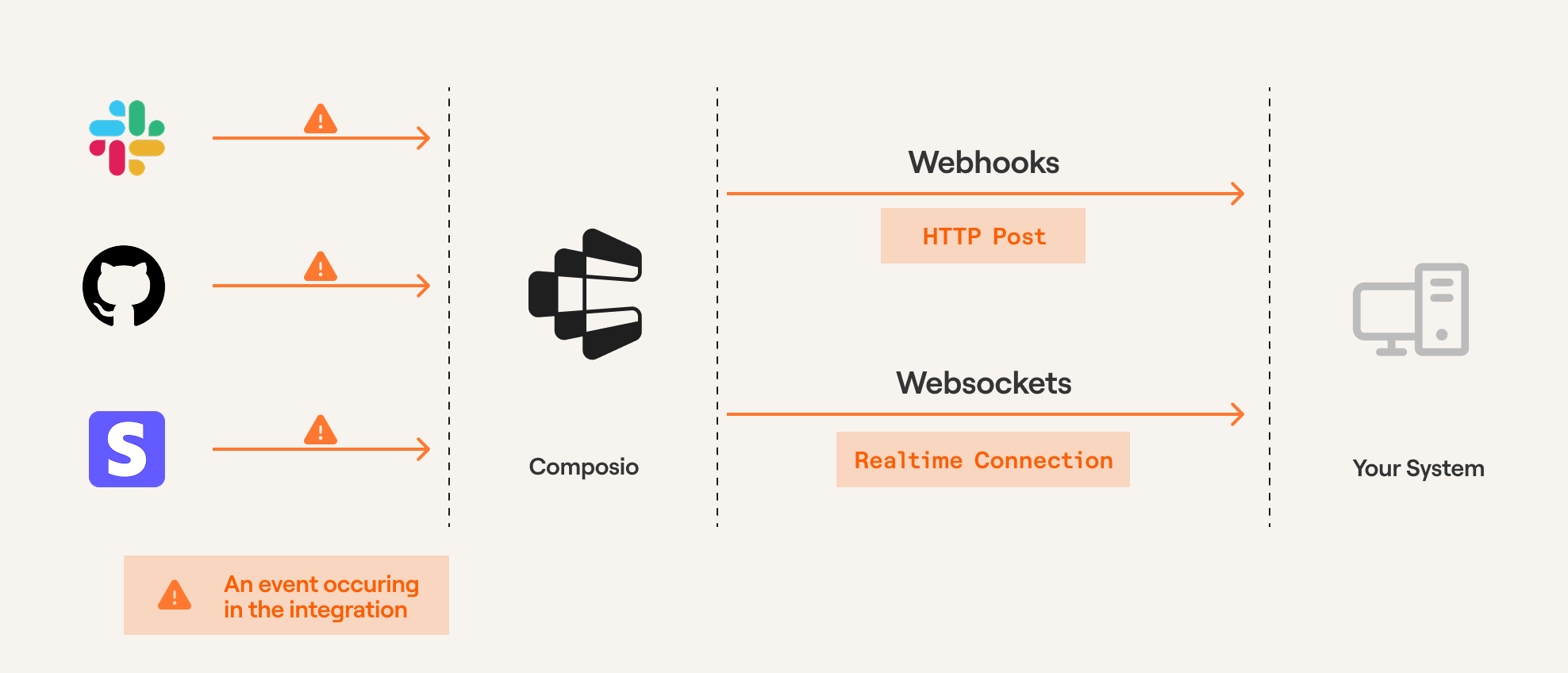
*Triggers through Composio*
> **Prerequisites**: Before proceeding, ensure you've created an [auth config](/docs/authenticating-tools#creating-an-auth-config) and [established a connection](/docs/authenticating-tools#hosted-authentication-connect-link) to an app (e.g., Slack, GitHub). Triggers are scoped to specific users - learn about [User Management](/docs/user-management) for guidance on structuring User IDs.
# Creating a trigger
You can create triggers using either the Composio dashboard or programmatically via the SDK.
## Using Dashboard
To create triggers through the dashboard:
1. Navigate to the [Auth Configs](https://platform.composio.dev?next_page=%2Fauth-configs) page
2. Select the auth config
3. Click "Add Trigger" and navigate to "Active Triggers" tab to fetch the trigger ID
Some triggers require additional configuration. The dashboard will prompt you for any required fields during setup.
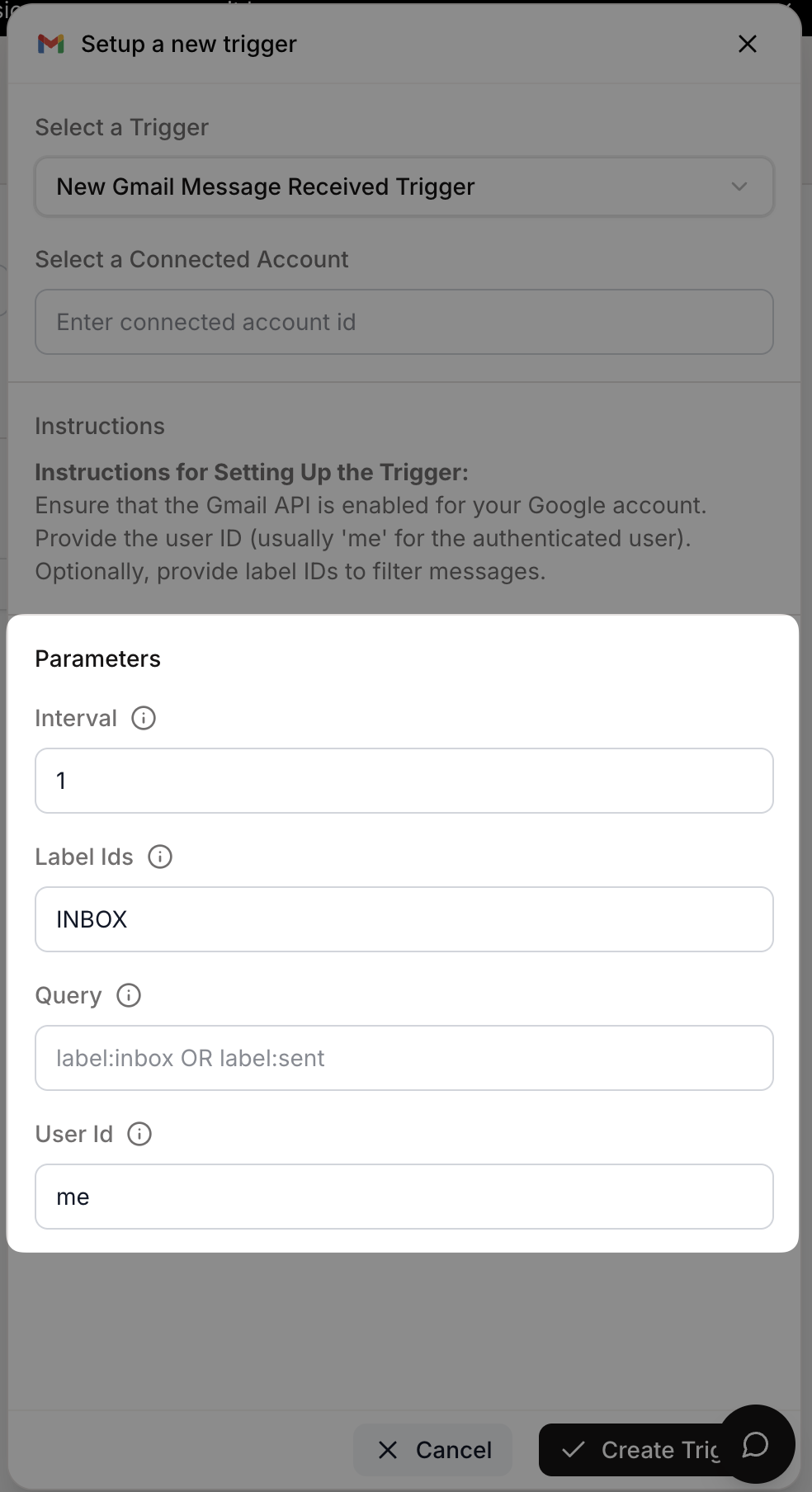
*Example: Gmail trigger configuration*
## Using SDK
Create triggers programmatically by providing the trigger type and any required configuration. The trigger instance will be created using the toolkit version configured during Composio initialization (defaults to `'latest'`).
**Python:**
```python
from composio import Composio
composio = Composio(api_key="your-api-key")
user_id = "user-id-123435"
# Check what configuration is required
trigger_type = composio.triggers.get_type("GITHUB_COMMIT_EVENT")
print(trigger_type.config)
# Returns: {"properties": {...}, "required": ["owner", "repo"], ...}
# Create trigger with the required config
trigger = composio.triggers.create(
slug="GITHUB_COMMIT_EVENT",
user_id=user_id,
trigger_config={"owner": "your-repo-owner", "repo": "your-repo-name"},
)
print(f"Trigger created: {trigger.trigger_id}")
```
**TypeScript:**
```typescript
import { Composio } from '@composio/core';
const composio = new Composio({apiKey: "your-api-key"});
const userId = 'user-id-123435';
// Check what configuration is required
const triggerType = await composio.triggers.getType("GITHUB_COMMIT_EVENT");
console.log(triggerType.config);
// Returns: {"properties": {...}, "required": ["owner", "repo"], ...}
// Create trigger with the required config
const trigger = await composio.triggers.create(
userId,
'GITHUB_COMMIT_EVENT',
triggerConfig: {
owner: 'your-repo-owner',
repo: 'your-repo-name'
);
console.log(`Trigger created: ${trigger.triggerId}`);
```
> To use a specific toolkit version when creating triggers, configure `toolkitVersions` during initialization. See [Toolkit Versioning](/docs/toolkit-versioning) for more details.
# Subscribing to triggers
## Webhooks
The recommended way to subscribe to triggers is through webhooks. Configure your webhook URL in the [Event & Trigger settings](https://platform.composio.dev?next_page=/settings/events).
Use a publicly accessible URL where Composio can send event payloads. This endpoint should be able to process incoming POST requests containing the trigger data.
> **Local development:** Use [ngrok](https://ngrok.com) or [webhook.site](https://webhook.site) to expose your local server to the internet for testing.
Webhook payloads contain:
* `type`: The trigger type identifier
* `data`: The actual event data
* `timestamp`: When the event occurred
* `log_id`: Unique identifier for this event
Below are examples of webhook handlers for FastAPI and Next.js applications:
**Python:**
```python
@app.post("/webhook")
async def webhook_handler(request: Request):
payload = await request.json()
trigger_type = payload.get("type")
event_data = payload.get("data", {})
if trigger_type == "github_star_added_event":
repo_name = event_data.get("repository_name")
starred_by = event_data.get("starred_by")
print(f"Repository {repo_name} starred by {starred_by}")
# Add your business logic here
return {"status": "success", "message": "Webhook processed"}
```
**TypeScript:**
```typescript
import { TriggerEvent } from '@composio/core';
type NextApiRequest = { body: any };
type NextApiResponse = { status: (code: number) => { json: (data: any) => void }; json: (data: any) => void };
type GitHubStarEventData = { repository_name: string; starred_by: string };
// ---cut---
export default async function webhookHandler(req: NextApiRequest, res: NextApiResponse) {
const payload = req.body;
if (payload.type === 'github_star_added_event') {
const event: TriggerEvent = {
type: payload.type,
timestamp: payload.timestamp,
data: payload.data
};
console.log(`Repository ${event.data.repository_name} starred by ${event.data.starred_by}`);
// Add your business logic here
res.status(200).json({
status: 'success',
message: 'Webhook processed'
});
```
## Verifying webhook signatures
Composio signs all webhook requests so you can verify they're authentic. Each webhook includes these headers:
* `webhook-signature`: HMAC signature in format `v1,`
* `webhook-id`: Unique message identifier
* `webhook-timestamp`: Unix timestamp when the webhook was sent
To enable verification:
1. Obtain your webhook secret from the [Composio dashboard](https://platform.composio.dev?next_page=/settings/webhook) under Project Settings → Webhook
2. Set it as the `COMPOSIO_WEBHOOK_SECRET` environment variable
3. Use the verification function in your webhook handler:
**Python:**
```python
def verify_webhook_signature(request: Request, body: bytes) -> bool:
"""Verify Composio webhook signature"""
webhook_signature = request.headers.get("webhook-signature")
webhook_id = request.headers.get("webhook-id")
webhook_timestamp = request.headers.get("webhook-timestamp")
webhook_secret = os.getenv("COMPOSIO_WEBHOOK_SECRET")
if not all([webhook_signature, webhook_id, webhook_timestamp, webhook_secret]):
raise HTTPException(status_code=400, detail="Missing required webhook headers or secret")
if not webhook_signature.startswith("v1,"):
raise HTTPException(status_code=401, detail="Invalid signature format")
received = webhook_signature[3:]
signing_string = f"{webhook_id}.{webhook_timestamp}.{body.decode()}"
expected = base64.b64encode(
hmac.new(webhook_secret.encode(), signing_string.encode(), hashlib.sha256).digest()
).decode()
if not hmac.compare_digest(received, expected):
raise HTTPException(status_code=401, detail="Invalid webhook signature")
return True
```
**TypeScript:**
```typescript
import crypto from 'crypto';
type NextApiRequest = { headers: Record };
// ---cut---
function verifyWebhookSignature(
req: NextApiRequest,
body: string
): boolean {
const signature = req.headers['webhook-signature'] as string | undefined;
const msgId = req.headers['webhook-id'] as string | undefined;
const timestamp = req.headers['webhook-timestamp'] as string | undefined;
const secret = process.env.COMPOSIO_WEBHOOK_SECRET;
if (!signature || !msgId || !timestamp || !secret) {
throw new Error('Missing required webhook headers or secret');
if (!signature.startsWith('v1,')) {
throw new Error('Invalid signature format');
const received = signature.slice(3);
const signingString = `${msgId}.${timestamp}.${body}`;
const expected = crypto
.createHmac('sha256', secret)
.update(signingString)
.digest('base64');
return crypto.timingSafeEqual(Buffer.from(received), Buffer.from(expected));
```
The signature is calculated as:
```
signing_string = "{webhook-id}.{webhook-timestamp}.{raw_body}"
signature = HMAC-SHA256(signing_string, secret)
```
## Prototyping with trigger subscriptions
During development, you can subscribe to triggers directly through the SDK without setting up webhooks.
You can subscribe to multiple trigger events by configuring the filters. When you specify multiple filters, ALL of them must match for the trigger to be subscribed to.
**Python:**
```python
from composio import Composio
# Initialize Composio client
composio = Composio(api_key="your_api_key_here")
# Subscribe to trigger events
subscription = composio.triggers.subscribe()
# Define event handler
@subscription.handle(trigger_id="your_trigger_id")
def handle_github_commit(data):
print(f"New commit detected: {data}")
# Add your custom logic here
# listen for events on the trigger
subscription.wait_forever()
# Note: For production use, set up webhooks instead
```
**TypeScript:**
```typescript
import { Composio } from '@composio/core';
// Initialize Composio client
const composio = new Composio({ apiKey: "your_api_key_here" });
// Subscribe to trigger events
composio.triggers.subscribe(
(data) => {
console.log(`New commit detected:`, data);
// Add your custom logic here
},
{ triggerId: 'your_trigger_id' }
);
// Note: For production use, set up webhooks instead
```
# Trigger payload types
To see what data you'll receive in your webhook handler, inspect the trigger's payload:
**Python:**
```python
# Get trigger type to inspect payload structure
trigger = composio.triggers.get_type(slug="GITHUB_COMMIT_EVENT")
print(trigger.payload)
```
**TypeScript:**
```typescript
import { Composio } from '@composio/core';
const composio = new Composio({ apiKey: 'your_api_key' });
// ---cut---
// Get trigger type to inspect payload structure
const triggerType = await composio.triggers.getType('GITHUB_COMMIT_EVENT');
console.log(triggerType.payload);
```
## Type-safe trigger handling (TypeScript)
For better type safety and developer experience in TypeScript, you can define specific payload types and use the `TriggerEvent` interface:
```typescript
import { Composio, TriggerEvent } from '@composio/core';
// Define type-safe payload for GitHub Star Added event
export type GitHubStarAddedEventPayload = {
action: "created";
repository_id: number;
repository_name: string;
repository_url: string;
starred_at: string;
starred_by: string;
};
// Type-safe trigger event handler
function handleGitHubStarEvent(event: TriggerEvent) {
console.log(`⭐ ${event.data.repository_name} starred by ${event.data.starred_by}`);
```
This approach provides:
* **IntelliSense support** for trigger payload fields
* **Compile-time error checking** for typos and invalid field access
* **Better documentation** through TypeScript types
* **Improved maintainability** of trigger handling code
# Managing triggers
## Enable/disable triggers
You can pause triggers temporarily without deleting them.
**Python:**
```python
# Disable a trigger
composio.triggers.disable(trigger_id="ti_abcd123")
# Re-enable when needed
composio.triggers.enable(trigger_id="ti_abcd123")
```
**TypeScript:**
```typescript
import { Composio } from '@composio/core';
const composio = new Composio({ apiKey: 'your_api_key' });
// ---cut---
// Disable a trigger
await composio.triggers.disable('ti_abcd123');
// Re-enable when needed
await composio.triggers.enable('ti_abcd123');
```
You can also manage triggers from the dashboard:
1. Go to the [Auth Config](https://platform.composio.dev?next_page=/auth-configs) page
2. Select your auth config
3. Navigate to "Active Triggers"
4. Disable/Enable the trigger
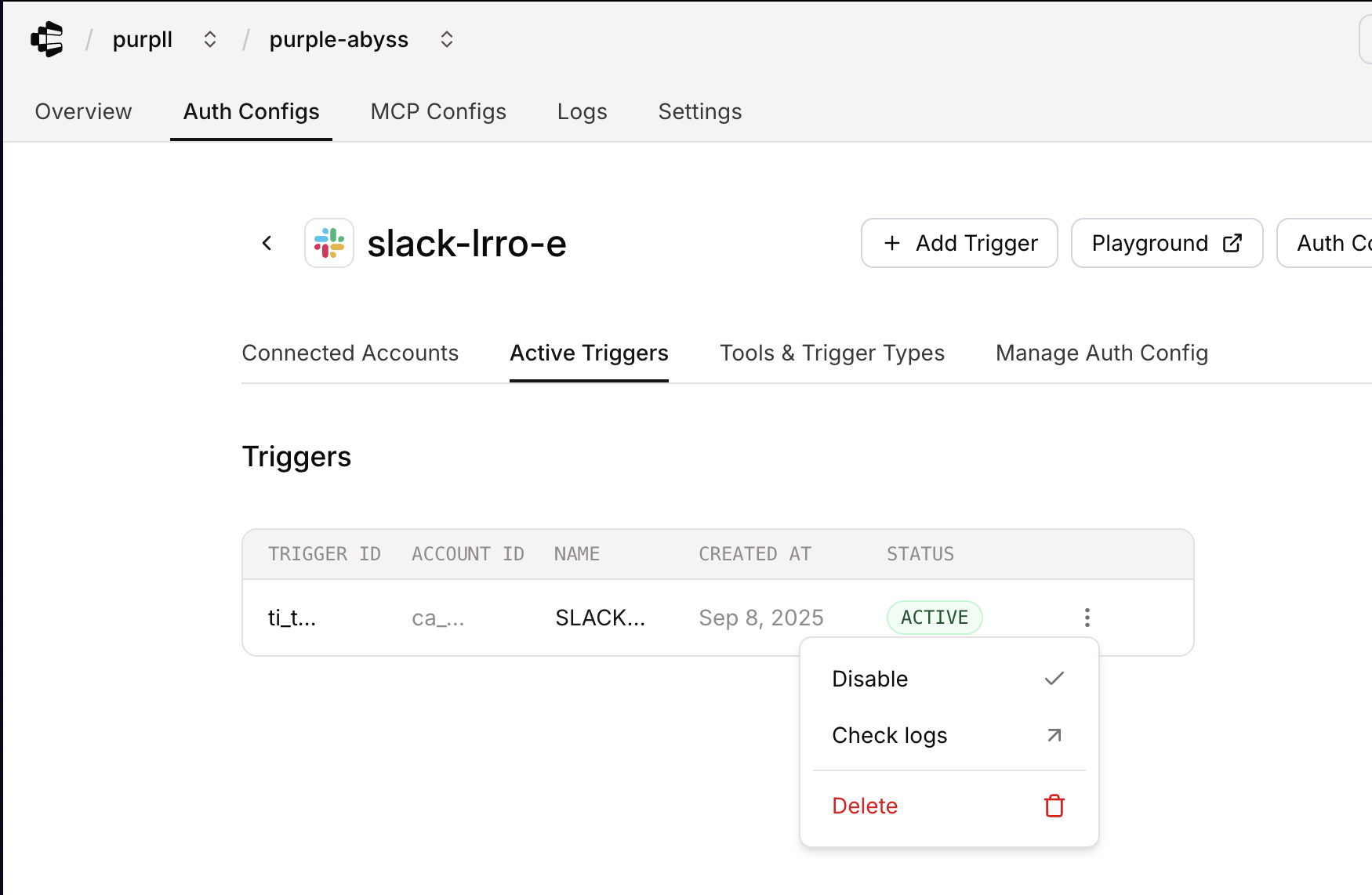
*Enable/disable triggers in dashboard*
# Troubleshooting
View detailed trigger logs and debug issues on the [Composio dashboard](https://platform.composio.dev?next_page=/logs/triggers).
---
# CLI (/docs/cli)
The Composio CLI helps you generate type-safe code and manage your Composio workspace.
# Installation
Install the Composio CLI using the installation script:
```bash
curl -fsSL https://composio.dev/install | bash
```
Or using wget:
```bash
wget -qO- https://composio.dev/install | bash
```
# Authentication
Manage your Composio authentication directly from the terminal.
## Login
Authenticate with your Composio account:
```bash
composio login
```
This opens your browser to complete authentication and stores your API key locally.
To authenticate without opening a browser (useful for SSH/remote sessions):
```bash
composio login --no-browser
```
This displays a URL to manually open in your browser.
## Check authentication status
Verify your current authentication:
```bash
composio whoami
```
This displays your current API key or indicates if you're not authenticated.
## Logout
Remove stored authentication:
```bash
composio logout
```
# Generate type definitions
Generate TypeScript or Python type definitions for all Composio tools. These types provide type safety when using direct tool execution (`composio.tools.execute()`), helping you pass the correct parameters and catch errors early.
## Auto-detect and generate
The CLI auto-detects your project language.
In your project directory:
```bash
composio generate
```
For TypeScript projects only, include individual tool types:
```bash
composio generate --type-tools
```
The CLI automatically:
* Detects your project type (Python or TypeScript)
* Generates appropriate type definitions
## Specify output directory
```bash
composio generate --output-dir ./my-types
```
## Language-specific commands
For explicit control, use language-specific commands:
**TypeScript:**
Basic generation:
```bash
composio ts generate
```
Generate as single file:
```bash
composio ts generate --compact
```
Include individual tool types:
```bash
composio ts generate --type-tools
```
Generate both .ts and .js files:
```bash
composio ts generate --transpiled
```
Custom output directory:
```bash
composio ts generate --output-dir ./my-types
```
**Python:**
Basic generation:
```bash
composio py generate
```
Custom output directory:
```bash
composio py generate --output-dir ./my_types
```
---
# Single Toolkit MCP (/docs/single-toolkit-mcp)
> For most use cases, we recommend using the [quickstart](/docs/quickstart). This provides dynamic tool access and a much better MCP experience with context management handled by us.
# Install the SDK
**Python:**
```bash
pip install composio
```
**TypeScript:**
```bash
npm install @composio/core
```
# Create an MCP server
### Initialize Composio
**Python:**
```python
from composio import Composio
composio = Composio(api_key="YOUR_API_KEY")
```
**TypeScript:**
```typescript
import { Composio } from '@composio/core';
const composio = new Composio({
apiKey: process.env.COMPOSIO_API_KEY
});
```
### Create server configuration
> **Before you begin:** [Create an auth configuration](/docs/auth-configuration/custom-auth-configs) for your toolkit.
**Python:**
```python
server = composio.mcp.create(
name="my-gmail-server",
toolkits=[{
"toolkit": "gmail",
"auth_config": "ac_xyz123"
}],
allowed_tools=["GMAIL_FETCH_EMAILS", "GMAIL_SEND_EMAIL"]
)
print(f"Server created: {server.id}")
```
**TypeScript:**
```typescript
import { Composio } from '@composio/core';
const composio = new Composio({ apiKey: process.env.COMPOSIO_API_KEY });
// ---cut---
const server = await composio.mcp.create("my-gmail-server", {
toolkits: [
authConfigId: "ac_xyz123",
toolkit: "gmail"
],
allowedTools: ["GMAIL_FETCH_EMAILS", "GMAIL_SEND_EMAIL"]
});
console.log(`Server created: ${server.id}`);
```
> You can also create and manage MCP configs from the [Composio dashboard](https://platform.composio.dev?next_page=/mcp-configs).
### Generate user URLs
> Users must authenticate with the toolkits configured in your MCP server first. See [authentication](/docs/authentication) for details.
**Python:**
```python
instance = composio.mcp.generate(user_id="user-123", mcp_config_id=server.id)
print(f"MCP Server URL: {instance['url']}")
```
**TypeScript:**
```typescript
import { Composio } from '@composio/core';
const composio = new Composio({ apiKey: process.env.COMPOSIO_API_KEY });
const server = { id: 'my-gmail-server' };
// ---cut---
const instance = await composio.mcp.generate("user-123", server.id);
console.log("MCP Server URL:", instance.url);
```
### Use with AI providers
**OpenAI (Python):**
```python
from openai import OpenAI
client = OpenAI(api_key="your-openai-api-key")
mcp_server_url = "https://backend.composio.dev/v3/mcp/YOUR_SERVER_ID?user_id=YOUR_USER_ID"
response = client.responses.create(
model="gpt-5",
tools=[{
"type": "mcp",
"server_label": "composio-server",
"server_url": mcp_server_url,
"require_approval": "never",
}],
input="What are my latest emails?",
)
print(response.output_text)
```
**Anthropic (Python):**
```python
from anthropic import Anthropic
client = Anthropic(api_key="your-anthropic-api-key")
mcp_server_url = "https://backend.composio.dev/v3/mcp/YOUR_SERVER_ID?user_id=YOUR_USER_ID"
response = client.beta.messages.create(
model="claude-sonnet-4-5",
max_tokens=1000,
messages=[{"role": "user", "content": "What are my latest emails?"}],
mcp_servers=[{
"type": "url",
"url": mcp_server_url,
"name": "composio-mcp-server"
}],
betas=["mcp-client-2025-04-04"]
)
print(response.content)
```
**Mastra (TypeScript):**
```typescript
import { MCPClient } from "@mastra/mcp";
import { openai } from "@ai-sdk/openai";
import { Agent } from "@mastra/core/agent";
const MCP_URL = "https://backend.composio.dev/v3/mcp/YOUR_SERVER_ID?user_id=YOUR_USER_ID";
const client = new MCPClient({
id: "mcp-client",
servers: {
composio: { url: new URL(MCP_URL) },
});
const agent = new Agent({
id: "assistant",
name: "Assistant",
instructions: "You are a helpful assistant that can read and manage emails.",
model: openai("gpt-4-turbo"),
tools: await client.getTools()
});
const res = await agent.generate("What are my latest emails?");
console.log(res.text);
```
# Server management
## List servers
**Python:**
```python
servers = composio.mcp.list()
print(f"Found {len(servers['items'])} servers")
# Filter by toolkit
gmail_servers = composio.mcp.list(toolkits="gmail", limit=20)
```
**TypeScript:**
```typescript
import { Composio } from '@composio/core';
const composio = new Composio({ apiKey: 'your_api_key' });
// ---cut---
const servers = await composio.mcp.list({
toolkits: [],
authConfigs: [],
limit: 10,
page: 1
});
console.log(`Found ${servers.items.length} servers`);
// Filter by toolkit
const gmailServers = await composio.mcp.list({
toolkits: ["gmail"],
authConfigs: [],
limit: 20,
page: 1
});
```
## Get server details
**Python:**
```python
server = composio.mcp.get("mcp_server_id")
print(f"Server: {server.name}")
```
**TypeScript:**
```typescript
import { Composio } from '@composio/core';
const composio = new Composio({ apiKey: 'your_api_key' });
// ---cut---
const server = await composio.mcp.get("mcp_server_id");
console.log(`Server: ${server.name}`);
```
## Update a server
**Python:**
```python
updated = composio.mcp.update(
server_id="mcp_server_id",
name="updated-name",
allowed_tools=["GMAIL_FETCH_EMAILS", "GMAIL_SEARCH_EMAILS"]
)
```
**TypeScript:**
```typescript
import { Composio } from '@composio/core';
const composio = new Composio({ apiKey: 'your_api_key' });
// ---cut---
const updated = await composio.mcp.update("mcp_server_id", {
name: "updated-name",
allowedTools: ["GMAIL_FETCH_EMAILS", "GMAIL_SEARCH_EMAILS"]
});
```
## Delete a server
**Python:**
```python
result = composio.mcp.delete("mcp_server_id")
if result['deleted']:
print("Server deleted")
```
**TypeScript:**
```typescript
import { Composio } from '@composio/core';
const composio = new Composio({ apiKey: 'your_api_key' });
// ---cut---
const result = await composio.mcp.delete("mcp_server_id");
if (result.deleted) {
console.log("Server deleted");
```
# Next steps
- [Providers](/docs/providers):
Use with Anthropic, OpenAI, and other frameworks
- [Quickstart](/docs/quickstart):
Build an agent (recommended)
---
# Fetching tools and schemas (/docs/tools-direct/fetching-tools)
Fetch specific tools, filter by permissions or search, and inspect schemas for type information. Tools are automatically formatted for your provider.
# Basic usage
**Python:**
```python
tools = composio.tools.get(
user_id,
toolkits=["GITHUB"]
)
```
**TypeScript:**
```typescript
import { Composio } from '@composio/core';
const composio = new Composio({ apiKey: 'your_api_key' });
const userId = 'user-123';
// ---cut---
const tools = await composio.tools.get(userId, {
toolkits: ["GITHUB"]
});
```
Returns top 20 tools by default. Tools require a `user_id` because they're scoped to authenticated accounts. See [User management](/docs/user-management) and [Authentication](/docs/authenticating-tools).
# Tool schemas
Inspect tool parameters and types without a user\_id:
**Python:**
```python
tool = composio.tools.get_raw_composio_tool_by_slug("GMAIL_SEND_EMAIL")
```
**TypeScript:**
```typescript
import { Composio } from '@composio/core';
const composio = new Composio({ apiKey: 'your_api_key' });
// ---cut---
const tool = await composio.tools.getRawComposioToolBySlug("GMAIL_SEND_EMAIL");
```
Generate type-safe code for direct SDK execution with [`composio generate`](/docs/cli#generate-type-definitions). This creates TypeScript or Python types from tool schemas.
> View tool parameters and schemas visually in the [Composio platform](https://platform.composio.dev). Navigate to any toolkit and select a tool to see its input/output parameters.
# Filtering tools
## By toolkit
Get tools from specific apps. Returns top 20 tools by default.
**Python:**
```python
# Fetch with limit for a specific user
tools = composio.tools.get(
user_id,
toolkits=["GITHUB"],
limit=5 # Get top 5 tools
)
# Same filter but without user_id (for schemas)
raw_tools = composio.tools.get_raw_composio_tools(
toolkits=["GITHUB"],
limit=5
)
```
**TypeScript:**
```typescript
import { Composio } from '@composio/core';
const composio = new Composio({ apiKey: 'your_api_key' });
const userId = 'user-123';
// ---cut---
// Fetch with limit for a specific user
const limitedTools = await composio.tools.get(userId, {
toolkits: ["GITHUB"],
limit: 5 // Get top 5 tools
});
// Same filter but without userId (for schemas)
const rawTools = await composio.tools.getRawComposioTools({
toolkits: ["GITHUB"],
limit: 5
});
```
## By name
Fetch specific tools when you know their names.
**Python:**
```python
# Fetch specific tools by name
tools = composio.tools.get(
user_id,
tools=["GITHUB_CREATE_ISSUE", "GITHUB_CREATE_PULL_REQUEST"]
)
# Get schemas without user_id
raw_tools = composio.tools.get_raw_composio_tools(
tools=["GITHUB_CREATE_ISSUE", "GITHUB_CREATE_PULL_REQUEST"]
)
```
**TypeScript:**
```typescript
import { Composio } from '@composio/core';
const composio = new Composio({ apiKey: 'your_api_key' });
const userId = 'user-123';
// ---cut---
// Fetch specific tools by name
const specificTools = await composio.tools.get(userId, {
tools: ["GITHUB_LIST_STARGAZERS", "GITHUB_STAR_A_REPOSITORY_FOR_THE_AUTHENTICATED_USER"]
});
// Get schemas without userId
const specificRawTools = await composio.tools.getRawComposioTools({
tools: ["GITHUB_LIST_STARGAZERS", "GITHUB_STAR_A_REPOSITORY_FOR_THE_AUTHENTICATED_USER"]
});
```
## By scopes
Filter OAuth tools by permission level. Only works with a single toolkit.
**Python:**
```python
# Filter by OAuth scopes (single toolkit only)
tools = composio.tools.get(
user_id,
toolkits=["GITHUB"],
scopes=["write:org"]
)
```
**TypeScript:**
```typescript
import { Composio } from '@composio/core';
const composio = new Composio({ apiKey: 'your_api_key' });
const userId = 'user-123';
// ---cut---
// Filter by OAuth scopes (single toolkit only)
const scopedTools = await composio.tools.get(userId, {
toolkits: ["GITHUB"],
scopes: ["write:org"]
});
```
## By search (experimental)
Find tools semantically.
**Python:**
```python
# Search tools semantically
tools = composio.tools.get(
user_id,
search="create calendar event"
)
# Search schemas without user_id
raw_tools = composio.tools.get_raw_composio_tools(
search="create calendar event"
)
# Search within a specific toolkit
tools = composio.tools.get(
user_id,
search="issues",
toolkits=["GITHUB"],
)
# Search toolkit schemas without user_id
raw_tools = composio.tools.get_raw_composio_tools(
search="issues",
toolkits=["GITHUB"]
)
```
**TypeScript:**
```typescript
import { Composio } from '@composio/core';
const composio = new Composio({ apiKey: 'your_api_key' });
const userId = 'user-123';
// ---cut---
// Search tools semantically
const searchResults = await composio.tools.get(userId, {
search: "create google calendar event"
});
// Search schemas without userId
const searchRawTools = await composio.tools.getRawComposioTools({
search: "create google calendar event"
});
// Search within a specific toolkit
const toolkitSearch = await composio.tools.get(userId, {
search: "star a repository",
toolkits: ["GITHUB"]
});
// Search toolkit schemas without userId
const toolkitSearchRaw = await composio.tools.getRawComposioTools({
search: "star a repository",
toolkits: ["GITHUB"]
});
```
> Use specific toolkit versions in production to prevent breaking changes. See [toolkit versioning](/docs/toolkit-versioning).
---
# Authenticating Tools (/docs/tools-direct/authenticating-tools)
The first step in authenticating your users is to create an **Auth Config**. Every toolkit has its own authentication method such as `OAuth`, `API key`, `Basic Auth`, or custom schemes.
An **Auth Config** is a blueprint that defines how authentication works for a toolkit across all your users. It defines:
1. **Authentication method** - `OAuth2`, `Bearer token`, `API key`, or `Basic Auth`
2. **Scopes** - what actions your tools can perform
3. **Credentials** - whether you'll use your own app credentials or Composio's managed auth
# Creating an auth config
## Using the Dashboard
### Selecting a toolkit
Navigate to [Auth Configs](https://platform.composio.dev?next_page=%2Fauth-configs) tab in your dashboard and click "**Create Auth Config**". Find and select the toolkit you want to integrate (e.g., **Gmail**, **Slack**, **GitHub**).
### Selecting the Authentication method
Each toolkit supports different authentication methods such as **OAuth**, **API Key**, **Bearer Token**. Select from the available options for your toolkit.
### Configure scopes
Depending on your authentication method, you may need to configure scopes:
* **OAuth2**: Configure scopes for what data and actions your app can access.
* **API Key/Bearer Token**: Permissions are typically fixed based on the key's access level.
### Authentication Management
**For OAuth toolkits:**
* **Development/Testing**: Use Composio's managed authentication (no setup required)
* **Production**: Generate your own OAuth credentials from the toolkit's developer portal
**For custom authentication schemes:**
You must provide your own credentials regardless of environment.
> Want to remove Composio branding from OAuth screens? See [Custom Auth Configs](/docs/custom-auth-configs#white-labeling-the-oauth-consent-screen) for white-labeling options.
### You are all set!
Click "**Create Auth Configuration**" button and you have completed your first step! Now you can move ahead to authenticating your users by [Connecting an Account](#connecting-an-account).
> **Auth configs are reusable**: Auth configs contain your developer credentials and app-level settings (*scopes*, *authentication method*, etc.). Once created, you can reuse the same auth config for all your users.
## When to create multiple auth configs?
You should create multiple auth configs for the same toolkit when you need:
* **Different authentication methods** - One OAuth config and one API key config
* **Different scopes** - Separate configs for read-only vs full access
* **Different OAuth apps** - Using separate client credentials for different environments
* **Different permission levels** - Limiting actions for specific use cases
- [Programmatic creation](/docs/programmatic-auth-configs):
For managing auth configs across multiple projects, you can create them programmatically via the API
- [Production white-labeling](/docs/custom-auth-configs#white-labeling-the-oauth-consent-screen):
Remove Composio branding from OAuth screens for a fully white-labeled authentication experience
# Connecting an account
With an auth config created, you're ready to authenticate your users!
You can either use [**Connect Link**](#hosted-authentication-connect-link) for a hosted authentication flow, or use [**Direct SDK Setup**](#direct-sdk-setup).
> User authentication requires a User ID - a unique identifier that groups connected accounts together. Learn more about [User Management](/docs/user-management) to understand how to structure User IDs for your application.
**Choose the section below that matches your toolkit's authentication method:**
## Hosted Authentication (Connect Link)
Redirect users to a Composio-hosted URL that handles the entire authentication process—OAuth flows, API key collection, or custom fields like subdomain. You can specify a callback URL to control where users return after authentication.
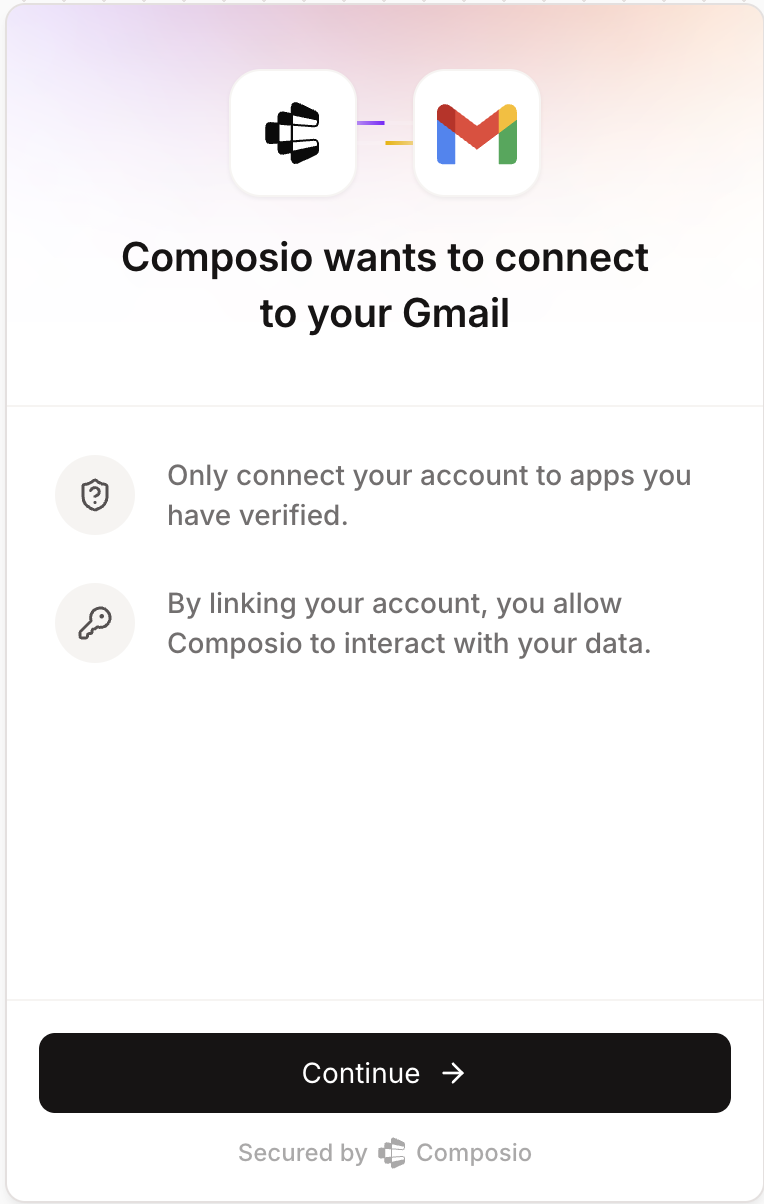
*Connect Link authentication screen*
**Python:**
```python
from composio import Composio
composio = Composio(api_key="your_api_key")
# Use the "AUTH CONFIG ID" from your dashboard
auth_config_id = "your_auth_config_id"
# Use a unique identifier for each user in your application
user_id = 'user-1349-129-12'
connection_request = composio.connected_accounts.link(
user_id=user_id,
auth_config_id=auth_config_id,
callback_url='https://your-app.com/callback'
)
redirect_url = connection_request.redirect_url
print(f"Visit: {redirect_url} to authenticate your account")
```
**TypeScript:**
```typescript
import { Composio } from '@composio/core';
const composio = new Composio({apiKey: "your_api_key"});
// Use the "AUTH CONFIG ID" from your dashboard
const authConfigId = 'your_auth_config_id';
// Use a unique identifier for each user in your application
const userId = 'user-1349-129-12';
const connectionRequest = await composio.connectedAccounts.link(userId, authConfigId, {
callbackUrl: 'https://your-app.com/callback'
});
const redirectUrl = connectionRequest.redirectUrl;
console.log(`Visit: ${redirectUrl} to authenticate your account`);
```
### Customizing Connect Link
By default, users will see a Composio-branded authentication experience when connecting their accounts. To customize this interface with your application's branding:
1. Navigate to your Project Settings and select [Auth Screen](https://platform.composio.dev?next_page=/settings/auth-screen)
2. Configure your **Logo** and **App Title**
These settings will apply to all authentication flows using Connect Link, providing a white-labeled experience that maintains your brand identity throughout the authentication process.
> For complete white-labeling including OAuth consent screens (removing Composio's domain), see [Custom Auth Configs - White-labeling](/docs/custom-auth-configs#white-labeling-the-oauth-consent-screen).
## Direct SDK Setup
**Choose the section below that matches your toolkit's authentication method:**
### OAuth Connections
For OAuth flows, you'll redirect users to complete authorization. You can specify a callback URL to control where users return after authentication:
**Python:**
```python
from composio import Composio
composio = Composio(api_key="YOUR_COMPOSIO_API_KEY")
# Use the "AUTH CONFIG ID" from your dashboard
auth_config_id = "your_auth_config_id"
# Use a unique identifier for each user in your application
user_id = "user-1349-129-12"
connection_request = composio.connected_accounts.initiate(
user_id=user_id,
auth_config_id=auth_config_id,
config={"auth_scheme": "OAUTH2"},
callback_url="https://www.yourapp.com/callback"
)
print(f"Redirect URL: {connection_request.redirect_url}")
connected_account = connection_request.wait_for_connection()
# Alternative: if you only have the connection request ID
# connected_account = composio.connected_accounts.wait_for_connection(
# connection_request.id)
# Recommended when the connection_request object is no longer available
print(f"Connection established: {connected_account.id}")
```
**TypeScript:**
```typescript
import { Composio } from '@composio/core';
const composio = new Composio({apiKey: "YOUR_COMPOSIO_API_KEY"});
// Use the "AUTH CONFIG ID" from your dashboard
const authConfigId = 'your_auth_config_id';
// Use a unique identifier for each user in your application
const userId = 'user_4567';
const connRequest = await composio.connectedAccounts.initiate(
userId,
authConfigId,
callbackUrl: 'https://www.yourapp.com/callback',
);
console.log(`Redirect URL: ${connRequest.redirectUrl}`);
const connectedAccount = await connRequest.waitForConnection();
// Alternative: if you only have the connection request ID
// const connectedAccount = await composio.connectedAccounts
// .waitForConnection(connRequest.id);
// Recommended when the connRequest object is no longer available
console.log(`Connection established: ${connectedAccount.id}`);
```
### Services with Additional Parameters
Some services like Zendesk require additional parameters such as `subdomain`:
**Python:**
```python
# For Zendesk - include subdomain
connection_request = composio.connected_accounts.initiate(
user_id=user_id,
auth_config_id=auth_config_id,
config=auth_scheme.oauth2(subdomain="mycompany") # For mycompany.zendesk.com
)
```
**TypeScript:**
```typescript
import { Composio, AuthScheme } from '@composio/core';
const composio = new Composio({ apiKey: 'your_api_key' });
const userId = 'user_123';
const authConfigId = 'ac_zendesk';
// ---cut---
// For Zendesk - include subdomain
const connRequest = await composio.connectedAccounts.initiate(userId, authConfigId, {
config: AuthScheme.OAuth2({
subdomain: 'mycompany',
}),
});
```
### API Key Connections
For API key authentication, you can either collect API keys from each user or use your own API key for all users. Popular toolkits that use API keys include Stripe, Perplexity, etc.
Here is how to initiate the flow:
**Python:**
```python
from composio import Composio
composio = Composio(api_key="your_api_key")
# Use the "AUTH CONFIG ID" from your dashboard
auth_config_id = "your_auth_config_id"
# Use a unique identifier for each user in your application
user_id = "user_12323"
# API key provided by the user (collected from your app's UI)
# or use your own key
user_api_key = "user_api_key_here"
connection_request = composio.connected_accounts.initiate(
user_id=user_id,
auth_config_id=auth_config_id,
config={
"auth_scheme": "API_KEY", "val": {"api_key": user_api_key}
)
print(f"Connection established: {connection_request.id}")
```
**TypeScript:**
```typescript
import { Composio, AuthScheme } from '@composio/core';
const composio = new Composio({ apiKey: 'your_api_key' });
// Use the "AUTH CONFIG ID" from your dashboard
const authConfigId = 'your_auth_config_id';
// Use a unique identifier for each user in your application
const userId = 'user12345678';
// API key provided by the user (collected from your app's UI)
const userApiKey = 'user_api_key_here';
const connectionRequest = await composio.connectedAccounts.initiate(userId, authConfigId, {
config: AuthScheme.APIKey({
api_key: userApiKey,
}),
});
console.log(`Connection established: ${connectionRequest.id}`);
```
# Fetching the required config parameters for an Auth Config
When working with any toolkit, you can inspect an auth config to understand its authentication requirements and expected parameters.
Here is how you would fetch the authentication method and input fields:
**Python:**
```python
from composio import Composio
composio = Composio(api_key="your_api_key")
# Use the "AUTH CONFIG ID" from your dashboard
auth_config_id = "your_auth_config_id"
# Fetch the auth configuration details
auth_config = composio.auth_configs.get(auth_config_id)
# Check what authentication method this config uses
print(f"Authentication method: {auth_config.auth_scheme}")
# See what input fields are required
print(f"Required fields: {auth_config.expected_input_fields}")
```
**TypeScript:**
```typescript
import { Composio } from '@composio/core';
const composio = new Composio({ apiKey: 'your_api_key' });
// Use the "AUTH CONFIG ID" from your dashboard
const authConfigId = 'your_auth_config_id';
// Fetch the auth configuration details
const authConfig = await composio.authConfigs.get(authConfigId);
console.log(`Authentication method: ${authConfig.authScheme}`);
console.log(`Required fields:`, authConfig.expectedInputFields);
```
# Other Authentication Methods
Composio also supports a wide range of other auth schemas:
**Bearer Token** - Similar to API keys, provide the user's bearer token directly when creating the connection.
**Basic Auth** - Provide username and password credentials for services that use HTTP Basic Authentication.
**Custom Schemes** - Some toolkits use their own custom authentication methods. Follow the toolkit-specific requirements for such cases.
> **Fetching auth config**: For any of these methods, [fetch the config parameter](#fetching-the-required-config-parameters-for-an-auth-config) to determine the exact fields required. Every toolkit has its own requirements, and understanding these is essential for successfully creating connections.
Learn how to [Manage connected accounts](/docs/connected-accounts) after users authenticate.
# Connection Statuses
After creating a connection, it will have one of the following statuses that indicates its current state:
| Status | Description |
| ------------- | --------------------------------------------------------------------------------------------------------------------------------------------------------- |
| **ACTIVE** | Connection is established and working. You can execute tools with this connection. |
| **INACTIVE** | Connection is temporarily disabled. Re-enable it to use the connection again. |
| **PENDING** | Connection is being processed. Wait for it to become active. |
| **INITIATED** | Connection request has started but not yet completed. User may still need to complete authentication. |
| **EXPIRED** | Connection credentials have expired. Composio automatically attempts to refresh credentials before marking as expired. Re-authenticate to restore access. |
| **FAILED** | Connection attempt failed. Check error details and try creating a new connection. |
> When credentials expire for OAuth connections, Composio automatically attempts to refresh them using the refresh token. The connection is only marked as **EXPIRED** after multiple refresh attempts have failed.
## Waiting for Connection Establishment
The `waitForConnection` method allows you to poll for a connection to become active after initiating authentication. This is useful when you need to ensure a connection is ready before proceeding.
**Python:**
```python
# Wait for the connection to be established
connected_account = connection_request.wait_for_connection()
print(connected_account.id)
# Alternative: Wait with custom timeout
# connected_account = connection_request.wait_for_connection(120) # 2 minute timeout
# Alternative: If you only have the connection request ID (e.g., stored in database)
# connection_id = connection_request.id # You can store this ID in your database
# connected_account = composio.connected_accounts.wait_for_connection(connection_id, 60)
```
**TypeScript:**
```typescript
import { Composio } from '@composio/core';
const composio = new Composio({ apiKey: 'your_api_key' });
const connectionRequest = await composio.connectedAccounts.initiate('user_123', 'ac_123', {});
// ---cut---
// Wait for the connection to be established
const connectedAccount = await connectionRequest.waitForConnection();
console.log(connectedAccount.id);
// Alternative: Wait with custom timeout
// const connectedAccount = await connectionRequest.waitForConnection(120000); // 2 minutes
// Alternative: If you only have the connection request ID (e.g., stored in database)
// const connectionId = connectionRequest.id; // You can store this ID in your database
// const connectedAccount = await composio.connectedAccounts.waitForConnection(connectionId, 60000);
```
The method continuously polls the Composio API until the connection:
* Becomes **ACTIVE** (returns the connected account)
* Enters a terminal state like **FAILED** or **EXPIRED** (throws an error)
* Exceeds the specified timeout (throws a timeout error)
## Checking Connection Status
You can check the status of a connected account programmatically:
**Python:**
```python
# Get a specific connected account
connected_account = composio.connected_accounts.get("your_connected_account_id")
print(f"Status: {connected_account.status}")
# Filter connections by user_id, auth_config_id, and status (only active accounts)
filtered_connections = composio.connected_accounts.list(
user_ids=["user_123"],
auth_config_ids=["your_auth_config_id"],
statuses=["ACTIVE"]
)
for connection in filtered_connections.items:
print(f"{connection.id}: {connection.status}")
```
**TypeScript:**
```typescript
import { Composio } from '@composio/core';
const composio = new Composio({ apiKey: 'your_api_key' });
// ---cut---
// Get a specific connected account by its nanoid
const connectedAccount = await composio.connectedAccounts.get('your_connected_account_id');
console.log(`Status: ${connectedAccount.status}`);
// Filter connections by user_id, auth_config_id, and status (only active accounts)
const filteredConnections = await composio.connectedAccounts.list({
userIds: ['user_123'],
authConfigIds: ['your_auth_config_id'],
statuses: ['ACTIVE']
});
filteredConnections.items.forEach(connection => {
console.log(`${connection.id}: ${connection.status}`);
});
```
> Only connections with **ACTIVE** status can be used to execute tools. If a connection is in any other state, you'll need to take appropriate action (re-authenticate, wait for processing, etc.) before using it.
# Next Step
With authentication set up, you can now fetch and execute tools. See [Executing Tools](/docs/executing-tools) to get started.
---
# Executing Tools (/docs/tools-direct/executing-tools)
LLMs on their own can only do generation. Tool calling changes that by letting them interact with external services. Instead of just drafting an email, the model can call `GMAIL_SEND_EMAIL` to actually send it. The tool's results feed back to the LLM, closing the loop so it can decide, act, observe, and adapt.
In Composio, every **tool** is a single API action—fully described with schema, parameters, and return type. Tools live inside **toolkits** like Gmail, Slack, or GitHub, and Composio handles authentication and user scoping.
> **User Scoping**: All tools are scoped to a specific user - that's why every example includes a `user_id`. Learn how to structure User IDs in [User Management](/docs/user-management). Each user must authenticate with their respective services (Gmail, Calendar, etc.) - see [Authentication](/docs/authenticating-tools).
# Using Chat Completions
Use the Composio SDK with providers like OpenAI, Anthropic, and Google AI. To learn how to set up these providers, see [Providers](/docs/providers/openai).
**Python:**
```python
from composio import Composio
from composio_openai import OpenAIProvider
from openai import OpenAI
from datetime import datetime
# Use a unique identifier for each user in your application
user_id = "user-k7334"
# Create composio client
composio = Composio(provider=OpenAIProvider(), api_key="your_composio_api_key")
# Create openai client
openai = OpenAI()
# Get calendar tools for this user
tools = composio.tools.get(
user_id=user_id,
tools=["GOOGLECALENDAR_EVENTS_LIST"]
)
# Ask the LLM to check calendar
result = openai.chat.completions.create(
model="gpt-4o-mini",
tools=tools,
messages=[
{"role": "system", "content": "You are a helpful assistant."},
{"role": "user", "content": f"What's on my calendar for the next 7 days?"}
]
)
# Handle tool calls
result = composio.provider.handle_tool_calls(user_id=user_id, response=result)
print(result)
```
**TypeScript:**
```typescript
import { Composio } from '@composio/core';
import { AnthropicProvider } from '@composio/anthropic';
import { Anthropic } from '@anthropic-ai/sdk';
// Use a unique identifier for each user in your application
const userId = 'user-k7334';
// Create anthropic client
const anthropic = new Anthropic();
// Create Composio client
const composio = new Composio({
apiKey: "your-composio-api-key",
provider: new AnthropicProvider(),
});
// Get calendar tools for this user
const tools = await composio.tools.get(userId, {
tools: ['GOOGLECALENDAR_EVENTS_LIST'],
});
// Ask the LLM to check calendar
const msg = await anthropic.messages.create({
model: 'claude-sonnet-4-20250514',
tools: tools,
messages: [
role: 'user',
content: `What's on my calendar for the next 7 days?`,
},
],
max_tokens: 1024,
});
// Handle tool calls
const result = await composio.provider.handleToolCalls(userId, msg);
console.log('Results:', JSON.stringify(result, null, 2));
```
# Using Agentic Frameworks
Agentic frameworks automatically handle the tool execution loop. Composio provides support for frameworks like this by making sure the tools are formatted into the correct objects for the agentic framework to execute.
**Python:**
```python
import asyncio
from agents import Agent, Runner
from composio import Composio
from composio_openai_agents import OpenAIAgentsProvider
# Use a unique identifier for each user in your application
user_id = "user-k7334"
# Initialize Composio toolset
composio = Composio(provider=OpenAIAgentsProvider(), api_key="your_composio_api_key")
# Get all tools for the user
tools = composio.tools.get(
user_id=user_id,
toolkits=["COMPOSIO_SEARCH"],
)
# Create an agent with the tools
agent = Agent(
name="Deep Researcher",
instructions="You are an investigative journalist.",
tools=tools,
)
async def main():
result = await Runner.run(
starting_agent=agent,
input=("Do a thorough DEEP research on Golden Gate Bridge"),
)
print(result.final_output)
# Run the agent
asyncio.run(main())
```
**TypeScript:**
```typescript
import { Composio } from '@composio/core';
import { generateText } from 'ai';
import { anthropic } from '@ai-sdk/anthropic';
import { VercelProvider } from '@composio/vercel';
// Use a unique identifier for each user in your application
const userId = 'user-k7334';
// Initialize Composio toolset
const composio = new Composio({
apiKey: process.env.COMPOSIO_API_KEY,
provider: new VercelProvider(),
});
// Get all tools for the user
const tools = await composio.tools.get(userId, {
toolkits: ['HACKERNEWS_GET_LATEST_POSTS'],
limit: 10,
});
// Generate text with tool use
const { text } = await generateText({
model: anthropic('claude-sonnet-4-20250514'),
messages: [
role: 'user',
content: 'Do a thorough DEEP research on the top articles on Hacker News about Composio',
},
],
tools,
});
console.log(text);
```
# Direct Tool Execution
If you just want to call a tool without using any framework or LLM provider, you can use the `execute` method directly.
> **Finding tool parameters and types:**
**Platform UI**: [Auth Configs](https://platform.composio.dev?next_page=/auth-configs) → Select your toolkit → Tools & Triggers → Select the tool to see its required and optional parameters
**CLI**: For Python and TypeScript projects, run `composio generate` to generate types. [Learn more →](/docs/cli#generate-type-definitions)
**Python:**
```python
from composio import Composio
user_id = "user-k7334"
# Configure toolkit versions at SDK level
composio = Composio(
api_key="your_composio_key",
toolkit_versions={"github": "20251027_00"}
)
# Find available arguments for any tool in the Composio dashboard
result = composio.tools.execute(
"GITHUB_LIST_STARGAZERS",
user_id=user_id,
arguments={"owner": "ComposioHQ", "repo": "composio", "page": 1, "per_page": 5}
)
print(result)
```
**TypeScript:**
```typescript
import { Composio } from "@composio/core";
const userId = "user-k7334";
// Configure toolkit versions at SDK level
const composio = new Composio({
apiKey: "your_composio_key",
toolkitVersions: { github: "20251027_00" }
});
// Find available arguments for any tool in the Composio dashboard
const result = await composio.tools.execute("GITHUB_LIST_STARGAZERS", {
userId,
arguments: {
"owner": "ComposioHQ",
"repo": "composio",
"page": 1,
"per_page": 5
},
});
console.log('GitHub stargazers:', JSON.stringify(result, null, 2));
```
> The examples above configure toolkit versions at SDK initialization. You can also pass versions per-execution or use environment variables. See [toolkit versioning](/docs/toolkit-versioning) for all configuration options.
## Proxy Execute
You can proxy requests to any supported toolkit API and let Composio inject the authentication state. This is useful when you need an API endpoint that isn't available as a predefined tool.
The `endpoint` can be a relative path or absolute URL. Composio uses the `connected_account_id` to determine the toolkit and resolve relative paths against the appropriate base URL.
**Python:**
```python
# Send a proxy request to the endpoint
response = composio.tools.proxy(
endpoint="/repos/composiohq/composio/issues/1",
method="GET",
connected_account_id="ca_jI6********", # use connected account for github
parameters=[
"name": "Accept",
"value": "application/vnd.github.v3+json",
"type": "header",
},
],
)
print(response)
```
**TypeScript:**
```typescript
import { Composio } from '@composio/core';
const composio = new Composio({ apiKey: 'your_api_key' });
// ---cut---
// Send a proxy request to the endpoint
const { data } = await composio.tools.proxyExecute({
endpoint:'/repos/composiohq/composio/issues/1',
method: 'GET',
connectedAccountId: 'ca_jI*****', // use connected account for github
parameters:[
"name": "Accept",
"value": "application/vnd.github.v3+json",
"in": "header",
},
],
});
console.log(data);
```
> Need an API that isn't supported by any Composio toolkit, or want to extend an existing one? Learn how to [create custom tools](/docs/custom-tools).
# Automatic File Handling
Composio handles file operations automatically. Pass file paths to tools that need them, and get local file paths back from tools that return files.
## File Upload
Pass local file paths, URLs, or File objects to tools that accept files:
**Python:**
```python
# Upload a local file to Google Drive
result = composio.tools.execute(
slug="GOOGLEDRIVE_UPLOAD_FILE",
user_id="user-1235***",
arguments={"file_to_upload": os.path.join(os.getcwd(), "document.pdf")},
)
print(result) # Print Google Drive file details
```
**TypeScript:**
```typescript
import { Composio } from '@composio/core';
import path from 'path';
const composio = new Composio({ apiKey: 'your_api_key' });
// ---cut---
// Upload a local file to Google Drive
const result = await composio.tools.execute('GOOGLEDRIVE_UPLOAD_FILE', {
userId: 'user-4235***',
arguments: {
file_to_upload: path.join(__dirname, 'document.pdf')
});
console.log(result.data); // Contains Google Drive file details
```
## File Download
When tools return files, Composio downloads them to the local directory and provides the file path in the response:
**Python:**
```python
composio = Composio(
api_key="your_composio_key",
file_download_dir="./downloads" # Optional: Specify download directory
)
result = composio.tools.execute(
"GOOGLEDRIVE_DOWNLOAD_FILE",
user_id="user-1235***",
arguments={"file_id": "your_file_id"},
)
# Result includes local file path
print(result)
```
**TypeScript:**
```typescript
import { Composio } from '@composio/core';
const composio = new Composio({ apiKey: 'your_api_key' });
// ---cut---
// Download a file from Google Drive
const result = await composio.tools.execute('GOOGLEDRIVE_DOWNLOAD_FILE', {
userId: 'user-1235***',
arguments: {
file_id: 'your-file-id'
});
// Result includes local file path
console.log(result);
```
## Disabling Auto File Handling
You can disable automatic file handling when initializing the TypeScript SDK. When disabled, handle file uploads and downloads manually using `files.upload` and `files.download`:
```typescript
import { Composio } from '@composio/core';
import path from 'path';
// ---cut---
const composio = new Composio({
apiKey: process.env.COMPOSIO_API_KEY,
autoUploadDownloadFiles: false
});
// Now you need to handle files manually using composio.files API
const fileData = await composio.files.upload({
file: path.join(__dirname, 'document.pdf'),
toolSlug: 'GOOGLEDRIVE_UPLOAD_FILE',
toolkitSlug: 'googledrive'
});
```
---
# Creating Custom Tools (/docs/tools-direct/custom-tools)
Custom tools allow you to create your own tools that can be used with Composio.
1. **Standalone tools** - Simple tools that don't require any authentication
2. **Toolkit-based tools** - Tools that require authentication and can use toolkit credentials
# Creating a Custom Tool
## Standalone Tool
A standalone tool is the simplest form of custom tool. It only requires input parameters and an execute function:
**Python:**
```python
from pydantic import BaseModel, Field
from composio import Composio
from composio.types import ExecuteRequestFn
composio = Composio()
class AddTwoNumbersInput(BaseModel):
a: int = Field(
...,
description="The first number to add",
)
b: int = Field(
...,
description="The second number to add",
)
# function name will be used as slug
@composio.tools.custom_tool
def add_two_numbers(request: AddTwoNumbersInput) -> int:
"""Add two numbers."""
return request.a + request.b
```
**TypeScript:**
```typescript
import { Composio } from '@composio/core';
import { z } from 'zod/v3';
const composio = new Composio({ apiKey: 'your_api_key' });
// ---cut---
const tool = await composio.tools.createCustomTool({
slug: 'CALCULATE_SQUARE',
name: 'Calculate Square',
description: 'Calculates the square of a number',
inputParams: z.object({
number: z.number().describe('The number to calculate the square of'),
}),
execute: async input => {
const { number } = input;
return {
data: { result: number * number },
error: null,
successful: true,
};
},
});
```
## Toolkit-based Tool
A toolkit-based tool has access to two ways of making authenticated requests:
**1. Using `executeToolRequest`** - The recommended way to make authenticated requests to the toolkit's API endpoints. Composio automatically handles credential injection and baseURL resolution:
**Python:**
```python
class GetIssueInfoInput(BaseModel):
issue_number: int = Field(
...,
description="The number of the issue to get information about",
)
# function name will be used as slug
@composio.tools.custom_tool(toolkit="github")
def get_issue_info(
request: GetIssueInfoInput,
execute_request: ExecuteRequestFn,
auth_credentials: dict,
) -> dict:
"""Get information about a GitHub issue."""
response = execute_request(
endpoint=f"/repos/composiohq/composio/issues/{request.issue_number}",
method="GET",
parameters=[
"name": "Accept",
"value": "application/vnd.github.v3+json",
"type": "header",
},
"name": "Authorization",
"value": f"Bearer {auth_credentials['access_token']}",
"type": "header",
},
],
)
return {"data": response.data}
```
**TypeScript:**
```typescript
import { Composio } from '@composio/core';
import { z } from 'zod/v3';
const composio = new Composio({ apiKey: 'your_api_key' });
// ---cut---
const tool = await composio.tools.createCustomTool({
slug: 'GITHUB_STAR_COMPOSIOHQ_REPOSITORY',
name: 'Github star composio repositories',
toolkitSlug: 'github',
description: 'Star any specified repo of `composiohq` user',
inputParams: z.object({
repository: z.string().describe('The repository to star'),
page: z.number().optional().describe('Pagination page number'),
customHeader: z.string().optional().describe('Custom header'),
}),
execute: async (input, connectionConfig, executeToolRequest) => {
// This method makes authenticated requests to the relevant API
// You can use relative paths!
// Composio will automatically inject the baseURL
const result = await executeToolRequest({
endpoint: `/user/starred/composiohq/${input.repository}`,
method: 'PUT',
body: {},
// Add custom headers or query parameters
parameters: [
// Add query parameters
name: 'page',
value: input.page?.toString() || '1',
in: 'query',
},
// Add custom headers
name: 'x-custom-header',
value: input.customHeader || 'default-value',
in: 'header',
},
],
});
return result;
},
});
```
**2. Using `connectionConfig`** - For making direct API calls when needed:
**Python:**
```python
import requests
@composio.tools.custom_tool(toolkit="github")
def get_issue_info_direct(
request: GetIssueInfoInput,
execute_request: ExecuteRequestFn,
auth_credentials: dict,
) -> dict:
"""Get information about a GitHub issue."""
response = requests.get(
f"https://api.github.com/repos/composiohq/composio/issues/{request.issue_number}",
headers={
"Accept": "application/vnd.github.v3+json",
"Authorization": f"Bearer {auth_credentials['access_token']}",
},
)
return {"data": response.json()}
```
**TypeScript:**
```typescript
import { Composio } from '@composio/core';
import { z } from 'zod/v3';
const composio = new Composio({ apiKey: 'your_api_key' });
// ---cut---
const tool = await composio.tools.createCustomTool({
slug: 'GITHUB_DIRECT_API',
name: 'Direct GitHub API Call',
description: 'Makes direct calls to GitHub API',
toolkitSlug: 'github',
inputParams: z.object({
repo: z.string().describe('Repository name'),
}),
execute: async (input, connectionConfig, executeToolRequest) => {
// Use connectionConfig for direct API calls
if (!connectionConfig || connectionConfig.authScheme !== 'OAUTH2') {
throw new Error('OAuth2 connection required');
const result = await fetch(`https://api.github.com/repos/${input.repo}`, {
headers: {
Authorization: `Bearer ${connectionConfig.val.access_token}`,
},
});
return {
data: await result.json(),
error: null,
successful: true,
};
},
});
```
## Using Custom Headers and Query Parameters
You can add custom headers and query parameters to your toolkit-based tools using the `parameters` option in `executeToolRequest`:
**Python:**
```python
@composio.tools.custom_tool(toolkit="github")
def get_issue_info(
request: GetIssueInfoInput,
execute_request: ExecuteRequestFn,
auth_credentials: dict,
) -> dict:
"""Get information about a GitHub issue."""
response = execute_request(
endpoint=f"/repos/composiohq/composio/issues/{request.issue_number}",
method="GET",
parameters=[
"name": "Accept",
"value": "application/vnd.github.v3+json",
"type": "header",
},
"name": "Authorization",
"value": f"Bearer {auth_credentials['access_token']}",
"type": "header",
},
"name": 'X-Custom-Header',
"value": 'custom-value',
"type": 'header',
},
],
)
return {"data": response.data}
```
**TypeScript:**
```typescript
import { Composio } from '@composio/core';
import { z } from 'zod/v3';
const composio = new Composio({ apiKey: 'your_api_key' });
// ---cut---
const tool = await composio.tools.createCustomTool({
slug: 'GITHUB_SEARCH_REPOSITORIES',
name: 'Search GitHub Repositories',
description: 'Search for repositories with custom parameters',
toolkitSlug: 'github',
inputParams: z.object({
query: z.string().describe('Search query'),
perPage: z.number().optional().describe('Results per page'),
acceptType: z.string().optional().describe('Custom accept header'),
}),
execute: async (input, connectionConfig, executeToolRequest) => {
const result = await executeToolRequest({
endpoint: '/search/repositories',
method: 'GET',
parameters: [
// Add query parameters for pagination
name: 'q',
value: input.query,
in: 'query',
},
name: 'per_page',
value: (input.perPage || 30).toString(),
in: 'query',
},
// Add custom headers
name: 'Accept',
value: input.acceptType || 'application/vnd.github.v3+json',
in: 'header',
},
name: 'X-Custom-Header',
value: 'custom-value',
in: 'header',
},
],
});
return result;
},
});
```
# Executing Custom Tools
You can execute custom tools just like any other tool:
**Python:**
```python
response = composio.tools.execute(
user_id="default",
slug="TOOL_SLUG", # For the tool above you can use `get_issue_info.slug`
arguments={"issue_number": 1},
)
```
**TypeScript:**
```typescript
import { Composio } from '@composio/core';
const composio = new Composio({ apiKey: 'your_api_key' });
// ---cut---
const result = await composio.tools.execute('TOOL_SLUG', {
arguments: {
// Tool input parameters
},
userId: 'user-id',
connectedAccountId: 'optional-account-id', // Required for toolkit-based tools
});
```
# Best Practices
1. Use descriptive names and slugs for your tools
2. Always provide descriptions for input parameters using `describe()`
3. Handle errors gracefully in your execute function
4. For toolkit-based tools:
* Prefer `executeToolRequest` over direct API calls when possible
* Use relative paths with `executeToolRequest` - Composio will automatically inject the correct baseURL
* Use the `parameters` option to add custom headers or query parameters:
```typescript
parameters: [
{ name: 'page', value: '1', in: 'query' }, // Adds ?page=1 to URL
{ name: 'x-custom', value: 'value', in: 'header' }, // Adds header
];
```
* Remember that `executeToolRequest` can only call tools from the same toolkit
* Use `executeToolRequest` to leverage Composio's automatic credential handling
* Only use `connectionConfig` when you need to make direct API calls or interact with different services
5. Chain multiple toolkit operations using `executeToolRequest` for better maintainability
# Limitations
1. Custom tools are stored in memory and are not persisted
2. They need to be recreated when the application restarts
3. Toolkit-based tools require a valid connected account with the specified toolkit
4. `executeToolRequest` can only execute tools from the same toolkit that the custom tool belongs to
5. Each toolkit-based tool can only use one connected account at a time
---
# Toolkit Versioning (/docs/tools-direct/toolkit-versioning)
Toolkit versioning ensures your tools behave consistently across deployments. You can pin specific versions in production, test new releases in development, and roll back when needed.
> Starting from Python SDK v0.9.0 and TypeScript SDK v0.2.0, specifying versions is required for manual tool execution.
# Configuration methods
Configure toolkit versions using one of three methods:
## SDK initialization
**Python:**
```python
from composio import Composio
# Pin specific versions for each toolkit
composio = Composio(
api_key="YOUR_API_KEY",
toolkit_versions={
"github": "20251027_00",
"slack": "20251027_00",
"gmail": "20251027_00"
)
```
**TypeScript:**
```typescript
import { Composio } from "@composio/core";
// Pin specific versions for each toolkit
const composio = new Composio({
apiKey: "YOUR_API_KEY",
toolkitVersions: {
github: "20251027_00",
slack: "20251027_00",
gmail: "20251027_00"
});
```
## Environment variables
```bash
# Set versions for specific toolkits
export COMPOSIO_TOOLKIT_VERSION_GITHUB="20251027_00"
export COMPOSIO_TOOLKIT_VERSION_SLACK="20251027_00"
export COMPOSIO_TOOLKIT_VERSION_GMAIL="20251027_00"
```
## Per-execution override
**Python:**
```python
from composio import Composio
composio = Composio(api_key="YOUR_API_KEY")
# Specify version directly in execute call
result = composio.tools.execute(
"GITHUB_LIST_STARGAZERS",
arguments={
"owner": "ComposioHQ",
"repo": "composio"
},
user_id="user-k7334",
version="20251027_00" # Override version for this execution
)
print(result)
```
**TypeScript:**
```typescript
import { Composio } from "@composio/core";
const composio = new Composio({ apiKey: "YOUR_API_KEY" });
// Specify version directly in execute call
const result = await composio.tools.execute("GITHUB_LIST_STARGAZERS", {
userId: "user-k7334",
arguments: {
owner: "ComposioHQ",
repo: "composio"
},
version: "20251027_00" // Override version for this execution
});
console.log(result);
```
# Version format
Versions follow the format `YYYYMMDD_NN`:
* `YYYYMMDD`: Release date
* `NN`: Sequential release number
```python
# Production
toolkit_versions = {"github": "20251027_00"}
# Development
toolkit_versions = {"github": "latest"}
```
> Never use `latest` in production. It can introduce breaking changes.
# Version resolution order
1. Per-execution version (highest priority)
2. SDK initialization version
3. Environment variable (toolkit-specific)
# Managing versions
Check available versions using:
**Python:**
```python
# Get toolkit information including available versions
toolkit = composio.toolkits.get(slug="github")
# Extract and print version information
print(f"Toolkit: {toolkit.name}")
print(f"Current Version: {toolkit.meta.version}")
print(f"Available Versions: {toolkit.meta.available_versions}")
```
**TypeScript:**
```typescript
import { Composio } from '@composio/core';
const composio = new Composio({ apiKey: 'your_api_key' });
// ---cut---
// Get toolkit information including available versions
const toolkit = await composio.toolkits.get("github");
// Extract and print version information
console.log("Toolkit:", toolkit.name);
console.log("Available Versions:", toolkit.meta.availableVersions);
console.log("Latest Version:", toolkit.meta.availableVersions?.[0]);
```
---
# Debugging Info (/docs/debugging-info)
Your debugging info is tied to your project and it helps us trace what happened and debug the issue faster.
# Finding Your Debugging Info
Navigate to your project settings to find your debugging information:
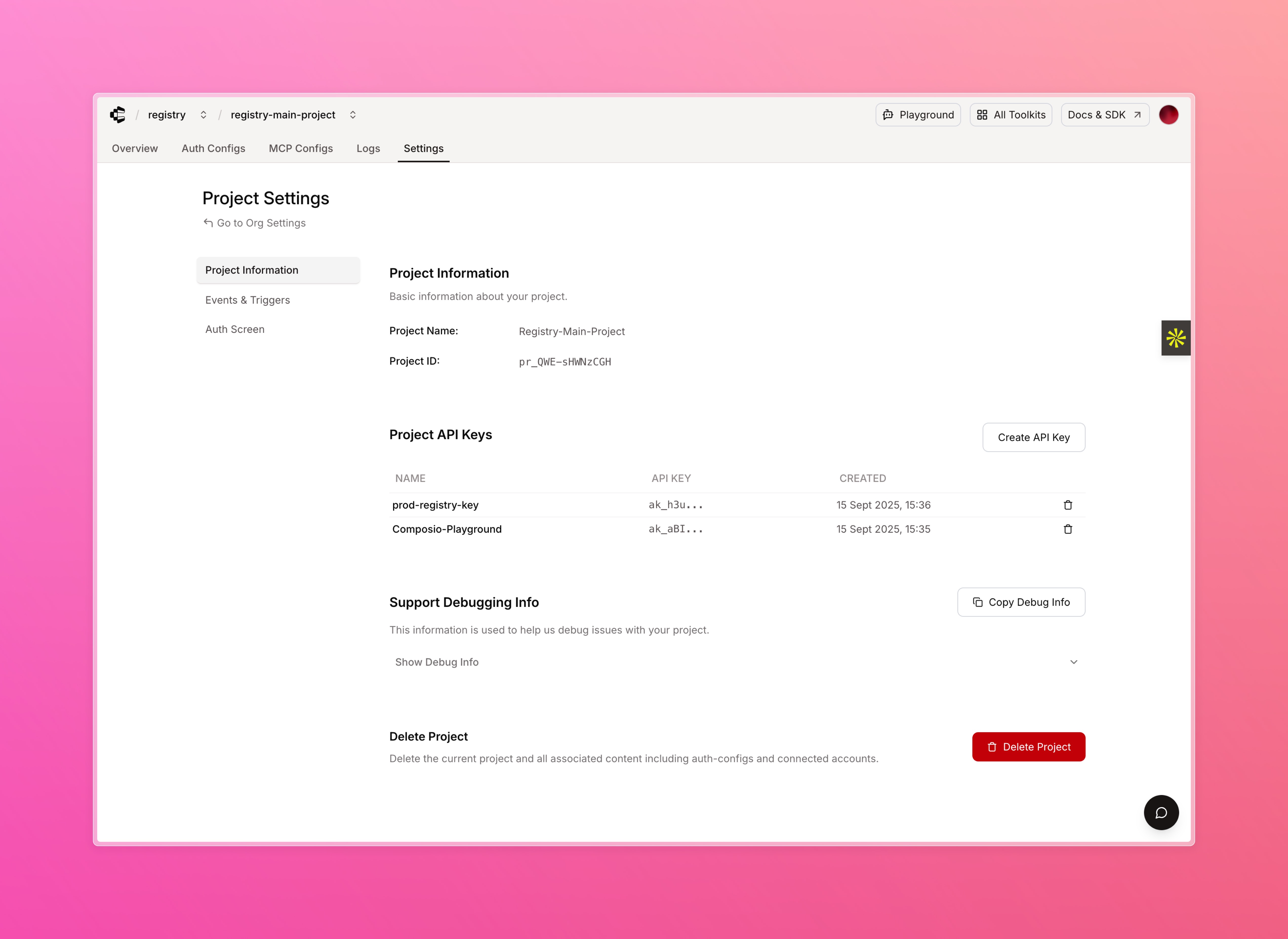

# What to Share
When reaching out for support, share these identifiers:
```
@project_id: pr_xxxxxxxxxxxxx
@org_id: ok_xxxxxxxxxxxxx
@org_member_email: your-email@example.com
```
The identifiers with `pr_` (project) and `ok_` (organization) prefixes let us quickly check your logs inside our internal tracing tools, helping us resolve issues faster.
# Getting Help
import { MessageCircle, Bug, Mail, Grip } from 'lucide-react';
- [Join Discord](https://discord.gg/composio): }>
Get basic support from the community and Composio team
- [Request Tools](https://request.composio.dev): }>
Request new tools and toolkits
- [File an Issue](https://github.com/ComposioHQ/composio/issues): }>
Report SDK issues and bugs
- [Contact Support](mailto:support@composio.dev): }>
Reach out for dedicated support channels on Growth and Enterprise plans
---
# Migration guides (/docs/migration-guide)
# Available migration guides
**New SDK migration**
Migrate from the old Composio SDK to the new SDK, including breaking changes, new features, and updated APIs.
[View SDK migration guide →](/docs/migration-guide/new-sdk)
**Toolkit versioning migration**
Migrate to use the toolkit versioning system.
[View versioning migration guide →](/docs/migration-guide/toolkit-versioning)
**Tool Router Beta to Stable**
Migrate from the Tool Router Beta to the stable release.
[View Tool Router migration guide →](/docs/migration-guide/tool-router-beta)
---
# Troubleshooting (/docs/troubleshooting)
import { Bug, Brain, Sparkles, MessageCircle, MessageSquare, BookOpen, AlertCircle } from 'lucide-react';
This section is designed to help you quickly identify and resolve common issues encountered with Composio.
Some quick links:
- [Errors Reference](/reference/errors): }>
HTTP status codes and how to resolve common errors.
- [Report issues](https://github.com/ComposioHQ/composio/issues/new?labels=bug): }>
Found a bug? Please create a Github issue!
- [Ask AI](https://deepwiki.com/ComposioHQ/composio): }>
Try to use Ask AI in the docs or deepwiki to get the fastest responses on features, types, and best practices.
- [Feature requests](https://github.com/ComposioHQ/composio/issues/new?labels=enhancement): }>
Have an idea for improving Composio? Share your feature suggestions with us and we will prioritise your requests
- [Ask the community](https://github.com/ComposioHQ/composio/discussions): }>
Join our GitHub discussions to get help from the community
- [Discord community](https://discord.com/channels/1170785031560646836/1268871288156323901): }>
Post support queries on our discord channel or reach out to [support@composio.dev](mailto:support@composio.dev)
- [Migration guides](/docs/migration-guide): }>
Check out our migration guides to help you upgrade to the latest version.
---
# Welcome (/docs)
Composio powers 800+ toolkits, tool search, context management, authentication, and a sandboxed workbench to help you build AI agents that turn intent into action.
- [Quickstart](/docs/quickstart): Build your first agent in 5 minutes
- [Playground](https://platform.composio.dev/auth?next_page=%2Ftool-router): Try Composio in your browser
- [How tools work](/docs/tools-and-toolkits): Meta tools, context management, and execution
- [Toolkits](/toolkits): Browse 800+ toolkits
# For AI tools
* [composio.dev/llms.txt](/llms.txt) - Documentation index with links
* [composio.dev/llms-full.txt](/llms-full.txt) - Complete documentation in one file
## Skills
```bash
npx skills add composiohq/skills
```
[View on Skills.sh](https://skills.sh/composiohq/skills/composio-tool-router) · [GitHub](https://github.com/composiohq/skills)
# Providers
Composio works with any AI framework. Pick your preferred SDK:
- [OpenAI Agents](/docs/providers/openai-agents) (Python)
- [Anthropic](/docs/providers/anthropic) (Python, TypeScript)
- [Vercel AI SDK](/docs/providers/vercel) (TypeScript)
- [LangChain](/docs/providers/langchain) (Python, TypeScript)
- [Mastra](/docs/providers/mastra) (TypeScript)
- [OpenAI](/docs/providers/openai) (Python, TypeScript)
- [Google Gemini](/docs/providers/google) (Python, TypeScript)
- [LlamaIndex](/docs/providers/llamaindex) (Python, TypeScript)
- [CrewAI](/docs/providers/crewai) (Python)
- [Build your own](/docs/providers/custom-providers) (Python, TypeScript)
# Features
- [Authentication](/docs/authentication): OAuth, API keys, and custom auth flows
- [Triggers](/docs/triggers): Subscribe to external events and trigger workflows
- [CLI](/docs/cli): Generate types and manage your workspace
- [White Labeling](/docs/guides/white-labeling-authentication): Customize auth screens with your branding
# Community
Join our [Discord](https://discord.gg/composio) community!
---
# Connected Accounts (/docs/auth-configuration/connected-accounts)
Connected accounts are authenticated connections between your users and toolkits. After users authenticate (see [Authenticating tools](/docs/authenticating-tools)), you can manage these accounts throughout their lifecycle.
Composio automatically handles token refresh and credential management. This guide covers manual operations: listing, retrieving, refreshing, enabling, disabling, and deleting accounts.
# List accounts
Retrieve all connected accounts with optional filters:
**Python:**
```python
# List all accounts for a user
accounts = composio.connected_accounts.list(
user_ids=[user_id]
)
# Filter by status
active_accounts = composio.connected_accounts.list(
user_ids=[user_id],
statuses=["ACTIVE"]
)
```
**TypeScript:**
```typescript
import { Composio } from '@composio/core';
const composio = new Composio({ apiKey: 'your_api_key' });
const userId = 'user_123';
// ---cut---
// List all accounts for a user
const accounts = await composio.connectedAccounts.list({
userIds: [userId]
});
// Filter by status
const activeAccounts = await composio.connectedAccounts.list({
userIds: [userId],
statuses: ['ACTIVE']
});
```
# Get account details
Retrieve a connected account by ID:
**Python:**
```python
account = composio.connected_accounts.get(connected_account_id)
print(f"Status: {account.status}")
print(f"Toolkit: {account.toolkit.slug}")
```
**TypeScript:**
```typescript
import { Composio } from '@composio/core';
const composio = new Composio({ apiKey: 'your_api_key' });
const connectedAccountId = 'ca_123';
// ---cut---
const account = await composio.connectedAccounts.get(connectedAccountId);
console.log('Status:', account.status);
console.log('Toolkit:', account.toolkit.slug);
```
## Get account credentials
Get account credentials for use with your own tools:
**Python:**
```python
# Get the connected account's authentication state
if account.state:
# The state contains the auth scheme and credentials
auth_scheme = account.state.auth_scheme
credentials = account.state.val
print(f"Auth scheme: {auth_scheme}")
print(f"Credentials: {credentials}")
```
**TypeScript:**
```typescript
import { Composio } from '@composio/core';
const composio = new Composio({ apiKey: 'your_api_key' });
const account = await composio.connectedAccounts.get('ca_123');
// ---cut---
// Get the connected account's authentication state
if (account.state) {
// The state contains the auth scheme and credentials
const authScheme = account.state.authScheme;
const credentials = account.state.val;
console.log('Auth scheme:', authScheme);
console.log('Credentials:', credentials);
```
> If credentials return as `REDACTED` instead of actual values, the **Mask Connected Account Secrets** setting is enabled on your account. This setting redacts all sensitive credential data (tokens, secrets, API keys) for security purposes.
To view actual credentials, navigate to **Settings → Project Settings → Project Configuration** and disable "Mask Connected Account Secrets".
# Refresh credentials
Manually refresh credentials for a connected account:
**Python:**
```python
try:
refreshed = composio.connected_accounts.refresh(connected_account_id)
print(f"Redirect URL: {refreshed.redirect_url}")
# Wait for the connection to be established
composio.connected_accounts.wait_for_connection(refreshed.id)
except Exception as e:
print(f"Failed to refresh tokens: {e}")
```
**TypeScript:**
```typescript
import { Composio } from '@composio/core';
const composio = new Composio({ apiKey: 'your_api_key' });
const connectedAccountId = 'ca_123';
// ---cut---
try {
const refreshed = await composio.connectedAccounts.refresh(connectedAccountId);
console.log('Redirect URL:', refreshed.redirect_url);
// Wait for the connection to be established
await composio.connectedAccounts.waitForConnection(refreshed.id);
} catch (error) {
console.error('Failed to refresh tokens:', error);
```
# Enable and disable accounts
Change account status without deleting. Set to INACTIVE to pause access, or ACTIVE to restore. Useful for:
* Pausing access during subscription lapses
* Temporary disconnection
**Python:**
```python
# Disable an account
disabled = composio.connected_accounts.disable(connected_account_id)
print(f"Account disabled status: {disabled.success}")
# Re-enable when needed
enabled = composio.connected_accounts.enable(connected_account_id)
print(f"Account enabled status: {enabled.success}")
```
**TypeScript:**
```typescript
import { Composio } from '@composio/core';
const composio = new Composio({ apiKey: 'your_api_key' });
const connectedAccountId = 'ca_123';
// ---cut---
// Disable an account
const disabled = await composio.connectedAccounts.disable(connectedAccountId);
console.log('Account disabled status:', disabled.success);
// Re-enable when needed
const enabled = await composio.connectedAccounts.enable(connectedAccountId);
console.log('Account enabled status:', enabled.success);
```
> INACTIVE accounts cannot execute tools. Tool execution will fail until the status is changed.
# Delete accounts
Permanently remove a connected account and revoke all credentials:
**Python:**
```python
# Delete a connected account
composio.connected_accounts.delete(connected_account_id)
print("Account deleted successfully")
```
**TypeScript:**
```typescript
import { Composio } from '@composio/core';
const composio = new Composio({ apiKey: 'your_api_key' });
const connectedAccountId = 'ca_123';
// ---cut---
// Delete a connected account
await composio.connectedAccounts.delete(connectedAccountId);
console.log('Account deleted successfully');
```
> Deletion is permanent. Users must re-authenticate to reconnect.
# Multiple accounts
Users can connect multiple accounts for the same toolkit (e.g., personal and work Gmail).
> Use `link()` for creating accounts, as it provides hosted authentication and allows multiple accounts by default. See [Connect Link authentication](/docs/authenticating-tools#hosted-authentication-connect-link).
**Python:**
```python
# First account
try:
first_account = composio.connected_accounts.initiate(
user_id=user_id,
auth_config_id=auth_config_id
)
print(f"First account redirect URL: {first_account.redirect_url}")
connected_first_account = first_account.wait_for_connection()
print(f"First account status: {connected_first_account.status}")
except Exception as e:
print(f"Error initiating first account: {e}")
# Second account - must explicitly allow multiple
try:
second_account = composio.connected_accounts.initiate(
user_id=user_id,
auth_config_id=auth_config_id,
allow_multiple=True # Required for additional accounts
)
print(f"Second account redirect URL: {second_account.redirect_url}")
connected_second_account = second_account.wait_for_connection()
print(f"Second account status: {connected_second_account.status}")
except Exception as e:
print(f"Error initiating second account: {e}")
```
**TypeScript:**
```typescript
import { Composio } from '@composio/core';
const composio = new Composio({ apiKey: 'your_api_key' });
const userId = 'user_123';
const authConfigId = 'ac_123';
// ---cut---
// First account
try {
const firstAccount = await composio.connectedAccounts.initiate(
userId,
authConfigId
);
console.log('First account redirect URL:', firstAccount.redirectUrl);
const connectedFirstAccount = await firstAccount.waitForConnection();
console.log('First account status:', connectedFirstAccount.status);
} catch (error) {
console.error('Error initiating first account:', error);
// Second account - must explicitly allow multiple
try {
const secondAccount = await composio.connectedAccounts.initiate(
userId,
authConfigId,
allowMultiple: true // Required for additional accounts
);
console.log('Second account redirect URL:', secondAccount.redirectUrl);
const connectedSecondAccount = await secondAccount.waitForConnection();
console.log('Second account status:', connectedSecondAccount.status);
} catch (error) {
console.error('Error initiating second account:', error);
```
## Execute with a specific account
When you have multiple accounts, specify which one to use with `connected_account_id`:
**Python:**
```python
# Execute tool with a specific connected account
result = composio.tools.execute(
"GMAIL_GET_PROFILE",
user_id=user_id,
connected_account_id=connected_account_id, # Specify which account to use
version="20251111_00",
arguments={}
)
print(f"Tool executed: {result}")
```
**TypeScript:**
```typescript
import { Composio } from '@composio/core';
const composio = new Composio({ apiKey: 'your_api_key' });
const userId = 'user_123';
const connectedAccountId = 'ca_123';
// ---cut---
// Execute tool with a specific connected account
const result = await composio.tools.execute('GMAIL_GET_PROFILE', {
userId: userId,
connectedAccountId: connectedAccountId, // Specify which account to use
version: '20251111_00',
arguments: {}
});
console.log('Tool executed:', result);
```
---
# Custom Auth Configs (/docs/auth-configuration/custom-auth-configs)
Many toolkits support a level of customization for the auth config, specifically OAuth applications.
This guide will walk you through the process of customizing the auth config for toolkits where you can configure your own developer app.
# Creating a custom auth config
To create a custom auth config, click **Create Auth Config** in your dashboard, then navigate to **Authentication management** → **Manage authentication with custom credentials**.
You'll need to customize the auth config when you want to use different values than the defaults - such as your own subdomain, base URL, client ID, client secret, etc.
**Example: PostHog:**
You may change the subdomain for the PostHog toolkit to match your own instance.
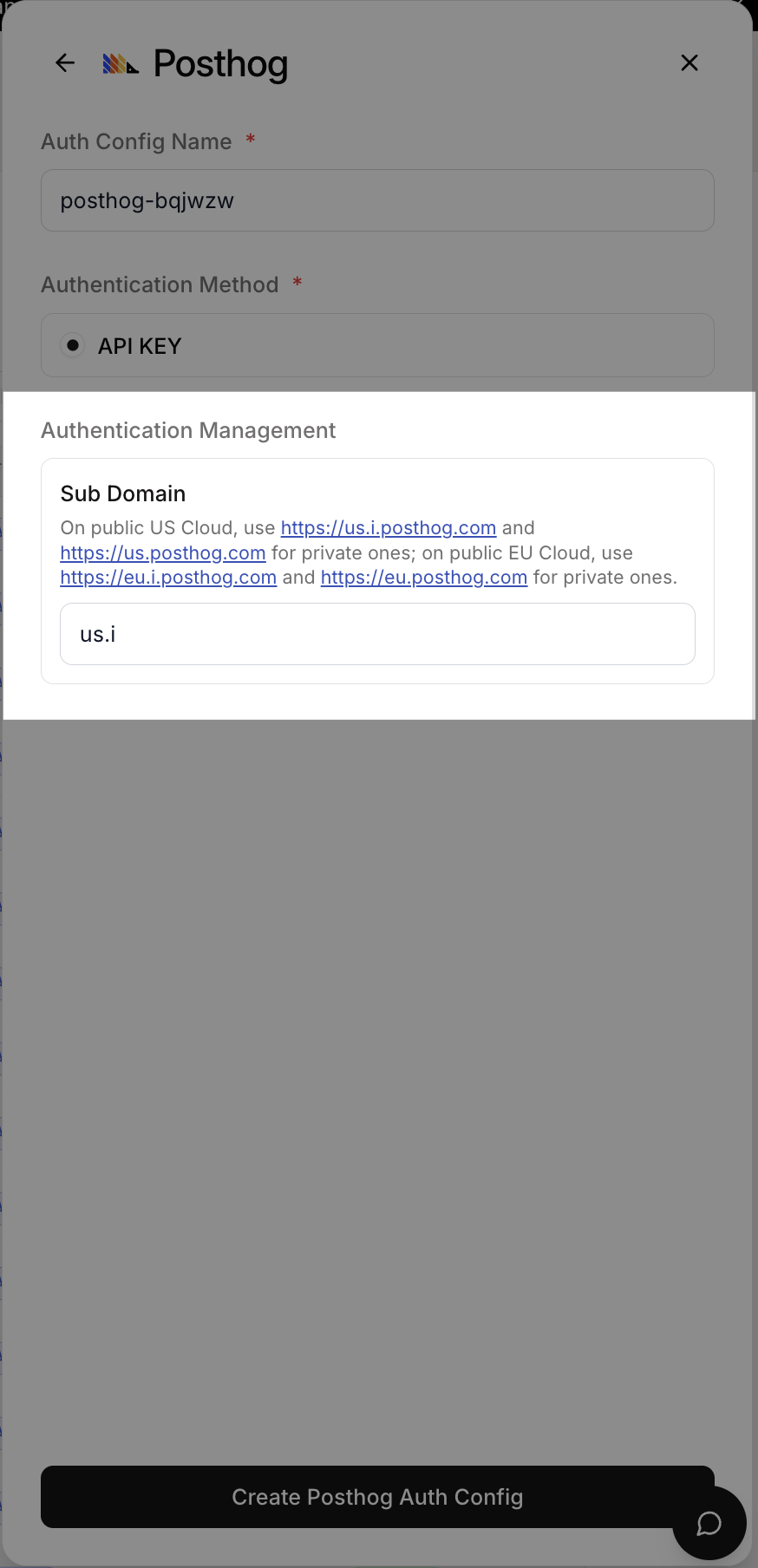
*PostHog Auth Config Settings*
**Example: Hubspot:**
For Hubspot you may customize everything here. For each auth scheme there is a different set of fields.
If you choose to use your own developer app for the OAuth2 scheme, you will have to provide the client ID and client secret.
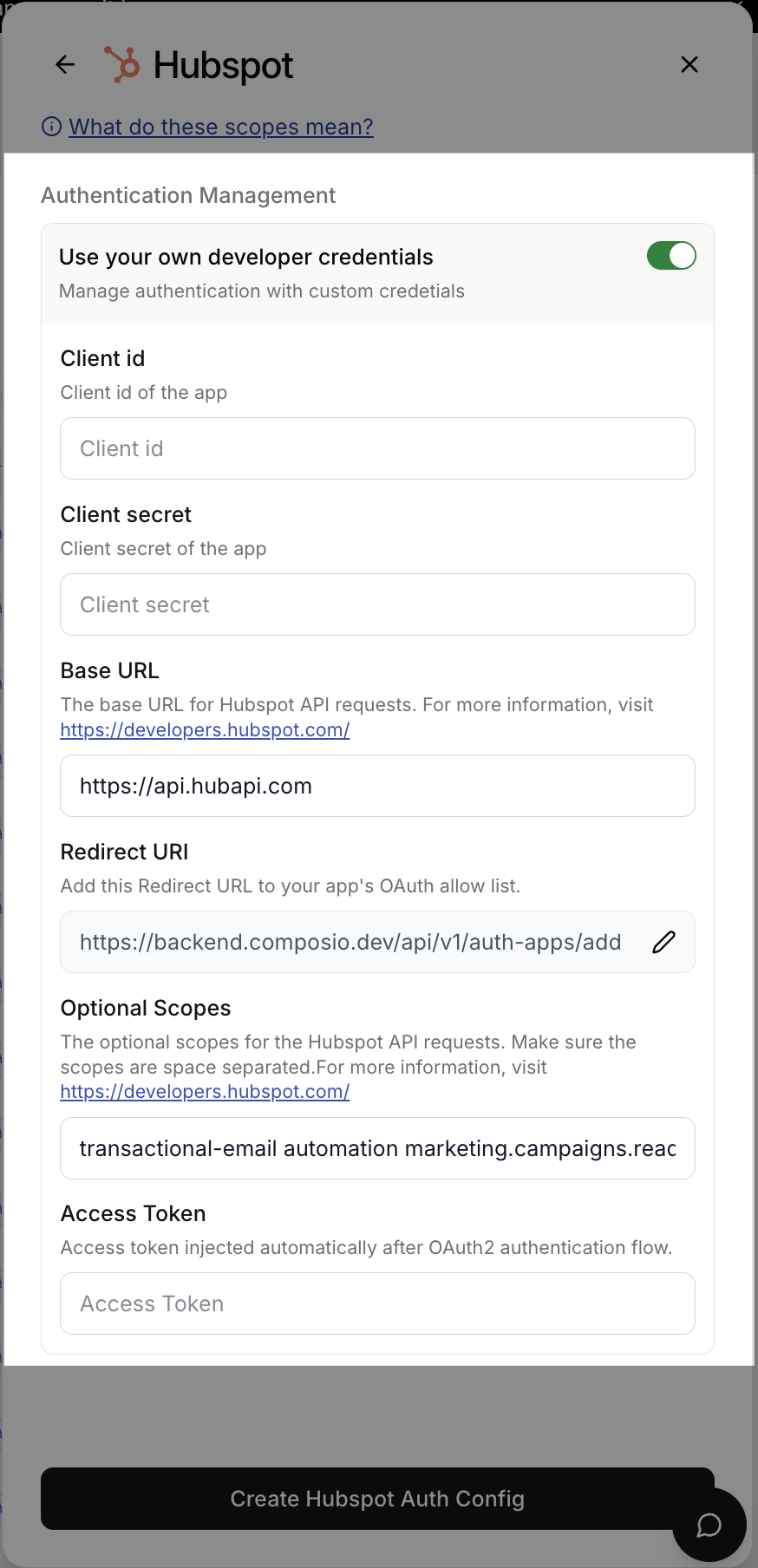
*Hubspot Auth Config Settings*
Toolkits that support OAuth2 allow using your own developer app. This is the recommended approach for most cases.
> **Use your own developer app!**: We recommend using your own developer app for the OAuth2 scheme as it is more suited for production usage with many users and more granular control over scopes.
However, getting OAuth approvals takes time, so Composio provides a default developer app!
# OAuth2 Auth Configs
### Generate the OAuth Client ID and Client Secret
To set up a custom OAuth config, you'll need the OAuth Client ID and Client Secret.
You can generate the client ID and client secret from your provider's OAuth configuration page.
Examples for Google and GitHub:
**Google:**
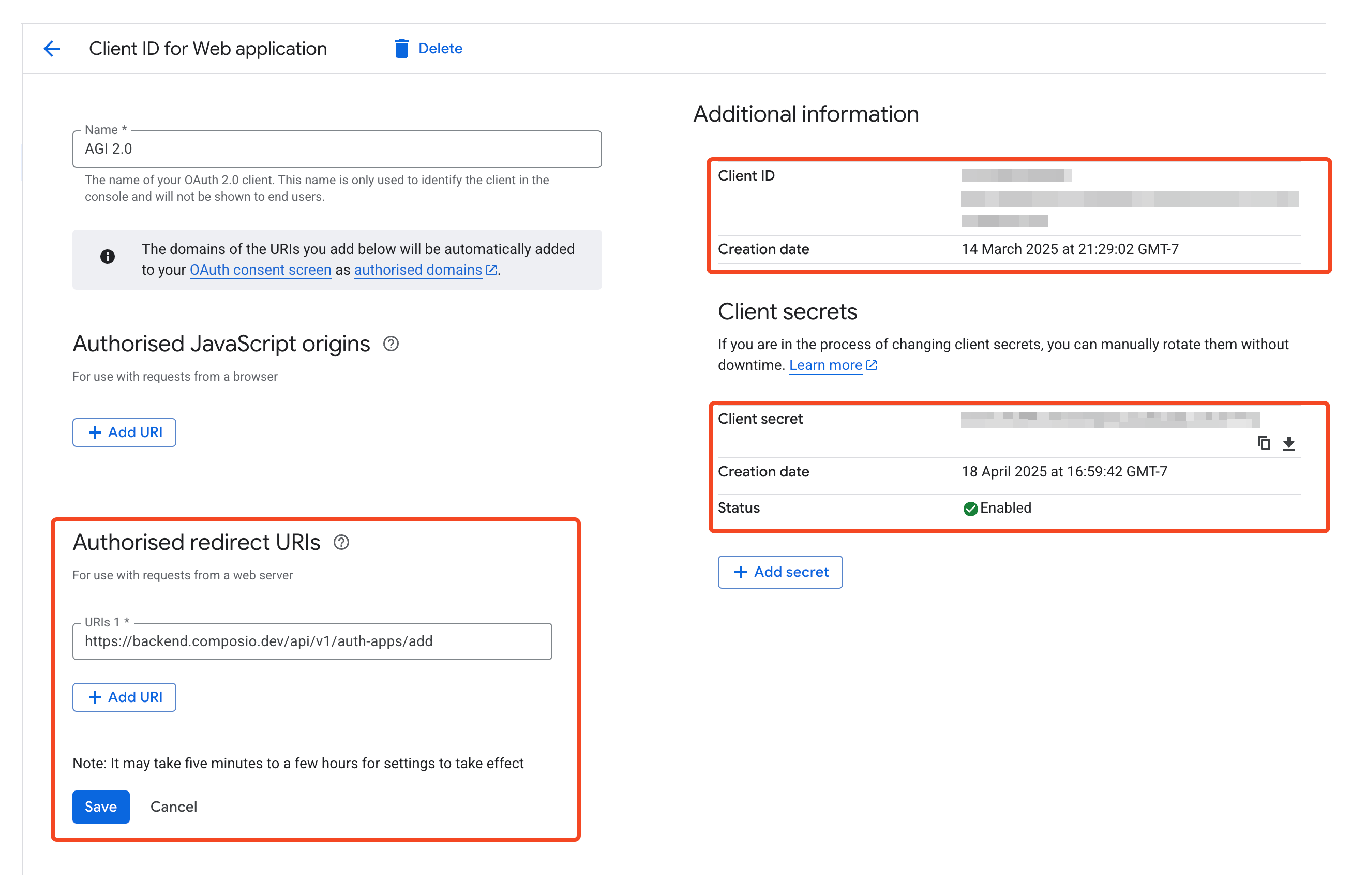
*Google OAuth Configuration*
**GitHub:**
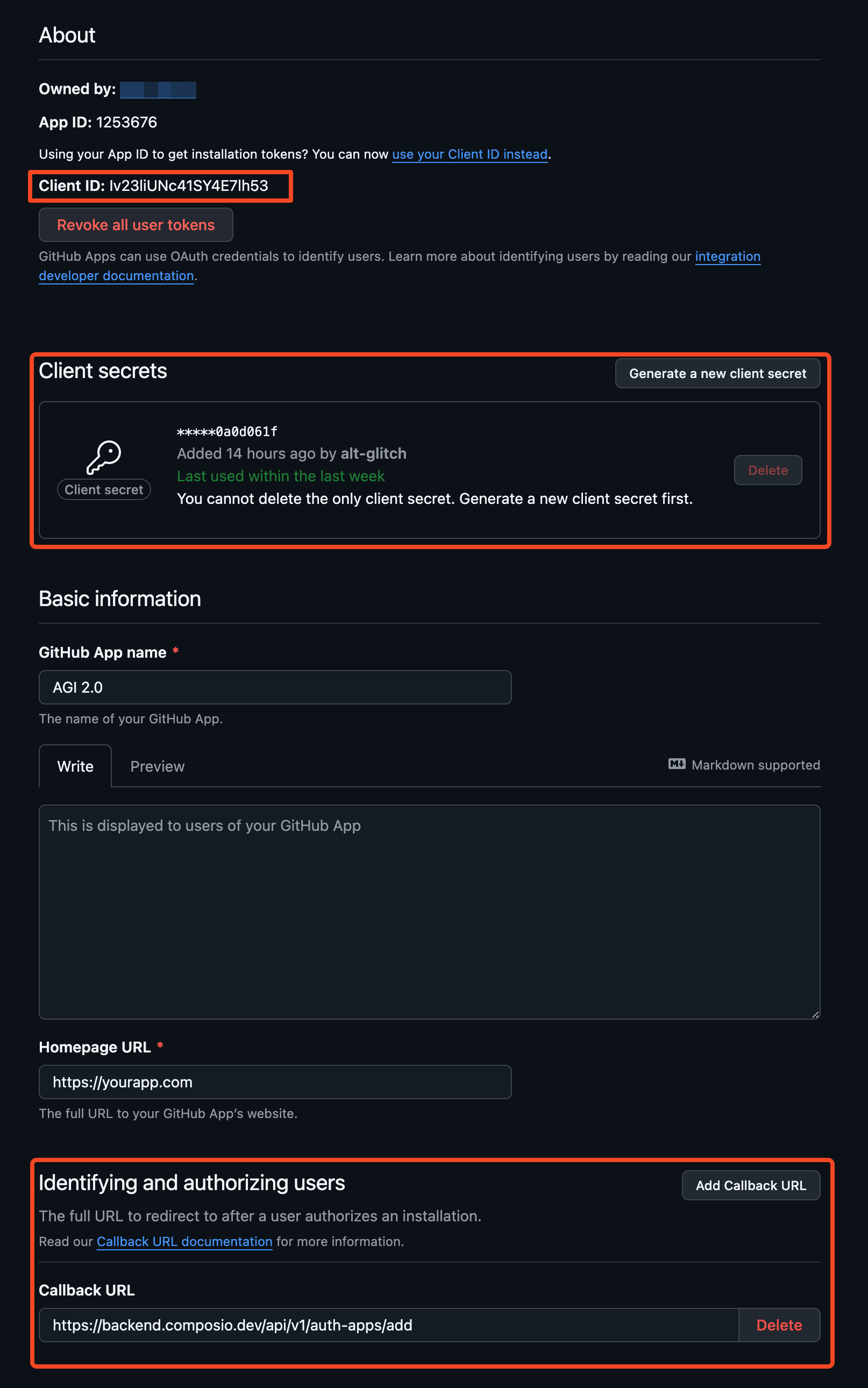
*GitHub OAuth Configuration*
### Set the Authorized Redirect URI
When creating your OAuth app, make sure to configure the Authorized Redirect URI to point to the Composio callback URL below:
```
https://backend.composio.dev/api/v3/toolkits/auth/callback
```
### Create the auth config
Once you have the OAuth credentials, you can add them to the auth config in the dashboard.
1. Select the OAuth2 scheme.
2. Select the scopes to request from users. Default scopes are pre-filled for most apps.
3. Add the OAuth client ID and client secret for your developer app. Keep the redirect URL as is for now!
4. Click Create!
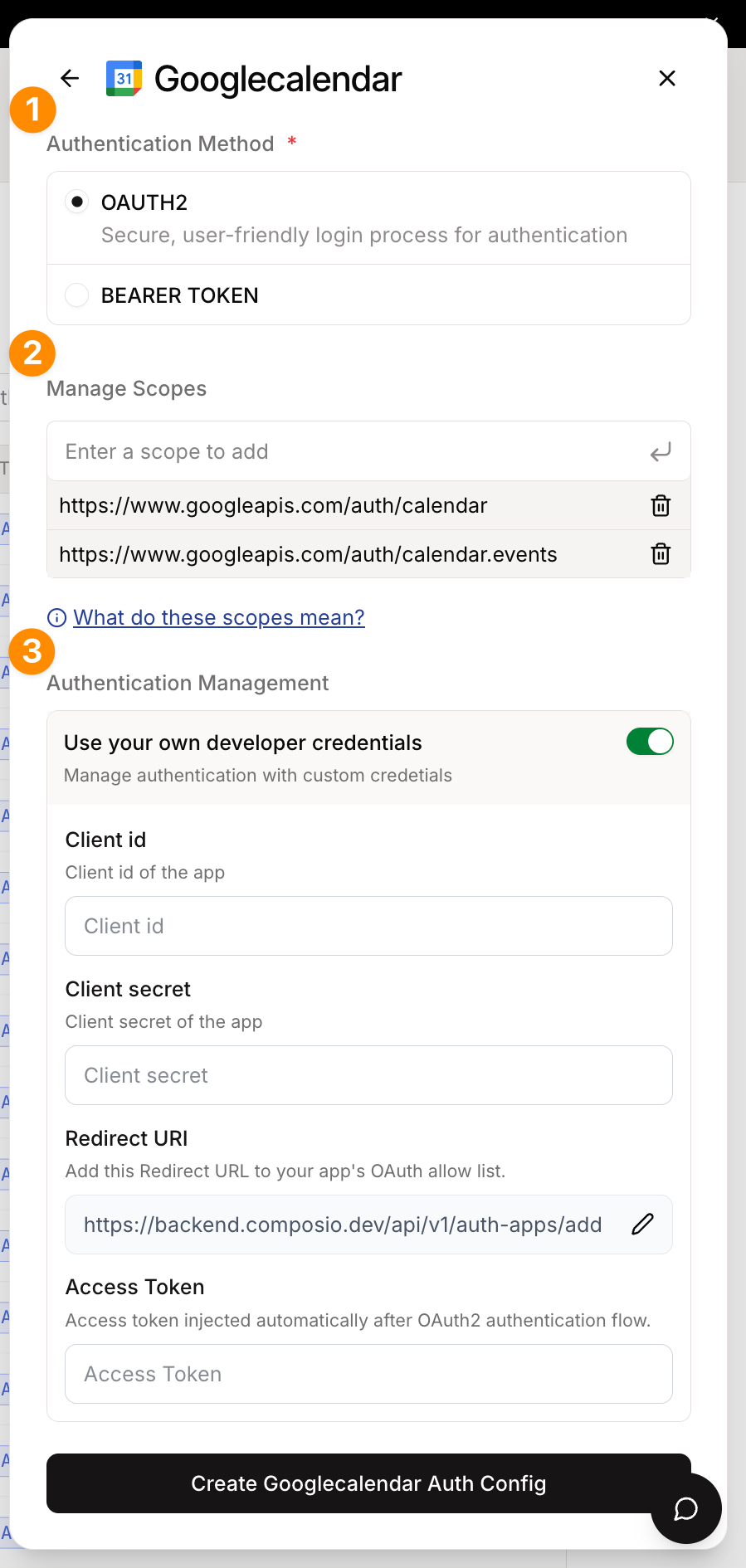
*Auth Config Settings*
This auth config is now ready to be used in your application!
**Python:**
```python
# Create a new connected account
connection_request = composio.connected_accounts.initiate(
user_id="user_id",
auth_config_id="ac_1234",
)
print(connection_request)
# Wait for the connection to be established
connected_account = connection_request.wait_for_connection()
print(connected_account)
```
**TypeScript:**
```typescript
import { Composio } from '@composio/core';
const composio = new Composio({ apiKey: 'your_api_key' });
const userId = 'user_123';
// ---cut---
const connReq = await composio.connectedAccounts.initiate(userId, "ac_1234");
console.log(connReq.redirectUrl);
const connection = await composio.connectedAccounts.waitForConnection(
connReq.id
);
console.log(connection);
```
## White-labeling the OAuth Consent Screen
By default the users will see an OAuth screen like the one below:
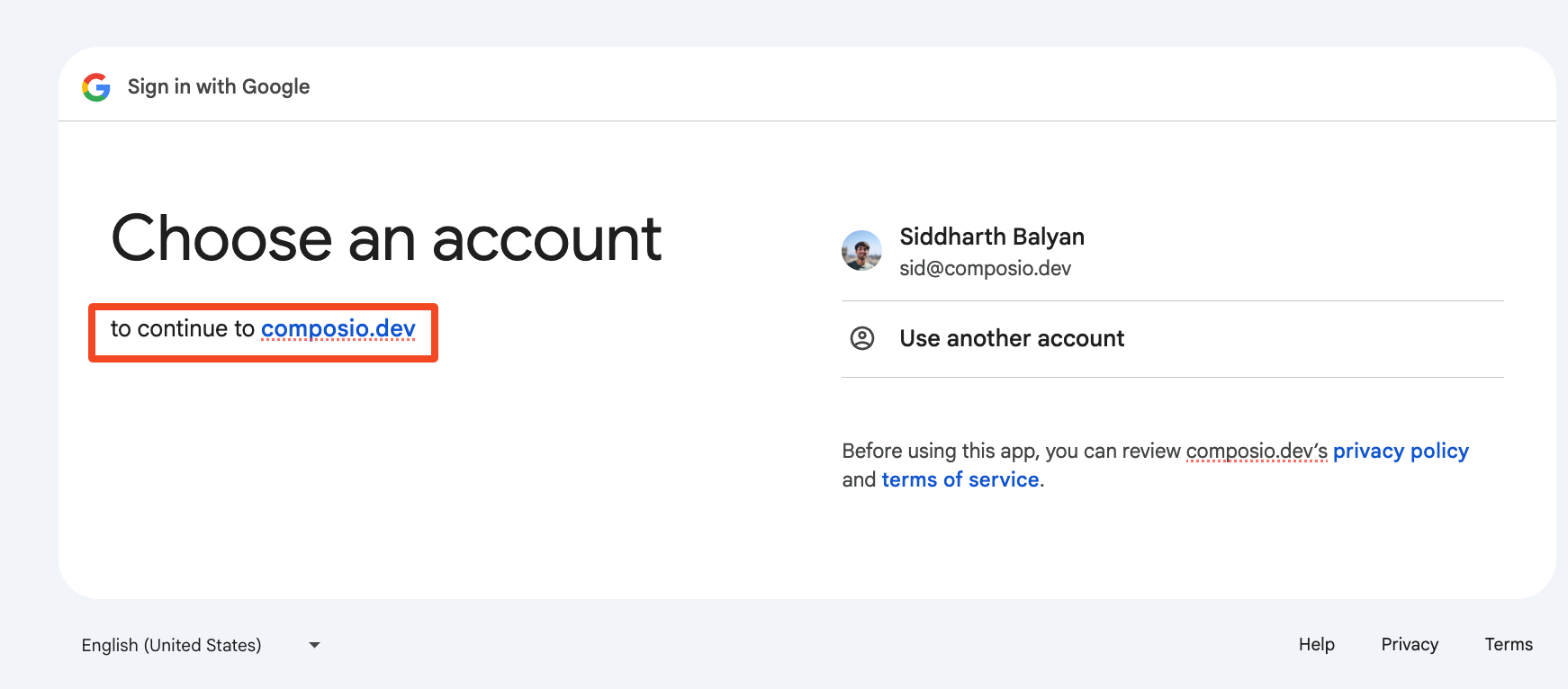
*Composio's Domain in OAuth Consent Screen*
The OAuth redirect URL is surfaced in some OAuth providers' consent screens. This may cause confusion for some users as that URL is not of the same domain as the application.
To remediate this:
### Set the Authorized Redirect URI
Specify the Authorized Redirect URI to your own domain in the OAuth configuration.
For example:
```
https://yourdomain.com/api/composio-redirect
```
### Create a redirect logic
Create a redirect logic, either through your DNS or in your application to redirect that endpoint to `https://backend.composio.dev/api/v3/toolkits/auth/callback`
**Example: API Route for OAuth Redirect**
**Python:**
```python
from fastapi import FastAPI
from fastapi.responses import RedirectResponse
from composio import Composio
# Create a FastAPI app
app = FastAPI()
# Create a Composio client
composio = Composio()
@app.get("/authorize/{toolkit}")
def authorize_app(toolkit: str):
# retrieve the user id from your app
user_id = ""
# retrieve the auth config id from your app
auth_config_id = ""
# initiate the connection request
connection_request = composio.connected_accounts.initiate(
user_id=user_id,
auth_config_id=auth_config_id,
)
return RedirectResponse(url=connection_request.redirect_url)
```
**TypeScript:**
```typescript
import type { NextApiRequest, NextApiResponse } from 'next';
export default function handler(req: NextApiRequest, res: NextApiResponse) {
// The target Composio endpoint that handles OAuth callbacks
const composioEndpoint = 'https://backend.composio.dev/api/v3/toolkits/auth/callback';
// Extract and preserve all query parameters
const queryParams = new URLSearchParams();
Object.entries(req.query).forEach(([key, value]) => {
if (typeof value === 'string') {
queryParams.append(key, value);
});
// Redirect to Composio with all query parameters intact
const redirectUrl = `${composioEndpoint}?${queryParams.toString()}`;
res.redirect(302, redirectUrl);
```
### Create the auth config
Specify your custom redirect URI in the auth config settings!
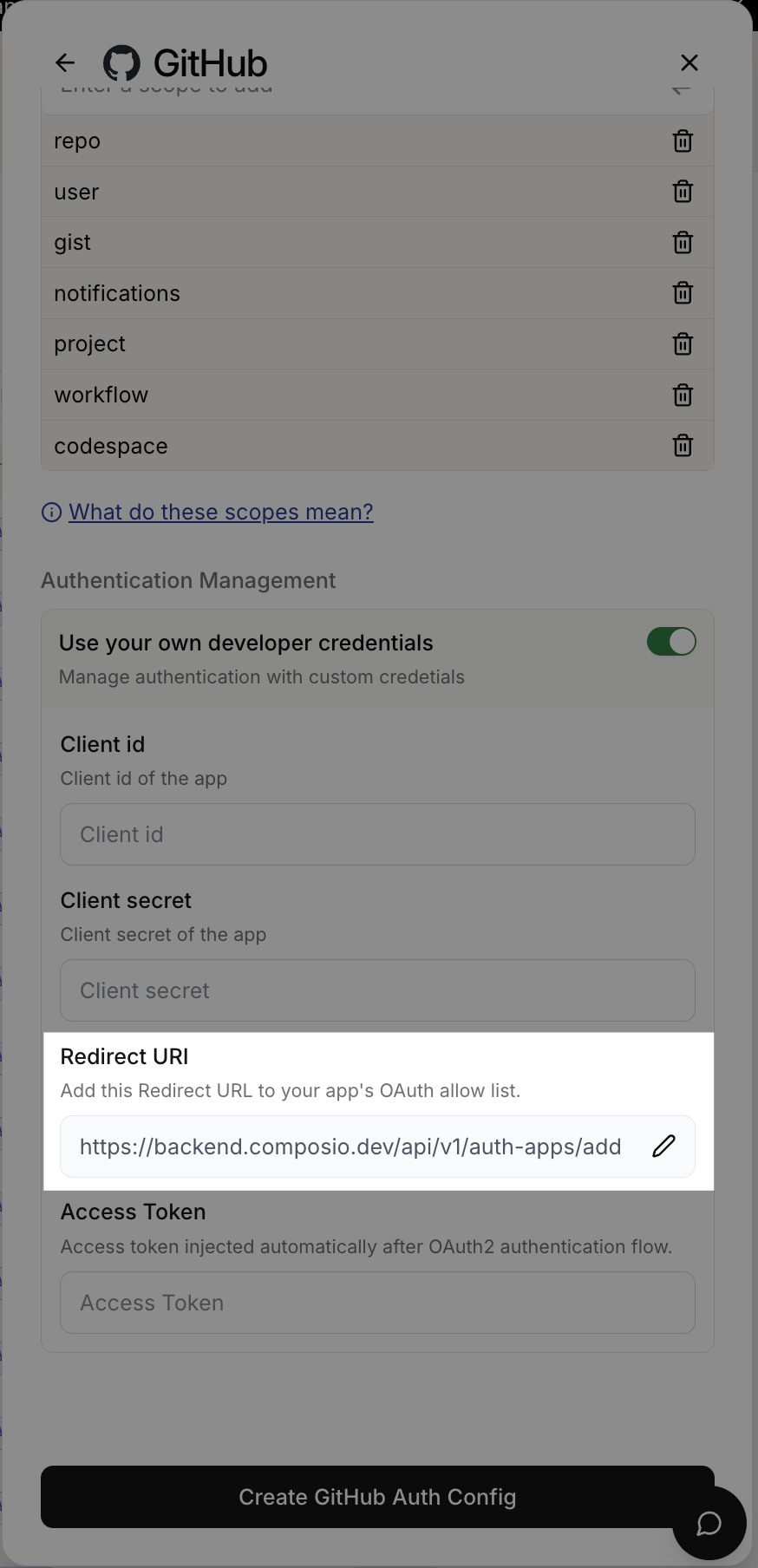
*Auth Config Settings*
With this setup, you can use `https://yourdomain.com/api/composio-redirect` as your OAuth redirect URI, which will create a better user experience by keeping users on your domain during the OAuth flow.
**How does this work?**
The custom OAuth config allows you to use your own domain in the OAuth consent screen instead of Composio's domain. Here's the core difference:
```mermaid
flowchart TD
A[Your App initiates OAuth] --> B[User redirected to OAuth Provider]
B --> C{Redirect URI Configuration}
C -->|Direct Setup| D[Provider redirects to backend.composio.dev]
C -->|Custom Domain| E[Provider redirects to yourdomain.com/api/composio-redirect]
E --> F[Your endpoint forwards to backend.composio.dev]
D --> G[Composio exchanges code for token]
F --> G
G --> H[Connection established]
style E fill:#e1f5fe
style F fill:#e1f5fe
style C fill:#fff3e0
```
**Key Benefits:**
* **Custom Domain**: Users see your domain in OAuth consent screens, not Composio's
* **Same Security**: Your domain just forwards the OAuth callback - no token handling
* **Better UX**: Maintains brand consistency throughout the auth flow
The custom redirect endpoint is a simple passthrough that preserves all OAuth parameters while keeping users on your domain.
---
# Custom Auth Parameters (/docs/auth-configuration/custom-auth-params)
In cases where Composio is not being used for managing the auth but only for the tools, it is possible to use the `beforeExecute` hook to inject custom auth headers or parameters for a toolkit.
# Setup and Initialization
First, initialize the Composio SDK with your API key:
**Python:**
```python
from composio import Composio
composio = Composio()
```
**TypeScript:**
```typescript
import { Composio } from "@composio/core";
const composio = new Composio({
apiKey: process.env.COMPOSIO_API_KEY,
});
```
# Creating the Auth Modifier Function
Define a function that modifies authentication parameters for specific toolkits. This function checks the toolkit name and adds custom authentication headers when needed.
- [This is a Before Execute Modifier!](/docs/modify-tool-behavior/before-execution-modifiers):
Before Execute Modifiers are a way to modify the parameters of a tool before it is executed. In this case, they are useful for adding custom authentication headers or parameters to a tool.
**Python:**
```python
from composio import before_execute
from composio.types import ToolExecuteParams
@before_execute(toolkits=["NOTION"])
def add_custom_auth(
tool: str,
toolkit: str,
params: ToolExecuteParams,
) -> ToolExecuteParams:
if params["custom_auth_params"] is None:
params["custom_auth_params"] = {"parameters": []}
params["custom_auth_params"]["parameters"].append(
"name": "x-api-key",
"value": os.getenv("NOTION_API_KEY"),
"in": "header",
)
return params
```
**TypeScript:**
```typescript
import { Composio } from '@composio/core';
const composio = new Composio({ apiKey: 'your_api_key' });
// ---cut---
const authModifier = ({ toolSlug, toolkitSlug, params }: { toolSlug: string; toolkitSlug: string; params: any }) => {
// Add authentication parameters for specific toolkits
if (toolkitSlug === "NOTION") {
if (!params.customAuthParams) {
params.customAuthParams = {};
if (!params.customAuthParams.parameters) {
params.customAuthParams.parameters = [];
// Add an API key to the headers
params.customAuthParams.parameters.push({
in: "header",
name: "X-API-Key",
value: process.env.CUSTOM_API_KEY,
});
return params;
};
```
# Executing Tools with Custom Auth
Execute the tool using the custom authentication modifier. The `beforeExecute` hook allows you to modify parameters before the tool runs.
Following is an example of how to execute a tool with a custom authentication modifier for Completion Providers.
For Agentic Providers, read about [Modifying tool inputs](/docs/modify-tool-behavior/before-execution-modifiers).
**Python:**
```python
result = composio.tools.execute(
slug="NOTION_GET_DATABASE_ITEMS",
user_id="default",
arguments={},
modifiers=[
add_custom_auth,
],
)
print(result)
```
**TypeScript:**
```typescript
import { Composio } from '@composio/core';
const composio = new Composio({ apiKey: 'your_api_key' });
const authModifier = ({ toolSlug, toolkitSlug, params }: { toolSlug: string; toolkitSlug: string; params: any }) => {
if (toolkitSlug === 'NOTION' && !params.customAuthParams) {
params.customAuthParams = { parameters: [{ in: 'header', name: 'X-API-Key', value: 'key' }] };
return params;
};
// ---cut---
const result = await composio.tools.execute(
"NOTION_GET_DATABASE_ITEMS",
userId: "sid",
arguments: {
database_id: "1234567890",
},
},
beforeExecute: authModifier,
);
console.log(JSON.stringify(result, null, 2));
```
---
# Programmatic Auth Configs (/docs/auth-configuration/programmatic-auth-configs)
Auth configs are created once and reused many times. However, when managing multiple toolkits, you may want to create auth configs programmatically.
* When creating and destroying auth configs multiple times in your app's lifecycle.
* When creating auth configs for your users' users.
# OAuth2 based apps
## Using Composio Default Auth
Since OAuth2 is the most common authentication type for applications, Composio provides managed auth for most OAuth2 based applications. This is to speed up development and prototyping. This means you don't have to provide your own OAuth credentials.
**Python:**
```python
from composio import Composio
composio = Composio()
# Use composio managed auth
auth_config = composio.auth_configs.create(
toolkit="github",
options={
"type": "use_composio_managed_auth",
},
)
print(auth_config)
```
**TypeScript:**
```typescript
import { Composio } from "@composio/core";
const composio = new Composio();
const authConfig = await composio.authConfigs.create("GITHUB", {
name: "GitHub",
type: "use_composio_managed_auth",
});
console.log(authConfig);
```
The returned `auth_config_id` should be stored securely in your database for future use to be created and destroyed multiple times.
You can also provide your own authentication details. The required `credentials` and `authScheme` depend on the auth type.
## Using your own OAuth2 credentials
Setting up and using your own OAuth2 credentials is the recommended way when going to production or expecting high usage.
In this example, we're using our own OAuth2 client ID and secret to create the auth config for Notion.
**Python:**
```python
# Use custom auth
auth_config = composio.auth_configs.create(
toolkit="notion",
options={
"name": "Notion Auth",
"type": "use_custom_auth",
"auth_scheme": "OAUTH2",
"credentials": {
"client_id": "1234567890",
"client_secret": "1234567890",
"oauth_redirect_uri": "https://backend.composio.dev/api/v3/toolkits/auth/callback",
},
},
)
print(auth_config)
```
**TypeScript:**
```typescript
import { Composio } from '@composio/core';
const composio = new Composio({ apiKey: 'your_api_key' });
// ---cut---
const authConfig = await composio.authConfigs.create("NOTION", {
name: "Notion",
type: "use_custom_auth",
credentials: {
client_id: "1234567890",
client_secret: "1234567890",
oauth_redirect_uri: "https://backend.composio.dev/api/v3/toolkits/auth/callback",
},
authScheme: "OAUTH2",
});
console.log(authConfig);
```
> You can specify a custom redirect URI by including the `oauth_redirect_uri` parameter in the credentials object. If not provided, Composio uses the default redirect URI.
**Specifying the authorized redirect URI**
The process of setting up your own OAuth2 credentials usually involves generating a client ID and secret and specifying the **authorized redirect URI** in the OAuth configuration.
> The **authorized redirect URI** is the URI that captures the OAuth code that is returned to the app.
While doing so, you must ensure to set the **authorized redirect URI** in the OAuth configuration to:
```
https://backend.composio.dev/api/v3/toolkits/auth/callback
```
**GitHub:**
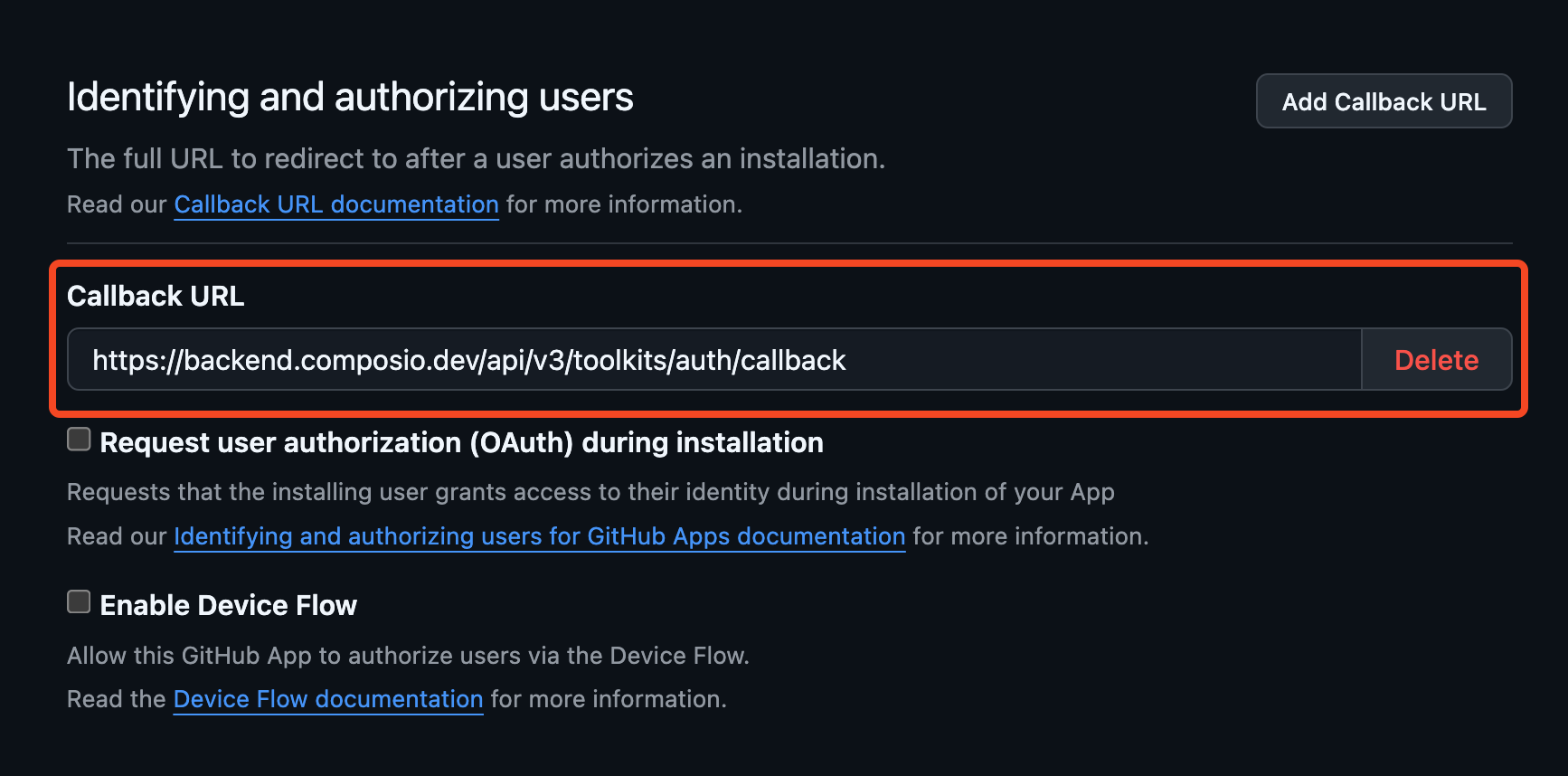
*Redirect URI for GitHub*
**Google:**
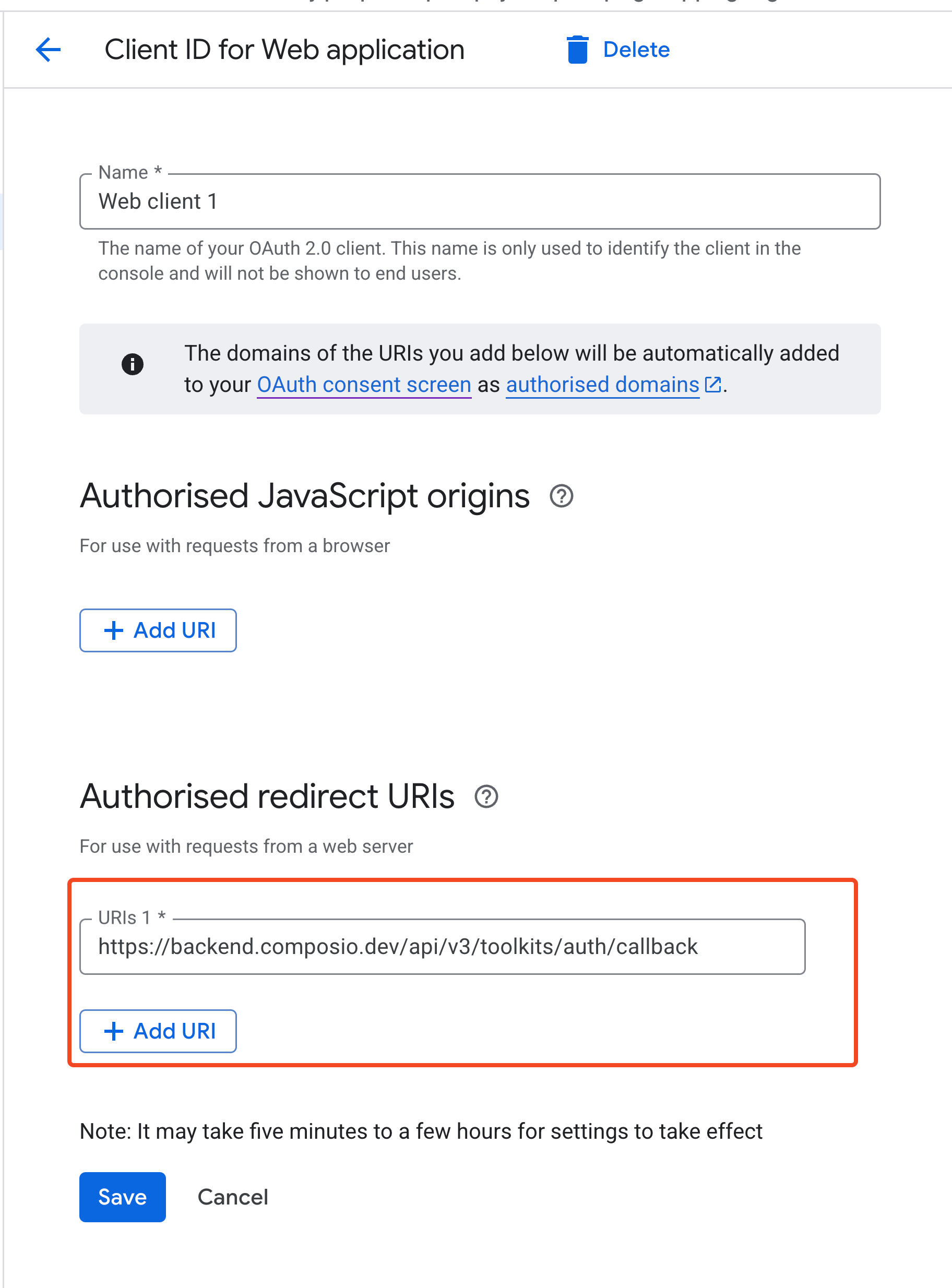
*Redirect URI for Google*
## Specifying scopes
Composio requests a set of appropriate default OAuth2 scopes for each toolkit wherever possible. However, you can override or modify these scopes by passing a `scopes` field to the `credentials` object.
**Python:**
```python
from composio import Composio
composio = Composio()
response = composio.auth_configs.create(
toolkit="HUBSPOT",
options={
"name": "HubspotConfig",
"authScheme": "OAUTH2",
"type": "use_composio_managed_auth",
"credentials": {
"scopes": "sales-email-read,tickets"
)
print(response.id)
```
**TypeScript:**
```typescript
import { Composio } from "@composio/core";
const composio = new Composio();
const authConfig = await composio.authConfigs.create("HUBSPOT", {
name: "HubspotConfig",
type: "use_composio_managed_auth",
credentials: {
scopes: "sales-email-read,tickets",
},
});
console.log(authConfig);
```
# Other auth types
Composio supports many applications that use different authentication types like API keys, Bearer tokens, JWT and even no authentication at all.
Generating the auth config for other auth types only has minor differences:
* `use_custom_auth` is used instead of `use_composio_managed_auth`
* The `credentials` field is used to pass the authentication details
* The `authScheme` field is used to specify the auth type
**Python:**
```python
# Use custom auth
auth_config = composio.auth_configs.create(
toolkit="perplexityai",
options={
"type": "use_custom_auth",
"auth_scheme": "API_KEY",
"credentials": {}
},
)
print(auth_config)
```
**TypeScript:**
```typescript
import { Composio } from '@composio/core';
const composio = new Composio({ apiKey: 'your_api_key' });
// ---cut---
const authConfig = await composio.authConfigs.create('PERPLEXITYAI', {
name: 'Perplexity AI',
type: 'use_custom_auth',
credentials: {},
authScheme: 'API_KEY',
});
console.log(authConfig);
```
# Programmatically inspecting fields
In cases where you need to dynamically discover the exact field names and handle different auth schemes programmatically, you can inspect the auth config details first.
This works for all auth types.
**Python:**
```python
required_fields = composio.toolkits.get_auth_config_creation_fields(
toolkit="NOTION",
auth_scheme="OAUTH2",
required_only=True,
)
print(required_fields)
```
**TypeScript:**
```typescript
import { Composio } from '@composio/core';
const composio = new Composio({ apiKey: 'your_api_key' });
// ---cut---
const toolkits = await composio.toolkits.get("NOTION");
// Extract field names from authConfigDetails
const authFields = await composio.toolkits.getAuthConfigCreationFields('NOTION', 'OAUTH2', {
requiredOnly: true,
});
console.log("Required auth config fields:", authFields);
```
Then inspect the required fields and specify them in the `credentials` object.
---
# Our next generation SDKs (/docs/migration-guide/new-sdk)
In the last few months, we have experienced very rapid growth in usage of our platform. As such, our team has been working hard to radically improve the performance and developer experience of our platform.
A lot of these changes have happened in the background, but we are excited to finally share our new SDKs with you that complement our new infra.
The new API features improved usability, enhanced stability, and better scalability. The SDKs built on top of it simplify the developer experience, making it easier than ever to build useful agents.
# What's new?
A lot of the changes are on the infra side, but from the SDK point of view, here is what you can expect:
* Faster and more reliable tool execution
* A simpler but more opinionated SDK
* Much more intuitive and consistent naming conventions
* A vastly improved TypeScript SDK that is meaningfully more type-safe and has full feature parity with the Python SDK
There aren't too many new flashy features here (yet) mainly because we wanted to get the bones right — but we feel we have a solid foundation to ship incredible new experiences on top very quickly.
# State of the new SDK and what is happening with the old SDKs?
Currently, the new SDKs are in a preview release. These new SDKs come almost fully formed, we do not expect many breaking changes to them but are releasing them in a preview state to get feedback and make necessary changes before locking them in.
As we lock the new SDKs in place, we will deprecate support for the old SDKs. They will continue to work for the foreseeable future but are no longer actively maintained. We will continue to push security updates and fix any critical bugs but will not support any new functionality in them.
We urge you to upgrade to the new SDKs as soon as possible.
# Nomenclature
We have updated several key terms in the SDK and API to improve clarity and consistency. The following table summarizes these changes:
| Previous Term | Current Term | Definition |
| ------------- | ------------------ | ------------------------------------------------------------------------------------------------------------------------------------ |
| Actions | Tools | Individual operations or capabilities that can be performed by an LLM agent |
| Apps | Toolkits | A collection of tools grouped under a single application |
| Integration | Auth Config | Configuration containing developer credentials and application-level settings such as scopes and API endpoints. Scoped to a toolkit. |
| Connection | Connected accounts | User-linked accounts associated with a toolkit |
| Entity ID | User ID | The identifier of the user performing the action (UUID or email) |
| Trigger | Trigger | An event that can be subscribed to |
| Toolsets | Providers | LLM or agent framework that can be used with Composio to create agents |
# Switch to nano IDs from UUIDs
We have transitioned from UUIDs to nano IDs throughout the platform for the following reasons:
* **Improved readability**: UUIDs are lengthy and difficult to read
* **Better usability**: Easier to copy with a single double-click
* **Better organization**: Nano IDs allow us to distinguish between different resource types through prefixes
| Feature | Nano ID Prefix | Example |
| ----------------- | -------------- | ----------------- |
| Connected Account | `ca_` | `ca_8x9w2l3k5m` |
| Auth Config | `ac_` | `ac_1234567890` |
| Trigger | `ti_` | `ti_So9EQf8XnAcy` |
> Nano IDs are short, unique, and prefixed to indicate the resource type.
# SDK Changes
Upgrade to the latest SDK version using the appropriate package manager:
**Python:**
```bash
pip install -U composio
```
**TypeScript:**
```bash
npm install @composio/core
```
Both SDKs now implement proper namespacing for each concept.
## User ID scoping
The concept of `entity_id` has been expanded and renamed to `user_id`.
All operations are now scoped to a user ID, including:
* Fetching tools
* Initiating connections
* Executing tools
* Managing triggers
This change provides explicit specification of the user for whom the action is being performed. When a user may have multiple accounts (such as work and personal Gmail connections), you can use the more specific connected account ID.
## Replacing ToolSets with Providers
We have deprecated "toolsets" in favor of "providers". This change allows Composio to provide deeper standardization for tool implementation across different frameworks.
Previously, you needed to import and use a framework-specific `ComposioToolSet` class:
**Python (previous):**
```python
from composio_openai import ComposioToolSet, Action, App
from openai import OpenAI
toolset = ComposioToolSet()
```
**TypeScript (previous):**
```typescript
// @noErrors
import { OpenAIToolSet } from 'composio-core';
const toolset = new OpenAIToolSet();
```
The SDK structure is now framework-agnostic and includes the OpenAI provider out of the box:
**Python (current):**
```python
from composio import Composio
# from composio_langchain import LangchainProvider
composio = Composio()
# composio = Composio(provider=LangchainProvider())
tools = composio.tools.get(
user_id="0001",
tools=["LINEAR_CREATE_LINEAR_ISSUE", "GITHUB_CREATE_COMMIT"]
)
# tools returned is formatted for the provider. by default, OpenAI.
```
**TypeScript (current):**
```typescript
// @noErrors
import { Composio } from '@composio/core';
// import { VercelProvider } from '@composio/vercel';
const composio = new Composio({
// provider: new VercelProvider(),
});
// Can specify other providers too, like OpenAI, Anthropic, Vercel AI SDK.
const tools = await composio.tools.get('user@example.com', {
tools: ['LINEAR_CREATE_LINEAR_ISSUE', 'GITHUB_CREATE_COMMIT'],
});
// tools returned is formatted for the provider. by default, OpenAI.
```
You can now use the same tools across any framework with our unified interface, or create custom toolsets for frameworks we don't yet support.
Read more about [providers in our documentation](/docs/providers/openai) and explore the [complete list of available providers](/docs/providers/openai).
## Fetching and filtering tools
Previously, you could filter tools by:
* Apps
* Action names (tool names)
* Tags
You could also specify an `important` flag to retrieve the most important tools:
**Python (previous):**
```python
from composio_openai import ComposioToolSet, Action, App
from openai import OpenAI
toolset = ComposioToolSet()
client = OpenAI()
tools = toolset.get_tools(
actions=[Action.GITHUB_GET_THE_AUTHENTICATED_USER], check_connected_accounts=True
)
tools = toolset.get_tools(apps=[App.GITHUB, App.LINEAR, App.SLACK], check_connected_accounts=True)
```
**TypeScript (previous):**
```typescript
// @noErrors
import { OpenAIToolSet } from 'composio-core';
const toolset = new OpenAIToolSet();
const tools_1 = await toolset.getTools({ apps: ['GITHUB'] });
const tools_2 = await toolset.getTools({
actions: ['GITHUB_GET_THE_AUTHENTICATED_USER', 'LINEAR_CREATE_LINEAR_ISSUE'],
});
```
You can now filter tools by:
* Toolkits
* Tool slugs
* Limit parameter
* Search query
The `important` flag has been removed. Instead, tools are returned in order of importance by default:
> Since `user_id` is now explicitly required, the `check_connected_accounts` flag is no longer necessary.
**Python (current):**
```python
from composio import Composio
composio = Composio()
user_id = "user@acme.org"
tools_1 = composio.tools.get(user_id=user_id, toolkits=["GITHUB", "LINEAR"])
tools_2 = composio.tools.get(user_id=user_id, toolkits=["SLACK"], limit=5) # Default limit=20
tools_3 = composio.tools.get(
user_id=user_id,
tools=["GITHUB_CREATE_AN_ISSUE", "GITHUB_CREATE_AN_ISSUE_COMMENT", "GITHUB_CREATE_A_COMMIT"],
)
tools_4 = composio.tools.get(user_id="john", search="hackernews posts")
```
**TypeScript (current):**
```typescript
// @noErrors
import { Composio } from '@composio/core';
const userId = 'user@acme.org';
const composio = new Composio();
const tools_1 = await composio.tools.get(userId, {
toolkits: ['GITHUB', 'LINEAR'],
});
const tools_2 = await composio.tools.get(userId, {
toolkits: ['GITHUB'],
limit: 5, // Default limit=20
});
const tools_3 = await composio.tools.get(userId, {
tools: ['GITHUB_CREATE_AN_ISSUE', 'GITHUB_CREATE_AN_ISSUE_COMMENT', 'GITHUB_CREATE_A_COMMIT'],
});
const tools_4 = await composio.tools.get(userId, {
search: 'hackernews posts',
});
```
## Fetching raw tool data
To examine the raw schema definition of a tool for understanding input/output parameters or building custom logic around tool definitions, use the following methods:
**Python (current):**
```python
from composio import Composio
composio = Composio()
tool = composio.tools.get_raw_composio_tool_by_slug("HACKERNEWS_GET_LATEST_POSTS")
print(tool.model_dump_json())
```
**TypeScript (current):**
```typescript
// @noErrors
import { Composio } from '@composio/core';
const composio = new Composio();
const tool = await composio.tools.getRawComposioToolBySlug('GITHUB_GET_OCTOCAT');
console.log(JSON.stringify(tool, null, 2));
```
## Executing tools
Tool execution remains largely unchanged, with `user_id` now explicitly required.
For agentic frameworks, the tool object returned from `tools.get` is now the respective framework's native tool object. Tool call execution is handled by the agentic framework itself.
> For non-agentic frameworks, Composio provides a helper function to execute tool calls.
**Python v3:**
```python
from composio import Composio
from openai import OpenAI
openai_client = OpenAI()
composio = Composio()
tools = composio.tools.get(user_id="user@acme.com", tools=["GITHUB_GET_THE_ZEN_OF_GITHUB"])
response = openai_client.chat.completions.create(
model="gpt-4.1",
messages=[{"role": "user", "content": "gimme some zen."}],
tools=tools,
)
result = composio.provider.handle_tool_calls(user_id="user@acme.com", response=response)
print(result)
```
**TypeScript v3:**
```typescript
// @noErrors
import { Composio } from '@composio/core';
import { AnthropicProvider } from '@composio/anthropic';
import Anthropic from '@anthropic-ai/sdk';
const anthropic = new Anthropic();
const composio = new Composio({
provider: new AnthropicProvider(),
});
const userId = 'user@example.com';
const tools = await composio.tools.get(userId, {
toolkits: ['GMAIL'],
});
const msg = await anthropic.messages.create({
model: 'claude-3-7-sonnet-latest',
tools: tools,
messages: [
role: 'user',
content: "Say hi to 'soham@composio.dev'",
},
],
max_tokens: 1024,
});
const result = await composio.provider.handleToolCalls(userId, msg);
console.log('Tool results:', result);
```
For more information on executing tools for different frameworks, see [Replacing ToolSets with Providers](#replacing-toolsets-with-providers).
## Tool Modifiers (formerly Tool Processors)
Tool processors have been renamed to *tool modifiers* and now provide an improved developer experience. The implementation is now available in TypeScript too! (previously Python-only).
```python title="Python (previous)"
from composio_openai import ComposioToolSet, Action
toolset = ComposioToolSet()
def my_schema_processor(schema: dict) -> dict: ...
def my_preprocessor(inputs: dict) -> dict: ...
def my_postprocessor(result: dict) -> dict: ...
# Get tools with the modified schema
processed_tools = toolset.get_tools(
actions=[Action.GMAIL_SEND_EMAIL],
processors={
# Applied BEFORE the LLM sees the schema
"schema": {Action.SOME_ACTION: my_schema_processor},
# Applied BEFORE the tool executes
"pre": {Action.SOME_ACTION: my_preprocessor},
# Applied AFTER the tool executes, BEFORE the result is returned
"post": {Action.SOME_ACTION: my_postprocessor},
},
)
```
| Previous | Current |
| ------------------ | ------------------------ |
| `pre` processor | `beforeExecute` modifier |
| `post` processor | `afterExecute` modifier |
| `schema` processor | `schema` modifier |
The modifiers now leverage language-specific features to provide a more natural developer experience.
While tool processors could previously be applied during SDK initialization, tool fetching, and tool execution, we have restructured them as follows:
* **Chat Completion providers**: Modifiers are specified and applied during tool execution
* **Agentic frameworks**: Modifiers are specified and applied during tool fetching
### Schema Modifiers
The following example demonstrates schema modifier usage, applicable across all providers:
**Python (current):**
```python
from composio import Composio, schema_modifier
from composio.types import Tool
user_id = "your@email.com"
@schema_modifier(tools=["HACKERNEWS_GET_LATEST_POSTS"])
def modify_schema(
tool: str,
toolkit: str,
schema: Tool,
) -> Tool:
_ = schema.input_parameters["properties"].pop("page", None)
schema.input_parameters["required"] = ["size"]
return schema
tools = composio.tools.get(
user_id=user_id,
tools=["HACKERNEWS_GET_LATEST_POSTS", "HACKERNEWS_GET_USER"],
modifiers=[
modify_schema,
]
)
```
**TypeScript (current):**
```typescript
// @noErrors
import { Composio } from '@composio/core';
import { OpenAI } from 'openai';
const userId = 'your@email.com';
const composio = new Composio();
// Schema modifier to delete the `page` argument from the `HACKERNEWS_GET_LATEST_POSTS` tool
const tools = await composio.tools.get(
userId,
tools: ['HACKERNEWS_GET_LATEST_POSTS', 'HACKERNEWS_GET_USER'],
},
modifySchema: ({ toolSlug, toolkitSlug, schema }) => {
if (toolSlug === 'HACKERNEWS_GET_LATEST_POSTS') {
const { inputParameters } = schema;
if (inputParameters?.properties) {
delete inputParameters.properties['page'];
inputParameters.required = ['size'];
return schema;
},
);
console.log(JSON.stringify(tools, null, 2));
```
### Before Modifiers
The following example shows creating and using a before modifier for a Chat Completion provider. For agentic frameworks, view the [complete before modifier documentation](/docs/modify-tool-behavior/before-execution-modifiers):
**Python (current):**
```python
@before_execute(tools=["HACKERNEWS_GET_LATEST_POSTS"])
def before_execute_modifier(
tool: str,
toolkit: str,
params: ToolExecuteParams,
) -> ToolExecuteParams:
params["arguments"]["size"] = 1
return params
# Get tools
tools = composio.tools.get(user_id=user_id, slug="HACKERNEWS_GET_LATEST_POSTS")
```
**TypeScript (current):**
```typescript
// @noErrors
const result_1 = await composio.tools.execute(
'HACKERNEWS_GET_LATEST_POSTS',
userId,
arguments: JSON.parse(toolArgs),
},
beforeExecute: ({ toolSlug, toolkitSlug, params }) => {
if (toolSlug === 'HACKERNEWS_GET_LATEST_POSTS') {
params.arguments.size = 1;
console.log(params);
return params;
},
);
```
### After Modifiers
The following example shows creating and using an after modifier for a Chat Completion provider. For agentic frameworks, view the [complete after modifier documentation](/docs/modify-tool-behavior/after-execution-modifiers):
**Python (current):**
```python
@after_execute(tools=["HACKERNEWS_GET_USER"])
def after_execute_modifier(
tool: str,
toolkit: str,
response: ToolExecutionResponse,
) -> ToolExecutionResponse:
return {
**response,
"data": {
"karma": response["data"]["karma"],
},
tools = composio.tools.get(user_id=user_id, slug="HACKERNEWS_GET_USER")
```
**TypeScript (current):**
```typescript
// @noErrors
const result_2 = await composio.tools.execute(
'HACKERNEWS_GET_USER',
userId,
arguments: JSON.parse(toolArgs),
},
afterExecute: ({ toolSlug, toolkitSlug, result }) => {
if (toolSlug === 'HACKERNEWS_GET_USER') {
const { data } = result;
const { karma } = data.response_data as { karma: number };
return {
...result,
data: { karma },
};
return result;
},
);
```
## Custom Tools
The SDK continues to support custom tools. [Creating tools from your methods](/docs/custom-tools#creating-a-custom-tool) remains possible. We recommend reviewing the [detailed custom tools documentation](/docs/custom-tools#creating-a-custom-tool) for more information.
Due to changes in the SDK architecture, creating custom tools that use Composio's managed authentication has been modified. In the previous SDK, you could create a custom tool as follows:
**Python (previous):**
```python
# Python Example using execute_request
from composio import action, ComposioToolSet
import typing as t
toolset = ComposioToolSet()
@action(toolname="github") # Associate with GitHub app for auth
def get_github_repo_topics(
owner: t.Annotated[str, "Repository owner username"],
repo: t.Annotated[str, "Repository name"],
execute_request: t.Callable # Injected by Composio
) -> dict:
"""Gets the topics associated with a specific GitHub repository."""
response_data = execute_request(
endpoint=f"/repos/{owner}/{repo}/topics", # API path relative to base URL
method="GET"
)
if isinstance(response_data, dict):
return {"topics": response_data.get("names", [])}
```
**TypeScript (previous):**
```typescript
// @noErrors
import { OpenAIToolSet, type ActionExecutionResDto } from "composio-core";
import { z } from "zod";
const toolset = new OpenAIToolSet();
await toolset.createAction({
actionName: "get_github_repo_topics",
toolName: "github",
description: "Gets the topics associated with a specific GitHub repository.",
inputParams: z.object({
owner: z.string().describe("Repository owner username"),
repo: z.string().describe("Repository name"),
}),
callback: async (inputParams, _authCredentials, executeRequest): Promise => {
const { owner, repo } = inputParams as { owner: string, repo: string };
const response = await executeRequest({
endpoint: `/repos/${owner}/${repo}/topics`,
method: "GET",
parameters: [],
});
const topics = (response as any)?.names ?? [];
return { successful: true, data: { topics: topics } };
});
```
The *execute tool request* method handles injection of the appropriate base URL and authentication credentials for the tool:
**Python (current):**
```python
from pydantic import BaseModel, Field
from composio import Composio
from composio.core.models.custom_tools import ExecuteRequestFn
composio = Composio()
class GetIssueInfoInput(BaseModel):
issue_number: int = Field(
...,
description="The number of the issue to get information about",
)
# function name will be used as slug
@composio.tools.custom_tool(toolkit="github")
def get_issue_info(
request: GetIssueInfoInput,
execute_request: ExecuteRequestFn,
auth_credentials: dict,
) -> dict:
"""Get information about a GitHub issue."""
response = execute_request(
endpoint=f"/repos/composiohq/composio/issues/{request.issue_number}",
method="GET",
parameters=[
"name": "Accept",
"value": "application/vnd.github.v3+json",
"type": "header",
},
"name": "Authorization",
"value": f"Bearer {auth_credentials['access_token']}",
"type": "header",
},
],
)
return {"data": response.data}
```
**TypeScript (current):**
```typescript
// @noErrors
import { Composio } from "@composio/core";
import z from "zod";
const composio = new Composio();
const tool = await composio.tools.createCustomTool({
slug: 'GITHUB_STAR_COMPOSIOHQ_REPOSITORY',
name: 'Github star composio repositories',
toolkitSlug: 'github',
description: 'Star any specificied repo of `composiohq` user',
inputParams: z.object({
repository: z.string().describe('The repository to star'),
page: z.number().optional().describe('Pagination page number'),
customHeader: z.string().optional().describe('Custom header'),
}),
execute: async (input, connectionConfig, executeToolRequest) => {
const result = await executeToolRequest({
endpoint: `/user/starred/composiohq/${input.repository}`,
method: 'PUT',
body: {},
parameters: [
name: 'page',
value: input.page?.toString() || '1',
in: 'query',
},
name: 'x-custom-header',
value: input.customHeader || 'default-value',
in: 'header',
},
],
});
return result;
},
});
```
For more information, including executing custom tools and defining custom headers and query parameters, refer to the [Custom Tools](/docs/custom-tools) documentation.
## Auth configs (formerly integrations)
Integrations are now called *auth configs*. While the terminology has changed, the underlying concept remains the same.
Auth configs store the configuration required for authentication with a given toolkit, including OAuth developer credentials, configurable base URLs, and scopes.
Auth configs now use nano IDs instead of UUIDs:
| Previous (UUID) Example | Current (Nano ID) Example |
| :------------------------------------- | :------------------------ |
| `b7a9c1e2-3f4d-4a6b-8c2e-1d2f3a4b5c6d` | `ac_8x9w2l3k5m` |
We recommend storing auth config nano IDs in your database for connecting users to the appropriate auth configuration.
For most use cases, you will create auth configs through the dashboard, and this process remains unchanged. Read more about [creating auth configs](/docs/authenticating-tools#creating-an-auth-config) and [customizing auth configs](/docs/custom-auth-configs).
Creating auth configs programmatically in the previous SDK:
**Python (previous):**
```python
from composio_openai import App, ComposioToolSet
toolset = ComposioToolSet()
integration = toolset.create_integration(
app=App.GITHUB,
auth_mode="OAUTH2",
use_composio_oauth_app=True,
# For use_composio_oauth_app=False, you can provide your own OAuth app credentials here
# auth_config={
# "client_id": "123456",
# "client_secret": "123456"
# }
)
print(integration.id)
```
**TypeScript (previous):**
```typescript
// @noErrors
import { OpenAIToolSet } from "composio-core";
const composioToolset = new OpenAIToolSet();
const integration = await composioToolset.integrations.create({
name: "gmail_integration",
appUniqueKey: "gmail",
forceNewIntegration: true,
useComposioAuth: false,
// For useComposioAuth: false, you can provide your own OAuth app credentials here
// authScheme: "OAUTH2",
// authConfig: {
// clientId: "123456",
// clientSecret: "123456"
// }
})
console.log(integration.id)
```
Creating auth configs programmatically in the current SDK:
**Python (current):**
```python
from composio import Composio
composio = Composio()
# Use composio managed auth
auth_config = composio.auth_configs.create(
toolkit="notion",
options={
"type": "use_composio_managed_auth",
# "type": "use_custom_auth",
# "auth_scheme": "OAUTH2",
# "credentials": {
# "client_id": "1234567890",
# "client_secret": "1234567890",
# "oauth_redirect_uri": "https://backend.composio.dev/api/v3/toolkits/auth/callback",
# },
},
)
print(auth_config)
```
**TypeScript (current):**
```typescript
// @noErrors
import { Composio } from '@composio/core';
const composio = new Composio();
const authConfig = await composio.authConfigs.create('LINEAR', {
name: 'Linear',
type: 'use_composio_managed_auth',
// type: "use_custom_auth",
// credentials: {
// client_id: "1234567890",
// client_secret: "1234567890",
// oauth_redirect_uri: "https://backend.composio.dev/api/v3/toolkits/auth/callback",
// },
});
console.log(authConfig);
```
For using custom authentication credentials, refer to the [Programmatic Auth Configs](/docs/programmatic-auth-configs) documentation.
> The callback URL for creating custom OAuth configs is now `https://backend.composio.dev/api/v3/toolkits/auth/callback`. The previous URL was `https://backend.composio.dev/api/v1/auth-apps/add`.
## Connected accounts / User IDs
The primary change in connected accounts and user IDs is that user IDs are now a more prominent concept compared to entities in previous versions.
We have simplified the process of connecting a user to a toolkit. Instead of multiple methods and parameters for initiating a connection, both the SDK and API now require only a `user_id` and `auth_config_id` to initiate a connection.
This approach is more explicit and works well with the ability for developers to have multiple auth configs for a given toolkit.
Connected accounts now use nano IDs instead of UUIDs:
| Previous (UUID) Example | Current (Nano ID) Example |
| :------------------------------------- | :------------------------ |
| `b7a9c1e2-3f4d-4a6b-8c2e-1d2f3a4b5c6d` | `ca_8x9w2l3k5m` |
Previously, you might have initiated a connection like this:
**Python (previous):**
```python
from composio_openai import ComposioToolSet
toolset = ComposioToolSet()
user_id = "your_user_unique_id"
google_integration_id = "0000-0000"
entity = toolset.get_entity(id=user_id)
try:
print(f"Initiating OAuth connection for entity {entity.id}...")
connection_request = toolset.initiate_connection(
integration_id=google_integration_id,
entity_id=user_id,
# Optionally add: redirect_url="https://yourapp.com/final-destination"
# if you want user sent somewhere specific *after* Composio finishes.
)
# Check if a redirect URL was provided (expected for OAuth)
if connection_request.redirectUrl:
print(f"Received redirect URL: {connection_request.redirectUrl}")
else:
print("Error: Expected a redirectUrl for OAuth flow but didn't receive one.")
except Exception as e:
print(f"Error initiating connection: {e}")
```
**TypeScript (previous):**
```typescript
// @noErrors
import { OpenAIToolSet } from "composio-core";
const toolset = new OpenAIToolSet();
const userId = "your_user_unique_id";
const googleIntegrationId = "0000-0000";
console.log(`Initiating OAuth connection for entity ${userId}...`);
const connectionRequest = await toolset.connectedAccounts.initiate({
integrationId: googleIntegrationId,
entityId: userId,
// Optionally add: redirectUri: "https://yourapp.com/final-destination"
// if you want user sent somewhere specific *after* Composio finishes.
});
// Check if a redirect URL was provided (expected for OAuth)
if (connectionRequest?.redirectUrl) {
console.log(`Received redirect URL: ${connectionRequest.redirectUrl}`);
// Proceed to Step 2: Redirect the user
// Return or pass connectionRequest to the next stage
} else {
console.error("Error: Expected a redirectUrl for OAuth flow but didn't receive one.");
```
The current process for initiating a connection is as follows:
**Python (current):**
```python
from composio import Composio
linear_auth_config_id = "ac_1234"
user_id = "user@email.com"
composio = Composio()
# Create a new connected account
connection_request = composio.connected_accounts.initiate(
user_id=user_id,
auth_config_id=linear_auth_config_id,
)
print(connection_request.redirect_url)
# Wait for the connection to be established
connected_account = connection_request.wait_for_connection()
print(connected_account)
```
**TypeScript (current):**
```typescript
// @noErrors
import { Composio } from "@composio/core";
const composio = new Composio();
const linearAuthConfigId = "ac_1234";
const userId = "user@email.com";
// Initiate the OAuth connection request
const connRequest = await composio.connectedAccounts.initiate(userId, linearAuthConfigId);
const { redirectUrl, id } = connRequest;
console.log(redirectUrl);
// Wait for the connection to be established
await connRequest.waitForConnection();
// If you only have the connection request ID, you can also wait using:
await composio.connectedAccounts.waitForConnection(id);
```
## Triggers
Composio continues to support listening to application events using triggers through WebSockets and webhooks.
### Creating triggers
The process for creating triggers and specifying their configuration has been redesigned for improved clarity and intuitiveness.
Some triggers require configuration, such as repository names for GitHub triggers or channel names for Slack triggers. The process usually follows the pattern of fetching the trigger type and then creating the trigger with the appropriate configuration.
**Python (current):**
```python
from composio import Composio
composio = Composio()
user_id = "user@example.com"
trigger_config = composio.triggers.get_type("GITHUB_COMMIT_EVENT")
print(trigger_config.config)
## Trigger Config
# {
# "properties": {
# "owner": {
# "description": "Owner of the repository",
# "title": "Owner",
# "type": "string"
# },
# "repo": {
# "description": "Repository name",
# "title": "Repo",
# "type": "string"
# }
# },
# "required": ["owner", "repo"],
# "title": "WebhookConfigSchema",
# "type": "object"
trigger = composio.triggers.create(
slug="GITHUB_COMMIT_EVENT",
user_id=user_id,
trigger_config={"repo": "composiohq", "owner": "composio"},
)
print(trigger)
# Managing triggers
composio.triggers.enable(id="ti_abcd123")
```
**TypeScript (current):**
```typescript
// @noErrors
import { Composio } from '@composio/core';
const composio = new Composio();
const userId = 'user@acme.com';
// Fetch the trigger details
const triggerType = await composio.triggers.getType('GITHUB_COMMIT_EVENT');
console.log(JSON.stringify(triggerType.config, null, 2));
/*--- Trigger config ---
"properties": {
"owner": {
"description": "Owner of the repository",
"title": "Owner",
"type": "string"
},
"repo": {
"description": "Repository name",
"title": "Repo",
"type": "string"
},
"required": ["owner", "repo"],
"title": "WebhookConfigSchema",
"type": "object"
*/
const createResponse = await composio.triggers.create(userId, 'GITHUB_COMMIT_EVENT', {
triggerConfig: {
owner: 'composiohq',
repo: 'composio',
},
});
console.log(createResponse);
```
### Enabling/Disabling triggers
You can enable or disable triggers through either the SDK or the dashboard. The dashboard process remains unchanged.
Managing triggers with the SDK:
**Python:**
```python
# Disable a trigger instance
disabled_instance = composio.triggers.disable(trigger_id="ti_abcd123")
print(disabled_instance)
```
**TypeScript:**
```typescript
// @noErrors
await composio.triggers.disable("ti_abcd123");
```
If needed, the trigger can be enabled again.
**Python:**
```python
# Enable a trigger instance
enabled_instance = composio.triggers.enable(trigger_id="ti_abcd123")
print(enabled_instance)
```
**TypeScript:**
```typescript
// @noErrors
await composio.triggers.enable("ti_abcd123");
```
### Listening to triggers
We recommend listening to triggers through webhooks. The following are example routes for Next.js and FastAPI.
For development, you can also [listen to triggers through the SDK](/docs/triggers#subscribing-to-triggers-using-the-sdk-for-development).
**FastAPI:**
```python title="app/route.py"
from fastapi import FastAPI, Request, HTTPException
from typing import Dict, Any
import uvicorn
import json
import hmac
import hashlib
import base64
import os
def verify_webhook_signature(request: Request, body: bytes) -> bool:
"""Verify Composio webhook signature"""
webhook_signature = request.headers.get("webhook-signature")
webhook_id = request.headers.get("webhook-id")
webhook_timestamp = request.headers.get("webhook-timestamp")
webhook_secret = os.getenv("COMPOSIO_WEBHOOK_SECRET")
if not all([webhook_signature, webhook_id, webhook_timestamp, webhook_secret]):
raise HTTPException(status_code=400, detail="Missing required webhook headers or secret")
if not webhook_signature.startswith("v1,"):
raise HTTPException(status_code=401, detail="Invalid signature format")
received = webhook_signature[3:]
signing_string = f"{webhook_id}.{webhook_timestamp}.{body.decode()}"
expected = base64.b64encode(
hmac.new(webhook_secret.encode(), signing_string.encode(), hashlib.sha256).digest()
).decode()
if not hmac.compare_digest(received, expected):
raise HTTPException(status_code=401, detail="Invalid webhook signature")
return True
@app.post("/webhook")
async def webhook_handler(request: Request):
payload = await request.json()
trigger_type = payload.get("type")
event_data = payload.get("data", {})
if trigger_type == "github_star_added_event":
repo_name = event_data.get("repository_name")
starred_by = event_data.get("starred_by")
print(f"Repository {repo_name} starred by {starred_by}")
# Add your business logic here
return {"status": "success", "message": "Webhook processed"}
```
**Next.js:**
```typescript title="app/api/webhook/route.ts"
// @noErrors
import type { NextApiRequest, NextApiResponse } from 'next';
import { TriggerEvent } from '@composio/core';
import crypto from 'crypto';
type GitHubStarEventData = {
repository_name: string;
repository_url: string;
starred_by: string;
starred_at: string;
};
function verifyWebhookSignature(
req: NextApiRequest,
body: string
): boolean {
const signature = req.headers['webhook-signature'] as string | undefined;
const msgId = req.headers['webhook-id'] as string | undefined;
const timestamp = req.headers['webhook-timestamp'] as string | undefined;
const secret = process.env.COMPOSIO_WEBHOOK_SECRET;
if (!signature || !msgId || !timestamp || !secret) {
throw new Error('Missing required webhook headers or secret');
if (!signature.startsWith('v1,')) {
throw new Error('Invalid signature format');
const received = signature.slice(3);
const signingString = `${msgId}.${timestamp}.${body}`;
const expected = crypto
.createHmac('sha256', secret)
.update(signingString)
.digest('base64');
return crypto.timingSafeEqual(Buffer.from(received), Buffer.from(expected));
export default async function webhookHandler(req: NextApiRequest, res: NextApiResponse) {
const payload = req.body;
if (payload.type === 'github_star_added_event') {
const event: TriggerEvent = {
type: payload.type,
timestamp: payload.timestamp,
data: payload.data
};
console.log(`Repository ${event.data.repository_name} starred by ${event.data.starred_by}`);
// Add your business logic here
res.status(200).json({
status: 'success',
message: 'Webhook processed'
});
```
# Coming Soon
## Local tools
Previously, the Python SDK included *[local tools](https://github.com/ComposioHQ/composio/tree/master/python/composio/tools/local)*. These were tools defined within the SDK and consisted of local shell and code-related tools such as "clipboard", "sqltool", and "shelltool".
This feature is currently in development for both Python and TypeScript SDKs, with newly created tools built for improved agent accuracy.
This feature is currently in development for both Python and TypeScript SDKs.
# API Endpoints
The following table lists important API endpoints that have changed. You can use this reference to quickly find the new v3 API endpoint for migration:
> This list is not exhaustive. Please refer to the [API Reference](/reference) for the complete list of endpoints.
## Toolkits (formerly Apps)
| Previous Endpoint | Current Endpoint |
| :--------------------------------- | :-------------------------------- |
| `GET /api/v1/apps` | `GET /api/v3/toolkits` |
| `GET /api/v1/apps/list/categories` | `GET /api/v3/toolkits/categories` |
| `GET /api/v1/apps/{appName}` | `GET /api/v3/toolkits/{slug}` |
## Tools (formerly Actions)
| Previous Endpoint | Current Endpoint |
| :--------------------------------------------------- | :--------------------------------------------- |
| `GET /api/v2/actions` | `GET /api/v3/tools` |
| `GET /api/v2/actions/list/enums` | `GET /api/v3/tools/enum` |
| `GET /api/v2/actions/{actionId}` | `GET /api/v3/tools/{tool_slug}` |
| `POST /api/v2/actions/{actionId}/execute` | `POST /api/v3/tools/execute/{tool_slug}` |
| `POST /api/v2/actions/{actionId}/execute/get.inputs` | `POST /api/v3/tools/execute/{tool_slug}/input` |
| `POST /api/v2/actions/proxy` | `POST /api/v3/tools/execute/proxy` |
## Auth Configs (formerly Integrations/Connectors)
| Previous Endpoint | Current Endpoint |
| :-------------------------------------------- | :------------------------------------- |
| `GET /api/v1/integrations` | `GET /api/v3/auth_configs` |
| `POST /api/v1/integrations` | `POST /api/v3/auth_configs` |
| `GET /api/v1/integrations/{integrationId}` | `GET /api/v3/auth_configs/{nanoid}` |
| `PATCH /api/v1/integrations/{integrationId}` | `PATCH /api/v3/auth_configs/{nanoid}` |
| `DELETE /api/v1/integrations/{integrationId}` | `DELETE /api/v3/auth_configs/{nanoid}` |
| `POST /api/v2/integrations/create` | `POST /api/v3/auth_configs` |
## Connected Accounts (formerly Connections)
| Previous Endpoint | Current Endpoint |
| :--------------------------------------------------------------- | :------------------------------------------------- |
| `GET /api/v1/connectedAccounts` | `GET /api/v3/connected_accounts` |
| `POST /api/v1/connectedAccounts` | `POST /api/v3/connected_accounts` |
| `POST /api/v2/connectedAccounts/initiateConnection` | `POST /api/v3/connected_accounts` |
| `GET /api/v1/connectedAccounts/{connectedAccountId}` | `GET /api/v3/connected_accounts/{nanoid}` |
| `DELETE /api/v1/connectedAccounts/{connectedAccountId}` | `DELETE /api/v3/connected_accounts/{nanoid}` |
| `POST /api/v1/connectedAccounts/{connectedAccountId}/disable` | `PATCH /api/v3/connected_accounts/{nanoId}/status` |
| `POST /api/v1/connectedAccounts/{connectedAccountId}/enable` | `PATCH /api/v3/connected_accounts/{nanoId}/status` |
| `POST /api/v1/connectedAccounts/{connectedAccountId}/reinitiate` | `POST /api/v3/connected_accounts/{nanoid}/refresh` |
## Triggers
| Previous Endpoint | Current Endpoint |
| :---------------------------------------------------------------- | :---------------------------------------------------- |
| `GET /api/v1/triggers` | `GET /api/v3/triggers_types` |
| `GET /api/v1/triggers/list/enums` | `GET /api/v3/triggers_types/list/enum` |
| `GET /api/v2/triggers/{triggerName}` | `GET /api/v3/triggers_types/{slug}` |
| `GET /api/v1/triggers/active_triggers` | `GET /api/v3/trigger_instances/active` |
| `POST /api/v1/triggers/enable/{connectedAccountId}/{triggerName}` | `POST /api/v3/trigger_instances/{slug}/upsert` |
| `DELETE /api/v1/triggers/instance/{triggerInstanceId}` | `DELETE /api/v3/trigger_instances/manage/{triggerId}` |
| `PATCH /api/v1/triggers/instance/{triggerId}/status` | `PATCH /api/v3/trigger_instances/manage/{triggerId}` |
---
# Beta to Stable Migration (/docs/migration-guide/tool-router-beta)
The stable version includes improved session management, multiple configuring options, and enhanced authentication capabilities.
# The basics
### Upgrade composio package
Upgrade to the latest stable version:
**Python:**
```bash
pip install --upgrade composio
```
**TypeScript:**
```bash
npm install @composio/core@latest
```
### Update session creation
**Python:**
```python
# Beta (before)
session = composio.experimental.tool_router.create_session(
user_id="user@example.com"
)
# Stable (after)
session = composio.create(
user_id="user@example.com"
)
```
**TypeScript:**
```typescript
// @noErrors
// Beta (before)
const session = await composio.experimental.toolRouter.createSession('user_123');
// Stable (after)
const session = await composio.create('user_123');
```
### Moving users (optional)
If you have existing users on tool router and you don't want them to authenticate again:
* Tool Router will auto-detect auth configs and connected accounts it created (from the beta version).
* If you have custom auth configs (not created by Tool Router):
* Search for the Auth config for that connected account. See [Connected Accounts](/docs/connected-accounts) to fetch existing accounts programmatically.
* While creating a session configure to use this Auth config.
* You need to repeat this for each toolkit you want to enable for that session.
**Python:**
```python
session = composio.create(
user_id="user_123",
auth_configs={
"github": "ac_your_github_config",
"slack": "ac_your_slack_config"
)
```
**TypeScript:**
```typescript
import { Composio } from '@composio/core';
const composio = new Composio({ apiKey: 'your_api_key' });
// ---cut---
const session = await composio.create('user_123',
authConfigs: {
github: "ac_your_github_config",
slack: "ac_your_slack_config",
},
);
```
### Explore new capabilities
Check out these new features available in the stable version:
* **[Native tools](/docs/providers/openai-agents)**: Use Tool Router with any AI framework
* **Better [session](/docs/users-and-sessions) and [auth](/docs/authentication) config**
* **[Multi-account support](/docs/guides/managing-multiple-connected-accounts)**: Manage multiple accounts per user seamlessly
* **[Manual authentication](/docs/authenticating-users/manually-authenticating)**: Control when and how users authenticate
* **[Custom auth](/docs/guides/using-custom-auth-configuration)**: Support for toolkits that don't have composio managed auth
* **[White labeling](/docs/guides/white-labeling-authentication)**: Customize authentication screens with your branding
---
# Toolkit versioning migration (/docs/migration-guide/toolkit-versioning)
Starting with Python SDK v0.9.0 and TypeScript SDK v0.2.0, manual tool execution requires explicit version specification. This is a breaking change from earlier versions where toolkit versioning was optional.
# Breaking change
Manual tool execution now requires explicit version specification. The `tools.execute()` method will fail without a version.
## Before (will fail)
**Python:**
```python
# Raises ToolVersionRequiredError
result = composio.tools.execute(
"GITHUB_CREATE_ISSUE",
{"user_id": "user-123", "arguments": {...}}
)
```
**TypeScript:**
```typescript
// @noErrors
// Throws ComposioToolVersionRequiredError
const result = await composio.tools.execute({
toolSlug: "GITHUB_CREATE_ISSUE",
userId: "user-123",
arguments: {...}
});
```
## After (required)
Choose one of three migration strategies:
### Option 1: Configure version at SDK level
**Python:**
```python
from composio import Composio
# Pin specific versions for each toolkit
composio = Composio(
api_key="YOUR_API_KEY",
toolkit_versions={
"github": "20251027_00",
"slack": "20251027_00",
"gmail": "20251027_00"
)
```
**TypeScript:**
```typescript
// @noErrors
import { Composio } from "@composio/core";
// Pin specific versions for each toolkit
const composio = new Composio({
apiKey: "YOUR_API_KEY",
toolkitVersions: {
github: "20251027_00",
slack: "20251027_00",
gmail: "20251027_00"
});
```
### Option 2: Pass version with each execution
**Python:**
```python
# Specify version directly in execute call
result = composio.tools.execute(
"GITHUB_LIST_STARGAZERS",
arguments={
"owner": "ComposioHQ",
"repo": "composio"
},
user_id="user-k7334",
version="20251027_00" # Override version for this execution
)
print(result)
```
**TypeScript:**
```typescript
// @noErrors
// Specify version directly in execute call
const result = await composio.tools.execute("GITHUB_LIST_STARGAZERS", {
userId: "user-k7334",
arguments: {
owner: "ComposioHQ",
repo: "composio"
},
version: "20251027_00" // Override version for this execution
});
console.log(result);
```
### Option 3: Use environment variables
```bash
export COMPOSIO_TOOLKIT_VERSION_GITHUB="20251027_00"
```
# Migration checklist
1. **Audit your code**: Find all `tools.execute()` calls in your codebase
2. **Choose a strategy**: Select one of the three options above based on your needs
3. **Test thoroughly**: Verify tools work correctly with pinned versions
4. **Deploy gradually**: Roll out changes incrementally to minimize risk
# Temporary workaround
During migration, you can temporarily skip version checks (not recommended for production):
**Python:**
```python
result = composio.tools.execute(
"GITHUB_CREATE_ISSUE",
"user_id": "user-123",
"arguments": {...}
},
dangerously_skip_version_check=True
)
```
**TypeScript:**
```typescript
// @noErrors
const result = await composio.tools.execute({
toolSlug: "GITHUB_CREATE_ISSUE",
userId: "user-123",
arguments: {...},
dangerouslySkipVersionCheck: true
});
```
> The `dangerouslySkipVersionCheck` flag is only for migration or debugging. Never use in production.
# Next steps
For complete documentation on toolkit versioning, including best practices and advanced configuration, see [Toolkit versioning](/docs/toolkit-versioning).
---
# Enable and disable toolkits (/docs/toolkits/enable-and-disable-toolkits)
When creating a session, you can control which toolkits are available to your agent. By default, all 800+ toolkits are discoverable, but you can restrict or exclude specific ones.
# Enabling specific toolkits
To limit your session to only specific toolkits, pass an array of toolkit slugs:
**Python:**
```python
from composio import Composio
composio = Composio()
# Only GitHub and Gmail will be available
session = composio.create(
user_id="user_123",
toolkits=["github", "gmail"]
)
# Or use the explicit enable syntax
session = composio.create(
user_id="user_123",
toolkits={"enable": ["github", "gmail"]}
)
```
**TypeScript:**
```typescript
import { Composio } from '@composio/core';
const composio = new Composio({ apiKey: 'your_api_key' });
// ---cut---
// Only GitHub and Gmail will be available
const session = await composio.create("user_123", {
toolkits: ["github", "gmail"]
});
// Or use the explicit enable syntax
const session2 = await composio.create("user_123", {
toolkits: { enable: ["github", "gmail"] }
});
```
# Disabling specific toolkits
To make all toolkits available except certain ones, use the `disable` syntax:
**Python:**
```python
# All toolkits available except Linear and Jira
session = composio.create(
user_id="user_123",
toolkits={"disable": ["linear", "jira"]}
)
```
**TypeScript:**
```typescript
import { Composio } from '@composio/core';
const composio = new Composio({ apiKey: 'your_api_key' });
// ---cut---
// All toolkits available except Linear and Jira
const session = await composio.create("user_123", {
toolkits: { disable: ["linear", "jira"] }
});
```
# Enabling or disabling specific tools
You can also control which individual tools are available within a toolkit using the `tools` configuration. The key is the toolkit slug and the value specifies which tools to enable or disable.
## Enable specific tools
**Python:**
```python
session = composio.create(
user_id="user_123",
tools={
# Only these Gmail tools will be available
"gmail": {"enable": ["GMAIL_SEND_EMAIL", "GMAIL_FETCH_EMAILS"]},
# Only issue-related GitHub tools
"github": {"enable": ["GITHUB_CREATE_ISSUE", "GITHUB_GET_ISSUE"]}
)
```
**TypeScript:**
```typescript
import { Composio } from '@composio/core';
const composio = new Composio({ apiKey: 'your_api_key' });
// ---cut---
const session = await composio.create("user_123", {
tools: {
// Only these Gmail tools will be available
gmail: { enable: ["GMAIL_SEND_EMAIL", "GMAIL_FETCH_EMAILS"] },
// Only issue-related GitHub tools
github: { enable: ["GITHUB_CREATE_ISSUE", "GITHUB_GET_ISSUE"] }
});
```
You can also use the shorthand array syntax which is equivalent to `enable`:
**Python:**
```python
session = composio.create(
user_id="user_123",
tools={
"gmail": ["GMAIL_SEND_EMAIL", "GMAIL_FETCH_EMAILS"],
"github": ["GITHUB_CREATE_ISSUE", "GITHUB_GET_ISSUE"]
)
```
**TypeScript:**
```typescript
import { Composio } from '@composio/core';
const composio = new Composio({ apiKey: 'your_api_key' });
// ---cut---
const session = await composio.create("user_123", {
tools: {
gmail: ["GMAIL_SEND_EMAIL", "GMAIL_FETCH_EMAILS"],
github: ["GITHUB_CREATE_ISSUE", "GITHUB_GET_ISSUE"]
});
```
## Disable specific tools
**Python:**
```python
session = composio.create(
user_id="user_123",
tools={
# All Slack tools except delete
"slack": {"disable": ["SLACK_DELETE_MESSAGE"]},
# All GitHub tools except destructive ones
"github": {"disable": ["GITHUB_DELETE_REPO", "GITHUB_DELETE_BRANCH"]}
)
```
**TypeScript:**
```typescript
import { Composio } from '@composio/core';
const composio = new Composio({ apiKey: 'your_api_key' });
// ---cut---
const session = await composio.create("user_123", {
tools: {
// All Slack tools except delete
slack: { disable: ["SLACK_DELETE_MESSAGE"] },
// All GitHub tools except destructive ones
github: { disable: ["GITHUB_DELETE_REPO", "GITHUB_DELETE_BRANCH"] }
});
```
# Filtering tools by tags
Tools can be filtered by their behavior tags. Available tags are:
| Tag | Description |
| ----------------- | ------------------------------------------- |
| `readOnlyHint` | Tools that only read data |
| `destructiveHint` | Tools that modify or delete data |
| `idempotentHint` | Tools that can be safely retried |
| `openWorldHint` | Tools that operate in an open world context |
## Global tag filtering
Apply tag filters to all toolkits:
**Python:**
```python
# Only include read-only and idempotent tools
session = composio.create(
user_id="user_123",
tags=["readOnlyHint", "idempotentHint"]
)
# Enable some tags, disable others
session = composio.create(
user_id="user_123",
tags={
"enable": ["readOnlyHint"],
"disable": ["destructiveHint"]
)
```
**TypeScript:**
```typescript
import { Composio } from '@composio/core';
const composio = new Composio({ apiKey: 'your_api_key' });
// ---cut---
// Only include read-only and idempotent tools
const session = await composio.create("user_123", {
tags: ["readOnlyHint", "idempotentHint"]
});
// Enable some tags, disable others
const sessionWithTagConfig = await composio.create("user_123", {
tags: {
enable: ["readOnlyHint"],
disable: ["destructiveHint"]
});
```
## Per-toolkit tag filtering
Override global tags for specific toolkits:
**Python:**
```python
session = composio.create(
user_id="user_123",
# Global: only read-only tools
tags=["readOnlyHint"],
tools={
# Override for GitHub: allow all tools except destructive
"github": {"tags": {"disable": ["destructiveHint"]}},
# Override for Gmail: only read-only tools (explicit)
"gmail": {"tags": ["readOnlyHint"]}
)
```
**TypeScript:**
```typescript
import { Composio } from '@composio/core';
const composio = new Composio({ apiKey: 'your_api_key' });
// ---cut---
const session = await composio.create("user_123", {
// Global: only read-only tools
tags: ["readOnlyHint"],
tools: {
// Override for GitHub: allow all tools except destructive
github: { tags: { disable: ["destructiveHint"] } },
// Override for Gmail: only read-only tools (explicit)
gmail: { tags: ["readOnlyHint"] }
});
```
---
# Fetching tools and toolkits (/docs/toolkits/fetching-tools-and-toolkits)
# Fetching for a session
When using sessions, fetch tools through the session object.
## List enabled toolkits
`session.toolkits()` returns toolkits enabled for your session, sorted by popularity. By default, it returns the top 20. Each toolkit includes its `slug`, `name`, `logo`, and connection status.
**Python:**
```python
session = composio.create(user_id="user_123")
result = session.toolkits()
for toolkit in result.items:
print(f"{toolkit.name}: connected={toolkit.connection.is_active if toolkit.connection else 'n/a'}")
```
**TypeScript:**
```typescript
import { Composio } from '@composio/core';
const composio = new Composio({ apiKey: 'your_api_key' });
// ---cut---
const session = await composio.create("user_123");
const result = await session.toolkits();
for (const toolkit of result.items) {
console.log(`${toolkit.name}: connected=${toolkit.connection?.isActive ?? 'n/a'}`);
```
You can filter to only show connected toolkits:
**Python:**
```python
connected = session.toolkits(is_connected=True) # Only connected
```
**TypeScript:**
```typescript
import { Composio } from '@composio/core';
const composio = new Composio({ apiKey: 'your_api_key' });
const session = await composio.create("user_123");
// ---cut---
const connected = await session.toolkits({ isConnected: true }); // Only connected
```
To fetch all toolkits, paginate through the results:
**Python:**
```python
all_toolkits = []
cursor = None
while True:
result = session.toolkits(limit=20, next_cursor=cursor)
all_toolkits.extend(result.items)
cursor = result.next_cursor
if not cursor:
break
```
**TypeScript:**
```typescript
import { Composio } from '@composio/core';
const composio = new Composio({ apiKey: 'your_api_key' });
const session = await composio.create("user_123");
// ---cut---
const allToolkits: any[] = [];
let cursor: string | undefined;
do {
const { items, nextCursor } = await session.toolkits({ limit: 20, nextCursor: cursor });
allToolkits.push(...items);
cursor = nextCursor;
} while (cursor);
```
## Get meta tools
`session.tools()` returns the 5 meta tools formatted for your configured provider (OpenAI, Anthropic, etc.):
**Python:**
```python
# Get all meta tools
tools = session.tools()
```
**TypeScript:**
```typescript
import { Composio } from '@composio/core';
const composio = new Composio({ apiKey: 'your_api_key' });
const session = await composio.create("user_123");
// ---cut---
// Get all meta tools
const tools = await session.tools();
```
To restrict which toolkits or tools are discoverable by the meta tools, configure them when [creating the session](/docs/toolkits/enable-and-disable-toolkits).
# Browsing the catalog
Before configuring a session, you may want to explore what toolkits and tools are available. You can browse visually at [platform.composio.dev](https://platform.composio.dev) or in the [docs](/toolkits), or fetch programmatically:
**Python:**
```python
# List toolkits
toolkits = composio.toolkits.get()
# List tools within a toolkit (top 20 by default)
tools = composio.tools.get("user_123", toolkits=["GITHUB"])
```
**TypeScript:**
```typescript
import { Composio } from '@composio/core';
const composio = new Composio({ apiKey: 'your_api_key' });
const userId = 'user_123';
// ---cut---
// List toolkits
const toolkits = await composio.toolkits.get();
// List tools within a toolkit (top 20 by default)
const tools = await composio.tools.get(userId, { toolkits: ["GITHUB"] });
```
## Get a tool's schema
To inspect a tool's input parameters and types without needing a user context, use `getRawComposioToolBySlug`:
**Python:**
```python
tool = composio.tools.get_raw_composio_tool_by_slug("GMAIL_SEND_EMAIL")
print(tool.name)
print(tool.description)
print(tool.input_parameters)
print(tool.output_parameters)
```
**TypeScript:**
```typescript
import { Composio } from '@composio/core';
const composio = new Composio({ apiKey: 'your_api_key' });
// ---cut---
const tool = await composio.tools.getRawComposioToolBySlug("GMAIL_SEND_EMAIL");
console.log(tool.name);
console.log(tool.description);
console.log(tool.inputParameters);
console.log(tool.outputParameters);
```
---
# API (/docs/troubleshooting/api)
> For a complete list of error codes and their meanings, see [Errors Reference](/reference/errors).
# Reporting API issues
When reporting API issues to support, provide the following:
* **cURL command**: Include the exact cURL to reproduce the issue
* **Request ID**: Add `x-request-id: ` header to your request and share the UUID (generate at [uuidgenerator.net](https://www.uuidgenerator.net/))
* **Error details**: Share the complete error message
* **Reproduction steps**: Include any steps needed to reproduce the issue
# Getting help
* **Email**: [support@composio.dev](mailto:support@composio.dev)
* **Discord**: [#support-form](https://discord.com/channels/1170785031560646836/1268871288156323901)
---
# Authentication (/docs/troubleshooting/authentication)
# Using Composio's default OAuth app
When using our default OAuth configuration:
* **Don't add additional scopes** - They may not be approved in our OAuth app
* Use only the pre-configured scopes provided
# Using custom OAuth apps
Ensure your OAuth app is configured correctly:
* **Redirect URL**: Must match exactly what's configured in your OAuth provider
* **Scopes**: Auth config scopes must match your OAuth app configuration
* **Credentials**: Verify client ID and secret are correct
For setup guides by toolkit: [OAuth Configuration Guides](https://composio.dev/oauth)
# Common authentication issues
* **Invalid redirect URI**: Check the callback URL matches exactly
* **Scope mismatch**: Ensure requested scopes are configured in both auth config and OAuth app
* **Expired tokens**: Try refreshing the connection
* **Rate limits**: Some providers limit authentication attempts
* **Credentials showing as `REDACTED`**: The "Mask Connected Account Secrets" setting is enabled on your account, which redacts all sensitive credential data. Navigate to **Settings → Project Settings → Project Configuration** and disable "Mask Connected Account Secrets" to view actual values
# Reporting authentication issues
When reporting to support, provide:
* **Error message**: Complete error details and screenshots
* **Auth config ID**: The `authConfigId` being used
* **Connected account ID**: If a connection was already created
* **OAuth provider**: Which service you're trying to connect
# Getting help
* **Email**: [support@composio.dev](mailto:support@composio.dev)
* **Discord**: [#support-form](https://discord.com/channels/1170785031560646836/1268871288156323901)
---
# CLI (/docs/troubleshooting/cli)
# Command not found
Verify the CLI is installed and in your PATH:
```bash
which composio
```
If not found, reinstall:
```bash
curl -fsSL https://composio.dev/install | bash
```
Or add to PATH:
```bash
echo 'export PATH="$HOME/.composio:$PATH"' >> ~/.bashrc && source ~/.bashrc
```
# Authentication errors
Check current authentication:
```bash
composio whoami
```
Re-authenticate if needed:
```bash
composio logout
composio login
```
For CI/CD, use environment variable:
```bash
export COMPOSIO_API_KEY="your-api-key"
```
# Type generation issues
## Project type not detected
Use language-specific commands:
```bash
composio ts generate # TypeScript
composio py generate # Python
```
## Output directory missing
Specify output directory explicitly:
```bash
composio generate --output-dir ./my-types
```
# Debug CLI issues
Enable debug logging:
```bash
composio --log-level debug [command]
```
Check version compatibility:
```bash
composio version
```
# Common issues
* **API key not found**: Run `composio login`
* **Project type detection fails**: Use language-specific commands or ensure you're in project root
* **Network timeout**: Check internet connection and proxy settings
* **Permission denied**: Check directory write permissions
# Getting help
* **Email**: [support@composio.dev](mailto:support@composio.dev)
* **Discord**: [#support-form](https://discord.com/channels/1170785031560646836/1268871288156323901)
* **GitHub**: [Create an issue](https://github.com/ComposioHQ/composio/issues/new?labels=bug)
---
# Dashboard (/docs/troubleshooting/dashboard)
# Reporting dashboard issues
When reporting dashboard issues to support, provide:
* **Screenshot or recording**: Visual evidence of the issue
* **Error details**: Complete error message shown in the UI
* **Network logs**: Check browser DevTools for failing API calls and share:
* Error message
* Request ID (`x-request-id` header)
* Failed endpoint URL
# Getting help
* **Email**: [support@composio.dev](mailto:support@composio.dev)
* **Discord**: [#support-form](https://discord.com/channels/1170785031560646836/1268871288156323901)
---
# MCP (/docs/troubleshooting/mcp)
# Connected account not found error
This error occurs when MCP cannot find a valid connected account for authentication:
* **Specify an account**: Provide either `connected_account_id` or `user_id` in your MCP configuration
* **Default behavior**: Without specification, MCP uses `user_id=default`. If multiple connections exist with the same user\_id, the most recent is used
* **Verification checklist**:
* Account status is `ACTIVE` (not deleted)
* Account belongs to the same auth config used to create the MCP server
Learn more: [Single Toolkit MCP](/docs/single-toolkit-mcp)
# Getting 404 errors
Verify your URL format matches one of these patterns:
* `https://mcp.composio.dev/composio/server//mcp`
* `https://apollo--composio.vercel.app/v3/mcp/`
* `https://apollo.composio.dev/v3/mcp/`
# Testing and debugging
If experiencing issues, test your MCP server with:
* [Postman MCP Requests](https://learning.postman.com/docs/postman-ai-developer-tools/mcp-requests/create/)
* [MCP Inspector](https://modelcontextprotocol.io/docs/tools/inspector)
This helps identify whether the issue is with your MCP client or the server.
# Reporting MCP issues
When reporting to support, provide:
* **Error message**: Complete error details
* **MCP server URL**: The exact URL you're connecting to
* **Testing results**: Whether issue reproduces in MCP Inspector/Postman or only in specific client
* **Connected account ID**: If facing connection issues
* **Reproduction steps**: Clear steps to reproduce the issue
# Getting help
* **Email**: [support@composio.dev](mailto:support@composio.dev)
* **Discord**: [#support-form](https://discord.com/channels/1170785031560646836/1268871288156323901)
---
# SDKs (/docs/troubleshooting/sdks)
# Debug network issues
Enable debug logging to see API calls and identify if issues are SDK or API related. Look for the `x-request-id` in logs to share with support.
**Python:**
```bash
# Set environment variable
COMPOSIO_LOGGING_LEVEL=debug
```
**TypeScript:**
```bash
// Set environment variable
COMPOSIO_LOG_LEVEL=debug
```
# Check SDK version
Ensure you're using the latest version:
**Python:**
```bash
pip install --upgrade composio
```
**TypeScript:**
```bash
npm install @composio/core@latest
```
Check current version:
* Python: [PyPI](https://pypi.org/project/composio/)
* TypeScript: [npm](https://www.npmjs.com/package/@composio/core)
# Common issues
* **Type errors or parameter confusion**: Search [DeepWiki](https://deepwiki.com/ComposioHQ/composio) or use the Ask AI assistant
* **Tool-specific issues**: Check the [specific tool's documentation](/toolkits/introduction)
* **Bug reporting**: Create a [GitHub issue](https://github.com/ComposioHQ/composio/issues/new?labels=bug) with debug logs and reproduction steps
# Getting help
* **Email**: [support@composio.dev](mailto:support@composio.dev)
* **Discord**: [#support-form](https://discord.com/channels/1170785031560646836/1268871288156323901)
---
# Tools & Toolkits (/docs/troubleshooting/tools)
# Tool execution failures (401/403 errors)
Authentication and permission errors typically occur due to:
## Missing scopes
Check if your connection has the required scopes using this API:
```bash
curl --location 'https://backend.composio.dev/api/v3/tools/get_scopes_required' \
--header 'x-api-key: YOUR_COMPOSIO_API_KEY' \
--header 'Content-Type: application/json' \
--data '{
"tools": [
"SLACK_SENDS_A_MESSAGE_TO_A_SLACK_CHANNEL",
"SLACK_CREATE_A_REMINDER"
]
}'
```
## Insufficient permissions
Verify the connected account has necessary permissions:
* **Admin requirements**: Some tools require admin-level access
* **Paid accounts**: Certain toolkits need paid subscriptions
* Example: MS Teams requires Microsoft 365 account + Azure AD tenant
# Tool not working
* Check [tool-specific documentation](/toolkits/introduction) for requirements
* Verify the connected account is active and properly authenticated
* Test with the latest SDK version
# Reporting tool issues
When reporting to support, provide:
* **Error message**: Complete error details
* **Log ID**: From the error response
* **Tool name**: Exact tool slug being executed
* **Connected account ID**: Account used for execution
# Getting help
* **Email**: [support@composio.dev](mailto:support@composio.dev)
* **Discord**: [#support-form](https://discord.com/channels/1170785031560646836/1268871288156323901)
---
# Triggers (/docs/troubleshooting/triggers)
# Unable to create trigger
Check the error message - the account might not have sufficient permissions or required scopes.
# Type errors with trigger payloads
Having issues with trigger payload types? Search [DeepWiki](https://deepwiki.com/ComposioHQ/composio) or use the Ask AI assistant for type definitions and examples.
# Not receiving trigger payloads
Even if the action occurred (email received, Jira issue created, etc.), there may be delays:
* **Gmail triggers**: Uses polling with minimum 1-minute frequency - expect delays of up to a minute
* **Other services**: May have their own polling intervals or webhook delivery delays
# Reporting trigger issues
When reporting to support, provide:
* **Error message**: Complete error details
* **Connected account**: The account ID used for creating the trigger
* **cURL command**: To reproduce the issue
* **Reproduction steps**: Any additional steps needed
# Getting help
* **Email**: [support@composio.dev](mailto:support@composio.dev)
* **Discord**: [#support-form](https://discord.com/channels/1170785031560646836/1268871288156323901)
---
# Python Custom Provider (/docs/providers/custom-providers/python)
This guide shows how to create custom providers for the Composio Python SDK. Custom providers enable compatibility with different AI frameworks and platforms.
# Provider architecture
The Composio SDK uses a provider architecture to adapt tools for different AI frameworks. The provider handles:
1. **Tool format transformation**: Converting Composio tools into formats compatible with specific AI platforms
2. **Platform-specific compatibility**: Providing helper methods for seamless compatibility
# Types of providers
There are two types of providers:
1. **Non-agentic providers**: Transform tools for platforms that don't have their own agency (e.g., OpenAI, Anthropic)
2. **Agentic providers**: Transform tools for platforms that have their own agency (e.g., LangChain, CrewAI)
# Provider class hierarchy
```
BaseProvider (Abstract)
├── NonAgenticProvider (Abstract)
│ └── OpenAIProvider (Concrete)
│ └── AnthropicProvider (Concrete)
│ └── [Your Custom Non-Agentic Provider] (Concrete)
└── AgenticProvider (Abstract)
└── LangchainProvider (Concrete)
└── [Your Custom Agentic Provider] (Concrete)
```
# Quick start
The fastest way to create a new provider is using the provider scaffolding script:
```bash
# Create a non-agentic provider
make create-provider name=myprovider
# Create an agentic provider
make create-provider name=myagent agentic=true
# Create provider with custom output directory
make create-provider name=myprovider output=/path/to/custom/dir
# Combine options
make create-provider name=myagent agentic=true output=/my/custom/path
```
This will create a new provider in the specified directory (default: `python/providers//`) with:
* Complete package structure with `pyproject.toml`
* Provider implementation template
* Demo script
* README with usage examples
* Type annotations and proper inheritance
> The scaffolding script creates a fully functional provider template. You just need to implement the tool transformation logic specific to your platform. You can maintain your provider implementation in your own repository.
## Generated structure
The create-provider script generates the following structure:
```
python/providers//
├── README.md # Documentation and usage examples
├── pyproject.toml # Project configuration
├── setup.py # Setup script for pip compatibility
├── _demo.py # Demo script showing usage
└── composio_/ # Package directory
├── __init__.py # Package initialization
├── provider.py # Provider implementation
└── py.typed # PEP 561 type marker
```
After generation, you can:
1. Navigate to the provider directory: `cd python/providers/`
2. Install in development mode: `uv pip install -e .`
3. Implement your provider logic in `composio_/provider.py`
4. Test with the demo script: `python _demo.py`
# Creating a non-agentic provider
Non-agentic providers inherit from the `NonAgenticProvider` abstract class:
```python
from typing import List, Optional, Sequence, TypeAlias
from composio.core.provider import NonAgenticProvider
from composio.types import Tool, Modifiers, ToolExecutionResponse
# Define your tool format
class MyAITool:
def __init__(self, name: str, description: str, parameters: dict):
self.name = name
self.description = description
self.parameters = parameters
# Define your tool collection format
MyAIToolCollection: TypeAlias = List[MyAITool]
# Create your provider
class MyAIProvider(NonAgenticProvider[MyAITool, MyAIToolCollection], name="my-ai-platform"):
"""Custom provider for My AI Platform"""
def wrap_tool(self, tool: Tool) -> MyAITool:
"""Transform a single tool to platform format"""
return MyAITool(
name=tool.slug,
description=tool.description or "",
parameters={
"type": "object",
"properties": tool.input_parameters.get("properties", {}),
"required": tool.input_parameters.get("required", [])
)
def wrap_tools(self, tools: Sequence[Tool]) -> MyAIToolCollection:
"""Transform a collection of tools"""
return [self.wrap_tool(tool) for tool in tools]
# Optional: Custom helper methods for your AI platform
def execute_my_ai_tool_call(
self,
user_id: str,
tool_call: dict,
modifiers: Optional[Modifiers] = None
) -> ToolExecutionResponse:
"""Execute a tool call in your platform's format
Example usage:
result = my_provider.execute_my_ai_tool_call(
user_id="default",
tool_call={"name": "GITHUB_STAR_REPO", "arguments": {"owner": "composiohq", "repo": "composio"}}
)
"""
# Use the built-in execute_tool method
return self.execute_tool(
slug=tool_call["name"],
arguments=tool_call["arguments"],
modifiers=modifiers,
user_id=user_id
)
```
# Creating an agentic provider
Agentic providers inherit from the `AgenticProvider` abstract class:
```python
from typing import Callable, Dict, List, Sequence
from composio.core.provider import AgenticProvider, AgenticProviderExecuteFn
from composio.types import Tool
from my_provider import AgentTool
# Import the Tool/Function class that represents a callable tool for your framework
# Optionally define your custom tool format below
# class AgentTool:
# def __init__(self, name: str, description: str, execute: Callable, schema: dict):
# self.name = name
# self.description = description
# self.execute = execute
# self.schema = schema
# Define your tool collection format (typically a List)
AgentToolCollection: TypeAlias = List[AgentTool]
# Create your provider
class MyAgentProvider(AgenticProvider[AgentTool, List[AgentTool]], name="my-agent-platform"):
"""Custom provider for My Agent Platform"""
def wrap_tool(self, tool: Tool, execute_tool: AgenticProviderExecuteFn) -> AgentTool:
"""Transform a single tool with execute function"""
def execute_wrapper(**kwargs) -> Dict:
result = execute_tool(tool.slug, kwargs)
if not result.get("successful", False):
raise Exception(result.get("error", "Tool execution failed"))
return result.get("data", {})
return AgentTool(
name=tool.slug,
description=tool.description or "",
execute=execute_wrapper,
schema=tool.input_parameters
)
def wrap_tools(
self,
tools: Sequence[Tool],
execute_tool: AgenticProviderExecuteFn
) -> AgentToolCollection:
"""Transform a collection of tools with execute function"""
return [self.wrap_tool(tool, execute_tool) for tool in tools]
```
# Using your custom provider
After creating your provider, use it with the Composio SDK:
## Non-agentic provider example
```python
from composio import Composio
from composio_myai import MyAIProvider
from myai import MyAIClient # Your AI platform's client
# Initialize tools
myai_client = MyAIClient()
composio = Composio(provider=MyAIProvider())
# Define task
task = "Star a repo composiohq/composio on GitHub"
# Get GitHub tools that are pre-configured
tools = composio.tools.get(user_id="default", toolkits=["GITHUB"])
# Get response from your AI platform (example)
response = myai_client.chat.completions.create(
model="your-model",
tools=tools, # These are in your platform's format
messages=[
{"role": "system", "content": "You are a helpful assistant."},
{"role": "user", "content": task},
],
)
print(response)
# Execute the function calls
result = composio.provider.handle_tool_calls(response=response, user_id="default")
print(result)
```
## Agentic provider example
```python
import asyncio
from agents import Agent, Runner
from composio_myagent import MyAgentProvider
from composio import Composio
# Initialize Composio toolset
composio = Composio(provider=MyAgentProvider())
# Get all the tools
tools = composio.tools.get(
user_id="default",
tools=["GITHUB_STAR_A_REPOSITORY_FOR_THE_AUTHENTICATED_USER"],
)
# Create an agent with the tools
agent = Agent(
name="GitHub Agent",
instructions="You are a helpful assistant that helps users with GitHub tasks.",
tools=tools,
)
# Run the agent
async def main():
result = await Runner.run(
starting_agent=agent,
input=(
"Star the repository composiohq/composio on GitHub. If done "
"successfully, respond with 'Action executed successfully'"
),
)
print(result.final_output)
asyncio.run(main())
```
# Best practices
1. **Keep providers focused**: Each provider should integrate with one specific platform
2. **Handle errors gracefully**: Catch and transform errors from tool execution
3. **Follow platform conventions**: Adopt naming and structural conventions of the target platform
4. **Use type annotations**: Leverage Python's typing system for better IDE support and documentation
5. **Cache transformed tools**: Store transformed tools when appropriate to improve performance
6. **Add helper methods**: Provide convenient methods for common platform-specific operations
7. **Document your provider**: Include docstrings and usage examples
8. **Set meaningful provider names**: Use the name parameter for telemetry and debugging
---
# TypeScript Custom Provider (/docs/providers/custom-providers/typescript)
This guide provides a comprehensive walkthrough of creating custom providers for the Composio TypeScript SDK, enabling compatibility with different AI frameworks and platforms.
# Provider Architecture
The Composio SDK uses a provider architecture to adapt tools for different AI frameworks. The provider handles:
1. **Tool Format Transformation**: Converting Composio tools into formats compatible with specific AI platforms
2. **Tool Execution**: Managing the flow of tool execution and results
3. **Platform-Specific Compatibility**: Providing helper methods for seamless compatibility
# Types of Providers
There are two types of providers:
1. **Non-Agentic Providers**: Transform tools for platforms that don't have their own agency (e.g., OpenAI)
2. **Agentic Providers**: Transform tools for platforms that have their own agency (e.g., LangChain, AutoGPT)
# Provider Class Hierarchy
```
BaseProvider (Abstract)
├── BaseNonAgenticProvider (Abstract)
│ └── OpenAIProvider (Concrete)
│ └── [Your Custom Non-Agentic Provider] (Concrete)
└── BaseAgenticProvider (Abstract)
└── [Your Custom Agentic Provider] (Concrete)
```
# Creating a Non-Agentic Provider
Non-agentic providers implement the `BaseNonAgenticProvider` abstract class:
```typescript
import { BaseNonAgenticProvider, Tool } from '@composio/core';
// Define your tool format
interface MyAITool {
name: string;
description: string;
parameters: {
type: string;
properties: Record;
required?: string[];
};
// Define your tool collection format
type MyAIToolCollection = MyAITool[];
// Create your provider
export class MyAIProvider extends BaseNonAgenticProvider {
// Required: Unique provider name for telemetry
readonly name = 'my-ai-platform';
// Required: Method to transform a single tool
override wrapTool(tool: Tool): MyAITool {
return {
name: tool.slug,
description: tool.description || '',
parameters: {
type: 'object',
properties: tool.inputParameters?.properties || {},
required: tool.inputParameters?.required || [],
},
};
// Required: Method to transform a collection of tools
override wrapTools(tools: Tool[]): MyAIToolCollection {
return tools.map(tool => this.wrapTool(tool));
// Optional: Custom helper methods for your AI platform
async executeMyAIToolCall(
userId: string,
toolCall: {
name: string;
arguments: Record;
): Promise {
// Use the built-in executeTool method
const result = await this.executeTool(toolCall.name, {
userId,
arguments: toolCall.arguments,
});
return JSON.stringify(result.data);
```
# Creating an Agentic Provider
Agentic providers implement the `BaseAgenticProvider` abstract class:
```typescript
// @noErrors
import { BaseAgenticProvider, Tool, ExecuteToolFn } from '@composio/core';
// Define your tool format
interface AgentTool {
name: string;
description: string;
execute: (args: Record) => Promise;
schema: Record;
// Define your tool collection format
interface AgentToolkit {
tools: AgentTool[];
createAgent: (config: Record) => unknown;
// Create your provider
export class MyAgentProvider extends BaseAgenticProvider {
// Required: Unique provider name for telemetry
readonly name = 'my-agent-platform';
// Required: Method to transform a single tool with execute function
override wrapTool(tool: Tool, executeToolFn: ExecuteToolFn): AgentTool {
return {
name: tool.slug,
description: tool.description || '',
schema: tool.inputParameters || {},
execute: async (args: Record) => {
const result = await executeToolFn(tool.slug, args);
if (!result.successful) {
throw new Error(result.error || 'Tool execution failed');
return result.data;
},
};
// Required: Method to transform a collection of tools with execute function
override wrapTools(tools: Tool[], executeToolFn: ExecuteToolFn): AgentToolkit {
const agentTools = tools.map(tool => this.wrapTool(tool, executeToolFn));
return {
tools: agentTools,
createAgent: config => {
// Create an agent using the tools
return {
run: async (prompt: string) => {
// Implementation depends on your agent framework
console.log(`Running agent with prompt: ${prompt}`);
// The agent would use the tools.execute method to run tools
},
};
},
};
// Optional: Custom helper methods for your agent platform
async runAgent(agentToolkit: AgentToolkit, prompt: string): Promise {
const agent = agentToolkit.createAgent({});
return await agent.run(prompt);
```
# Using Your Custom Provider
After creating your provider, use it with the Composio SDK:
```typescript
// @noErrors
import { Composio } from '@composio/core';
import { MyAIProvider } from './my-ai-provider';
// Create your provider instance
const myProvider = new MyAIProvider();
// Initialize Composio with your provider
const composio = new Composio({
apiKey: 'your-composio-api-key',
provider: myProvider,
});
// Get tools - they will be transformed by your provider
const tools = await composio.tools.get('default', {
toolkits: ['github'],
});
// Use the tools with your AI platform
console.log(tools); // These will be in your custom format
```
# Provider State and Context
Your provider can maintain state and context:
```typescript
// @noErrors
export class StatefulProvider extends BaseNonAgenticProvider {
readonly name = 'stateful-provider';
// Provider state
private requestCount = 0;
private toolCache = new Map();
private config: ProviderConfig;
constructor(config: ProviderConfig) {
super();
this.config = config;
override wrapTool(tool: Tool): ProviderTool {
this.requestCount++;
// Use the provider state/config
const enhancedTool = {
// Transform the tool
name: this.config.useUpperCase ? tool.slug.toUpperCase() : tool.slug,
description: tool.description,
schema: tool.inputParameters,
};
// Cache the transformed tool
this.toolCache.set(tool.slug, enhancedTool);
return enhancedTool;
override wrapTools(tools: Tool[]): ProviderToolCollection {
return tools.map(tool => this.wrapTool(tool));
// Custom methods that use provider state
getRequestCount(): number {
return this.requestCount;
getCachedTool(slug: string): ProviderTool | undefined {
return this.toolCache.get(slug);
```
# Advanced: Provider Composition
You can compose functionality by extending existing providers:
```typescript
// @noErrors
import { OpenAIProvider } from '@composio/openai';
// Extend the OpenAI provider with custom functionality
export class EnhancedOpenAIProvider extends OpenAIProvider {
// Add properties
private analytics = {
toolCalls: 0,
errors: 0,
};
// Override methods to add functionality
override async executeToolCall(userId, tool, options, modifiers) {
this.analytics.toolCalls++;
try {
// Call the parent implementation
const result = await super.executeToolCall(userId, tool, options, modifiers);
return result;
} catch (error) {
this.analytics.errors++;
throw error;
// Add new methods
getAnalytics() {
return this.analytics;
async executeWithRetry(userId, tool, options, modifiers, maxRetries = 3) {
let attempts = 0;
let lastError;
while (attempts < maxRetries) {
try {
return await this.executeToolCall(userId, tool, options, modifiers);
} catch (error) {
lastError = error;
attempts++;
await new Promise(resolve => setTimeout(resolve, 1000 * attempts));
throw lastError;
```
# Best Practices
1. **Keep providers focused**: Each provider should integrate with one specific platform
2. **Handle errors gracefully**: Catch and transform errors from tool execution
3. **Follow platform conventions**: Adopt naming and structural conventions of the target platform
4. **Optimize for performance**: Cache transformed tools when possible
5. **Add helper methods**: Provide convenient methods for common platform-specific operations
6. **Provide clear documentation**: Document your provider's unique features and usage
7. **Use telemetry**: Set a meaningful provider name for telemetry insights
---
# After Execution Modifiers (/docs/tools-direct/modify-tool-behavior/after-execution-modifiers)
After execution modifiers are part of Composio SDK's powerful middleware capabilities that allow you to customize and extend the behavior of tools.
These modifiers are called after the tool is executed. This allows you to modify the result of the tool before it is returned to the agent.
**Useful for:**
* Modifying or truncating the output of the tool
* Converting the output to a different format before returning it to the agent
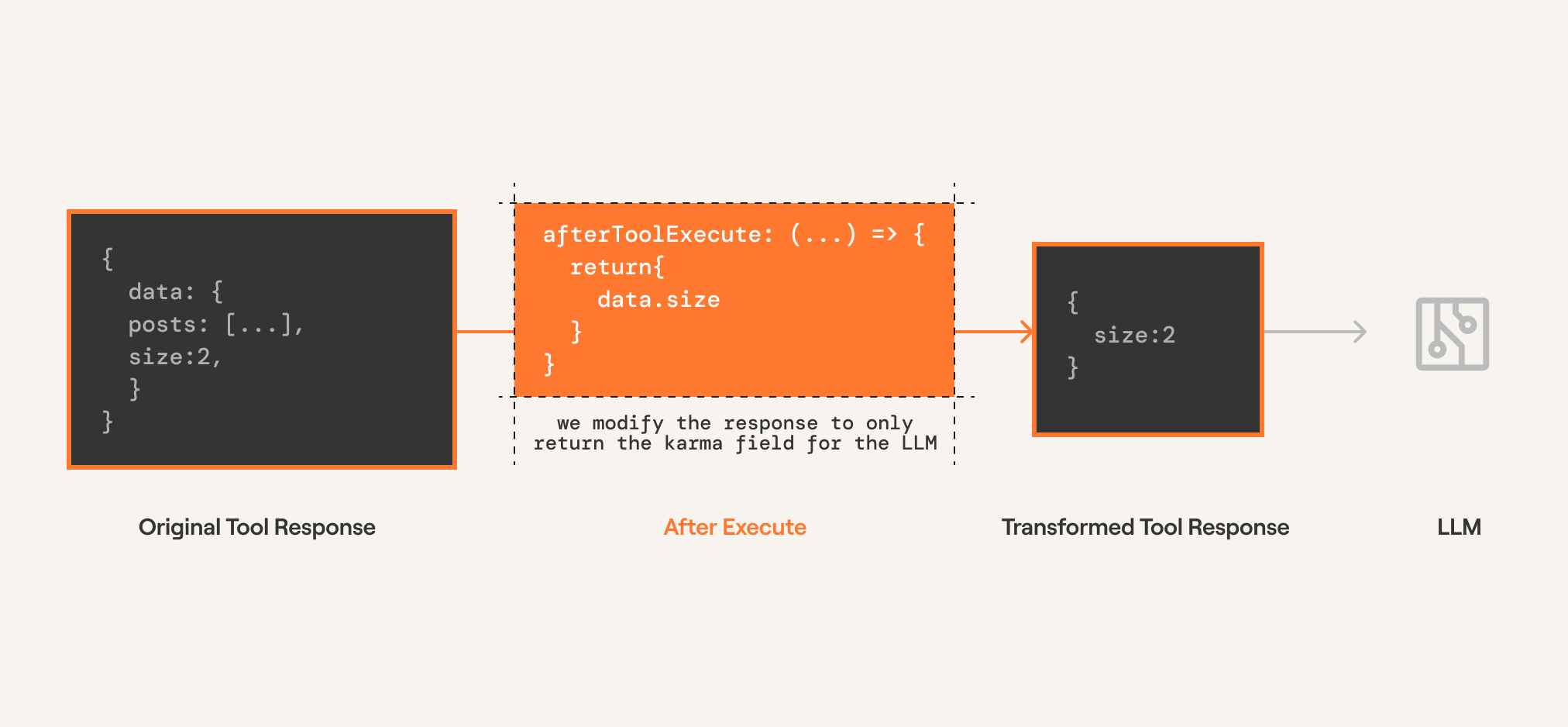
> Below we use the `afterExecute` modifier to truncate the output of `HACKERNEWS_GET_USER` and only return the karma of the user.
# With Chat Completions
Since completion providers don't have a function execution step, Composio executes the tool call directly. The modifier is configured on the `tools.execute` method.
**Python:**
```python
from composio import Composio, after_execute
from composio.types import ToolExecutionResponse
@after_execute(tools=["HACKERNEWS_GET_USER"])
def after_execute_modifier(
tool: str,
toolkit: str,
response: ToolExecutionResponse,
) -> ToolExecutionResponse:
return {
**response,
"data": {
"karma": response["data"]["karma"],
},
tools = composio.tools.get(user_id=user_id, slug="HACKERNEWS_GET_USER")
# Get response from the LLM
response = openai_client.chat.completions.create(
model="gpt-4o-mini",
tools=tools,
messages=messages,
)
print(response)
# Execute the function calls
result = composio.provider.handle_tool_calls(
response=response,
user_id="default",
modifiers=[
after_execute_modifier,
]
)
print(result)
```
**TypeScript:**
```typescript
// @noErrors
const response = await openai.chat.completions.create({
model: "gpt-4o-mini",
messages,
tools,
tool_choice: "auto",
});
const { tool_calls } = response.choices[0].message;
console.log(tool_calls);
if (tool_calls) {
const {
function: { arguments: toolArgs },
} = tool_calls[0];
const result = await composio.tools.execute(
"HACKERNEWS_GET_USER",
userId,
arguments: JSON.parse(toolArgs),
},
afterExecute: ({ toolSlug, toolkitSlug, result }) => {
if (toolSlug === "HACKERNEWS_GET_USER") {
const { data } = result;
const { karma } = data.response_data as { karma: number };
return {
...result,
data: { karma },
};
return result;
},
);
console.log(JSON.stringify(result, null, 2));
```
# With Agentic Frameworks
Agentic providers have a function execution step. The modifier is configured on the `tools.get` method which modifies the execution logic within the framework.
**Python:**
```python
from composio import Composio, after_execute
from composio.types import ToolExecutionResponse
from composio_crewai import CrewAIProvider
composio = Composio(provider=CrewAIProvider())
@after_execute(tools=["HACKERNEWS_GET_USER"])
def after_execute_modifier(
tool: str,
toolkit: str,
response: ToolExecutionResponse,
) -> ToolExecutionResponse:
return {
**response,
"data": {
"karma": response["data"]["karma"],
},
tools = composio.tools.get(
user_id="default",
slug="HACKERNEWS_GET_USER",
modifiers=[
after_execute_modifier,
]
)
```
**TypeScript:**
```typescript
// @noErrors
import { Composio } from "@composio/core";
import { VercelProvider } from "@composio/vercel";
import { v4 as uuidv4 } from "uuid";
const composio = new Composio({
apiKey: process.env.COMPOSIO_API_KEY,
provider: new VercelProvider(),
});
const userId = uuidv4();
const agenticTools = await composio.tools.get(
userId,
tools: ["HACKERNEWS_GET_USER"],
},
afterExecute: ({ toolSlug, toolkitSlug, result }) => {
if (toolSlug === "HACKERNEWS_GET_USER") {
const {
data: { response_data: { karma } = {} } = {},
} = result;
return {
...result,
data: { karma },
};
return result;
},
);
```
---
# Before Execution Modifiers (/docs/tools-direct/modify-tool-behavior/before-execution-modifiers)
Before execution modifiers are part of Composio SDK's powerful middleware capabilities that allow you to customize and extend the behavior of tools.
These modifiers are called before the tool is executed by the LLM. This allows you to modify the arguments called by the LLM before they are executed by Composio.
**Useful for:**
* Injecting an argument into the tool execution
* Overriding the arguments emitted by the LLM
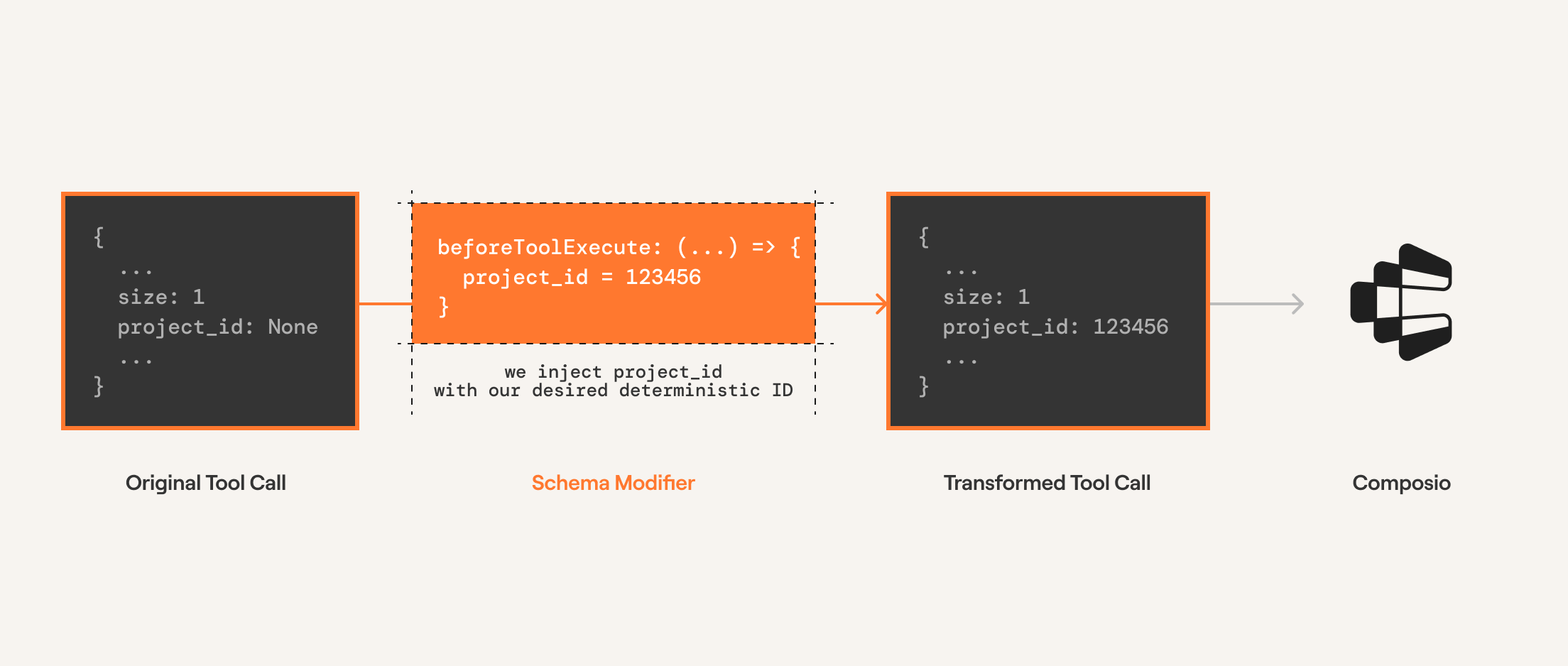
> Below we use the `beforeExecute` modifier to modify the number of posts returned by `HACKERNEWS_GET_LATEST_POSTS`.
# With Chat Completions
Since completion providers don't have a function execution step, Composio executes the tool call directly. The modifier is configured on the `tools.execute` method.
**Python:**
```python
from openai import OpenAI
from composio import Composio, before_execute
from composio.types import ToolExecuteParams
composio = Composio()
openai_client = OpenAI()
user_id = "user@email.com"
@before_execute(tools=["HACKERNEWS_GET_LATEST_POSTS"])
def before_execute_modifier(
tool: str,
toolkit: str,
params: ToolExecuteParams,
) -> ToolExecuteParams:
params["arguments"]["size"] = 1
return params
# Get tools
tools = composio.tools.get(user_id=user_id, slug="HACKERNEWS_GET_LATEST_POSTS")
# Get response from the LLM
response = openai_client.chat.completions.create(
model="gpt-4o-mini",
tools=tools,
messages=[{"role": "user", "content": "Fetch latest posts from hackernews"}],
)
print(response)
# Execute the function calls
result = composio.provider.handle_tool_calls(
response=response,
user_id="default",
modifiers=[
before_execute_modifier,
],
)
print(result)
```
**TypeScript:**
```typescript
// @noErrors
const response = await openai.chat.completions.create({
model: "gpt-4o-mini",
messages,
tools,
tool_choice: "auto",
});
const { tool_calls } = response.choices[0].message;
console.log(tool_calls);
if (tool_calls) {
const {
function: { arguments: toolArgs },
} = tool_calls[0];
const result = await composio.tools.execute(
"HACKERNEWS_GET_LATEST_POSTS",
userId,
arguments: JSON.parse(toolArgs),
},
beforeExecute: ({ toolSlug, toolkitSlug, params }) => {
if (toolSlug === "HACKERNEWS_GET_LATEST_POSTS") {
params.arguments.size = 1;
console.log(params);
return params;
},
);
console.log(JSON.stringify(result, null, 2));
```
# With Agentic Frameworks
Agentic providers have a function execution step. The modifier is configured on the `tools.get` method which modifies the execution logic within the framework.
**Python:**
```python
from composio import Composio, before_execute
from composio.types import ToolExecuteParams
from composio_crewai import CrewAIProvider
composio = Composio(provider=CrewAIProvider())
@before_execute(tools=["LINEAR_CREATE_LINEAR_ISSUE"])
def modify_linear_project_id(
tool: str,
toolkit: str,
params: ToolExecuteParams,
) -> ToolExecuteParams:
params["arguments"]["project_id"] = "1234567890"
return params
tools = composio.tools.get(
user_id="default",
tools=[
"HACKERNEWS_GET_LATEST_POSTS",
"HACKERNEWS_GET_USER",
"LINEAR_CREATE_LINEAR_ISSUE",
],
modifiers=[
modify_linear_project_id,
]
)
```
**TypeScript:**
```typescript
// @noErrors
import { Composio } from "@composio/core";
import { MastraProvider } from "@composio/mastra";
const composio = new Composio({
apiKey: process.env.COMPOSIO_API_KEY,
provider: new MastraProvider(),
});
const userId = "user@acme.com";
const agenticTools = await composio.tools.get(
userId,
tools: [
"HACKERNEWS_GET_LATEST_POSTS",
"HACKERNEWS_GET_USER",
"LINEAR_CREATE_LINEAR_ISSUE",
],
},
beforeExecute: ({toolSlug, toolkitSlug, params}) => {
if (toolSlug === "LINEAR_CREATE_LINEAR_ISSUE") {
params.arguments.project_id = "1234567890";
return params;
},
);
```
---
# Schema Modifiers (/docs/tools-direct/modify-tool-behavior/schema-modifiers)
Schema modifiers are part of Composio SDK's powerful middleware capabilities that allow you to customize and extend the behavior of tools.
Schema modifiers transform a tool's schema before the tool is seen by an agent.
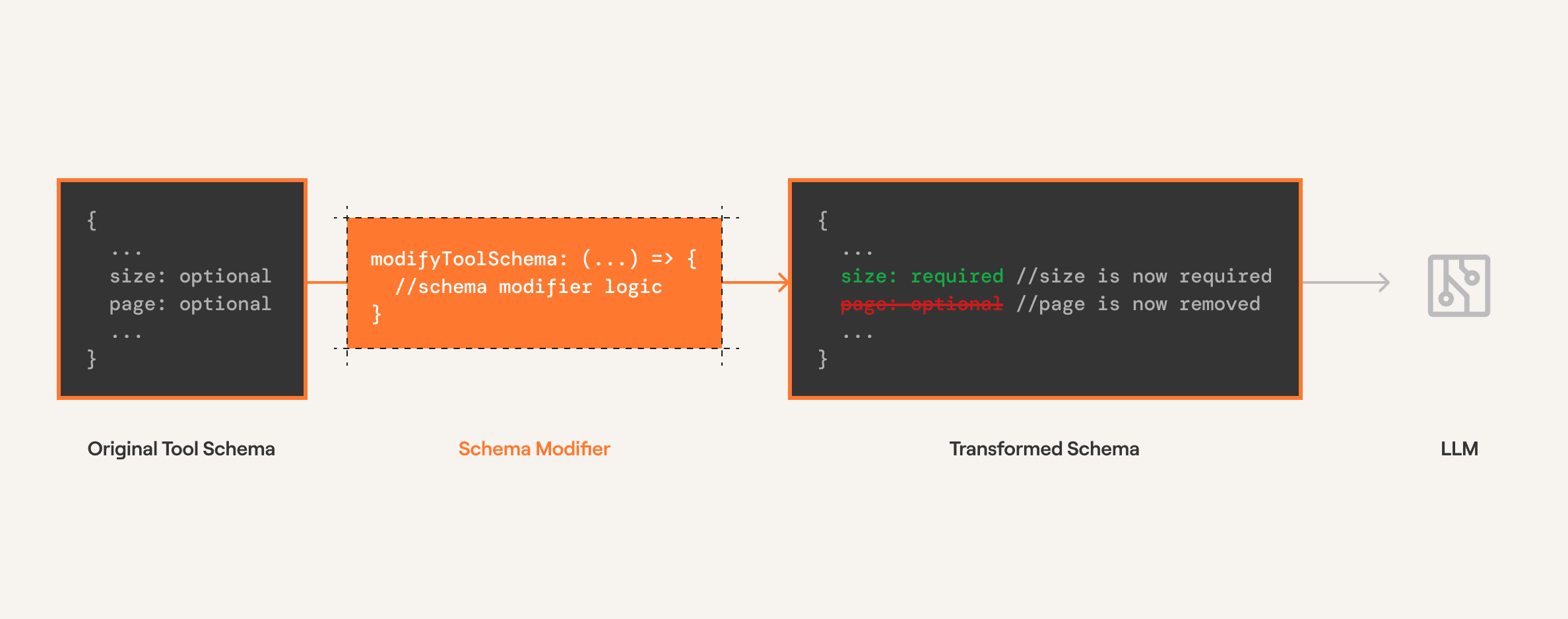
**Useful for:**
* Modifying or rewriting the tool description to better fit your use case
* Adding arguments to the tool (e.g., adding a `thought` argument to prompt the agent to explain reasoning)
* Hiding arguments from the tool when they're irrelevant
* Adding extra arguments for custom use cases
* Adding default values to tool arguments
> Below we modify the schema of `HACKERNEWS_GET_LATEST_POSTS` to make the `size` argument required and remove the `page` argument.
**Python:**
```python
from composio import Composio, schema_modifier
from composio.types import Tool
user_id = "your@email.com"
@schema_modifier(tools=["HACKERNEWS_GET_LATEST_POSTS"])
def modify_schema(
tool: str,
toolkit: str,
schema: Tool,
) -> Tool:
_ = schema.input_parameters["properties"].pop("page", None)
schema.input_parameters["required"] = ["size"]
return schema
tools = composio.tools.get(
user_id=user_id,
tools=["HACKERNEWS_GET_LATEST_POSTS", "HACKERNEWS_GET_USER"],
modifiers=[
modify_schema,
]
)
```
**TypeScript:**
```typescript
// @noErrors
const userId = "your@email.com";
const tools = await composio.tools.get(
userId,
tools: ["HACKERNEWS_GET_LATEST_POSTS", "HACKERNEWS_GET_USER"],
},
modifySchema: ({ toolSlug, toolkitSlug, schema }) => {
if (toolSlug === "HACKERNEWS_GET_LATEST_POSTS") {
const { inputParameters } = schema;
if (inputParameters?.properties) {
delete inputParameters.properties["page"];
inputParameters.required = ["size"];
return schema;
},
);
console.log(JSON.stringify(tools, null, 2));
```
With the modified tool schema, the `page` argument is removed and `size` is required.
**Full example with LLM**
**Python:**
```python
from openai import OpenAI
from composio import Composio, schema_modifier
from composio.types import Tool
from composio_openai import OpenAIProvider
@schema_modifier(tools=["HACKERNEWS_GET_LATEST_POSTS"])
def modify_schema(
tool: str,
toolkit: str,
schema: Tool,
) -> Tool:
_ = schema.input_parameters["properties"].pop("page", None)
schema.input_parameters["required"] = ["size"]
return schema
# Initialize tools
openai_client = OpenAI()
composio = Composio(provider=OpenAIProvider())
# Define task
task = "Get the latest posts from Hacker News"
# Get tools with modifier
tools = composio.tools.get(
user_id="default",
tools=['HACKERNEWS_GET_LATEST_POSTS', 'HACKERNEWS_GET_USER'],
modifiers=[
modify_schema,
],
)
# Get response from the LLM
response = openai_client.chat.completions.create(
model="gpt-4o-mini",
tools=tools,
messages=[
{"role": "system", "content": "You are a helpful assistant."},
{"role": "user", "content": task},
],
)
print(response)
# Execute the function calls
result = composio.provider.handle_tool_calls(response=response, user_id="default")
print(result)
```
**TypeScript:**
```typescript
// @noErrors
import { Composio } from '@composio/core';
import { OpenAI } from 'openai';
const composio = new Composio({
apiKey: process.env.COMPOSIO_API_KEY,
});
const openai = new OpenAI();
const userId = 'your@email.com';
const tools = await composio.tools.get(
userId,
tools: ['HACKERNEWS_GET_LATEST_POSTS', 'HACKERNEWS_GET_USER'],
},
modifySchema: ({ toolSlug, toolkitSlug, schema }) => {
if (toolSlug === 'HACKERNEWS_GET_LATEST_POSTS') {
const { inputParameters } = schema;
if (inputParameters?.properties) {
delete inputParameters.properties['page'];
inputParameters.required = ['size'];
return schema;
},
);
console.log(JSON.stringify(tools, null, 2));
const response = await openai.chat.completions.create({
model: 'gpt-4o-mini',
messages: [
role: 'system',
content: 'You are a helpful assistant that can help with tasks.',
},
{ role: 'user', content: 'Get the latest posts from Hacker News' },
],
tools: tools,
tool_choice: 'auto',
});
console.log(response.choices[0].message.tool_calls);
```
# Example: Modifying the tool description
Sometimes you need to provide additional context to help the agent understand how to use a tool correctly. This example demonstrates modifying the description of `GITHUB_LIST_REPOSITORY_ISSUES` to specify a default repository.
> This approach is useful when you want to guide the agent's behavior without changing the tool's underlying functionality.
In this example:
* We append additional instructions to the tool's description
* The modified description tells the agent to use `composiohq/composio` as the default repository
* This helps prevent errors when the agent forgets to specify a repository parameter
**Python:**
```python
from composio import Composio, schema_modifier
from composio.types import Tool
from composio_google import GoogleProvider
from google import genai
from uuid import uuid4
composio = Composio(provider=GoogleProvider())
client = genai.Client()
user_id = uuid4()
@schema_modifier(tools=["GITHUB_LIST_REPOSITORY_ISSUES"])
def append_repository(
tool: str,
toolkit: str,
schema: Tool,
) -> Tool:
schema.description += " When not specified, use the `composiohq/composio` repository"
return schema
tools = composio.tools.get(
user_id=user_id,
tools=["GITHUB_LIST_REPOSITORY_ISSUES"],
modifiers=[append_repository]
)
print(tools)
```
**TypeScript:**
```typescript
// @noErrors
import { Composio } from '@composio/core';
import { VercelProvider } from '@composio/vercel';
import { v4 as uuidv4 } from 'uuid';
const userId = uuidv4();
const composio = new Composio({
apiKey: process.env.COMPOSIO_API_KEY,
provider: new VercelProvider(),
});
const addDescription = ({ toolSlug, toolkitSlug, schema }) => {
if (toolSlug === 'GITHUB_LIST_REPOSITORY_ISSUES') {
schema.description += 'If not specified, use the `composiohq/composio` repository';
return schema;
};
const tools = await composio.tools.get(
userId,
tools: ['GITHUB_LIST_REPOSITORY_ISSUES'],
},
modifySchema: addDescription,
);
console.log(tools);
```
---
# Examples
---
# Basic FastAPI Server (/examples/fast-api)
This cookbook will guide you through building agents equipped with tools using `Composio`, `OpenAI`, and `FastAPI`.
# Prerequisites
* Python 3.10+
* [UV](https://docs.astral.sh/uv/getting-started/installation/)
* Composio API key
* OpenAI API key
# Building an AI agent that can interact with `gmail` service
First, let's start with building a simple AI agent with Composio tools that lets the agent interact with `gmail`.
```python
from openai import OpenAI
from composio import Composio
from composio_openai import OpenAIProvider
import os
def run_gmail_agent(
composio_client: Composio[OpenAIProvider],
openai_client: OpenAI,
user_id: str, # Composio uses the User ID to store and access user-level authentication tokens.
prompt: str,
):
"""
Run the Gmail agent using composio and openai clients.
"""
# Step 1: Fetch the necessary Gmail tools list with Composio
tools = composio_client.tools.get(
user_id=user_id,
tools=[
"GMAIL_FETCH_EMAILS",
"GMAIL_SEND_EMAIL",
"GMAIL_CREATE_EMAIL_DRAFT"
]
)
# Step 2: Use OpenAI to generate a response based on the prompt and available tools
response = openai_client.chat.completions.create(
model="gpt-4.1",
tools=tools,
messages=[{"role": "user", "content": prompt}],
)
# Step 3: Handle tool calls with Composio and return the result
result = composio_client.provider.handle_tool_calls(response=response, user_id=user_id)
return result
```
> This example demonstrates a basic agent without state management or agentic loops,
suitable for simple one-step tasks. For complex multi-step workflows requiring
memory and iterative reasoning, see our cookbooks with frameworks like LangChain,
CrewAI, or AutoGen.
To invoke this agent, authenticate your users with Composio's managed authentication service.
# Authenticating users
To authenticate your users with Composio you need an authentication config for the given app. In this case you need one for gmail.
To create an authentication config for `gmail` you need `client_id` and `client_secret` from your [Google OAuth Console](https://developers.google.com/identity/protocols/oauth2). Once you have the credentials, use the following piece of code to set up authentication for `gmail`.
```python
from composio import Composio
from composio_openai import OpenAIProvider
def create_auth_config(composio_client: Composio[OpenAIProvider]):
"""
Create a auth config for the gmail toolkit.
"""
client_id = os.getenv("GMAIL_CLIENT_ID")
client_secret = os.getenv("GMAIL_CLIENT_SECRET")
if not client_id or not client_secret:
raise ValueError("GMAIL_CLIENT_ID and GMAIL_CLIENT_SECRET must be set")
return composio_client.auth_configs.create(
toolkit="GMAIL",
options={
"name": "default_gmail_auth_config",
"type": "use_custom_auth",
"auth_scheme": "OAUTH2",
"credentials": {
"client_id": client_id,
"client_secret": client_secret,
},
},
)
```
This will create a Gmail authentication config to authenticate your app’s users. Ideally, create one authentication object per project, so check for an existing auth config before creating a new one.
```python
def fetch_auth_config(composio_client: Composio[OpenAIProvider]):
"""
Fetch the auth config for a given user id.
"""
auth_configs = composio_client.auth_configs.list()
for auth_config in auth_configs.items:
if auth_config.toolkit == "GMAIL":
return auth_config
return None
```
> Composio platform provides composio managed authentication for some apps to
fast-track your development, `gmail` being one of them. You can use these
default auth configs for development, but for production, always use your
own oauth app configuration.
Once you have authentication management in place, we can start with connecting your users to your `gmail` app. Let's implement a function to connect users to your `gmail` app via composio.
```python
from fastapi import FastAPI
# Function to initiate a connected account
def create_connection(composio_client: Composio[OpenAIProvider], user_id: str):
"""
Create a connection for a given user id and auth config id.
"""
# Fetch or create the auth config for the gmail toolkit
auth_config = fetch_auth_config(composio_client=composio_client)
if not auth_config:
auth_config = create_auth_config(composio_client=composio_client)
# Create a connection for the user
return composio_client.connected_accounts.initiate(
user_id=user_id,
auth_config_id=auth_config.id,
)
# Setup FastAPI
app = FastAPI()
# Connection initiation endpoint
@app.post("/connection/create")
def _create_connection(
request: CreateConnectionRequest,
composio_client: ComposioClient,
) -> dict:
"""
Create a connection for a given user id.
"""
# For demonstration, using a default user_id. Replace with real user logic in production.
user_id = "default"
# Create a new connection for the user
connection_request = create_connection(composio_client=composio_client, user_id=user_id)
return {
"connection_id": connection_request.id,
"redirect_url": connection_request.redirect_url,
```
Now, you can make a request to this endpoint on your client app, and your user will get a URL which they can use to authenticate.
# Set Up FastAPI service
We will use [`FastApi`](https://fastapi.tiangolo.com/) to build an HTTP service that authenticates your users and lets them interact with your agent. This guide will provide best practices for using composio client in production environments.
## Setup dependencies
FastAPI allows [dependency injection](https://fastapi.tiangolo.com/reference/dependencies/) to simplify the usage of SDK clients that must be singletons. We recommend using composio SDK client as singleton.
```python
import os
import typing_extensions as te
from composio import Composio
from composio_openai import OpenAIProvider
from fastapi import Depends
_composio_client: Composio[OpenAIProvider] | None = None
def provide_composio_client():
"""
Provide a Composio client.
"""
global _composio_client
if _composio_client is None:
_composio_client = Composio(provider=OpenAIProvider())
return _composio_client
ComposioClient = te.Annotated[Composio, Depends(provide_composio_client)]
"""
A Composio client dependency.
"""
```
Check [dependencies](./simple_gmail_agent/server/dependencies.py) module for more details.
## Invoke agent via FastAPI
When invoking an agent, make sure you validate the `user_id`.
```python
def check_connected_account_exists(
composio_client: Composio[OpenAIProvider],
user_id: str,
):
"""
Check if a connected account exists for a given user id.
"""
# Fetch all connected accounts for the user
connected_accounts = composio_client.connected_accounts.list(
user_ids=[user_id],
toolkit_slugs=["GMAIL"],
)
# Check if there's an active connected account
for account in connected_accounts.items:
if account.status == "ACTIVE":
return True
# Ideally you should not have inactive accounts, but if you do, delete them.
print(f"[warning] inactive account {account.id} found for user id: {user_id}")
return False
def validate_user_id(user_id: str, composio_client: ComposioClient):
"""
Validate the user id, if no connected account is found, create a new connection.
"""
if check_connected_account_exists(composio_client=composio_client, user_id=user_id):
return user_id
raise HTTPException(
status_code=404, detail={"error": "No connected account found for the user id"}
)
# Endpoint: Run the Gmail agent for a given user id and prompt
@app.post("/agent")
def _run_gmail_agent(
request: RunGmailAgentRequest,
composio_client: ComposioClient,
openai_client: OpenAIClient, # OpenAI client will be injected as dependency
) -> List[ToolExecutionResponse]:
"""
Run the Gmail agent for a given user id and prompt.
"""
# For demonstration, using a default user_id. Replace with real user logic in production.
user_id = "default"
# Validate the user id before proceeding
user_id = validate_user_id(user_id=user_id, composio_client=composio_client)
# Run the Gmail agent using Composio and OpenAI
result = run_gmail_agent(
composio_client=composio_client,
openai_client=openai_client,
user_id=user_id,
prompt=request.prompt,
)
return result
```
> Check [server](./simple_gmail_agent/server/) module for service implementation
# Putting everything together
So far, we have created an agent with ability to interact with `gmail` using the `composio` SDK, functions to manage connected accounts for users and a FastAPI service. Now let's run the service.
> Before proceeding, check the [code](./simple_gmail_agent/server/api.py) for utility endpoints not discussed in the cookbook
1. Clone the repository
```bash
git clone git@github.com:composiohq/composio-fastapi
cd composio-fastapi/
```
2. Setup environment
```bash
cp .env.example .env
```
Fill the api keys
```dotenv
COMPOSIO_API_KEY=
OPENAI_API_KEY=
```
Create the virtual env
```bash
make env
source .venv/bin/activate
```
3. Run the HTTP server
```bash
uvicorn simple_gmail_agent.server.api:create_app --factory
```
# Testing the API with curl
Assuming the server is running locally on `http://localhost:8000`.
## Check if a connection exists
```bash
curl -X POST http://localhost:8000/connection/exists
```
## Create a connection
Note: The body fields are required by the API schema, but are ignored internally in this example service.
```bash
curl -X POST http://localhost:8000/connection/create \
-H "Content-Type: application/json" \
-d '{
"user_id": "default",
"auth_config_id": "AUTH_CONFIG_ID_FOR_GMAIL_FROM_THE_COMPOSIO_DASHBOARD"
}'
```
Response includes `connection_id` and `redirect_url`. Complete the OAuth flow at the `redirect_url`.
## Check connection status
Use the `connection_id` returned from the create step.
```bash
curl -X POST http://localhost:8000/connection/status \
-H "Content-Type: application/json" \
-d '{
"user_id": "default",
"connection_id": "CONNECTION_ID_FROM_CREATE_RESPONSE"
}'
```
## Run the Gmail agent
Requires an active connected account for the `default` user.
```bash
curl -X POST http://localhost:8000/agent \
-H "Content-Type: application/json" \
-d '{
"user_id": "default",
"prompt": "Summarize my latest unread emails from the last 24 hours."
}'
```
## Fetch emails (direct action)
```bash
curl -X POST http://localhost:8000/actions/fetch_emails \
-H "Content-Type: application/json" \
-d '{
"user_id": "default",
"limit": 5
}'
```
These examples are intended solely for testing purposes.
# Using Composio for managed auth and tools
Composio reduces boilerplate for building AI agents that access and use various apps. In this cookbook, to build Gmail integration without Composio, you would have to write code to
* manage Gmail OAuth app
* manage user connections
* tools for your agents to interact with Gmail
Using Composio simplifies all of the above to a few lines of code as shown in the cookbook.
# Best practices
**🎯 Effective Prompts**:
* Be specific: "Send email to [john@company.com](mailto:john@company.com) about tomorrow's 2pm meeting" works better than "send email"
* Include context: "Reply to Sarah's email about the budget with our approval"
* Use natural language: The agent understands conversational requests
**🔒 User Management**:
* Use unique, consistent `user_id` values for each person
* Each user maintains their own Gmail connection
* User IDs can be email addresses, usernames, or any unique identifier
# Troubleshooting
**Connection Issues**:
* Ensure your `.env` file has valid `COMPOSIO_API_KEY` and `OPENAI_API_KEY`
* Check if the user has completed Gmail authorization.
* Verify the user\_id matches exactly between requests
**API Errors**:
* Check the server logs for detailed error messages
* Ensure request payloads match the expected format
* Visit `/docs` endpoint for API schema validation
**Gmail API Limits**:
* Gmail has rate limits; the agent will handle these gracefully
* For high-volume usage, consider implementing request queuing
---
# Gmail Labeler (/examples/gmail-labeler)
With Composio's managed authentication, tool calling and triggers, it's easy to
build the AI agents that can interact and react the real world events reducing
the boilerplate required to setup and manage the authentication. This cookbook
will walk you through the process of building agents using `Composio`, `LangChain`.
# Prerequisites
* Python3.x
* [UV](https://docs.astral.sh/uv/getting-started/installation/)
* Composio API key
* OpenAI API key
* Understanding of building AI agents (Preferably with LangChain)
# Build gmail agent to label your messages
```python
from composio import Composio
from composio_langchain import LangchainProvider
from langchain import hub
from langchain.agents import AgentExecutor, create_openai_functions_agent
from langchain_openai import ChatOpenAI
def create_agent(user_id: str, composio_client: Composio[LangchainProvider]):
"""
Create an agent for a given user id.
"""
# Step 1: Get all the tools
tools = composio_client.tools.get(
user_id=user_id,
tools=[
"GMAIL_LIST_LABELS",
"GMAIL_ADD_LABEL_TO_EMAIL",
"GMAIL_CREATE_LABEL",
],
)
# Step 2: Pull relevant agent prompt.
prompt = hub.pull("hwchase17/openai-functions-agent")
# Step 3: Initialize chat model.
openai_client = ChatOpenAI(model="gpt-5")
# Step 4: Define agent
return AgentExecutor(
agent=create_openai_functions_agent(
openai_client,
tools,
prompt,
),
tools=tools,
verbose=False,
)
```
# Authenticating users
To authenticate your users with Composio you need an auth config for the given
app, In this case you need one for gmail. You can create and manage auth configs
from the [dashboard](https://platform.composio.dev/?next_page=/auth-configs?create_auth_config=gmail).
Composio platform provides composio managed authentication for some apps to help
you fast-track your development, `gmail` being one of them. You can use these
default auth configs for development, but for production you should always use
your own oauth app configuration.
Using dashboard is the preferred way of managing authentication configs, but if
you want to do it manually you can follow the guide below
Click to expand
To create an authentication config for `gmail` you need `client_id` and `client_secret`
from your from your [Google OAuth Console](https://developers.google.com/identity/protocols/oauth2).
Once you have the required credentials you can use the following piece of
code to set up authentication for `gmail`.
```python
from composio import Composio
from composio_langchain import LangchainProvider
def create_auth_config(composio_client: Composio[OpenAIProvider]):
"""
Create a auth config for the gmail toolkit.
"""
client_id = os.getenv("GMAIL_CLIENT_ID")
client_secret = os.getenv("GMAIL_CLIENT_SECRET")
if not client_id or not client_secret:
raise ValueError("GMAIL_CLIENT_ID and GMAIL_CLIENT_SECRET must be set")
return composio_client.auth_configs.create(
toolkit="gmail",
options={
"name": "default_gmail_auth_config",
"type": "use_custom_auth",
"auth_scheme": "OAUTH2",
"credentials": {
"client_id": client_id,
"client_secret": client_secret,
},
},
)
```
This will create an authentication config for `gmail` which you can use to
authenticate your users for your app. Ideally you should just create one
authentication object per project, so check for an existing auth config
before you create a new one.
```python
def fetch_auth_config(composio_client: Composio[OpenAIProvider]):
"""
Fetch the auth config for a given user id.
"""
auth_configs = composio_client.auth_configs.list()
for auth_config in auth_configs.items:
if auth_config.toolkit == "gmail":
return auth_config
return None
```
Once you have authentication management in place, we can start with connecting
your users to your `gmail` app. Let's implement a function to connect the users
to your `gmail` app via composio.
```python
# Function to initiate a connected account
def create_connection(composio_client: Composio[OpenAIProvider], user_id: str):
"""
Create a connection for a given user id and auth config id.
"""
# Fetch or create the auth config for the gmail toolkit
auth_config = fetch_auth_config(composio_client=composio_client)
if not auth_config:
auth_config = create_auth_config(composio_client=composio_client)
# Create a connection for the user
return composio_client.connected_accounts.initiate(
user_id=user_id,
auth_config_id=auth_config.id,
)
```
Now, when creating tools for your agent always check if the user already has a
connected account before creating a new one.
```python
def check_connected_account_exists(
composio_client: Composio[LangchainProvider],
user_id: str,
):
"""
Check if a connected account exists for a given user id.
"""
# Fetch all connected accounts for the user
connected_accounts = composio_client.connected_accounts.list(
user_ids=[user_id],
toolkit_slugs=["GMAIL"],
)
# Check if there's an active connected account
for account in connected_accounts.items:
if account.status == "ACTIVE":
return True
# Ideally you should not have inactive accounts, but if you do, you should delete them
print(f"[warning] inactive account {account.id} found for user id: {user_id}")
return False
```
# Creating Triggers
You can use triggers to make your agents react to real world events. In this example,
we will use triggers to invoke your agent everytime there's a new message in your
gmail inbox.
```python
# Create a new trigger
def create_trigger(
composio_client: Composio[LangchainProvider],
connected_account_id: str,
) -> str:
"""
Create a trigger.
"""
response = composio_client.triggers.create(
slug="GMAIL_NEW_GMAIL_MESSAGE",
connected_account_id=connected_account_id,
trigger_config={},
)
return response.trigger_id
```
When creating triggers, make sure there are no duplicate triggers. Use following
code as reference for checking if trigger for given connected account exists or not.
```python
def check_trigger_exists(
composio_client: Composio[LangchainProvider],
connected_account_id: str,
) -> t.Optional[str]:
"""
Check if a trigger exists.
"""
triggers = composio_client.triggers.list_active(
trigger_names=["GMAIL_NEW_GMAIL_MESSAGE"],
connected_account_ids=[connected_account_id],
)
for trigger in triggers.items:
return trigger.id
return None
```
Once trigger is created, you can listen to events using a trigger subscription.
```python
# Create subscription object
trigger_subscription = composio_client.triggers.subscribe()
# Register event handler
@trigger_subscription.handle(
trigger_id="", # Filter out events that does not belong this trigger id
trigger_slug="GMAIL_NEW_GMAIL_MESSAGE",
)
def handle_event(event: TriggerEvent):
print("> Received email with subject: ", event["payload"]["subject"])
# Wait for events
trigger_subscription.wait_forever()
```
# Putting everything together
Let's put together everything by making the agent react to new messages in your
inbox.
```python
# Create a trigger subscription factory
def create_trigger_subscription(
composio_client: Composio[LangchainProvider],
trigger_slug: str,
trigger_id: str,
agent: AgentExecutor,
):
"""
Create a trigger subscription for the given agent.
"""
trigger_subscription = composio_client.triggers.subscribe()
@trigger_subscription.handle(
trigger_slug=trigger_slug,
trigger_id=trigger_id,
)
def handle_event(event: TriggerEvent):
print("> Received email with subject: ", event["payload"]["subject"])
result = agent.invoke(
input={
"input": APPLY_NEW_LABEL.format( # Check `gmail_labeler/prompt.py`
message_id=event["payload"]["id"],
message_subject=event["payload"]["subject"],
message_text=event["payload"]["message_text"],
)
)
print("> Result: ", result["output"])
return trigger_subscription
```
Package everything as a single entry point.
```python
def run_agent(user_id: str):
# Create composio client
composio_client = Composio(provider=LangchainProvider())
# Validate conected account
connected_account_id = check_connected_account_exists(composio_client, user_id)
if connected_account_id is None:
connection_request = create_connection(composio_client, user_id)
print(
f"Authenticate with the following link: {connection_request.redirect_url}"
)
connection_request.wait_for_connection()
connected_account_id = connection_request.id
# Check if trigger exists, create if not
trigger_id = check_trigger_exists(
composio_client=composio_client,
connected_account_id=connected_account_id,
)
if trigger_id is None:
trigger_id = create_trigger(
composio_client=composio_client,
connected_account_id=connected_account_id,
)
# Create agent
agent = create_agent(user_id=user_id, composio_client=composio_client)
# Create trigger subscription
trigger_subscription = create_trigger_subscription(
composio_client=composio_client,
trigger_slug=GMAIL_NEW_GMAIL_MESSAGE_TRIGGER,
trigger_id=trigger_id,
agent=agent,
)
# Wait forever
print("Waiting for events...")
trigger_subscription.wait_forever()
```
To test the above function as CLI, follow the steps below
1. Clone the repository
```bash
git clone git@github.com:composiohq/gmail-labeler
cd gmail-labeler/
```
2. Setup environment
```bash
cp .env.example .env
```
Fill the api keys
```dotenv
COMPOSIO_API_KEY=
OPENAI_API_KEY=
```
Create the virtual env
```bash
make env
source .venv/bin/activate
```
3. Run the agent
```bash
python gmail_labeler --user-id "default"
```
# Using Composio for managed auth and tools
Composio reduces a lot of boilerplate for building AI agents with ability access and use a wide variety of apps. For example in this cookbook, to build `gmail` integration without composio you would have to write code to
* manage `gmail` oauth app
* manage user connections
* tools for your agents to interact with `gmail`
* Infra for listening to changes in your gmail inbox
Using composio simplifies all of the above to a few lines of code as we've seen the cookbook.
# Best practices
**🔒 User Management**:
* Use unique, consistent `user_id` values for each person
* Each user maintains their own gmail connection
* User IDs can be email addresses, usernames, or any unique identifier
# Troubleshooting
**Connection Issues**:
* Ensure your `.env` file has valid `COMPOSIO_API_KEY` and `OPENAI_API_KEY`
* Check that the user has completed `gmail` authorization
* Verify the user\_id matches exactly between requests
**API Errors**:
* Check the server logs for detailed error messages
* Ensure request payloads match the expected format
* Visit `/docs` endpoint for API schema validation
---
# Basic Hono Server (/examples/hono)
With Composio's managed authentication and tool calling, it's easy to build
AI agents that interact with the real world while reducing boilerplate for
setup and authentication management. This cookbook will guide you through
building and serving agents using `Composio`, `OpenAI`, and `Hono.js`.
# Prerequisites
* Node.js 18.x or higher
* npm or yarn package manager
* Composio API key
* OpenAI API key
* Basic knowledge of OAuth
* Understanding of building HTTP services (preferably using Hono.js)
# Building an AI agent that can interact with `gmail` service
First, let's start with building a simple AI agent embedded with tools from
Composio that lets the agent interact with the `gmail` service.
```typescript
import { OpenAI } from 'openai';
import { Composio } from '@composio/core';
import { OpenAIProvider } from '@composio/openai';
export async function runGmailAgent(
composioClient: Composio,
openaiClient: OpenAI,
userId: string, // Composio uses the User ID to store and access user-level authentication tokens.
prompt: string,
): Promise {
// Step 1: Fetch the necessary Gmail tools list with Composio
const tools = await composioClient.tools.get(
userId,
tools: [
"GMAIL_FETCH_EMAILS",
"GMAIL_SEND_EMAIL",
"GMAIL_CREATE_EMAIL_DRAFT"
]
);
// Step 2: Use OpenAI to generate a response based on the prompt and available tools
const response = await openaiClient.chat.completions.create({
model: "gpt-4.1",
tools,
messages: [{ role: "user", content: prompt }],
});
// Step 3: Handle tool calls with Composio and return the result
const result = await composioClient.provider.handleToolCalls(
userId,
response
);
return result;
```
> This is a simple agent without state management and agentic loop implementation,
so the agent can't perform complicated tasks. If you want to understand how
composio can be used with agentic loops, check other cookbooks with more
agentic frameworks.
To invoke this agent, authenticate your users with Composio's managed authentication service.
# Authenticating users
To authenticate your users with Composio you need an authentication config for the given app. In this case you need one for gmail.
To create an authentication config for `gmail` you need `client_id` and `client_secret` from your [Google OAuth Console](https://developers.google.com/identity/protocols/oauth2). Once you have the credentials, use the following piece of code to set up authentication for `gmail`.
```typescript
import { Composio } from '@composio/core';
import { OpenAIProvider } from '@composio/openai';
export async function createAuthConfig(composioClient: Composio) {
/**
* Create a auth config for the gmail toolkit.
*/
const clientId = process.env.GMAIL_CLIENT_ID;
const clientSecret = process.env.GMAIL_CLIENT_SECRET;
if (!clientId || !clientSecret) {
throw new Error("GMAIL_CLIENT_ID and GMAIL_CLIENT_SECRET must be set");
return composioClient.authConfigs.create(
"GMAIL",
"name": "default_gmail_auth_config",
"type": "use_custom_auth",
"authScheme": "OAUTH2",
"credentials": {
"clientId": clientId,
"clientSecret": clientSecret,
},
},
);
```
This will create a Gmail authentication config to authenticate your app's users. Ideally, create one authentication object per project, so check for an existing auth config before creating a new one.
```typescript
import { Composio } from '@composio/core';
import { OpenAIProvider } from '@composio/openai';
// ---cut---
export async function fetchAuthConfig(composioClient: Composio) {
/**
* Fetch the auth config for a given user id.
*/
const authConfigs = await composioClient.authConfigs.list();
for (const authConfig of authConfigs.items) {
if (authConfig.toolkit.slug === "gmail") {
return authConfig;
return null;
```
> Composio platform provides composio managed authentication for some apps to
fast-track your development, `gmail` being one of them. You can use these
default auth configs for development, but for production, always use your
own oauth app configuration.
Once you have authentication management in place, we can start with connecting your users to your `gmail` app. Let's implement a function to connect users to your `gmail` app via composio.
```typescript
import { Hono } from 'hono';
import { Composio } from '@composio/core';
import { OpenAIProvider } from '@composio/openai';
declare function fetchAuthConfig(client: Composio): Promise<{ id: string } | null>;
declare function createAuthConfig(client: Composio): Promise<{ id: string }>;
declare const composioClient: Composio;
// ---cut---
// Function to initiate a connected account
export async function createConnection(composioClient: Composio, userId: string) {
/**
* Create a connection for a given user id and auth config id.
*/
// Fetch or create the auth config for the gmail toolkit
let authConfig = await fetchAuthConfig(composioClient);
if (!authConfig) {
authConfig = await createAuthConfig(composioClient);
// Create a connection for the user
return composioClient.connectedAccounts.initiate(
userId,
authConfig.id,
);
// Setup Hono
const app = new Hono();
// Connection initiation endpoint
app.post("/connection/create", async (c) => {
/**
* Create a connection for a given user id.
*/
// For demonstration, using a default user_id. Replace with real user logic in production.
const userId = "default";
// Create a new connection for the user
const connectionRequest = await createConnection(composioClient, userId);
return c.json({
"connection_id": connectionRequest.id,
"redirect_url": connectionRequest.redirectUrl,
});
});
```
Now, you can make a request to this endpoint on your client app, and your user will get a URL which they can use to authenticate.
# Set Up Hono service
We will use [`Hono.js`](https://hono.dev/) to build an HTTP service that authenticates your users and lets them interact with your agent. This guide will provide best practices for using composio client in production environments.
## Setup dependencies
Hono allows dependency injection patterns to simplify the usage of SDK clients that must be singletons. We recommend using composio SDK client as singleton.
```typescript
import { Composio } from '@composio/core';
import { OpenAIProvider } from '@composio/openai';
import { OpenAI } from 'openai';
let _composioClient: Composio | null = null;
export function provideComposioClient(): Composio {
/**
* Provide a Composio client.
*/
if (_composioClient === null) {
_composioClient = new Composio({
provider: new OpenAIProvider()
});
return _composioClient;
// A Composio client dependency.
export type ComposioClient = Composio;
```
Check [config/composio.ts](./src/config/composio.ts) module for more details.
## Invoke agent via Hono
When invoking an agent, make sure you validate the `user_id`.
```typescript
import { Composio } from '@composio/core';
import { OpenAIProvider } from '@composio/openai';
import { OpenAI } from 'openai';
import { Hono } from 'hono';
const app = new Hono();
declare const composioClient: Composio;
declare const openaiClient: OpenAI;
declare function runGmailAgent(c: Composio, o: OpenAI, u: string, p: string): Promise;
// ---cut---
export function checkConnectedAccountExists(
composioClient: Composio,
userId: string,
): Promise {
/**
* Check if a connected account exists for a given user id.
*/
// Fetch all connected accounts for the user
return composioClient.connectedAccounts.list({ userIds: [userId], toolkitSlugs: ["GMAIL"] }).then(connectedAccounts => {
// Check if there's an active connected account
for (const account of connectedAccounts.items) {
if (account.status === "ACTIVE") {
return true;
// Ideally you should not have inactive accounts, but if you do, delete them.
console.log(`[warning] inactive account ${account.id} found for user id: ${userId}`);
return false;
});
export async function validateUserId(userId: string, composioClient: Composio): Promise {
/**
* Validate the user id, if no connected account is found, create a new connection.
*/
if (await checkConnectedAccountExists(composioClient, userId)) {
return userId;
throw new Error("No connected account found for the user id");
// Endpoint: Run the Gmail agent for a given user id and prompt
app.post("/agent", async (c) => {
/**
* Run the Gmail agent for a given user id and prompt.
*/
const request = await c.req.json();
// For demonstration, using a default user_id. Replace with real user logic in production.
const userId = "default";
// Validate the user id before proceeding
await validateUserId(userId, composioClient);
// Run the Gmail agent using Composio and OpenAI
const result = await runGmailAgent(
composioClient,
openaiClient,
userId,
request.prompt,
);
return c.json(result);
});
```
> Check [src/api.ts](./src/api.ts) module for service implementation
# Putting everything together
So far, we have created an agent with ability to interact with `gmail` using the `composio` SDK, functions to manage connected accounts for users and a Hono service. Now let's run the service.
> Before proceeding, check the [code](./src/api.ts) for utility endpoints not discussed in the cookbook
1. Clone the repository
```bash
git clone git@github.com:composiohq/composio-hono
cd composio-hono/
```
2. Setup environment
```bash
cp .env.example .env
```
Fill the api keys
```dotenv
COMPOSIO_API_KEY=
OPENAI_API_KEY=
```
Install dependencies
```bash
npm install
```
3. Run the HTTP server
```bash
npm run dev
```
# Testing the API with curl
Assuming the server is running locally on `http://localhost:8000`.
## Check if a connection exists
```bash
curl -X POST http://localhost:8000/connection/exists
```
## Create a connection
Note: The body fields are required by the API schema, but are ignored internally in this example service.
```bash
curl -X POST http://localhost:8000/connection/create \
-H "Content-Type: application/json" \
-d '{
"user_id": "default",
"auth_config_id": "AUTH_CONFIG_ID_FOR_GMAIL_FROM_THE_COMPOSIO_DASHBOARD"
}'
```
Response includes `connection_id` and `redirect_url`. Complete the OAuth flow at the `redirect_url`.
## Check connection status
Use the `connection_id` returned from the create step.
```bash
curl -X POST http://localhost:8000/connection/status \
-H "Content-Type: application/json" \
-d '{
"user_id": "default",
"connection_id": "CONNECTION_ID_FROM_CREATE_RESPONSE"
}'
```
## Run the Gmail agent
Requires an active connected account for the `default` user.
```bash
curl -X POST http://localhost:8000/agent \
-H "Content-Type: application/json" \
-d '{
"user_id": "default",
"prompt": "Summarize my latest unread emails from the last 24 hours."
}'
```
## Fetch emails (direct action)
```bash
curl -X POST http://localhost:8000/actions/fetch_emails \
-H "Content-Type: application/json" \
-d '{
"user_id": "default",
"limit": 5
}'
```
These examples are intended solely for testing purposes.
# Using Composio for managed auth and tools
Composio reduces boilerplate for building AI agents that access and use various apps. In this cookbook, to build Gmail integration without Composio, you would have to write code to
* manage Gmail OAuth app
* manage user connections
* tools for your agents to interact with Gmail
Using Composio simplifies all of the above to a few lines of code as shown in the cookbook.
# Best practices
**🎯 Effective Prompts**:
* Be specific: "Send email to [john@company.com](mailto:john@company.com) about tomorrow's 2pm meeting" works better than "send email"
* Include context: "Reply to Sarah's email about the budget with our approval"
* Use natural language: The agent understands conversational requests
**🔑 User Management**:
* Use unique, consistent `user_id` values for each person
* Each user maintains their own Gmail connection
* User IDs can be email addresses, usernames, or any unique identifier
# Troubleshooting
**Connection Issues**:
* Ensure your `.env` file has valid `COMPOSIO_API_KEY` and `OPENAI_API_KEY`
* Check if the user has completed Gmail authorization.
* Verify the user\_id matches exactly between requests
**API Errors**:
* Check the server logs for detailed error messages
* Ensure request payloads match the expected format
* Visit `/docs` endpoint for API schema validation
**Gmail API Limits**:
* Gmail has rate limits; the agent will handle these gracefully
* For high-volume usage, consider implementing request queuing
---
# Examples (/examples)
Explore practical examples of building AI agents with Composio.
# Getting Started
* [Basic FastAPI Server](/examples/fast-api) - Build a Gmail agent with FastAPI
* [Basic Hono Server](/examples/hono) - Build a Gmail agent with Hono.js
# Productivity & Automation
* [Gmail Labeler](/examples/gmail-labeler) - Automatically label incoming emails using triggers
* [Slack Summarizer](/examples/slack-summariser) - Summarize Slack channel messages
* [Supabase SQL Agent](/examples/supabase-sql-agent) - Execute SQL queries using natural language
# Full Stack Applications
* [Full Stack Chat App](/examples/vercel-chat) - Build a chat interface with user connections
# Behind the Curtain
* [Tool Type Generator](/examples/tool-generator) - Build platforms using raw tool definitions
---
# Slack Summarizer (/examples/slack-summariser)
With Composio's managed authentication and tool calling, it's easy to build the
AI agents that can interact with the real world while reducing the boilerplate
required to setup and manage the authentication. This cookbook will walk you through
the process of building agents using `Composio`, `LangChain`.
# Prerequisites
* Python3.x
* [UV](https://docs.astral.sh/uv/getting-started/installation/)
* Composio API key
* OpenAI API key
* Understanding of building AI agents (Preferably with LangChain)
# Build slack agent
Let's start by building an agent that can interact with your slack workspace using Composio.
```python
from composio import Composio
from composio_langchain import LangchainProvider
from langchain import hub
from langchain.agents import AgentExecutor, create_openai_functions_agent
from langchain_openai import ChatOpenAI
def create_agent(user_id: str, composio_client: Composio[LangchainProvider]):
"""
Create an agent for a given user id.
"""
# Step 1: Get all the tools
tools = composio_client.tools.get(
user_id=user_id,
toolkits=["SLACK"],
)
# Step 2: Pull relevant agent prompt.
prompt = hub.pull("hwchase17/openai-functions-agent")
# Step 3: Initialize chat model.
openai_client = ChatOpenAI(model="gpt-5")
# Step 4: Define agent
return AgentExecutor(
agent=create_openai_functions_agent(
openai_client,
tools,
prompt,
),
tools=tools,
verbose=True,
)
```
# Authenticating users
To authenticate your users with Composio you need an auth config for the given
app, In this case you need one for slack. You can create and manage auth configs
from the [dashboard](https://platform.composio.dev/?next_page=/auth-configs?create_auth_config=slack).
Composio platform provides composio managed authentication for some apps to help
you fast-track your development, `slack` being one of them. You can use these
default auth configs for development, but for production you should always use
your own oauth app configuration.
Using dashboard is the preferred way of managing authentication configs, but if
you want to do it manually you can follow the guide below
Click to expand
***
To create an authentication config for `slack` you need `client_id` and `client_secret`
from your Slack [App](https://api.slack.com/apps). Once you have the required credentials
you can use the following piece of code to set up authentication for `slack`.
```python
from composio import Composio
from composio_langchain import LangchainProvider
def create_auth_config(composio_client: Composio[OpenAIProvider]):
"""
Create a auth config for the slack toolkit.
"""
client_id = os.getenv("SLACK_CLIENT_ID")
client_secret = os.getenv("SLACK_CLIENT_SECRET")
if not client_id or not client_secret:
raise ValueError("SLACK_CLIENT_ID and SLACK_CLIENT_SECRET must be set")
return composio_client.auth_configs.create(
toolkit="SLACK",
options={
"name": "default_slack_auth_config",
"type": "use_custom_auth",
"auth_scheme": "OAUTH2",
"credentials": {
"client_id": client_id,
"client_secret": client_secret,
},
},
)
```
This will create an authentication config for `slack` which you can use to
authenticate your users for your app. Ideally you should just create one
authentication object per project, so check for an existing auth config
before you create a new one.
```python
def fetch_auth_config(composio_client: Composio[OpenAIProvider]):
"""
Fetch the auth config for a given user id.
"""
auth_configs = composio_client.auth_configs.list()
for auth_config in auth_configs.items:
if auth_config.toolkit == "SLACK":
return auth_config
return None
```
Once you have authentication management in place, we can start with connecting
your users to your `slack` app. Let's implement a function to connect the users
to your `slack` app via composio.
```python
# Function to initiate a connected account
def create_connection(composio_client: Composio[OpenAIProvider], user_id: str):
"""
Create a connection for a given user id and auth config id.
"""
# Fetch or create the auth config for the slack toolkit
auth_config = fetch_auth_config(composio_client=composio_client)
if not auth_config:
auth_config = create_auth_config(composio_client=composio_client)
# Create a connection for the user
return composio_client.connected_accounts.initiate(
user_id=user_id,
auth_config_id=auth_config.id,
)
```
Now, when creating tools for your agent always check if the user already has a
connected account before creating a new one.
```python
def check_connected_account_exists(
composio_client: Composio[LangchainProvider],
user_id: str,
):
"""
Check if a connected account exists for a given user id.
"""
# Fetch all connected accounts for the user
connected_accounts = composio_client.connected_accounts.list(
user_ids=[user_id],
toolkit_slugs=["SLACK"],
)
# Check if there's an active connected account
for account in connected_accounts.items:
if account.status == "ACTIVE":
return True
# Ideally you should not have inactive accounts, but if you do, you should delete them
print(f"[warning] inactive account {account.id} found for user id: {user_id}")
return False
```
# Modifiers
In the current setup, we are expanding too much unnecessary tokens because response
from `SLACK_FETCH_CONVERSATION_HISTORY` tool call contains too much unnecessary
information. This can be fixed using `after_execute` modifier. An after execute
modifier is called after a tool execution is complete, here you can process
and modify the response object to make it more easy to consume for your agent.
```python
from composio import after_execute
from composio.types import ToolExecutionResponse
@after_execute(tools=["SLACK_FETCH_CONVERSATION_HISTORY"])
def clean_conversation_history(
tool: str,
toolkit: str,
response: ToolExecutionResponse,
) -> ToolExecutionResponse:
"""
Clean the conversation history.
"""
if not response["data"]["ok"]:
return response
try:
response["data"]["messages"] = [
{"user": message["user"], "text": message["text"]}
for message in response["data"]["messages"]
if message["type"] == "message"
]
except KeyError:
pass
return response
```
To register modifiers, include them in the `composio.tools.get` call.
```python
tools = composio_client.tools.get(
user_id=user_id,
toolkits=[SLACK_TOOLKIT],
modifiers=[clean_conversation_history],
)
```
# Putting everything together
So far, we have created an agent with ability to interact with your `slack`
workspace using the `composio` SDK, functions to manage connected accounts
for users and a simple agent runner. Let's package this as a CLI tool.
```python
def run_agent(user_id: str, prompt: str):
composio_client = Composio(provider=LangchainProvider())
if not check_connected_account_exists(composio_client, user_id):
connection_request = create_connection(composio_client, user_id)
print(
f"Authenticate with the following link: {connection_request.redirect_url}"
)
connection_request.wait_for_connection()
agent = create_agent(user_id, composio_client)
agent.invoke({"input": prompt})
```
To test the above function as CLI, follow the steps below
1. Clone the repository
```bash
git clone git@github.com:composiohq/slack-summarizer
cd slack-summarizer/
```
2. Setup environment
```bash
cp .env.example .env
```
Fill the api keys
```dotenv
COMPOSIO_API_KEY=
OPENAI_API_KEY=
```
Create the virtual env
```bash
make env
source .venv/bin/activate
```
3. Run the agent
```bash
python slack_summariser --user-id "default" --prompt "summarise last 5 messages from #general channel"
```
# Using Composio for managed auth and tools
Composio reduces a lot of boilerplate for building AI agents with ability access and use a wide variety of apps. For example in this cookbook, to build `slack` integration without composio you would have to write code to
* manage `slack` oauth app
* manage user connections
* tools for your agents to interact with `slack`
Using composio simplifies all of the above to a few lines of code as we've seen the cookbook.
# Best practices
**🔒 User Management**:
* Use unique, consistent `user_id` values for each person
* Each user maintains their own slack connection
* User IDs can be email addresses, usernames, or any unique identifier
# Troubleshooting
**Connection Issues**:
* Ensure your `.env` file has valid `COMPOSIO_API_KEY` and `OPENAI_API_KEY`
* Check that the user has completed `slack` authorization
* Verify the user\_id matches exactly between requests
**API Errors**:
* Check the server logs for detailed error messages
* Ensure request payloads match the expected format
* Visit `/docs` endpoint for API schema validation
---
# Supabase SQL Agent (/examples/supabase-sql-agent)
With Composio's managed authentication and tool calling, it's easy to build
AI agents that interact with the real world while reducing boilerplate for
setup and authentication management. This guide will walk you through using
the Supabase CLI agent built with `Composio` and `LlamaIndex`.
# Requirements
* Python 3.10+
* [UV](https://docs.astral.sh/uv/getting-started/installation/) (recommended) or pip
* Composio API key
* OpenAI API key
* Understanding of building AI agents (Preferably with LlamaIndex)
# Build an agent to perform Supabase tasks
```python
from composio import Composio
from composio_llamaindex import LlamaIndexProvider
from llama_index.llms.openai import OpenAI
from llama_index.core.agent.workflow import FunctionAgent
from llama_index.core.workflow import Context
def create_agent(user_id: str, composio_client: Composio[LlamaIndexProvider]):
"""
Create a function agent that can perform Supabase tasks.
"""
# Setup client
llm = OpenAI(model="gpt-5")
# Get All the tools
tools = composio_client.tools.get(
user_id=user_id,
tools=[
"SUPABASE_LIST_ALL_PROJECTS",
"SUPABASE_BETA_RUN_SQL_QUERY",
],
)
agent = FunctionAgent(
tools=tools,
llm=llm,
system_prompt=(
"You are a helpful assistant that can help with supabase queries."
),
)
# Since this is a continuosly running agent, we need to maintain state across
# different user messages
ctx = Context(workflow=agent)
return agent, ctx
```
This agent can convert your natural language queries to SQL queries and execute
them on supabase for you. For you agent to be able to execute queries, you need
to authenticate the agent for supabase.
# Authenticating users
To authenticate your users with Composio you need an auth config for the given
app, In this case you need one for supabase. You can create and manage auth configs
from the [dashboard](https://platform.composio.dev/?next_page=/auth-configs?create_auth_config=supabase).
Composio platform provides composio managed authentication for some apps to help
you fast-track your development, `supabase` being one of them. You can use these
default auth configs for development, but for production you should always use
your own oauth app configuration.
Using dashboard is the preferred way of managing authentication configs, but if
you want to do it manually you can follow the guide below
Click to expand
***
To create an authentication config for `supabase` you need `client_id` and `client_secret`
from your from your [Google OAuth Console](https://developers.google.com/identity/protocols/oauth2).
Once you have the required credentials you can use the following piece of
code to set up authentication for `supabase`.
```python
from composio import Composio
from composio_langchain import LangchainProvider
def create_auth_config(composio_client: Composio[OpenAIProvider]):
"""
Create a auth config for the supabase toolkit.
"""
client_id = os.getenv("SUPABASE_CLIENT_ID")
client_secret = os.getenv("SUPABASE_CLIENT_SECRET")
if not client_id or not client_secret:
raise ValueError("SUPABASE_CLIENT_ID and SUPABASE_CLIENT_SECRET must be set")
return composio_client.auth_configs.create(
toolkit="supabase",
options={
"name": "default_supabase_auth_config",
"type": "use_custom_auth",
"auth_scheme": "OAUTH2",
"credentials": {
"client_id": client_id,
"client_secret": client_secret,
},
},
)
```
This will create an authentication config for `supabase` which you can use to
authenticate your users for your app. Ideally you should just create one
authentication object per project, so check for an existing auth config
before you create a new one.
```python
def fetch_auth_config(composio_client: Composio[OpenAIProvider]):
"""
Fetch the auth config for a given user id.
"""
auth_configs = composio_client.auth_configs.list()
for auth_config in auth_configs.items:
if auth_config.toolkit == "supabase":
return auth_config
return None
```
Once you have authentication management in place, we can start with connecting
your users to your `supabase` app. Let's implement a function to connect the users
to your `supabase` app via composio.
```python
# Function to initiate a connected account
def create_connection(composio_client: Composio[OpenAIProvider], user_id: str):
"""
Create a connection for a given user id and auth config id.
"""
# Fetch or create the auth config for the supabase toolkit
auth_config = fetch_auth_config(composio_client=composio_client)
if not auth_config:
auth_config = create_auth_config(composio_client=composio_client)
# Create a connection for the user
return composio_client.connected_accounts.initiate(
user_id=user_id,
auth_config_id=auth_config.id,
)
```
Now, when creating tools for your agent always check if the user already has a
connected account before creating a new one.
```python
def check_connected_account_exists(
composio_client: Composio[LangchainProvider],
user_id: str,
):
"""
Check if a connected account exists for a given user id.
"""
# Fetch all connected accounts for the user
connected_accounts = composio_client.connected_accounts.list(
user_ids=[user_id],
toolkit_slugs=["SUPABASE"],
)
# Check if there's an active connected account
for account in connected_accounts.items:
if account.status == "ACTIVE":
return True
# Ideally you should not have inactive accounts, but if you do, you should delete them
print(f"[warning] inactive account {account.id} found for user id: {user_id}")
return False
```
# Create a chat loop
```python
async def run_loop(user_id: str):
# Initialize composio client.
composio_client = Composio(provider=LlamaIndexProvider())
# Setup connection if required
if not check_connected_account_exists(
composio_client=composio_client,
user_id=user_id,
):
connection_request = create_connection(
composio_client=composio_client,
user_id=user_id,
)
print(
f"Authenticate with the following link: {connection_request.redirect_url}"
)
# Create agent
agent, ctx = create_agent(
user_id=user_id,
composio_client=composio_client,
)
# Run a simple REPL loop
while True:
user_input = input("user > ")
if user_input.lower() == "exit":
break
result = await agent.run(user_msg=user_input, ctx=ctx)
print("agent > ", result)
print("Exiting...")
```
# Using Composio for managed auth and tools
Composio reduces a lot of boilerplate for building AI agents with ability access
and use a wide variety of apps. For example in this cookbook, to build `supabase`
integration without composio you would have to write code to
* manage `supabase` oauth app
* manage user connections
* tools for your agents to interact with `supabase`
Using composio simplifies all of the above to a few lines of code as we've seen the cookbook.
# Best practices
**🔒 User Management**:
* Use unique, consistent `user_id` values for each person
* Each user maintains their own supabase connection
* User IDs can be email addresses, usernames, or any unique identifier
# Troubleshooting
**Connection Issues**:
* Ensure your `.env` file has valid `COMPOSIO_API_KEY` and `OPENAI_API_KEY`
* Check that the user has completed `supabase` authorization
* Verify the user\_id matches exactly between requests
**API Errors**:
* Check the server logs for detailed error messages
* Ensure request payloads match the expected format
* Visit `/docs` endpoint for API schema validation
---
# Tool Type Generator (/examples/tool-generator)
This is a bit of a checky tutorial as it is dogfooding the `docs` tool generation process.
To motivate this example clearly, in our tools section — we have details about let's say [`Github`](/toolkits/github) tool, that shows its auth scheme, actions and their params.
Now why would anyone outside of Composio want to do this? Well if you are building a platform on top of Composio, perchance a Workflow builder like langflow. You would want to show some or all of this information to your users.
This is a non standard use case, that we support and love users building on top of us but if this is uninteresting to you, you can skip this tutorial.
# How does one build a tool type generator?
In composio, we have two internal states for tools
1. Raw tool definition
2. Provider tool definition
The raw tool definition is an generic input output schema definition that we internally for tools, we expose it for customers if they want to build on top of it but it is not the primary way tools are normally used.
The provider tool definition, translates this raw tool definition to the specific schema of a provider (by default `openai`).
For building something like this, we need to use the raw tool definition.
# Getting the raw tool definition
Of course, you need to initiate the `Composio` sdk first and use a `COMPOSIO_API_KEY` environment variable.
```python Python {2} title="tool_doc_generator/main.py" maxLines=40 wordWrap
def __init__(self, include_local: bool = False):
"""
```
Let us see an example output for a raw `GMAIL` toolkit, with all of its tools.
this is just a taste but you can see the full output [here](https://github.com/composio-dev/composio/blob/next/fern/pages/src/examples/tool-generator/output.json).
```json JSON title="output.json" maxLines=40
[
"deprecated": {
"available_versions": [
"0_1",
"latest",
"latest:base"
],
"display_name": "Modify email labels",
"is_deprecated": false,
"toolkit": {
"logo": "https://cdn.jsdelivr.net/gh/ComposioHQ/open-logos@master/gmail.svg"
},
"version": "0_1",
"displayName": "Modify email labels"
},
"description": "Adds and/or removes specified gmail labels for a message; ensure `message id` and all `label ids` are valid (use 'listlabels' for custom label ids).",
"input_parameters": {
"properties": {
"add_label_ids": {
"default": [],
"description": "Label IDs to add. For custom labels, obtain IDs via 'listLabels'. System labels (e.g., 'INBOX', 'SPAM') can also be used.",
"examples": [
"STARRED",
"IMPORTANT",
"Label_123"
],
"items": {
"type": "string"
},
"title": "Add Label Ids",
"type": "array"
},
"message_id": {
"description": "Immutable ID of the message to modify (e.g., from 'fetchEmails' or 'fetchMessagesByThreadId').",
"examples": [
"17f1b2b9c1b2a3d4"
],
"title": "Message Id",
"type": "string"
},
"remove_label_ids": {
"default": [],
"description": "Label IDs to remove. For custom labels, obtain IDs via 'listLabels'. System labels can also be used.",
"examples": [
"UNREAD",
"Label_456"
],
"items": {
"type": "string"
},
"title": "Remove Label Ids",
"type": "array"
},
"user_id": {
"default": "me",
"description": "User's email address or 'me' for the authenticated user.",
"examples": [
"me",
"user@example.com"
],
"title": "User Id",
"type": "string"
},
"required": [
"message_id"
],
"title": "AddLabelToEmailRequest",
"type": "object"
},
"name": "Modify email labels",
"no_auth": false,
"output_parameters": {
"properties": {
"data": {
"description": "Data from the action execution",
"properties": {
"response_data": {
"description": "Full `Message` resource with updated labels.",
"title": "Response Data",
"type": "object"
},
"required": [
"response_data"
],
"title": "Data",
"type": "object"
},
"error": {
"anyOf": [
"type": "string"
},
"type": "null"
],
"default": null,
```
```sh
jq '.[0] | keys' pages/src/examples/tool-generator/output.json
[
"available_versions",
"deprecated",
"description",
"input_parameters",
"name",
"no_auth",
"output_parameters",
"scopes",
"slug",
"tags",
"toolkit",
"version"
]
```
There is a bunch of useful information here, around the `input_parameters` and `output_parameters` for this example but `scopes` is very valuable to know what permissions are required for this tool.
Now from these `input_parameters` and `output_parameters` you can showcase the tool definitions.
```python Python title="tool_doc_generator/main.py" maxLines=40
fields = []
_, field_config = field
for field_list, required in [
(getattr(field_config, "required", []), True),
(getattr(field_config, "optional", []), False),
]:
for f in field_list:
if hasattr(f, "name"):
fields.append(self._create_param_from_field(f, required))
```
There is a bunch of other processing things happening here that are super generally relevant, so not going to call them out here that said there is another thing i want to showcase
# Toolkit Information
Toolkis are what we call apps or integrations, for us they are a collection of tools. `GMAIL` has `GMAIL_SEND_EMAIL` as a tool.
Now for building something out like this, you might also want information about the toolkit itself.
A toolkit has information like `categories` or `auth_schemes`
```python Python title="tool_doc_generator/main.py" maxLines=40
"""
Initialize the tool documentation generator.
Args:
```
`auth_schemes` here are `OAUTH2`, `API_KEY` or `BASIC_AUTH`, etc — essentially the types of how one could authenticate with the toolkit.
```python Python title="tool_doc_generator/main.py" maxLines=40
# Initialize composio client
self.composio = Composio()
self.include_local = include_local
# For tracking generated tools
self.generated_tools = []
self.problematic_actions = []
def generate_docs(
self, output_path: Path, max_workers: int | None = None, limit: int | None = None
```
Here is a way to parse the `auth_scheme` data
these are `tuple` objects as they have different schema for specific conditions like `auth_config_creation` or `connected_account_initiation`
they also have `required` and `optional` fields.
the context here is there are some fields you need while creating an auth config and some you need while connecting an account. this separation is done by the `tuple` here
```python Python title="tool_doc_generator/main.py" maxLines=40
auth_schemes: t.Optional[t.List[toolkit_retrieve_response.AuthConfigDetail]] = None,
) -> None:
schemes = ", ".join(
self._get_auth_type(s) for s in (auth_schemes or []) if self._extract_auth_fields(s)
)
self._blocks.extend(
[
f"""## Connecting to {app_name}
## Create an auth config
Use the dashboard to create an auth config for the {app_name} toolkit. This allows you to connect multiple {app_name} accounts to Composio for agents to use.
Navigate to **[{app_name}](https://platform.composio.dev?next_page=/marketplace/{app_name})**.
Select among the supported auth schemes of and configure them here.
Click **"Create {app_name} Auth Config"**. After creation, **copy the displayed ID starting with `ac_`**. This is your auth config ID. This is _not_ a sensitive ID -- you can save it in environment variables or a database.
**This ID will be used to create connections to the toolkit for a given user.**
"""
],
)
# Add auth code snippets
self._add_auth_section(app_name, app_slug, auth_schemes)
def _add_auth_section(
self,
app_name: str,
app_slug: str,
auth_schemes: t.List[toolkit_retrieve_response.AuthConfigDetail] = None,
) -> None:
"""Add code snippets for each auth scheme using direct template processing"""
if not auth_schemes:
return
self._blocks.append("### Connect Your Account")
# Group auth schemes by type to avoid duplicates
seen_auth_types = set()
```
This is a fairly minimal explanation for the amount of code, as most of it is not super related to composio but it will be a good example on seeing behind the scenes of how composio is working and how to leverage the platform further.
---
# Full Stack Chat App (/examples/vercel-chat)
In this example, you will learn how to build a chatbot that:
* Lets users connect their various apps to the chatbot using the Composio SDK.
* Uses the Vercel provider in the Composio SDK to handle and execute tool calls from the LLM.
This page gives a high-level overview of the Composio SDK and how it is used in the
GitHub repository: [composiohq/chat](https://github.com/composiohq/chat). You can
find the demo live [here](https://chat.composio.dev/).
# Prerequisites
Ensure you've followed the README.md in the [composiohq/chat](https://github.com/composiohq/chat)
repository to set up the project locally.
# Creating auth configs
For all the apps you want to connect to the chatbot, you need to create their
respective auth configs. Learn how to create auth configs [here](/docs/authenticating-tools#creating-an-auth-config).
Once done, your auth configs will be available in the [Composio dashboard](https://app.composio.dev/integrations).
## Save auth config IDs to environment variables
For this project, the auth config IDs should be saved to the environment variables
with the `NEXT_PUBLIC_` prefix.
```bash .env.local
NEXT_PUBLIC_GMAIL_AUTH_CONFIG_ID=ac_1234567890
NEXT_PUBLIC_GITHUB_AUTH_CONFIG_ID=ac_1234567890
```
# Create a Composio client instance
We create a Composio client instance for server-side operations like API routes,
server components, etc.
```typescript lib/service/composio.ts
import { Composio } from '@composio/core';
import { VercelProvider } from '@composio/vercel';
const composio = new Composio({
apiKey: process.env.COMPOSIO_API_KEY,
provider: new VercelProvider(),
});
export default composio;
```
# Creating an API for fetching toolkits
The Composio SDK is meant to be used only in server-side code. For client-side
functionality, we create API endpoints in the `/app/api/` directory. In order to
list the toolkits and their connection status, we create a Next.js API route to
fetch the toolkits using Composio SDK.
## 1. Listing connected accounts
First, we fetch all connected accounts for a user and create a mapping of toolkit
slugs to their connection IDs:
```typescript app/api/composio/toolkits.ts
// @noErrors
export async function GET() {
// ... auth logic ...
// List connected accounts to get connection IDs for each toolkit
const connectedAccounts = await composio.connectedAccounts.list({
userIds: [session.user.id],
});
const connectedToolkitMap = new Map();
connectedAccounts.items.forEach(account => {
connectedToolkitMap.set(account.toolkit.slug.toUpperCase(), account.id);
});
// ... continue with toolkit fetching ...
```
## 2. Fetching toolkit data and building response
Next, we fetch toolkit information for each supported toolkit and combine it with the connection status:
```typescript app/api/composio/toolkits.ts
// @noErrors
export async function GET() {
// ... auth logic ...
// ... connected accounts mapping ...
const SUPPORTED_TOOLKITS = ['GMAIL', 'GOOGLECALENDAR', 'GITHUB', 'NOTION'];
// Fetch toolkit data from slugs
const toolkitPromises = SUPPORTED_TOOLKITS.map(async slug => {
const toolkit = await composio.toolkits.get(slug);
const connectionId = connectedToolkitMap.get(slug.toUpperCase());
return {
name: toolkit.name,
slug: toolkit.slug,
description: toolkit.meta?.description,
logo: toolkit.meta?.logo,
categories: toolkit.meta?.categories,
isConnected: !!connectionId,
connectionId: connectionId || undefined,
};
});
const toolkits = await Promise.all(toolkitPromises);
return NextResponse.json({ toolkits });
```
# Managing connections
Users need to connect and disconnect their accounts from the chatbot to enable tool usage. When users click "Connect" on a toolkit, we initiate an OAuth flow, and when they click "Disconnect", we remove their connection.
## 1. Initiating a connection
When a user wants to connect their account, we create a connection request that redirects them to the OAuth provider:
```typescript app/api/connections/initiate/route.ts
// @noErrors
export async function POST(request: Request) {
// ... auth and validation ...
const { authConfigId } = requestBody;
// Initiate connection with Composio
const connectionRequest = await composio.connectedAccounts.initiate(
session.user.id,
authConfigId
);
return NextResponse.json({
redirectUrl: connectionRequest.redirectUrl,
connectionId: connectionRequest.id,
});
```
## 2. Checking connection status
After initiating a connection, we need to wait for the OAuth flow to complete. We check the connection status to know when it's ready to use:
```typescript app/api/connections/status/route.ts
// @noErrors
export async function GET(request: Request) {
// ... auth and validation ...
const connectionId = searchParams.get('connectionId');
// Wait for connection to complete
const connection = await composio.connectedAccounts.waitForConnection(connectionId);
return NextResponse.json({
id: connection.id,
status: connection.status,
authConfig: connection.authConfig,
data: connection.data,
});
```
## 3. Deleting a connection
When a user wants to disconnect their account, we remove the connection using the connection ID:
```typescript app/api/connections/delete/route.ts
// @noErrors
export async function DELETE(request: Request) {
// ... auth and validation ...
const connectionId = searchParams.get('connectionId');
// Delete the connection
await composio.connectedAccounts.delete(connectionId);
return NextResponse.json({
success: true,
message: 'Connection deleted successfully',
});
```
# Working with tools
Once users have connected their accounts, we need to track which toolkits are enabled and fetch the corresponding tools for the LLM.
## 1. Tracking enabled toolkits
We keep track of which toolkits the user has enabled in the chat interface:
```typescript components/chat.tsx
// @noErrors
const { ... } = useChat({
// ... other config ...
experimental_prepareRequestBody: (body) => {
// Get current toolbar state
const currentToolbarState = toolbarStateRef.current;
const enabledToolkits = Array.from(
currentToolbarState.enabledToolkitsWithStatus.entries(),
).map(([slug, isConnected]) => ({ slug, isConnected }));
return {
// ... other fields ...
enabledToolkits,
};
},
// ... other handlers ...
});
```
## 2. Fetching tools for enabled toolkits
We fetch Composio tools based on the enabled toolkit slugs:
```typescript lib/ai/tools/composio.ts
// @noErrors
export async function getComposioTools(userId: string, toolkitSlugs: string[]) {
// ... validation ...
const tools = await composio.tools.get(userId, {
toolkits: toolkitSlugs,
});
return tools || {};
```
```typescript app/api/chat.ts
// @noErrors
export async function POST(request: Request) {
// ... auth and parsing ...
const toolkitSlugs = enabledToolkits?.map(t => t.slug) || [];
const composioTools = await getComposioTools(session.user.id, toolkitSlugs);
const result = streamText({
// ... model config ...
tools: {
...composioTools,
},
});
```
# Bonus: Creating custom component to show tool calls
By default, tool calls appear as raw JSON in the chat interface. To create a better user experience, we can build custom components that display tool calls with proper formatting and loading states.
You can find the `ToolCall` component at `components/tool-call.tsx`. Here's how to integrate it into your message rendering:
```typescript components/messages.tsx
// @noErrors
if (type === 'tool-invocation') {
const { toolInvocation } = part;
const { toolName, toolCallId, state, args, result } = toolInvocation;
if (state === 'call') {
return (
);
if (state === 'result') {
return (
);
```
---
# API Reference
---
# Errors (/reference/errors)
Composio uses conventional HTTP response codes to indicate the success or failure of an API request. In general: codes in the `2xx` range indicate success, codes in the `4xx` range indicate an error with the information provided, and codes in the `5xx` range indicate an error with Composio's servers.
# The error object
```json
"error": {
"message": "No connected account found for this user and toolkit",
"status": 400,
"request_id": "req_abc123def456",
"suggested_fix": "Connect the user to the toolkit first"
```
## Attributes
| Attribute | Description |
| --------------- | --------------------------------------------------------------------------- |
| `message` | A human-readable message providing details about the error. |
| `status` | The HTTP status code. |
| `request_id` | A unique identifier for this request. Include this when contacting support. |
| `suggested_fix` | When available, guidance on how to resolve the error. |
# HTTP status codes
| Code | Status | Description |
| ------------------ | -------------------- | ------------------------------------------------------------------------------------------------ |
| 200 | OK | Everything worked as expected. |
| 400 | Bad Request | The request was unacceptable, often due to missing a required parameter. |
| 401 | Unauthorized | No valid API key provided. |
| 403 | Forbidden | The API key doesn't have permissions to perform the request. |
| 404 | Not Found | The requested resource doesn't exist. |
| 409 | Conflict | The request conflicts with another request (perhaps due to using the same idempotent key). |
| 422 | Unprocessable Entity | The request was valid but cannot be processed. |
| 429 | Too Many Requests | Too many requests hit the API too quickly. We recommend an exponential backoff of your requests. |
| 500, 502, 503, 504 | Server Errors | Something went wrong on Composio's end. |
# Error types
## Authentication errors
Composio uses two types of API keys:
* **Project API key** (`x-api-key`) — For project-level operations
* **Organization API key** (`x-org-api-key`) — For organization-level access across projects
| Error | Cause |
| -------------------------- | --------------------------------------------------------------------------------------------- |
| Invalid API key | The API key is incorrect or revoked. Verify in [Settings](https://app.composio.dev/settings). |
| No authentication provided | The request is missing the `x-api-key` or `x-org-api-key` header. |
| Invalid organization key | The organization API key is incorrect or revoked. Verify in Organization Settings. |
| Insufficient permissions | The API key doesn't have access to this resource. |
> See [Authentication Troubleshooting](/docs/troubleshooting/authentication) for more help.
## Tool errors
Errors that occur when fetching or executing tools.
| Error | Cause |
| --------------------- | ------------------------------------------------------------------------------------------------------ |
| Tool not found | The tool slug doesn't exist. Tool slugs are case-sensitive and use `SCREAMING_SNAKE_CASE`. |
| No connected account | The user hasn't connected to this toolkit yet. See [Authenticating Users](/docs/authenticating-users). |
| Tool execution failed | The external service returned an error. Check tool parameters and user permissions. |
> See [Tools Troubleshooting](/docs/troubleshooting/tools) for more help.
## Connection errors
Errors related to connected accounts.
| Error | Cause |
| --------------------------- | ---------------------------------------------------------------- |
| Connected account not found | The `connectedAccountId` doesn't exist or was deleted. |
| Auth refresh required | The OAuth token has expired. Prompt the user to re-authenticate. |
| Connected account deleted | The connection was removed. Create a new connection. |
## Trigger errors
Errors related to trigger subscriptions.
| Error | Cause |
| ------------------------ | -------------------------------------------------------------- |
| Trigger not found | The trigger slug doesn't exist for this toolkit. |
| Trigger instance deleted | The trigger subscription or its connected account was removed. |
> See [Triggers Troubleshooting](/docs/troubleshooting/triggers) for more help.
# Rate limiting
When you hit rate limits, you'll receive a `429` status code. Back off exponentially and retry.
# Getting help
When contacting support, include the `request_id` from the error response.
- [Troubleshooting](/docs/troubleshooting):
Common issues and solutions
- [Discord](https://discord.com/channels/1170785031560646836/1268871288156323901):
Community support
- [Email](mailto:support@composio.dev):
Contact support team
- [GitHub](https://github.com/ComposioHQ/composio/issues/new?labels=bug):
Report a bug
---
# Overview (/reference)
# Authentication
All Composio API endpoints require authentication via API key.
## API Key Authentication
Include your API key in the `x-api-key` header.
### Getting Your API Key
1. Sign in to [composio.dev](https://composio.dev)
2. Navigate to **Settings**
3. In **Project Settings**, copy the key from the **API Keys** section
## Organization API Key
For organization-level access, use the `x-org-api-key` header.
### Getting Your Organization API Key
1. Sign in to [composio.dev](https://composio.dev)
2. Navigate to **Organization Settings** → **General Settings**
3. Copy the token under **Organization Access Tokens**
---
# AuthConfigs (/reference/sdk-reference/typescript/auth-configs)
# Usage
Access this class through the `composio.authConfigs` property:
```typescript
const composio = new Composio({ apiKey: 'your-api-key' });
const result = await composio.authConfigs.list();
```
# Methods
## create()
Create a new auth config
```typescript
async create(toolkit: string, options: object): Promise<{ authScheme: string; id: string; isComposioManaged: boolean; toolkit: string }>
```
**Parameters**
| Name | Type | Description |
| --------- | -------- | -------------------------------------- |
| `toolkit` | `string` | Unique identifier of the toolkit |
| `options` | `object` | Options for creating a new auth config |
**Returns**
`Promise<...>` — Created auth config
**Example**
```typescript
const authConfig = await authConfigs.create('my-toolkit', {
type: AuthConfigTypes.CUSTOM,
name: 'My Custom Auth Config',
authScheme: AuthSchemeTypes.API_KEY,
credentials: {
apiKey: '1234567890',
},
});
```
***
## delete()
Deletes an authentication configuration.
This method permanently removes an auth config from the Composio platform.
This action cannot be undone and will prevent any connected accounts that use
this auth config from functioning.
```typescript
async delete(nanoid: string): Promise
```
**Parameters**
| Name | Type | Description |
| -------- | -------- | -------------------------------------------------- |
| `nanoid` | `string` | The unique identifier of the auth config to delete |
**Returns**
`Promise` — The deletion response
**Example**
```typescript
// Delete an auth config
await composio.authConfigs.delete('auth_abc123');
```
***
## disable()
Disables an authentication configuration.
This is a convenience method that calls updateStatus with 'DISABLED'.
When disabled, the auth config cannot be used to create new connected accounts
or authenticate with third-party services, but existing connections may continue to work.
```typescript
async disable(nanoid: string): Promise
```
**Parameters**
| Name | Type | Description |
| -------- | -------- | --------------------------------------------------- |
| `nanoid` | `string` | The unique identifier of the auth config to disable |
**Returns**
`Promise` — The updated auth config details
**Example**
```typescript
// Disable an auth config
await composio.authConfigs.disable('auth_abc123');
```
***
## enable()
Enables an authentication configuration.
This is a convenience method that calls updateStatus with 'ENABLED'.
When enabled, the auth config can be used to create new connected accounts
and authenticate with third-party services.
```typescript
async enable(nanoid: string): Promise
```
**Parameters**
| Name | Type | Description |
| -------- | -------- | -------------------------------------------------- |
| `nanoid` | `string` | The unique identifier of the auth config to enable |
**Returns**
`Promise` — The updated auth config details
**Example**
```typescript
// Enable an auth config
await composio.authConfigs.enable('auth_abc123');
```
***
## get()
Retrieves a specific authentication configuration by its ID.
This method fetches detailed information about a single auth config
and transforms the response to the SDK's standardized format.
```typescript
async get(nanoid: string): Promise<...>
```
**Parameters**
| Name | Type | Description |
| -------- | -------- | ---------------------------------------------------- |
| `nanoid` | `string` | The unique identifier of the auth config to retrieve |
**Returns**
`Promise<...>` — The auth config details
**Example**
```typescript
// Get an auth config by ID
const authConfig = await composio.authConfigs.get('auth_abc123');
console.log(authConfig.name); // e.g., 'GitHub Auth'
console.log(authConfig.toolkit.slug); // e.g., 'github'
```
***
## list()
Lists authentication configurations based on provided filter criteria.
This method retrieves auth configs from the Composio API, transforms them to the SDK format,
and supports filtering by various parameters.
```typescript
async list(query?: { cursor?: string; isComposioManaged?: boolean; limit?: number; toolkit?: string }): Promise<...>
```
**Parameters**
| Name | Type | Description |
| -------- | -------- | ---------------------------------------------------- |
| `query?` | `object` | Optional query parameters for filtering auth configs |
**Returns**
`Promise<...>` — A paginated list of auth configurations
**Example**
```typescript
// List all auth configs
const allConfigs = await composio.authConfigs.list();
// List auth configs for a specific toolkit
const githubConfigs = await composio.authConfigs.list({
toolkit: 'github'
});
// List Composio-managed auth configs
const managedConfigs = await composio.authConfigs.list({
isComposioManaged: true
});
```
***
## update()
Updates an existing authentication configuration.
This method allows you to modify properties of an auth config such as credentials,
scopes, or tool restrictions. The update type (custom or default) determines which
fields can be updated.
```typescript
async update(nanoid: string, data: object): Promise
```
**Parameters**
| Name | Type | Description |
| -------- | -------- | -------------------------------------------------------------- |
| `nanoid` | `string` | The unique identifier of the auth config to update |
| `data` | `object` | The data to update, which can be either custom or default type |
**Returns**
`Promise` — The updated auth config
**Example**
```typescript
// Update a custom auth config with new credentials
const updatedConfig = await composio.authConfigs.update('auth_abc123', {
type: 'custom',
credentials: {
apiKey: 'new-api-key-value'
});
// Update a default auth config with new scopes
const updatedConfig = await composio.authConfigs.update('auth_abc123', {
type: 'default',
scopes: ['read:user', 'repo']
});
```
***
## updateStatus()
Updates the status of an authentication configuration.
This method allows you to enable or disable an auth config. When disabled,
the auth config cannot be used to create new connected accounts or authenticate
with third-party services.
```typescript
async updateStatus(status: 'ENABLED' | 'DISABLED', nanoid: string): Promise
```
**Parameters**
| Name | Type | Description | |
| -------- | ----------- | ---------------------------------------- | ------------------------------------------- |
| `status` | \`'ENABLED' | 'DISABLED'\` | The status to set ('ENABLED' or 'DISABLED') |
| `nanoid` | `string` | The unique identifier of the auth config | |
**Returns**
`Promise` — The updated auth config details
**Example**
```typescript
// Disable an auth config
await composio.authConfigs.updateStatus('DISABLED', 'auth_abc123');
// Enable an auth config
await composio.authConfigs.updateStatus('ENABLED', 'auth_abc123');
```
***
---
# Composio (/reference/sdk-reference/typescript/composio)
# Constructor
## constructor()
Creates a new instance of the Composio SDK.
The constructor initializes the SDK with the provided configuration options,
sets up the API client, and initializes all core models (tools, toolkits, etc.).
```typescript
constructor(config?: ComposioConfig): Composio
```
**Parameters**
| Name | Type | Description |
| --------- | ---------------- | ------------------------------------------ |
| `config?` | `ComposioConfig` | Configuration options for the Composio SDK |
**Returns**
`Composio`
**Example**
```typescript
// Initialize with default configuration
const composio = new Composio();
// Initialize with custom API key and base URL
const composio = new Composio({
apiKey: 'your-api-key',
baseURL: 'https://api.composio.dev'
});
// Initialize with custom provider
const composio = new Composio({
apiKey: 'your-api-key',
provider: new CustomProvider()
});
```
***
# Properties
| Name | Type | Description |
| ------------------- | -------------------------------------------- | -------------------------------------------------------------------------------- |
| `authConfigs` | `AuthConfigs` | Manage authentication configurations for toolkits |
| `connectedAccounts` | `ConnectedAccounts` | Manage authenticated connections |
| `create` | `object` | Creates a new tool router session for a user. |
| `files` | `Files` | Upload and download files |
| `mcp` | `MCP` | Model Context Protocol server management |
| `provider` | `TProvider` | The tool provider instance used for wrapping tools in framework-specific formats |
| `toolkits` | `Toolkits` | Retrieve toolkit metadata and authorize user connections |
| `toolRouter` | `ToolRouter` | Experimental feature, use with caution |
| `tools` | `Tools` | List, retrieve, and execute tools |
| `triggers` | `Triggers` | Manage webhook triggers and event subscriptions |
| `use` | `(id: string) => Promise` | Use an existing tool router session |
# Methods
## createSession()
Creates a new instance of the Composio SDK with custom request options while preserving the existing configuration.
This method is particularly useful when you need to:
* Add custom headers for specific requests
* Track request contexts with unique identifiers
* Override default request behavior for a subset of operations
The new instance inherits all configuration from the parent instance (apiKey, baseURL, provider, etc.)
but allows you to specify custom request options that will be used for all API calls made through this session.
```typescript
createSession(options?: { headers?: ComposioRequestHeaders }): Composio
```
**Parameters**
| Name | Type |
| ---------- | -------- |
| `options?` | `object` |
**Returns**
`Composio` — A new Composio instance with the custom request options applied.
**Example**
```typescript
// Create a base Composio instance
const composio = new Composio({
apiKey: 'your-api-key'
});
// Create a session with request tracking headers
const composioWithCustomHeaders = composio.createSession({
headers: {
'x-request-id': '1234567890',
'x-correlation-id': 'session-abc-123',
'x-custom-header': 'custom-value'
});
// Use the session for making API calls with the custom headers
await composioWithCustomHeaders.tools.list();
```
***
## flush()
Flush any pending telemetry and wait for it to complete.
In Node.js-compatible environments, telemetry is automatically flushed on process exit.
However, in environments like Cloudflare Workers that don't support process exit events,
you should call this method manually to ensure all telemetry is sent.
```typescript
async flush(): Promise
```
**Returns**
`Promise` — A promise that resolves when all pending telemetry has been sent.
**Example**
```typescript
// In a Cloudflare Worker, use ctx.waitUntil to ensure telemetry is flushed
export default {
async fetch(request: Request, env: Env, ctx: ExecutionContext) {
const composio = new Composio({ apiKey: env.COMPOSIO_API_KEY });
// Do your work...
const result = await composio.tools.execute(...);
// Ensure telemetry flushes before worker terminates
ctx.waitUntil(composio.flush());
return new Response(JSON.stringify(result));
};
```
***
## getClient()
Get the Composio SDK client.
```typescript
getClient(): Composio
```
**Returns**
`Composio` — The Composio API client.
***
## getConfig()
Get the configuration SDK is initialized with
```typescript
getConfig(): ComposioConfig
```
**Returns**
`ComposioConfig` — The configuration SDK is initialized with
***
---
# ConnectedAccounts (/reference/sdk-reference/typescript/connected-accounts)
# Usage
Access this class through the `composio.connectedAccounts` property:
```typescript
const composio = new Composio({ apiKey: 'your-api-key' });
const result = await composio.connectedAccounts.list();
```
# Methods
## delete()
Deletes a connected account.
This method permanently removes a connected account from the Composio platform.
This action cannot be undone and will revoke any access tokens associated with the account.
```typescript
async delete(nanoid: string): Promise
```
**Parameters**
| Name | Type | Description |
| -------- | -------- | -------------------------------------------------------- |
| `nanoid` | `string` | The unique identifier of the connected account to delete |
**Returns**
`Promise` — The deletion response
**Example**
```typescript
// Delete a connected account
await composio.connectedAccounts.delete('conn_abc123');
```
***
## disable()
Disable a connected account
```typescript
async disable(nanoid: string): Promise
```
**Parameters**
| Name | Type | Description |
| -------- | -------- | ------------------------------------------ |
| `nanoid` | `string` | Unique identifier of the connected account |
**Returns**
`Promise` — Updated connected account details
**Example**
```typescript
// Disable a connected account
const disabledAccount = await composio.connectedAccounts.disable('conn_abc123');
console.log(disabledAccount.isDisabled); // true
// You can also use updateStatus with a reason
// const disabledAccount = await composio.connectedAccounts.updateStatus('conn_abc123', {
// enabled: false,
// reason: 'No longer needed'
// });
```
***
## enable()
Enable a connected account
```typescript
async enable(nanoid: string): Promise
```
**Parameters**
| Name | Type | Description |
| -------- | -------- | ------------------------------------------ |
| `nanoid` | `string` | Unique identifier of the connected account |
**Returns**
`Promise` — Updated connected account details
**Example**
```typescript
// Enable a previously disabled connected account
const enabledAccount = await composio.connectedAccounts.enable('conn_abc123');
console.log(enabledAccount.isDisabled); // false
```
***
## get()
Retrieves a specific connected account by its ID.
This method fetches detailed information about a single connected account
and transforms the response to the SDK's standardized format.
```typescript
async get(nanoid: string): Promise<...>
```
**Parameters**
| Name | Type | Description |
| -------- | -------- | ---------------------------------------------- |
| `nanoid` | `string` | The unique identifier of the connected account |
**Returns**
`Promise<...>` — The connected account details
**Example**
```typescript
// Get a connected account by ID
const account = await composio.connectedAccounts.get('conn_abc123');
console.log(account.status); // e.g., 'ACTIVE'
console.log(account.toolkit.slug); // e.g., 'github'
```
***
## initiate()
Compound function to create a new connected account.
This function creates a new connected account and returns a connection request.
Users can then wait for the connection to be established using the `waitForConnection` method.
```typescript
async initiate(userId: string, authConfigId: string, options?: object): Promise
```
**Parameters**
| Name | Type | Description |
| -------------- | -------- | -------------------------------------------- |
| `userId` | `string` | User ID of the connected account |
| `authConfigId` | `string` | Auth config ID of the connected account |
| `options?` | `object` | Options for creating a new connected account |
**Returns**
`Promise` — Connection request object
**Example**
```typescript
// For OAuth2 authentication
const connectionRequest = await composio.connectedAccounts.initiate(
'user_123',
'auth_config_123',
callbackUrl: 'https://your-app.com/callback',
config: AuthScheme.OAuth2({
access_token: 'your_access_token',
token_type: 'Bearer'
})
);
// For API Key authentication
const connectionRequest = await composio.connectedAccounts.initiate(
'user_123',
'auth_config_123',
config: AuthScheme.ApiKey({
api_key: 'your_api_key'
})
);
// For Basic authentication
const connectionRequest = await composio.connectedAccounts.initiate(
'user_123',
'auth_config_123',
config: AuthScheme.Basic({
username: 'your_username',
password: 'your_password'
})
);
```
***
## link()
```typescript
async link(userId: string, authConfigId: string, options?: { callbackUrl?: string }): Promise
```
**Parameters**
| Name | Type | Description |
| -------------- | -------- | -------------------------------------------------------------------------------- |
| `userId` | `string` | \{string} - The external user ID to create the connected account for. |
| `authConfigId` | `string` | \{string} - The auth config ID to create the connected account for. |
| `options?` | `object` | \{CreateConnectedAccountOptions} - Options for creating a new connected account. |
**Returns**
`Promise` — Connection request object
**Example**
```typescript
// create a connection request and redirect the user to the redirect url
const connectionRequest = await composio.connectedAccounts.link('user_123', 'auth_config_123');
const redirectUrl = connectionRequest.redirectUrl;
console.log(`Visit: ${redirectUrl} to authenticate your account`);
// Wait for the connection to be established
const connectedAccount = await connectionRequest.waitForConnection()
```
```typescript
// create a connection request and redirect the user to the redirect url
const connectionRequest = await composio.connectedAccounts.link('user_123', 'auth_config_123', {
callbackUrl: 'https://your-app.com/callback'
});
const redirectUrl = connectionRequest.redirectUrl;
console.log(`Visit: ${redirectUrl} to authenticate your account`);
// Wait for the connection to be established
const connectedAccount = await composio.connectedAccounts.waitForConnection(connectionRequest.id);
```
***
## list()
Lists all connected accounts based on provided filter criteria.
This method retrieves connected accounts from the Composio API with optional filtering.
```typescript
async list(query?: object): Promise<...>
```
**Parameters**
| Name | Type | Description |
| -------- | -------- | ---------------------------------------------------------- |
| `query?` | `object` | Optional query parameters for filtering connected accounts |
**Returns**
`Promise<...>` — A paginated list of connected accounts
**Example**
```typescript
// List all connected accounts
const allAccounts = await composio.connectedAccounts.list();
// List accounts for a specific user
const userAccounts = await composio.connectedAccounts.list({
userIds: ['user123']
});
// List accounts for a specific toolkit
const githubAccounts = await composio.connectedAccounts.list({
toolkitSlugs: ['github']
});
```
***
## refresh()
Refreshes a connected account's authentication credentials.
This method attempts to refresh OAuth tokens or other credentials associated with
the connected account. This is useful when a token has expired or is about to expire.
```typescript
async refresh(nanoid: string, options?: { redirectUrl?: string; validateCredentials?: boolean }): Promise
```
**Parameters**
| Name | Type | Description |
| ---------- | -------- | --------------------------------------------------------- |
| `nanoid` | `string` | The unique identifier of the connected account to refresh |
| `options?` | `object` | |
**Returns**
`Promise` — The response containing the refreshed account details
**Example**
```typescript
// Refresh a connected account's credentials
const refreshedAccount = await composio.connectedAccounts.refresh('conn_abc123');
```
***
## updateStatus()
Update the status of a connected account
```typescript
async updateStatus(nanoid: string, params: ConnectedAccountUpdateStatusParams): Promise
```
**Parameters**
| Name | Type | Description |
| -------- | ------------------------------------ | ------------------------------------------ |
| `nanoid` | `string` | Unique identifier of the connected account |
| `params` | `ConnectedAccountUpdateStatusParams` | Parameters for updating the status |
**Returns**
`Promise` — Updated connected account details
**Example**
```typescript
// Enable a connected account
const updatedAccount = await composio.connectedAccounts.updateStatus('conn_abc123', {
enabled: true
});
// Disable a connected account with a reason
const disabledAccount = await composio.connectedAccounts.updateStatus('conn_abc123', {
enabled: false,
reason: 'Token expired'
});
```
***
## waitForConnection()
Waits for a connection request to complete and become active.
This method continuously polls the Composio API to check the status of a connection
until it either becomes active, enters a terminal error state, or times out.
```typescript
async waitForConnection(connectedAccountId: string, timeout?: number): Promise<...>
```
**Parameters**
| Name | Type | Description |
| -------------------- | -------- | ---------------------------------------------------------- |
| `connectedAccountId` | `string` | The ID of the connected account to wait for |
| `timeout?` | `number` | Maximum time to wait in milliseconds (default: 60 seconds) |
**Returns**
`Promise<...>` — The finalized connected account data
**Example**
```typescript
// Wait for a connection to complete with default timeout
const connectedAccount = await composio.connectedAccounts.waitForConnection('conn_123abc');
// Wait with a custom timeout of 2 minutes
const connectedAccount = await composio.connectedAccounts.waitForConnection('conn_123abc', 120000);
```
***
---
# TypeScript SDK Reference (/reference/sdk-reference/typescript)
# Installation
**npm:**
```bash
npm install @composio/core
```
**pnpm:**
```bash
pnpm add @composio/core
```
**yarn:**
```bash
yarn add @composio/core
```
**bun:**
```bash
bun add @composio/core
```
# Classes
| Class | Description |
| ----------------------------------------------------------------------------- | ------------------------------------------------------- |
| [`Composio`](/reference/sdk-reference/typescript/composio) | This is the core class for Composio. |
| [`AuthConfigs`](/reference/sdk-reference/typescript/auth-configs) | AuthConfigs class |
| [`ConnectedAccounts`](/reference/sdk-reference/typescript/connected-accounts) | ConnectedAccounts class |
| [`MCP`](/reference/sdk-reference/typescript/mcp) | MCP (Model Control Protocol) class |
| [`Toolkits`](/reference/sdk-reference/typescript/toolkits) | Toolkits class |
| [`Tools`](/reference/sdk-reference/typescript/tools) | This class is used to manage tools in the Composio SDK. |
| [`Triggers`](/reference/sdk-reference/typescript/triggers) | Trigger (Instance) class |
# Quick Start
```typescript
import { Composio } from '@composio/core';
const composio = new Composio({
apiKey: process.env.COMPOSIO_API_KEY
});
// Get tools for a user
const tools = await composio.tools.get('user-123', {
toolkits: ['github']
});
// Execute a tool
const result = await composio.tools.execute('GITHUB_GET_REPOS', {
userId: 'user-123',
arguments: { owner: 'composio' }
});
```
---
# MCP (/reference/sdk-reference/typescript/mcp)
# Usage
Access this class through the `composio.mcp` property:
```typescript
const composio = new Composio({ apiKey: 'your-api-key' });
const result = await composio.mcp.list();
```
# Properties
| Name | Type |
| -------- | ---------- |
| `client` | `Composio` |
# Methods
## create()
Create a new MCP configuration.
```typescript
async create(name: string, mcpConfig: object): Promise
```
**Parameters**
| Name | Type |
| ----------- | -------- |
| `name` | `string` |
| `mcpConfig` | `object` |
**Returns**
`Promise` — Created server details with instance getter
**Example**
```typescript
const server = await composio.mcpConfig.create("personal-mcp-server", {
toolkits: ["github", "slack"],
allowedTools: ["GMAIL_FETCH_EMAILS", "SLACK_SEND_MESSAGE"],
manuallyManageConnections: false
});
const server = await composio.mcpConfig.create("personal-mcp-server", {
toolkits: [{ toolkit: "gmail", authConfigId: "ac_243434343" }],
allowedTools: ["GMAIL_FETCH_EMAILS"],
manuallyManageConnections: false
});
```
***
## delete()
Delete an MCP server configuration permanently
```typescript
async delete(serverId: string): Promise<{ deleted: boolean; id: string }>
```
**Parameters**
| Name | Type | Description |
| ---------- | -------- | ------------------------------------------------- |
| `serverId` | `string` | The unique identifier of the MCP server to delete |
**Returns**
`Promise<...>` — Confirmation object with server ID and deletion status
**Example**
```typescript
// Delete an MCP server by ID
const result = await composio.experimental.mcp.delete("mcp_12345");
if (result.deleted) {
console.log(`Server ${result.id} has been successfully deleted`);
} else {
console.log(`Failed to delete server ${result.id}`);
// Example with error handling
try {
const result = await composio.experimental.mcp.delete("mcp_12345");
console.log("Deletion successful:", result);
} catch (error) {
console.error("Failed to delete MCP server:", error.message);
// Delete and verify from list
await composio.experimental.mcp.delete("mcp_12345");
const servers = await composio.experimental.mcp.list({});
const serverExists = servers.items.some(server => server.id === "mcp_12345");
console.log("Server still exists:", serverExists); // Should be false
```
***
## generate()
Get server URLs for an existing MCP server.
The response is wrapped according to the provider's specifications.
```typescript
async generate(userId: string, mcpConfigId: string, options?: { manuallyManageConnections?: boolean }): Promise<...>
```
**Parameters**
| Name | Type | Description |
| ------------- | -------- | ------------------------------------------------------------------------------ |
| `userId` | `string` | \{string} external user id from your database for whom you want the server for |
| `mcpConfigId` | `string` | \{string} config id of the MCPConfig for which you want to create a server for |
| `options?` | `object` | \{object} additional options |
**Returns**
`Promise<...>`
**Example**
```typescript
import { Composio } from "@composio/code";
const composio = new Composio();
const mcp = await composio.experimental.mcp.generate("default", "");
```
***
## get()
Retrieve detailed information about a specific MCP server by its ID
```typescript
async get(serverId: string): Promise<...>
```
**Parameters**
| Name | Type | Description |
| ---------- | -------- | --------------------------------------------------- |
| `serverId` | `string` | The unique identifier of the MCP server to retrieve |
**Returns**
`Promise<...>` — Complete MCP server details including configuration, tools, and metadata
**Example**
```typescript
// Get a specific MCP server by ID
const server = await composio.experimental.mcp.get("mcp_12345");
console.log(server.name); // "My Personal MCP Server"
console.log(server.allowedTools); // ["GITHUB_CREATE_ISSUE", "SLACK_SEND_MESSAGE"]
console.log(server.toolkits); // ["github", "slack"]
console.log(server.serverInstanceCount); // 3
// Access setup commands for different clients
console.log(server.commands.claude); // Claude setup command
console.log(server.commands.cursor); // Cursor setup command
console.log(server.commands.windsurf); // Windsurf setup command
// Use the MCP URL for direct connections
const mcpUrl = server.MCPUrl;
```
***
## list()
List the MCP servers with optional filtering and pagination
```typescript
async list(options: { authConfigs: string[]; limit: number; name?: string; page: number; toolkits: string[] }): Promise<...>
```
**Parameters**
| Name | Type | Description |
| --------- | -------- | -------------------------------- |
| `options` | `object` | Filtering and pagination options |
**Returns**
`Promise<...>` — Paginated list of MCP servers with metadata
**Example**
```typescript
// List all MCP servers
const allServers = await composio.experimental.mcp.list({});
// List with pagination
const pagedServers = await composio.experimental.mcp.list({
page: 2,
limit: 5
});
// Filter by toolkit
const githubServers = await composio.experimental.mcp.list({
toolkits: ['github', 'slack']
});
// Filter by name
const namedServers = await composio.experimental.mcp.list({
name: 'personal'
});
```
***
## update()
Update an existing MCP server configuration with new settings
```typescript
async update(serverId: string, config: object): Promise<...>
```
**Parameters**
| Name | Type | Description |
| ---------- | -------- | ------------------------------------------------- |
| `serverId` | `string` | The unique identifier of the MCP server to update |
| `config` | `object` | Update configuration parameters |
**Returns**
`Promise<...>` — Updated MCP server configuration with all details
**Example**
```typescript
// Update server name only
const updatedServer = await composio.experimental.mcp.update("mcp_12345", {
name: "My Updated MCP Server"
});
// Update toolkits and tools
const serverWithNewTools = await composio.experimental.mcp.update("mcp_12345", {
toolkits: [
toolkit: "github",
authConfigId: "auth_abc123",
allowedTools: ["GITHUB_CREATE_ISSUE", "GITHUB_LIST_REPOS"]
},
toolkit: "slack",
authConfigId: "auth_xyz789",
allowedTools: ["SLACK_SEND_MESSAGE", "SLACK_LIST_CHANNELS"]
]
});
// Update connection management setting
const serverWithManualAuth = await composio.experimental.mcp.update("mcp_12345", {
name: "Manual Auth Server",
manuallyManageConnections: true
});
// Complete update example
const fullyUpdatedServer = await composio.experimental.mcp.update("mcp_12345", {
name: "Production MCP Server",
toolkits: [
toolkit: "gmail",
authConfigId: "auth_gmail_prod",
],
allowedTools: ["GMAIL_SEND_EMAIL", "GMAIL_FETCH_EMAILS"]
manuallyManageConnections: false
});
console.log("Updated server:", fullyUpdatedServer.name);
console.log("New tools:", fullyUpdatedServer.allowedTools);
```
***
---
# Toolkits (/reference/sdk-reference/typescript/toolkits)
# Usage
Access this class through the `composio.toolkits` property:
```typescript
const composio = new Composio({ apiKey: 'your-api-key' });
const result = await composio.toolkits.list();
```
# Methods
## authorize()
Authorizes a user to use a toolkit.
This method will create an auth config if one doesn't exist and initiate a connection request.
```typescript
async authorize(userId: string, toolkitSlug: string, authConfigId?: string): Promise
```
**Parameters**
| Name | Type | Description |
| --------------- | -------- | ------------------------------------ |
| `userId` | `string` | The user id of the user to authorize |
| `toolkitSlug` | `string` | The slug of the toolkit to authorize |
| `authConfigId?` | `string` | |
**Returns**
`Promise` — The connection request object
**Example**
```typescript
const connectionRequest = await composio.toolkits.authorize(userId, 'github');
```
***
## get()
Retrieves a specific toolkit by its slug identifier.
**Overload 1**
```typescript
async get(slug: string): Promise<...>
```
**Parameters**
| Name | Type | Description |
| ------ | -------- | ----------------------------------------------------- |
| `slug` | `string` | The unique slug identifier of the toolkit to retrieve |
**Returns**
`Promise<...>` — The toolkit object with detailed information
**Overload 2**
```typescript
async get(query?: object): Promise<...>
```
**Parameters**
| Name | Type | Description |
| -------- | -------- | --------------------------------------- |
| `query?` | `object` | The query parameters to filter toolkits |
**Returns**
`Promise<...>` — A paginated list of toolkits matching the query criteria
**Example**
```typescript
// Get a specific toolkit
const githubToolkit = await composio.toolkits.get('github');
console.log(githubToolkit.name); // GitHub
console.log(githubToolkit.authConfigDetails); // Authentication configuration details
```
***
## getAuthConfigCreationFields()
Retrieves the fields required for creating an auth config for a toolkit.
```typescript
async getAuthConfigCreationFields(toolkitSlug: string, authScheme: AuthSchemeType, options: { requiredOnly?: boolean }): Promise<...>
```
**Parameters**
| Name | Type | Description |
| ------------- | ---------------- | -------------------------------------------------- |
| `toolkitSlug` | `string` | The slug of the toolkit to retrieve the fields for |
| `authScheme` | `AuthSchemeType` | The auth scheme to retrieve the fields for |
| `options` | `object` | |
**Returns**
`Promise<...>` — The fields required for creating an auth config
***
## getConnectedAccountInitiationFields()
Retrieves the fields required for initiating a connected account for a toolkit.
```typescript
async getConnectedAccountInitiationFields(toolkitSlug: string, authScheme: AuthSchemeType, options: { requiredOnly?: boolean }): Promise<...>
```
**Parameters**
| Name | Type | Description |
| ------------- | ---------------- | -------------------------------------------------- |
| `toolkitSlug` | `string` | The slug of the toolkit to retrieve the fields for |
| `authScheme` | `AuthSchemeType` | The auth scheme to retrieve the fields for |
| `options` | `object` | |
**Returns**
`Promise<...>` — The fields required for initiating a connected account
***
## listCategories()
Retrieves all toolkit categories available in the Composio SDK.
This method fetches the complete list of categories from the Composio API
and transforms the response to use camelCase property naming.
```typescript
async listCategories(): Promise<...>
```
**Returns**
`Promise<...>` — The list of toolkit categories
**Example**
```typescript
// Get all toolkit categories
const categories = await composio.toolkits.listCategories();
console.log(categories.items); // Array of category objects
```
***
---
# Tools (/reference/sdk-reference/typescript/tools)
# Usage
Access this class through the `composio.tools` property:
```typescript
const composio = new Composio({ apiKey: 'your-api-key' });
const result = await composio.tools.list();
```
# Methods
## createCustomTool()
Creates a custom tool that can be used within the Composio SDK.
Custom tools allow you to extend the functionality of Composio with your own implementations
while keeping a consistent interface for both built-in and custom tools.
```typescript
async createCustomTool(body: CustomToolOptions): Promise<...>
```
**Parameters**
| Name | Type | Description |
| ------ | ---------------------- | ------------------------------------- |
| `body` | `CustomToolOptions` | The configuration for the custom tool |
**Returns**
`Promise<...>` — The created custom tool
**Example**
```typescript
// creating a custom tool with a toolkit
await composio.tools.createCustomTool({
name: 'My Custom Tool',
description: 'A custom tool that does something specific',
slug: 'MY_CUSTOM_TOOL',
userId: 'default',
connectedAccountId: '123',
toolkitSlug: 'github',
inputParameters: z.object({
param1: z.string().describe('First parameter'),
}),
execute: async (input, connectionConfig, executeToolRequest) => {
// Custom logic here
return { data: { result: 'Success!' } };
});
```
```typescript
// creating a custom tool without a toolkit
await composio.tools.createCustomTool({
name: 'My Custom Tool',
description: 'A custom tool that does something specific',
slug: 'MY_CUSTOM_TOOL',
inputParameters: z.object({
param1: z.string().describe('First parameter'),
}),
execute: async (input) => {
// Custom logic here
return { data: { result: 'Success!' } };
});
```
***
## execute()
Executes a given tool with the provided parameters.
This method calls the Composio API or a custom tool handler to execute the tool and returns the response.
It automatically determines whether to use a custom tool or a Composio API tool based on the slug.
**Version Control:**
By default, manual tool execution requires a specific toolkit version. If the version resolves to "latest",
the execution will throw a `ComposioToolVersionRequiredError` unless `dangerouslySkipVersionCheck` is set to `true`.
This helps prevent unexpected behavior when new toolkit versions are released.
```typescript
async execute(slug: string, body: object, modifiers?: ExecuteToolModifiers): Promise<...>
```
**Parameters**
| Name | Type | Description |
| ------------ | ---------------------- | ------------------------------------------------------- |
| `slug` | `string` | The slug/ID of the tool to be executed |
| `body` | `object` | The parameters to be passed to the tool |
| `modifiers?` | `ExecuteToolModifiers` | Optional modifiers to transform the request or response |
**Returns**
`Promise<...>` — - The response from the tool execution
**Example**
```typescript
const result = await composio.tools.execute('GITHUB_GET_REPOS', {
userId: 'default',
version: '20250909_00',
arguments: { owner: 'composio' }
});
```
```typescript
const result = await composio.tools.execute('HACKERNEWS_GET_USER', {
userId: 'default',
arguments: { userId: 'pg' },
dangerouslySkipVersionCheck: true // Allows execution with "latest" version
});
```
```typescript
// If toolkitVersions are set during Composio initialization, no need to pass version
const composio = new Composio({ toolkitVersions: { github: '20250909_00' } });
const result = await composio.tools.execute('GITHUB_GET_REPOS', {
userId: 'default',
arguments: { owner: 'composio' }
});
```
```typescript
const result = await composio.tools.execute('GITHUB_GET_ISSUES', {
userId: 'default',
version: '20250909_00',
arguments: { owner: 'composio', repo: 'sdk' }
}, {
beforeExecute: ({ toolSlug, toolkitSlug, params }) => {
console.log(`Executing ${toolSlug} from ${toolkitSlug}`);
return params;
},
afterExecute: ({ toolSlug, toolkitSlug, result }) => {
console.log(`Completed ${toolSlug}`);
return result;
});
```
***
## executeMetaTool()
Executes a composio meta tool based on tool router session
```typescript
async executeMetaTool(toolSlug: string, body: { arguments?: Record; sessionId: string }, modifiers?: SessionExecuteMetaModifiers): Promise<...>
```
**Parameters**
| Name | Type | Description |
| ------------ | ----------------------------- | ---------------------------------- |
| `toolSlug` | `string` | The slug of the tool to execute |
| `body` | `object` | The execution parameters |
| `modifiers?` | `SessionExecuteMetaModifiers` | The modifiers to apply to the tool |
**Returns**
`Promise<...>` — The response from the tool execution
***
## get()
Get a list of tools from Composio based on filters.
This method fetches the tools from the Composio API and wraps them using the provider.
**Overload 1**
```typescript
async get(userId: string, filters: ToolListParams, options?: ProviderOptions): Promise
```
**Parameters**
| Name | Type | Description |
| ---------- | ----------------- | --------------------------------------------- |
| `userId` | `string` | The user id to get the tools for |
| `filters` | `ToolListParams` | The filters to apply when fetching tools |
| `options?` | `ProviderOptions` | Optional provider options including modifiers |
**Returns**
`Promise` — The wrapped tools collection
**Overload 2**
```typescript
async get(userId: string, slug: string, options?: ProviderOptions): Promise
```
**Parameters**
| Name | Type | Description |
| ---------- | ----------------- | --------------------------------------------- |
| `userId` | `string` | The user id to get the tool for |
| `slug` | `string` | The slug of the tool to fetch |
| `options?` | `ProviderOptions` | Optional provider options including modifiers |
**Returns**
`Promise` — The wrapped tool
**Example**
```typescript
// Get tools from the GitHub toolkit
const tools = await composio.tools.get('default', {
toolkits: ['github'],
limit: 10
});
// Get tools with search
const searchTools = await composio.tools.get('default', {
search: 'user',
limit: 10
});
// Get a specific tool by slug
const hackerNewsUserTool = await composio.tools.get('default', 'HACKERNEWS_GET_USER');
// Get a tool with schema modifications
const tool = await composio.tools.get('default', 'GITHUB_GET_REPOS', {
modifySchema: (toolSlug, toolkitSlug, schema) => {
// Customize the tool schema
return {...schema, description: 'Custom description'};
});
```
***
## getInput()
Fetches the input parameters for a given tool.
This method is used to get the input parameters for a tool before executing it.
```typescript
async getInput(slug: string, body: ToolGetInputParams): Promise
```
**Parameters**
| Name | Type | Description |
| ------ | -------------------- | --------------------------------------- |
| `slug` | `string` | The ID of the tool to find input for |
| `body` | `ToolGetInputParams` | The parameters to be passed to the tool |
**Returns**
`Promise` — The input parameters schema for the specified tool
**Example**
```typescript
// Get input parameters for a specific tool
const inputParams = await composio.tools.getInput('GITHUB_CREATE_ISSUE', {
userId: 'default'
});
console.log(inputParams.schema);
```
***
## getRawComposioToolBySlug()
Retrieves a specific tool by its slug from the Composio API.
This method fetches a single tool in raw format without provider-specific wrapping,
providing direct access to the tool's schema and metadata. Tool versions are controlled
at the Composio SDK initialization level through the `toolkitVersions` configuration.
```typescript
async getRawComposioToolBySlug(slug: string, options?: SchemaModifierOptions): Promise<...>
```
**Parameters**
| Name | Type | Description |
| ---------- | ----------------------- | -------------------------------------------------------------- |
| `slug` | `string` | The unique identifier of the tool (e.g., 'GITHUB\_GET\_REPOS') |
| `options?` | `SchemaModifierOptions` | Optional configuration for tool retrieval |
**Returns**
`Promise<...>` — The requested tool with its complete schema and metadata
**Example**
```typescript
// Get a tool by slug
const tool = await composio.tools.getRawComposioToolBySlug('GITHUB_GET_REPOS');
console.log(tool.name, tool.description);
// Get a tool with schema transformation
const customizedTool = await composio.tools.getRawComposioToolBySlug(
'SLACK_SEND_MESSAGE',
modifySchema: ({ toolSlug, toolkitSlug, schema }) => {
return {
...schema,
description: `Enhanced ${schema.description} with custom modifications`,
customMetadata: {
lastModified: new Date().toISOString(),
toolkit: toolkitSlug
};
);
// Get a custom tool (will check custom tools first)
const customTool = await composio.tools.getRawComposioToolBySlug('MY_CUSTOM_TOOL');
// Access tool properties
const githubTool = await composio.tools.getRawComposioToolBySlug('GITHUB_CREATE_ISSUE');
console.log({
slug: githubTool.slug,
name: githubTool.name,
toolkit: githubTool.toolkit?.name,
version: githubTool.version,
availableVersions: githubTool.availableVersions,
inputParameters: githubTool.inputParameters
});
```
***
## getRawComposioTools()
Lists all tools available in the Composio SDK including custom tools.
This method fetches tools from the Composio API in raw format and combines them with
any registered custom tools. The response can be filtered and modified as needed.
It provides access to the underlying tool data without provider-specific wrapping.
```typescript
async getRawComposioTools(query: ToolListParams, options?: SchemaModifierOptions): Promise
```
**Parameters**
| Name | Type | Description |
| ---------- | ----------------------- | ----------------------------------------------- |
| `query` | `ToolListParams` | Query parameters to filter the tools (required) |
| `options?` | `SchemaModifierOptions` | Optional configuration for tool retrieval |
**Returns**
`Promise` — List of tools matching the query criteria
**Example**
```typescript
// Get tools from specific toolkits
const githubTools = await composio.tools.getRawComposioTools({
toolkits: ['github'],
limit: 10
});
// Get specific tools by slug
const specificTools = await composio.tools.getRawComposioTools({
tools: ['GITHUB_GET_REPOS', 'HACKERNEWS_GET_USER']
});
// Get tools from specific toolkits
const githubTools = await composio.tools.getRawComposioTools({
toolkits: ['github'],
limit: 10
});
// Get tools with schema transformation
const customizedTools = await composio.tools.getRawComposioTools({
toolkits: ['github'],
limit: 5
}, {
modifySchema: ({ toolSlug, toolkitSlug, schema }) => {
// Add custom properties to tool schema
return {
...schema,
customProperty: `Modified ${toolSlug} from ${toolkitSlug}`,
tags: [...(schema.tags || []), 'customized']
};
});
// Search for tools
const searchResults = await composio.tools.getRawComposioTools({
search: 'user management'
});
// Get tools by authentication config
const authSpecificTools = await composio.tools.getRawComposioTools({
authConfigIds: ['auth_config_123']
});
```
***
## getRawToolRouterMetaTools()
Fetches the meta tools for a tool router session.
This method fetches the meta tools from the Composio API and transforms them to the expected format.
It provides access to the underlying meta tool data without provider-specific wrapping.
```typescript
async getRawToolRouterMetaTools(sessionId: string, options?: SchemaModifierOptions): Promise
```
**Parameters**
| Name | Type | Description |
| ----------- | ----------------------- | ------------------------------------------------------------------ |
| `sessionId` | `string` | \{string} The session id to get the meta tools for |
| `options?` | `SchemaModifierOptions` | \{SchemaModifierOptions} Optional configuration for tool retrieval |
**Returns**
`Promise` — The list of meta tools
**Example**
```typescript
const metaTools = await composio.tools.getRawToolRouterMetaTools('session_123');
console.log(metaTools);
```
***
## getToolsEnum()
Fetches the list of all available tools in the Composio SDK.
This method is mostly used by the CLI to get the list of tools.
No filtering is done on the tools, the list is cached in the backend, no further optimization is required.
```typescript
async getToolsEnum(): Promise
```
**Returns**
`Promise` — The complete list of all available tools with their metadata
**Example**
```typescript
// Get all available tools as an enum
const toolsEnum = await composio.tools.getToolsEnum();
console.log(toolsEnum.items);
```
***
## proxyExecute()
Proxies a custom request to a toolkit/integration.
This method allows sending custom requests to a specific toolkit or integration
when you need more flexibility than the standard tool execution methods provide.
```typescript
async proxyExecute(body: object): Promise
```
**Parameters**
| Name | Type | Description |
| ------ | -------- | --------------------------------------------------------------------------- |
| `body` | `object` | The parameters for the proxy request including toolkit slug and custom data |
**Returns**
`Promise` — The response from the proxied request
**Example**
```typescript
// Send a custom request to a toolkit
const response = await composio.tools.proxyExecute({
toolkitSlug: 'github',
userId: 'default',
data: {
endpoint: '/repos/owner/repo/issues',
method: 'GET'
});
console.log(response.data);
```
***
---
# Triggers (/reference/sdk-reference/typescript/triggers)
# Usage
Access this class through the `composio.triggers` property:
```typescript
const composio = new Composio({ apiKey: 'your-api-key' });
const result = await composio.triggers.list();
```
# Methods
## create()
Create a new trigger instance for a user
If the connected account id is not provided, the first connected account for the user and toolkit will be used
```typescript
async create(userId: string, slug: string, body?: { connectedAccountId?: string; triggerConfig?: Record }): Promise<{ triggerId: string }>
```
**Parameters**
| Name | Type | Description |
| -------- | -------- | --------------------------------------------- |
| `userId` | `string` | The user id of the trigger instance |
| `slug` | `string` | The slug of the trigger instance |
| `body?` | `object` | The parameters to create the trigger instance |
**Returns**
`Promise<...>` — The created trigger instance
***
## delete()
Delete a trigger instance
```typescript
async delete(triggerId: string): Promise<{ triggerId: string }>
```
**Parameters**
| Name | Type | Description |
| ----------- | -------- | -------------------------------- |
| `triggerId` | `string` | The slug of the trigger instance |
**Returns**
`Promise<...>`
***
## disable()
Disable a trigger instance
```typescript
async disable(triggerId: string): Promise
```
**Parameters**
| Name | Type | Description |
| ----------- | -------- | ------------------------------ |
| `triggerId` | `string` | The id of the trigger instance |
**Returns**
`Promise` — The updated trigger instance
***
## enable()
Enable a trigger instance
```typescript
async enable(triggerId: string): Promise
```
**Parameters**
| Name | Type | Description |
| ----------- | -------- | ------------------------------ |
| `triggerId` | `string` | The id of the trigger instance |
**Returns**
`Promise` — The updated trigger instance
***
## getType()
Retrieve a trigger type by its slug for the provided version of the app
Use the global toolkit versions param when initializing composio to pass a toolkitversion
```typescript
async getType(slug: string): Promise<...>
```
**Parameters**
| Name | Type | Description |
| ------ | -------- | ---------------------------- |
| `slug` | `string` | The slug of the trigger type |
**Returns**
`Promise<...>` — The trigger type object
***
## listActive()
Fetch list of all the active triggers
```typescript
async listActive(query?: object): Promise<...>
```
**Parameters**
| Name | Type | Description |
| -------- | -------- | ---------------------------------------------------- |
| `query?` | `object` | The query parameters to filter the trigger instances |
**Returns**
`Promise<...>` — List of trigger instances
**Example**
```typescript
const triggers = await triggers.listActive({
authConfigIds: ['123'],
connectedAccountIds: ['456'],
});
```
***
## listEnum()
Fetches the list of all the available trigger enums
This method is used by the CLI where filters are not required.
```typescript
async listEnum(): Promise
```
**Returns**
`Promise`
***
## listTypes()
List all the trigger types
```typescript
async listTypes(query?: { cursor?: string; limit?: null | number; toolkits?: null | string[] }): Promise<...>
```
**Parameters**
| Name | Type | Description |
| -------- | -------- | ------------------------------------------------ |
| `query?` | `object` | The query parameters to filter the trigger types |
**Returns**
`Promise<...>` — The list of trigger types
***
## subscribe()
Subscribe to all the triggers
```typescript
async subscribe(fn: object, filters: object): Promise
```
**Parameters**
| Name | Type | Description |
| --------- | -------- | ----------------------------------------------- |
| `fn` | `object` | The function to call when a trigger is received |
| `filters` | `object` | The filters to apply to the triggers |
**Returns**
`Promise`
**Example**
```typescript
triggers.subscribe((data) => {
console.log(data);
}, );
```
***
## unsubscribe()
Unsubscribe from all the triggers
```typescript
async unsubscribe(): Promise
```
**Returns**
`Promise`
**Example**
```typescript
composio.trigger.subscribe((data) => {
console.log(data);
});
await triggers.unsubscribe();
```
***
## update()
Update an existing trigger instance
```typescript
async update(triggerId: string, body: { status: 'enable' | 'disable' }): Promise<{ status: 'success' }>
```
**Parameters**
| Name | Type | Description |
| ----------- | -------- | --------------------------------------------- |
| `triggerId` | `string` | The Id of the trigger instance |
| `body` | `object` | The parameters to update the trigger instance |
**Returns**
`Promise<...>` — The updated trigger instance response
***
## verifyWebhook()
Verify an incoming webhook payload and signature.
This method validates that the webhook request is authentic by:
1. Verifying the HMAC-SHA256 signature matches the payload using the correct signing format
2. Optionally checking that the webhook timestamp is within the tolerance window
The signature is computed as: `HMAC-SHA256(${webhookId}.${webhookTimestamp}.${payload}, secret)`
and is expected in the format: `v1,base64EncodedSignature`
```typescript
async verifyWebhook(params: object): Promise
```
**Parameters**
| Name | Type | Description |
| -------- | -------- | --------------------------- |
| `params` | `object` | The verification parameters |
**Returns**
`Promise` — The verified and parsed webhook payload with version information
**Example**
```typescript
// In an Express.js webhook handler
app.post('/webhook', express.raw({ type: 'application/json' }), async (req, res) => {
try {
const result = await composio.triggers.verifyWebhook({
payload: req.body.toString(),
signature: req.headers['webhook-signature'] as string,
webhookId: req.headers['webhook-id'] as string,
webhookTimestamp: req.headers['webhook-timestamp'] as string,
secret: process.env.COMPOSIO_WEBHOOK_SECRET!,
});
// Process the verified payload
console.log('Webhook version:', result.version);
console.log('Received trigger:', result.payload.triggerSlug);
res.status(200).send('OK');
} catch (error) {
console.error('Webhook verification failed:', error);
res.status(401).send('Unauthorized');
});
```
***
---
# AuthConfigs (/reference/sdk-reference/python/auth-configs)
# Methods
## list()
Lists authentication configurations based on provided filter criteria.
```python
def list(query: auth_config_list_params.AuthConfigListParams = ...) -> auth_config_list_response.AuthConfigListResponse
```
**Parameters**
| Name | Type |
| -------- | ---------------------------------------------- |
| `query?` | `auth_config_list_params.AuthConfigListParams` |
**Returns**
`auth_config_list_response.AuthConfigListResponse`
***
## create()
Create a new auth config
```python
def create(toolkit: str, options: auth_config_create_params.AuthConfig) -> auth_config_create_response.AuthConfig
```
**Parameters**
| Name | Type |
| --------- | -------------------------------------- |
| `toolkit` | `str` |
| `options` | `auth_config_create_params.AuthConfig` |
**Returns**
`auth_config_create_response.AuthConfig` — The created auth config.
***
## get()
Retrieves a specific authentication configuration by its ID
```python
def get(nanoid: str) -> auth_config_retrieve_response.AuthConfigRetrieveResponse
```
**Parameters**
| Name | Type |
| -------- | ----- |
| `nanoid` | `str` |
**Returns**
`auth_config_retrieve_response.AuthConfigRetrieveResponse` — The retrieved auth config.
***
## update()
Updates an existing authentication configuration. This method allows you to modify properties of an auth config such as credentials, scopes, or tool restrictions. The update type (custom or default) determines which fields can be updated.
```python
def update(nanoid: str, options: auth_config_update_params.AuthConfigUpdateParams) -> Dict
```
**Parameters**
| Name | Type |
| --------- | -------------------------------------------------- |
| `nanoid` | `str` |
| `options` | `auth_config_update_params.AuthConfigUpdateParams` |
**Returns**
`Dict` — The updated auth config.
***
## delete()
Deletes an existing authentication configuration.
```python
def delete(nanoid: str) -> Dict
```
**Parameters**
| Name | Type |
| -------- | ----- |
| `nanoid` | `str` |
**Returns**
`Dict` — The deleted auth config.
***
## enable()
Enables an existing authentication configuration.
```python
def enable(nanoid: str) -> Dict
```
**Parameters**
| Name | Type |
| -------- | ----- |
| `nanoid` | `str` |
**Returns**
`Dict` — The enabled auth config.
***
## disable()
Disables an existing authentication configuration.
```python
def disable(nanoid: str) -> Dict
```
**Parameters**
| Name | Type |
| -------- | ----- |
| `nanoid` | `str` |
**Returns**
`Dict` — The disabled auth config.
***
[View source](https://github.com/composiohq/composio/blob/next/python/composio/core/models/auth_configs.py#L18)
---
# Composio (/reference/sdk-reference/python/composio)
# Properties
| Name | Type |
| -------------------------------------------------------------------------- | ------------------- |
| [`tools`](/reference/sdk-reference/python/tools) | `Tools` |
| [`toolkits`](/reference/sdk-reference/python/toolkits) | `Toolkits` |
| [`triggers`](/reference/sdk-reference/python/triggers) | `Triggers` |
| [`auth_configs`](/reference/sdk-reference/python/auth-configs) | `AuthConfigs` |
| [`connected_accounts`](/reference/sdk-reference/python/connected-accounts) | `ConnectedAccounts` |
| [`mcp`](/reference/sdk-reference/python/mcp) | `MCP` |
[View source](https://github.com/composiohq/composio/blob/next/python/composio/sdk.py#L53)
---
# ConnectedAccounts (/reference/sdk-reference/python/connected-accounts)
# Methods
## initiate()
Compound function to create a new connected account. This function creates a new connected account and returns a connection request. Users can then wait for the connection to be established using the `wait_for_connection` method.
```python
def initiate(user_id: str, auth_config_id: str, callback_url: str | None = ..., allow_multiple: bool = ..., config: connected_account_create_params.ConnectionState | None = ...) -> ConnectionRequest
```
**Parameters**
| Name | Type |
| ----------------- | --------------------------------------------------------- |
| `user_id` | `str` |
| `auth_config_id` | `str` |
| `callback_url?` | `str \| None` |
| `allow_multiple?` | `bool` |
| `config?` | `connected_account_create_params.ConnectionState \| None` |
**Returns**
`ConnectionRequest` — The connection request.
***
## link()
Create a Composio Connect Link for a user to connect their account to a given auth config. This method will return an external link which you can use for the user to connect their account.
```python
def link(user_id: str, auth_config_id: str, callback_url: str | None = ...) -> ConnectionRequest
```
**Parameters**
| Name | Type |
| ---------------- | ------------- |
| `user_id` | `str` |
| `auth_config_id` | `str` |
| `callback_url?` | `str \| None` |
**Returns**
`ConnectionRequest` — Connection request object.
**Example**
```python
# Create a connection request and redirect the user to the redirect url
connection_request = composio.connected_accounts.link('user_123', 'auth_config_123')
redirect_url = connection_request.redirect_url
print(f"Visit: {redirect_url} to authenticate your account")
# Wait for the connection to be established
connected_account = connection_request.wait_for_connection()
# Create a connection request with callback URL
connection_request = composio.connected_accounts.link(
'user_123',
'auth_config_123',
callback_url='https://your-app.com/callback'
)
redirect_url = connection_request.redirect_url
print(f"Visit: {redirect_url} to authenticate your account")
# Wait for the connection to be established
connected_account = composio.connected_accounts.wait_for_connection(connection_request.id)
```
***
## wait\_for\_connection()
Wait for connected account with given ID to be active
```python
def wait_for_connection(id: str, timeout: float | None = ...) -> connected_account_retrieve_response.ConnectedAccountRetri...
```
**Parameters**
| Name | Type |
| ---------- | --------------- |
| `id` | `str` |
| `timeout?` | `float \| None` |
**Returns**
`connected_account_retrieve_response.ConnectedAccountRetri...`
***
[View source](https://github.com/composiohq/composio/blob/next/python/composio/core/models/connected_accounts.py#L300)
---
# Python SDK Reference (/reference/sdk-reference/python)
# Python SDK Reference
Complete API reference for the `composio` Python package.
# Installation
```bash
pip install composio
```
Or with uv:
```bash
uv add composio
```
# Classes
| Class | Description |
| ------------------------------------------------------------------------- | ----------------------------------------------------------------------------------- |
| [`Composio`](/reference/sdk-reference/python/composio) | Composio SDK for Python. |
| [`Tools`](/reference/sdk-reference/python/tools) | Tools class definition This class is used to manage tools in the Composio SDK. ... |
| [`Toolkits`](/reference/sdk-reference/python/toolkits) | Toolkits are a collectiono of tools that can be used to perform various tasks. T... |
| [`Triggers`](/reference/sdk-reference/python/triggers) | Triggers (instance) class |
| [`ConnectedAccounts`](/reference/sdk-reference/python/connected-accounts) | Manage connected accounts. This class is used to manage connected accounts in t... |
| [`AuthConfigs`](/reference/sdk-reference/python/auth-configs) | Manage authentication configurations. |
| [`MCP`](/reference/sdk-reference/python/mcp) | MCP (Model Control Protocol) class. Provides enhanced MCP server operations Thi... |
# Quick Start
```python
from composio import Composio
composio = Composio(api_key="your-api-key")
# Get tools for a user
tools = composio.tools.get("user-123", toolkits=["github"])
# Execute a tool
result = composio.tools.execute(
"GITHUB_GET_REPOS",
arguments={"owner": "composio"},
user_id="user-123"
)
```
# Decorators
## before\_execute
[View source](https://github.com/composiohq/composio/blob/next/python/composio/core/models/_modifiers.py#L183)
```python
@before_execute(modifier: BeforeExecute | None = ..., tools: List[str | None] = ..., toolkits: List[str | None] = ...)
def my_modifier(...):
...
```
## after\_execute
[View source](https://github.com/composiohq/composio/blob/next/python/composio/core/models/_modifiers.py#L144)
```python
@after_execute(modifier: AfterExecute | None = ..., tools: List[str | None] = ..., toolkits: List[str | None] = ...)
def my_modifier(...):
...
```
## schema\_modifier
[View source](https://github.com/composiohq/composio/blob/next/python/composio/core/models/_modifiers.py#L222)
```python
@schema_modifier(modifier: SchemaModifier | None = ..., tools: List[str | None] = ..., toolkits: List[str | None] = ...)
def my_modifier(...):
...
```
---
# MCP (/reference/sdk-reference/python/mcp)
# Methods
## create()
Create a new MCP server configuration with specified toolkits and authentication settings.
```python
def create(name: str, toolkits: List[Union[ConfigToolkit, str]], manually_manage_connections: bool = ..., allowed_tools: List[str | None] = ...) -> MCPCreateResponse
```
**Parameters**
| Name | Type |
| ------------------------------ | --------------------------------- |
| `name` | `str` |
| `toolkits` | `List[Union[ConfigToolkit, str]]` |
| `manually_manage_connections?` | `bool` |
| `allowed_tools?` | `List[str \| None]` |
**Returns**
`MCPCreateResponse` — Created server details with generate method
**Example**
```python
>>> # Using toolkit configuration objects with auth
>>> server = composio.experimental.mcp.create(
... 'personal-mcp-server',
... toolkits=[
... {
... 'toolkit': 'github',
... 'auth_config_id': 'ac_xyz',
... },
... {
... 'toolkit': 'slack',
... 'auth_config_id': 'ac_abc',
... },
... ],
... allowed_tools=['GITHUB_CREATE_ISSUE', 'GITHUB_LIST_REPOS', 'SLACK_SEND_MESSAGE'],
... manually_manage_connections=False
... )
>>>
>>> # Using simple toolkit names (most common usage)
>>> server = composio.experimental.mcp.create(
... 'simple-mcp-server',
... toolkits=['composio_search', 'text_to_pdf'],
... allowed_tools=['COMPOSIO_SEARCH_DUCK_DUCK_GO_SEARCH', 'TEXT_TO_PDF_CONVERT_TEXT_TO_PDF']
... )
>>>
>>> # Using all tools from toolkits (default behavior)
>>> server = composio.experimental.mcp.create(
... 'all-tools-server',
... toolkits=['composio_search', 'text_to_pdf']
... # allowed_tools=None means all tools from these toolkits
... )
>>>
>>> # Get server instance for a user
>>> mcp = server.generate('user_12345')
```
***
## list()
List MCP servers with optional filtering and pagination.
```python
def list(page_no: int | None = ..., limit: int | None = ..., toolkits: str | None = ..., auth_config_ids: str | None = ..., name: str | None = ..., order_by: Literal['created_at', 'updated_at' | None] = ..., order_direction: Literal['asc', 'desc' | None] = ...) -> MCPListResponse
```
**Parameters**
| Name | Type |
| ------------------ | --------------------------------------------- |
| `page_no?` | `int \| None` |
| `limit?` | `int \| None` |
| `toolkits?` | `str \| None` |
| `auth_config_ids?` | `str \| None` |
| `name?` | `str \| None` |
| `order_by?` | `Literal['created_at', 'updated_at' \| None]` |
| `order_direction?` | `Literal['asc', 'desc' \| None]` |
**Returns**
`MCPListResponse` — Paginated list of MCP servers
**Example**
```python
>>> # List all servers
>>> all_servers = composio.experimental.mcp.list()
>>>
>>> # List with pagination
>>> paged_servers = composio.experimental.mcp.list(page_no=2, limit=5)
>>>
>>> # Filter by toolkit
>>> github_servers = composio.experimental.mcp.list(toolkits='github', name='personal')
```
***
## get()
Retrieve detailed information about a specific MCP server/config.
```python
def get(server_id: str)
```
**Parameters**
| Name | Type |
| ----------- | ----- |
| `server_id` | `str` |
**Example**
```python
>>> server = composio.experimental.mcp.get('mcp_12345')
>>>
>>> print(server['name']) # "My Personal MCP Server"
>>> print(server['allowed_tools']) # ["GITHUB_CREATE_ISSUE", "SLACK_SEND_MESSAGE"]
>>> print(server['toolkits']) # ["github", "slack"]
>>> print(server['server_instance_count']) # 3
```
***
## update()
Update an existing MCP server configuration.
```python
def update(server_id: str, name: str | None = ..., toolkits: List[Union[ConfigToolkit, str | None]] = ..., manually_manage_connections: bool | None = ..., allowed_tools: List[str | None] = ...)
```
**Parameters**
| Name | Type |
| ------------------------------ | ----------------------------------------- |
| `server_id` | `str` |
| `name?` | `str \| None` |
| `toolkits?` | `List[Union[ConfigToolkit, str \| None]]` |
| `manually_manage_connections?` | `bool \| None` |
| `allowed_tools?` | `List[str \| None]` |
**Example**
```python
>>> # Update server name only
>>> updated_server = composio.experimental.mcp.update(
... 'mcp_12345',
... name='My Updated MCP Server'
... )
>>>
>>> # Update toolkits and tools
>>> server_with_new_tools = composio.experimental.mcp.update(
... 'mcp_12345',
... toolkits=['github', 'slack'],
... allowed_tools=['GITHUB_CREATE_ISSUE', 'SLACK_SEND_MESSAGE']
... )
>>>
>>> # Update with auth configs
>>> server_with_auth = composio.experimental.mcp.update(
... 'mcp_12345',
... toolkits=[
... {'toolkit': 'github', 'auth_config_id': 'auth_abc123'},
... {'toolkit': 'slack', 'auth_config_id': 'auth_def456'}
... ],
... allowed_tools=['GITHUB_CREATE_ISSUE', 'SLACK_SEND_MESSAGE'],
... manually_manage_connections=False
... )
```
***
## delete()
Permanently delete an MCP server configuration.
```python
def delete(server_id: str) -> Dict[str, Any]
```
**Parameters**
| Name | Type |
| ----------- | ----- |
| `server_id` | `str` |
**Returns**
`Dict[str, Any]` — Deletion result
**Example**
```python
>>> # Delete a server
>>> result = composio.experimental.mcp.delete('mcp_12345')
>>>
>>> if result['deleted']:
... print(f"Server {result['id']} has been successfully deleted")
>>> else:
... print(f"Failed to delete server {result['id']}")
```
***
## generate()
Get server URLs for an existing MCP server. This matches the TypeScript implementation exactly.
```python
def generate(user_id: str, mcp_config_id: str, manually_manage_connections: bool | None = ...) -> MCPServerInstance
```
**Parameters**
| Name | Type |
| ------------------------------ | -------------- |
| `user_id` | `str` |
| `mcp_config_id` | `str` |
| `manually_manage_connections?` | `bool \| None` |
**Returns**
`MCPServerInstance` — MCP server instance
**Example**
```python
>>> mcp = composio.experimental.mcp.generate(
... 'user_12345',
... 'mcp_67890',
... manually_manage_connections=False
... )
>>>
>>> print(mcp['url']) # Server URL for the user
>>> print(mcp['allowed_tools']) # Available tools
```
***
[View source](https://github.com/composiohq/composio/blob/next/python/composio/core/models/mcp.py#L88)
---
# Toolkits (/reference/sdk-reference/python/toolkits)
# Methods
## list()
List all toolkits.
```python
def list(category: str | None = ..., cursor: str | None = ..., limit: float | None = ..., sort_by: Literal['usage', 'alphabetically' | None] = ..., managed_by: Literal['composio', 'all', 'project' | None] = ...) -> toolkit_list_response.ToolkitListResponse
```
**Parameters**
| Name | Type |
| ------------- | ----------------------------------------------- |
| `category?` | `str \| None` |
| `cursor?` | `str \| None` |
| `limit?` | `float \| None` |
| `sort_by?` | `Literal['usage', 'alphabetically' \| None]` |
| `managed_by?` | `Literal['composio', 'all', 'project' \| None]` |
**Returns**
`toolkit_list_response.ToolkitListResponse`
***
## get()
```python
def get(slug: str | None = ..., query: toolkit_list_params.ToolkitListParams | None = ...) -> Union[toolkit_retrieve_response.ToolkitRetrieveResponse, ...
```
**Parameters**
| Name | Type |
| -------- | ----------------------------------------------- |
| `slug?` | `str \| None` |
| `query?` | `toolkit_list_params.ToolkitListParams \| None` |
**Returns**
`Union[toolkit_retrieve_response.ToolkitRetrieveResponse, ...`
***
## list\_categories()
List all categories of toolkits.
```python
def list_categories()
```
***
## authorize()
Authorize a user to a toolkit If auth config is not found, it will be created using composio managed auth.
```python
def authorize(user_id: str, toolkit: str)
```
**Parameters**
| Name | Type |
| --------- | ----- |
| `user_id` | `str` |
| `toolkit` | `str` |
***
## get\_connected\_account\_initiation\_fields()
Get the required property for a given toolkit and auth scheme.
```python
def get_connected_account_initiation_fields(toolkit: str, auth_scheme: AuthSchemeL, required_only: bool = ...) -> AuthFieldsT
```
**Parameters**
| Name | Type |
| ---------------- | ------------- |
| `toolkit` | `str` |
| `auth_scheme` | `AuthSchemeL` |
| `required_only?` | `bool` |
**Returns**
`AuthFieldsT`
***
## get\_auth\_config\_creation\_fields()
Get the required property for a given toolkit and auth scheme.
```python
def get_auth_config_creation_fields(toolkit: str, auth_scheme: AuthSchemeL, required_only: bool = ...) -> AuthFieldsT
```
**Parameters**
| Name | Type |
| ---------------- | ------------- |
| `toolkit` | `str` |
| `auth_scheme` | `AuthSchemeL` |
| `required_only?` | `bool` |
**Returns**
`AuthFieldsT`
***
[View source](https://github.com/composiohq/composio/blob/next/python/composio/core/models/toolkits.py#L26)
---
# Tools (/reference/sdk-reference/python/tools)
# Methods
## get\_raw\_composio\_tool\_by\_slug()
Returns schema for the given tool slug.
```python
def get_raw_composio_tool_by_slug(slug: str) -> Tool
```
**Parameters**
| Name | Type |
| ------ | ----- |
| `slug` | `str` |
**Returns**
`Tool`
***
## get\_raw\_composio\_tools()
Get a list of tool schemas based on the provided filters.
```python
def get_raw_composio_tools(tools: list[str | None] = ..., search: str | None = ..., toolkits: list[str | None] = ..., scopes: List[str | None] = ..., limit: int | None = ...) -> list[Tool]
```
**Parameters**
| Name | Type |
| ----------- | ------------------- |
| `tools?` | `list[str \| None]` |
| `search?` | `str \| None` |
| `toolkits?` | `list[str \| None]` |
| `scopes?` | `List[str \| None]` |
| `limit?` | `int \| None` |
**Returns**
`list[Tool]`
***
## get\_raw\_tool\_router\_meta\_tools()
Fetches the meta tools for a tool router session. This method fetches the meta tools from the Composio API and transforms them to the expected format. It provides access to the underlying meta tool data without provider-specific wrapping.
```python
def get_raw_tool_router_meta_tools(session_id: str, modifiers: 'Modifiers' | None = ...) -> list[Tool]
```
**Parameters**
| Name | Type |
| ------------ | --------------------- |
| `session_id` | `str` |
| `modifiers?` | `'Modifiers' \| None` |
**Returns**
`list[Tool]` — The list of meta tools
**Example**
````python
```python
from composio import Composio
composio = Composio()
tools_model = composio.tools
# Get meta tools for a session
meta_tools = tools_model.get_raw_tool_router_meta_tools("session_123")
print(meta_tools)
# Get meta tools with schema modifiers
from composio.core.models import schema_modifier
@schema_modifier
def modify_schema(tool: str, toolkit: str, schema):
# Customize the schema
schema.description = f"Modified: {schema.description}"
return schema
meta_tools = tools_model.get_raw_tool_router_meta_tools(
"session_123",
modifiers=[modify_schema]
)
````
````
--------- | ------------------- |
| `user_id` | `str` |
| `slug?` | `str \| None` |
| `tools?` | `list[str \| None]` |
| `search?` | `str \| None` |
| `toolkits?` | `list[str \| None]` |
| `scopes?` | `List[str \| None]` |
| `modifiers?` | `Modifiers \| None` |
| `limit?` | `int \| None` |
***
## execute()
Execute a tool with the provided parameters. This method calls the Composio API or a custom tool handler to execute the tool and returns the response. It automatically determines whether to use a custom tool or a Composio API tool based on the slug.
```python
def execute(slug: str, arguments: Dict, connected_account_id: str | None = ..., custom_auth_params: tool_execute_params.CustomAuthParams | None = ..., custom_connection_data: tool_execute_params.CustomConnectionData | None = ..., user_id: str | None = ..., text: str | None = ..., version: str | None = ..., dangerously_skip_version_check: bool | None = ..., modifiers: Modifiers | None = ...) -> ToolExecutionResponse
```
**Parameters**
| Name | Type |
| --------------------------------- | -------------------------------------------------- |
| `slug` | `str` |
| `arguments` | `Dict` |
| `connected_account_id?` | `str \| None` |
| `custom_auth_params?` | `tool_execute_params.CustomAuthParams \| None` |
| `custom_connection_data?` | `tool_execute_params.CustomConnectionData \| None` |
| `user_id?` | `str \| None` |
| `text?` | `str \| None` |
| `version?` | `str \| None` |
| `dangerously_skip_version_check?` | `bool \| None` |
| `modifiers?` | `Modifiers \| None` |
**Returns**
`ToolExecutionResponse` — The response from the tool.
***
## proxy()
Proxy a tool call to the Composio API
```python
def proxy(endpoint: str, method: Literal['GET', 'POST', 'PUT', 'DELETE', 'PATCH', 'HEAD'], body: object | None = ..., connected_account_id: str | None = ..., parameters: List[tool_proxy_params.Parameter | None] = ..., custom_connection_data: tool_proxy_params.CustomConnectionData | None = ...) -> tool_proxy_response.ToolProxyResponse
```
**Parameters**
| Name | Type |
| ------------------------- | ---------------------------------------------------------- |
| `endpoint` | `str` |
| `method` | `Literal['GET', 'POST', 'PUT', 'DELETE', 'PATCH', 'HEAD']` |
| `body?` | `object \| None` |
| `connected_account_id?` | `str \| None` |
| `parameters?` | `List[tool_proxy_params.Parameter \| None]` |
| `custom_connection_data?` | `tool_proxy_params.CustomConnectionData \| None` |
**Returns**
`tool_proxy_response.ToolProxyResponse`
***
[View source](https://github.com/composiohq/composio/blob/next/python/composio/core/models/tools.py#L48)
---
# Triggers (/reference/sdk-reference/python/triggers)
# Methods
## get\_type()
Get a trigger type by its slug Uses the global toolkit version provided when initializing composio instance to fetch trigger for specific toolkit version
```python
def get_type(slug: str) -> TriggersTypeRetrieveResponse
```
**Parameters**
| Name | Type |
| ------ | ----- |
| `slug` | `str` |
**Returns**
`TriggersTypeRetrieveResponse` — The trigger type
***
## list\_active()
List all active triggers
```python
def list_active(trigger_ids: list[str | None] = ..., trigger_names: list[str | None] = ..., auth_config_ids: list[str | None] = ..., connected_account_ids: list[str | None] = ..., show_disabled: bool | None = ..., limit: int | None = ..., cursor: str | None = ...)
```
**Parameters**
| Name | Type |
| ------------------------ | ------------------- |
| `trigger_ids?` | `list[str \| None]` |
| `trigger_names?` | `list[str \| None]` |
| `auth_config_ids?` | `list[str \| None]` |
| `connected_account_ids?` | `list[str \| None]` |
| `show_disabled?` | `bool \| None` |
| `limit?` | `int \| None` |
| `cursor?` | `str \| None` |
***
## list()
List all the trigger types.
```python
def list(cursor: str | None = ..., limit: int | None = ..., toolkit_slugs: list[str | None] = ...)
```
**Parameters**
| Name | Type |
| ---------------- | ------------------- |
| `cursor?` | `str \| None` |
| `limit?` | `int \| None` |
| `toolkit_slugs?` | `list[str \| None]` |
***
## create()
Create a trigger instance
```python
def create(slug: str, user_id: str | None = ..., connected_account_id: str | None = ..., trigger_config: Dict[str, Any | None] = ...) -> trigger_instance_upsert_response.TriggerInstanceUpsertRes...
```
**Parameters**
| Name | Type |
| ----------------------- | ------------------------ |
| `slug` | `str` |
| `user_id?` | `str \| None` |
| `connected_account_id?` | `str \| None` |
| `trigger_config?` | `Dict[str, Any \| None]` |
**Returns**
`trigger_instance_upsert_response.TriggerInstanceUpsertRes...` — The trigger instance
***
## subscribe()
Subscribe to a trigger and receive trigger events.
```python
def subscribe(timeout: float = ...) -> TriggerSubscription
```
**Parameters**
| Name | Type |
| ---------- | ------- |
| `timeout?` | `float` |
**Returns**
`TriggerSubscription` — The trigger subscription handler.
***
## verify\_webhook()
Verify an incoming webhook payload and signature. This method validates that the webhook request is authentic by: 1. Validating the webhook timestamp is within the tolerance window 2. Verifying the HMAC-SHA256 signature using the correct algorithm 3. Parsing the payload and detecting the webhook version (V1, V2, or V3)
```python
def verify_webhook(id: str, payload: str, secret: str, signature: str, timestamp: str, tolerance: int = ...) -> VerifyWebhookResult
```
**Parameters**
| Name | Type |
| ------------ | ----- |
| `id` | `str` |
| `payload` | `str` |
| `secret` | `str` |
| `signature` | `str` |
| `timestamp` | `str` |
| `tolerance?` | `int` |
**Returns**
`VerifyWebhookResult` — VerifyWebhookResult containing version, normalized payload, and raw payload :raises WebhookSignatureVerificationError: If the signature verification fails :raises WebhookPayloadError: If the payload cannot be parsed or is invalid
**Example**
```python
# In a Flask webhook handler
@app.route('/webhook', methods=['POST'])
def webhook():
try:
result = composio.triggers.verify_webhook(
id=request.headers.get('webhook-id', ''),
payload=request.get_data(as_text=True),
signature=request.headers.get('webhook-signature', ''),
timestamp=request.headers.get('webhook-timestamp', ''),
secret=os.environ['COMPOSIO_WEBHOOK_SECRET'],
)
# Process the verified payload
print(f"Version: {result['version']}")
print(f"Received trigger: {result['payload']['trigger_slug']}")
return 'OK', 200
except WebhookSignatureVerificationError:
return 'Unauthorized', 401
```
***
[View source](https://github.com/composiohq/composio/blob/next/python/composio/core/models/triggers.py#L689)
---
# Toolkits
---
# Toolkits (/toolkits)
---
# Premium Tools (/toolkits/premium-tools)
[← All Toolkits](/toolkits)
# Premium Tools
This is a quick overview of premium tools, what they are, how they are priced, what limits they have and such.
# What are premium tools?
Premium tools are essential tool calls that cost us more to run, normally paying for more premium services or longer running tasks.
Think something like `E2B` or `Firecrawl`, these are not really comparable to a `GMAIL_SEND_EMAIL` call.
These types of tools are separated out so we can price both of them competitively.
This is the current list of premium tools, more will be added over time and this list might change in the future.
* [Composio Search](/toolkits/composio_search)
* [Code Interpreter (E2B)](/toolkits/codeinterpreter)
* [Firecrawl](/toolkits/firecrawl)
* [Perplexity](/toolkits/perplexityai)
* [Exa](/toolkits/exa)
* [SerpAPI](/toolkits/serpapi)
# How are premium tools priced?
As a rough guide, they are priced at 3x the cost of a standard tool call — the specifics depends on your plan and the tool.
| Plan | Included Standard Tool Calls | Included Premium Tool Calls | Usage Based Standard Tool Calls | Usage Based Premium Tool Calls |
| ------------------ | ---------------------------- | --------------------------- | ------------------------------- | ------------------------------ |
| Totally Free | 20k | 1k | – | – |
| Ridiculously Cheap | 250k | 5k | $0.299/1k | $0.897/1k |
| Serious Business | 2M | 50k | $0.249/1k | $0.747/1k |
| Enterprise | Flexible | Flexible | Flexible | Flexible |
This is a quick call out — full pricing details are on the [pricing page](https://composio.dev/pricing).
# What limits do premium tools have?
Premium tools are also subject to lower rate limits than standard tool calls.
If you need more than the default limits, please [contact us](mailto:billing@composio.dev) and we can find a workable solution.
| Spending Tier | Standard Tool Calls Rate Limit | Premium Tool Calls Rate Limit |
| ------------------ | ------------------------------ | ----------------------------- |
| Free | 1,000/hour | 100/hour |
| Ridiculously Cheap | 100,000/hour | 10,000/hour |
| Serious Business | 100,000/hour | 10,000/hour |
| Enterprise | Flexible | Flexible |
# Feedback on premium tools
These pricing changes are not rolling out immediately, and we are very open to feedback on the pricing and the limits.
There is a lot of room for improvement and iteration here, please reach out if you have suggestions [here](mailto:rahul@composio.dev).
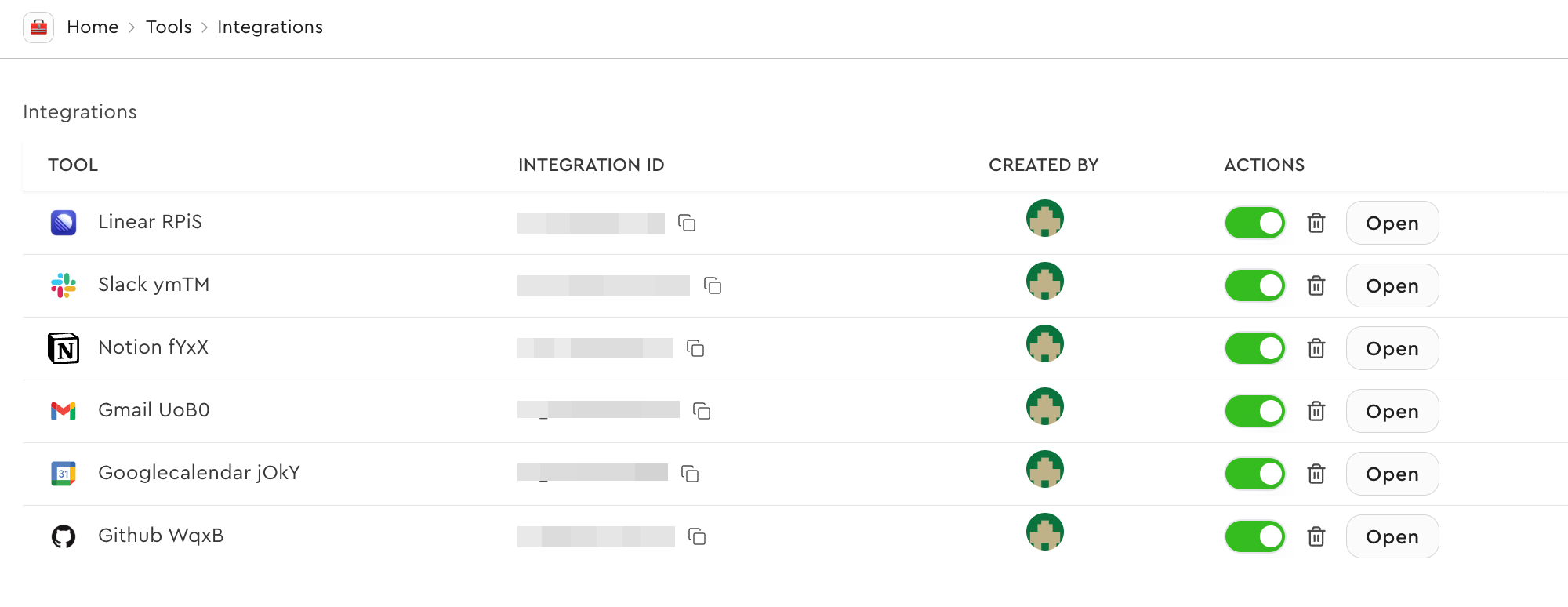 ## Save auth config IDs to environment variables
For this project, the auth config IDs should be saved to the environment variables
with the `NEXT_PUBLIC_` prefix.
```bash .env.local
NEXT_PUBLIC_GMAIL_AUTH_CONFIG_ID=ac_1234567890
NEXT_PUBLIC_GITHUB_AUTH_CONFIG_ID=ac_1234567890
```
# Create a Composio client instance
We create a Composio client instance for server-side operations like API routes,
server components, etc.
```typescript lib/service/composio.ts
import { Composio } from '@composio/core';
import { VercelProvider } from '@composio/vercel';
const composio = new Composio({
apiKey: process.env.COMPOSIO_API_KEY,
provider: new VercelProvider(),
});
export default composio;
```
# Creating an API for fetching toolkits
The Composio SDK is meant to be used only in server-side code. For client-side
functionality, we create API endpoints in the `/app/api/` directory. In order to
list the toolkits and their connection status, we create a Next.js API route to
fetch the toolkits using Composio SDK.
## Save auth config IDs to environment variables
For this project, the auth config IDs should be saved to the environment variables
with the `NEXT_PUBLIC_` prefix.
```bash .env.local
NEXT_PUBLIC_GMAIL_AUTH_CONFIG_ID=ac_1234567890
NEXT_PUBLIC_GITHUB_AUTH_CONFIG_ID=ac_1234567890
```
# Create a Composio client instance
We create a Composio client instance for server-side operations like API routes,
server components, etc.
```typescript lib/service/composio.ts
import { Composio } from '@composio/core';
import { VercelProvider } from '@composio/vercel';
const composio = new Composio({
apiKey: process.env.COMPOSIO_API_KEY,
provider: new VercelProvider(),
});
export default composio;
```
# Creating an API for fetching toolkits
The Composio SDK is meant to be used only in server-side code. For client-side
functionality, we create API endpoints in the `/app/api/` directory. In order to
list the toolkits and their connection status, we create a Next.js API route to
fetch the toolkits using Composio SDK.
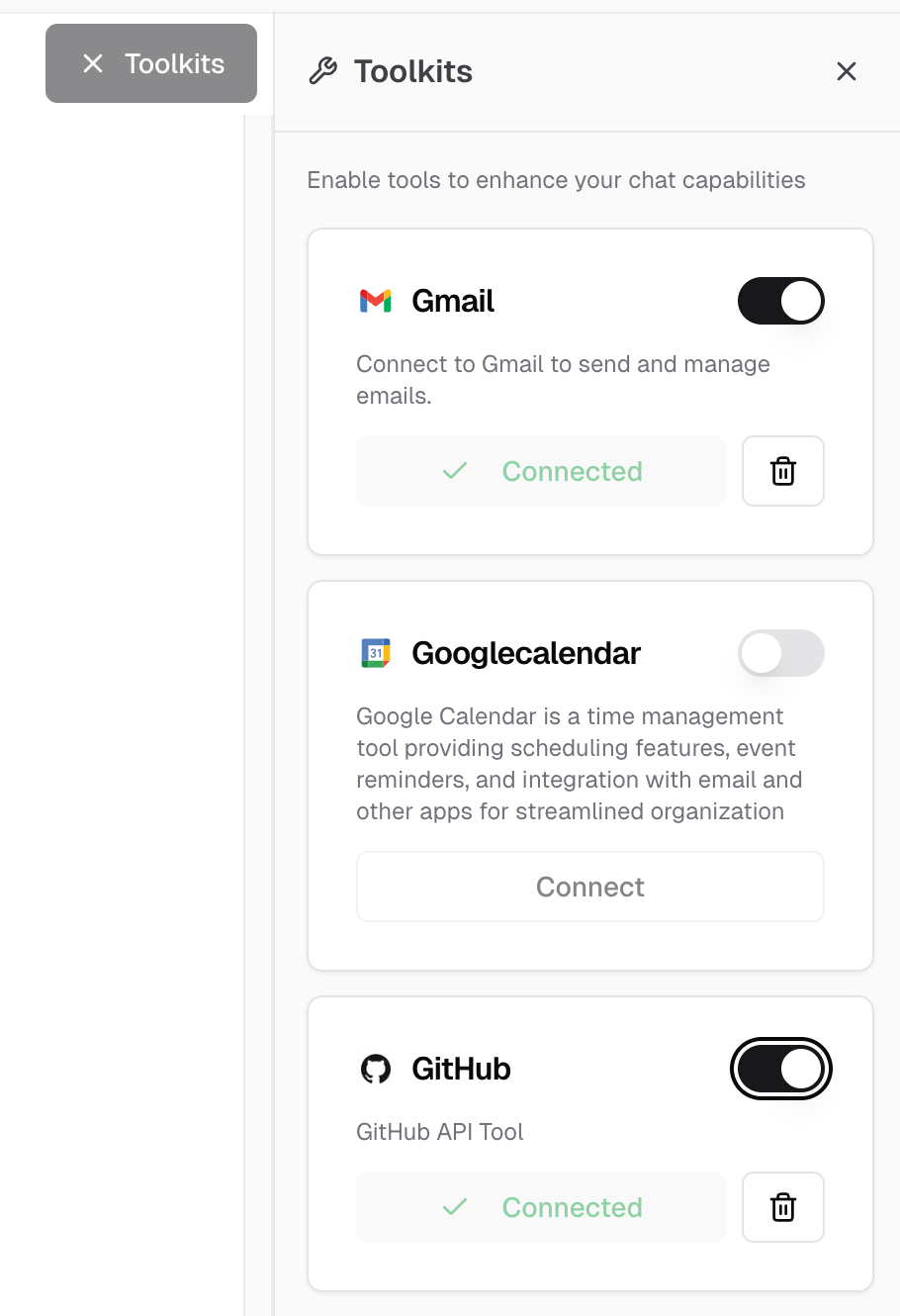 ## 1. Listing connected accounts
First, we fetch all connected accounts for a user and create a mapping of toolkit
slugs to their connection IDs:
```typescript app/api/composio/toolkits.ts
// @noErrors
export async function GET() {
// ... auth logic ...
// List connected accounts to get connection IDs for each toolkit
const connectedAccounts = await composio.connectedAccounts.list({
userIds: [session.user.id],
});
const connectedToolkitMap = new Map();
connectedAccounts.items.forEach(account => {
connectedToolkitMap.set(account.toolkit.slug.toUpperCase(), account.id);
});
// ... continue with toolkit fetching ...
```
## 2. Fetching toolkit data and building response
Next, we fetch toolkit information for each supported toolkit and combine it with the connection status:
```typescript app/api/composio/toolkits.ts
// @noErrors
export async function GET() {
// ... auth logic ...
// ... connected accounts mapping ...
const SUPPORTED_TOOLKITS = ['GMAIL', 'GOOGLECALENDAR', 'GITHUB', 'NOTION'];
// Fetch toolkit data from slugs
const toolkitPromises = SUPPORTED_TOOLKITS.map(async slug => {
const toolkit = await composio.toolkits.get(slug);
const connectionId = connectedToolkitMap.get(slug.toUpperCase());
return {
name: toolkit.name,
slug: toolkit.slug,
description: toolkit.meta?.description,
logo: toolkit.meta?.logo,
categories: toolkit.meta?.categories,
isConnected: !!connectionId,
connectionId: connectionId || undefined,
};
});
const toolkits = await Promise.all(toolkitPromises);
return NextResponse.json({ toolkits });
```
# Managing connections
Users need to connect and disconnect their accounts from the chatbot to enable tool usage. When users click "Connect" on a toolkit, we initiate an OAuth flow, and when they click "Disconnect", we remove their connection.
## 1. Initiating a connection
When a user wants to connect their account, we create a connection request that redirects them to the OAuth provider:
## 1. Listing connected accounts
First, we fetch all connected accounts for a user and create a mapping of toolkit
slugs to their connection IDs:
```typescript app/api/composio/toolkits.ts
// @noErrors
export async function GET() {
// ... auth logic ...
// List connected accounts to get connection IDs for each toolkit
const connectedAccounts = await composio.connectedAccounts.list({
userIds: [session.user.id],
});
const connectedToolkitMap = new Map();
connectedAccounts.items.forEach(account => {
connectedToolkitMap.set(account.toolkit.slug.toUpperCase(), account.id);
});
// ... continue with toolkit fetching ...
```
## 2. Fetching toolkit data and building response
Next, we fetch toolkit information for each supported toolkit and combine it with the connection status:
```typescript app/api/composio/toolkits.ts
// @noErrors
export async function GET() {
// ... auth logic ...
// ... connected accounts mapping ...
const SUPPORTED_TOOLKITS = ['GMAIL', 'GOOGLECALENDAR', 'GITHUB', 'NOTION'];
// Fetch toolkit data from slugs
const toolkitPromises = SUPPORTED_TOOLKITS.map(async slug => {
const toolkit = await composio.toolkits.get(slug);
const connectionId = connectedToolkitMap.get(slug.toUpperCase());
return {
name: toolkit.name,
slug: toolkit.slug,
description: toolkit.meta?.description,
logo: toolkit.meta?.logo,
categories: toolkit.meta?.categories,
isConnected: !!connectionId,
connectionId: connectionId || undefined,
};
});
const toolkits = await Promise.all(toolkitPromises);
return NextResponse.json({ toolkits });
```
# Managing connections
Users need to connect and disconnect their accounts from the chatbot to enable tool usage. When users click "Connect" on a toolkit, we initiate an OAuth flow, and when they click "Disconnect", we remove their connection.
## 1. Initiating a connection
When a user wants to connect their account, we create a connection request that redirects them to the OAuth provider:
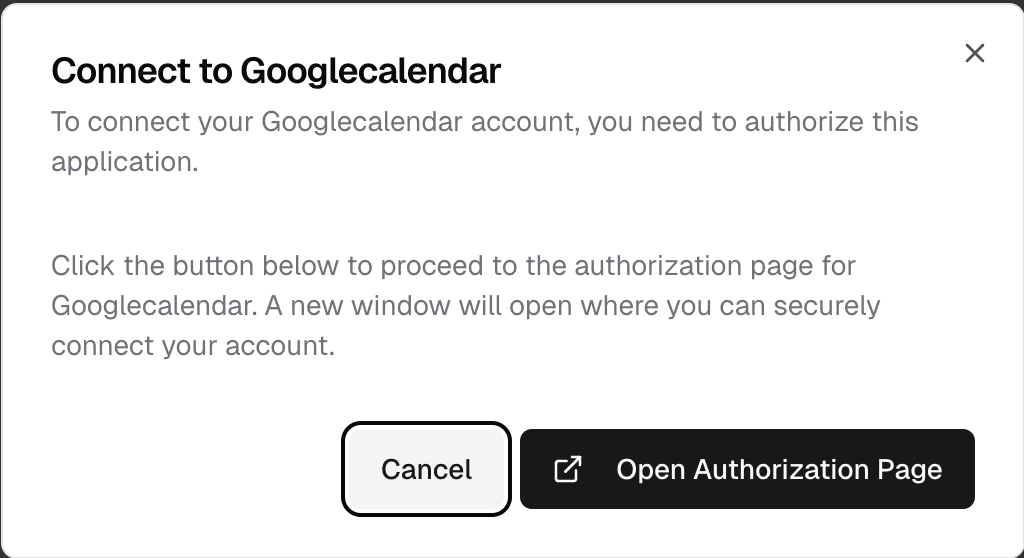 ```typescript app/api/connections/initiate/route.ts
// @noErrors
export async function POST(request: Request) {
// ... auth and validation ...
const { authConfigId } = requestBody;
// Initiate connection with Composio
const connectionRequest = await composio.connectedAccounts.initiate(
session.user.id,
authConfigId
);
return NextResponse.json({
redirectUrl: connectionRequest.redirectUrl,
connectionId: connectionRequest.id,
});
```
## 2. Checking connection status
After initiating a connection, we need to wait for the OAuth flow to complete. We check the connection status to know when it's ready to use:
```typescript app/api/connections/initiate/route.ts
// @noErrors
export async function POST(request: Request) {
// ... auth and validation ...
const { authConfigId } = requestBody;
// Initiate connection with Composio
const connectionRequest = await composio.connectedAccounts.initiate(
session.user.id,
authConfigId
);
return NextResponse.json({
redirectUrl: connectionRequest.redirectUrl,
connectionId: connectionRequest.id,
});
```
## 2. Checking connection status
After initiating a connection, we need to wait for the OAuth flow to complete. We check the connection status to know when it's ready to use:
 ```typescript app/api/connections/status/route.ts
// @noErrors
export async function GET(request: Request) {
// ... auth and validation ...
const connectionId = searchParams.get('connectionId');
// Wait for connection to complete
const connection = await composio.connectedAccounts.waitForConnection(connectionId);
return NextResponse.json({
id: connection.id,
status: connection.status,
authConfig: connection.authConfig,
data: connection.data,
});
```
## 3. Deleting a connection
When a user wants to disconnect their account, we remove the connection using the connection ID:
```typescript app/api/connections/delete/route.ts
// @noErrors
export async function DELETE(request: Request) {
// ... auth and validation ...
const connectionId = searchParams.get('connectionId');
// Delete the connection
await composio.connectedAccounts.delete(connectionId);
return NextResponse.json({
success: true,
message: 'Connection deleted successfully',
});
```
# Working with tools
Once users have connected their accounts, we need to track which toolkits are enabled and fetch the corresponding tools for the LLM.
## 1. Tracking enabled toolkits
We keep track of which toolkits the user has enabled in the chat interface:
```typescript components/chat.tsx
// @noErrors
const { ... } = useChat({
// ... other config ...
experimental_prepareRequestBody: (body) => {
// Get current toolbar state
const currentToolbarState = toolbarStateRef.current;
const enabledToolkits = Array.from(
currentToolbarState.enabledToolkitsWithStatus.entries(),
).map(([slug, isConnected]) => ({ slug, isConnected }));
return {
// ... other fields ...
enabledToolkits,
};
},
// ... other handlers ...
});
```
## 2. Fetching tools for enabled toolkits
We fetch Composio tools based on the enabled toolkit slugs:
```typescript lib/ai/tools/composio.ts
// @noErrors
export async function getComposioTools(userId: string, toolkitSlugs: string[]) {
// ... validation ...
const tools = await composio.tools.get(userId, {
toolkits: toolkitSlugs,
});
return tools || {};
```
```typescript app/api/chat.ts
// @noErrors
export async function POST(request: Request) {
// ... auth and parsing ...
const toolkitSlugs = enabledToolkits?.map(t => t.slug) || [];
const composioTools = await getComposioTools(session.user.id, toolkitSlugs);
const result = streamText({
// ... model config ...
tools: {
...composioTools,
},
});
```
# Bonus: Creating custom component to show tool calls
By default, tool calls appear as raw JSON in the chat interface. To create a better user experience, we can build custom components that display tool calls with proper formatting and loading states.
```typescript app/api/connections/status/route.ts
// @noErrors
export async function GET(request: Request) {
// ... auth and validation ...
const connectionId = searchParams.get('connectionId');
// Wait for connection to complete
const connection = await composio.connectedAccounts.waitForConnection(connectionId);
return NextResponse.json({
id: connection.id,
status: connection.status,
authConfig: connection.authConfig,
data: connection.data,
});
```
## 3. Deleting a connection
When a user wants to disconnect their account, we remove the connection using the connection ID:
```typescript app/api/connections/delete/route.ts
// @noErrors
export async function DELETE(request: Request) {
// ... auth and validation ...
const connectionId = searchParams.get('connectionId');
// Delete the connection
await composio.connectedAccounts.delete(connectionId);
return NextResponse.json({
success: true,
message: 'Connection deleted successfully',
});
```
# Working with tools
Once users have connected their accounts, we need to track which toolkits are enabled and fetch the corresponding tools for the LLM.
## 1. Tracking enabled toolkits
We keep track of which toolkits the user has enabled in the chat interface:
```typescript components/chat.tsx
// @noErrors
const { ... } = useChat({
// ... other config ...
experimental_prepareRequestBody: (body) => {
// Get current toolbar state
const currentToolbarState = toolbarStateRef.current;
const enabledToolkits = Array.from(
currentToolbarState.enabledToolkitsWithStatus.entries(),
).map(([slug, isConnected]) => ({ slug, isConnected }));
return {
// ... other fields ...
enabledToolkits,
};
},
// ... other handlers ...
});
```
## 2. Fetching tools for enabled toolkits
We fetch Composio tools based on the enabled toolkit slugs:
```typescript lib/ai/tools/composio.ts
// @noErrors
export async function getComposioTools(userId: string, toolkitSlugs: string[]) {
// ... validation ...
const tools = await composio.tools.get(userId, {
toolkits: toolkitSlugs,
});
return tools || {};
```
```typescript app/api/chat.ts
// @noErrors
export async function POST(request: Request) {
// ... auth and parsing ...
const toolkitSlugs = enabledToolkits?.map(t => t.slug) || [];
const composioTools = await getComposioTools(session.user.id, toolkitSlugs);
const result = streamText({
// ... model config ...
tools: {
...composioTools,
},
});
```
# Bonus: Creating custom component to show tool calls
By default, tool calls appear as raw JSON in the chat interface. To create a better user experience, we can build custom components that display tool calls with proper formatting and loading states.
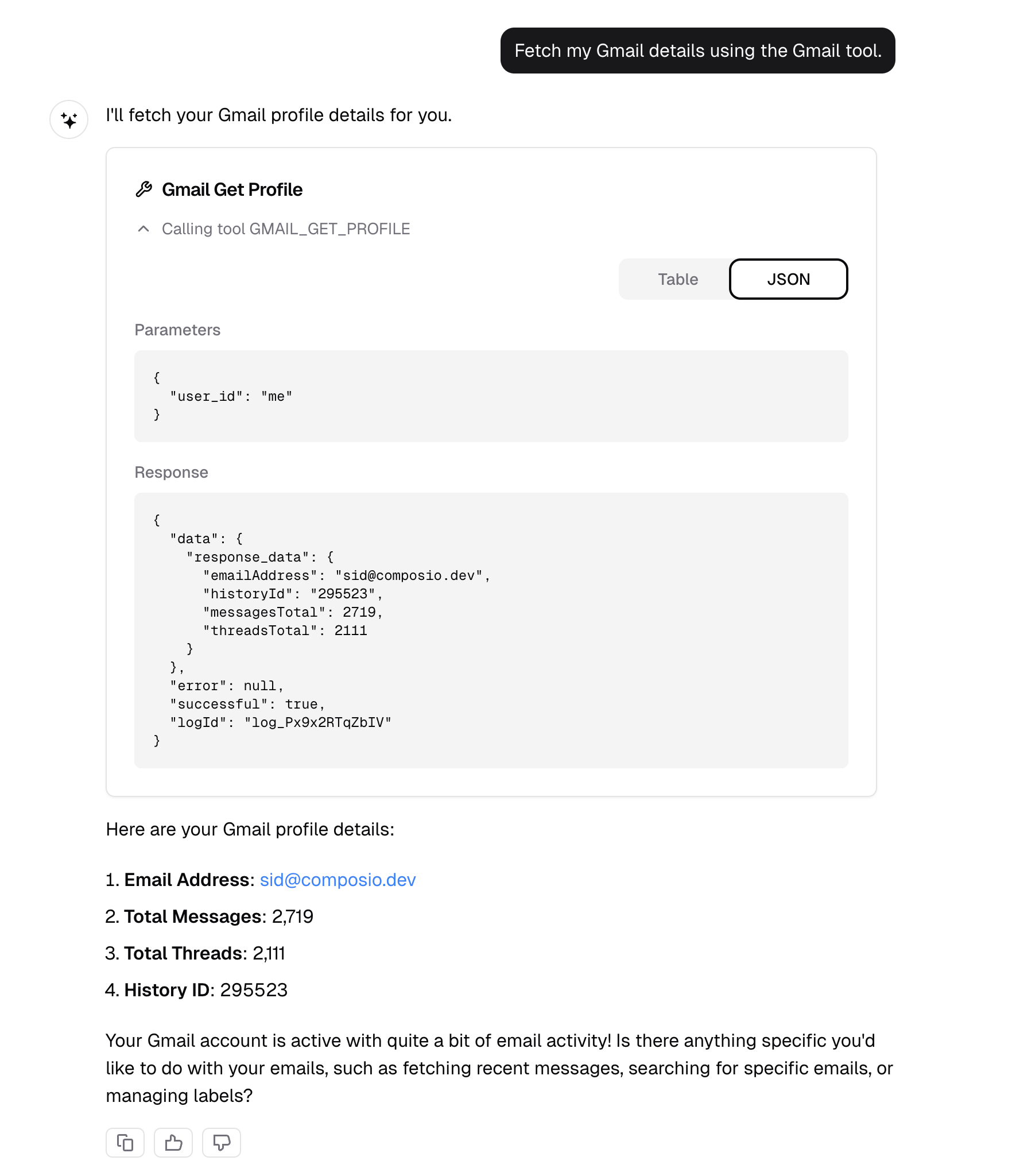 You can find the `ToolCall` component at `components/tool-call.tsx`. Here's how to integrate it into your message rendering:
```typescript components/messages.tsx
// @noErrors
if (type === 'tool-invocation') {
const { toolInvocation } = part;
const { toolName, toolCallId, state, args, result } = toolInvocation;
if (state === 'call') {
return (
);
if (state === 'result') {
return (
);
```
---
# API Reference
---
# Errors (/reference/errors)
Composio uses conventional HTTP response codes to indicate the success or failure of an API request. In general: codes in the `2xx` range indicate success, codes in the `4xx` range indicate an error with the information provided, and codes in the `5xx` range indicate an error with Composio's servers.
# The error object
```json
"error": {
"message": "No connected account found for this user and toolkit",
"status": 400,
"request_id": "req_abc123def456",
"suggested_fix": "Connect the user to the toolkit first"
```
## Attributes
| Attribute | Description |
| --------------- | --------------------------------------------------------------------------- |
| `message` | A human-readable message providing details about the error. |
| `status` | The HTTP status code. |
| `request_id` | A unique identifier for this request. Include this when contacting support. |
| `suggested_fix` | When available, guidance on how to resolve the error. |
# HTTP status codes
| Code | Status | Description |
| ------------------ | -------------------- | ------------------------------------------------------------------------------------------------ |
| 200 | OK | Everything worked as expected. |
| 400 | Bad Request | The request was unacceptable, often due to missing a required parameter. |
| 401 | Unauthorized | No valid API key provided. |
| 403 | Forbidden | The API key doesn't have permissions to perform the request. |
| 404 | Not Found | The requested resource doesn't exist. |
| 409 | Conflict | The request conflicts with another request (perhaps due to using the same idempotent key). |
| 422 | Unprocessable Entity | The request was valid but cannot be processed. |
| 429 | Too Many Requests | Too many requests hit the API too quickly. We recommend an exponential backoff of your requests. |
| 500, 502, 503, 504 | Server Errors | Something went wrong on Composio's end. |
# Error types
## Authentication errors
Composio uses two types of API keys:
* **Project API key** (`x-api-key`) — For project-level operations
* **Organization API key** (`x-org-api-key`) — For organization-level access across projects
| Error | Cause |
| -------------------------- | --------------------------------------------------------------------------------------------- |
| Invalid API key | The API key is incorrect or revoked. Verify in [Settings](https://app.composio.dev/settings). |
| No authentication provided | The request is missing the `x-api-key` or `x-org-api-key` header. |
| Invalid organization key | The organization API key is incorrect or revoked. Verify in Organization Settings. |
| Insufficient permissions | The API key doesn't have access to this resource. |
> See [Authentication Troubleshooting](/docs/troubleshooting/authentication) for more help.
## Tool errors
Errors that occur when fetching or executing tools.
| Error | Cause |
| --------------------- | ------------------------------------------------------------------------------------------------------ |
| Tool not found | The tool slug doesn't exist. Tool slugs are case-sensitive and use `SCREAMING_SNAKE_CASE`. |
| No connected account | The user hasn't connected to this toolkit yet. See [Authenticating Users](/docs/authenticating-users). |
| Tool execution failed | The external service returned an error. Check tool parameters and user permissions. |
> See [Tools Troubleshooting](/docs/troubleshooting/tools) for more help.
## Connection errors
Errors related to connected accounts.
| Error | Cause |
| --------------------------- | ---------------------------------------------------------------- |
| Connected account not found | The `connectedAccountId` doesn't exist or was deleted. |
| Auth refresh required | The OAuth token has expired. Prompt the user to re-authenticate. |
| Connected account deleted | The connection was removed. Create a new connection. |
## Trigger errors
Errors related to trigger subscriptions.
| Error | Cause |
| ------------------------ | -------------------------------------------------------------- |
| Trigger not found | The trigger slug doesn't exist for this toolkit. |
| Trigger instance deleted | The trigger subscription or its connected account was removed. |
> See [Triggers Troubleshooting](/docs/troubleshooting/triggers) for more help.
# Rate limiting
When you hit rate limits, you'll receive a `429` status code. Back off exponentially and retry.
# Getting help
When contacting support, include the `request_id` from the error response.
- [Troubleshooting](/docs/troubleshooting):
Common issues and solutions
- [Discord](https://discord.com/channels/1170785031560646836/1268871288156323901):
Community support
- [Email](mailto:support@composio.dev):
Contact support team
- [GitHub](https://github.com/ComposioHQ/composio/issues/new?labels=bug):
Report a bug
---
# Overview (/reference)
# Authentication
All Composio API endpoints require authentication via API key.
## API Key Authentication
Include your API key in the `x-api-key` header.
### Getting Your API Key
1. Sign in to [composio.dev](https://composio.dev)
2. Navigate to **Settings**
3. In **Project Settings**, copy the key from the **API Keys** section
## Organization API Key
For organization-level access, use the `x-org-api-key` header.
### Getting Your Organization API Key
1. Sign in to [composio.dev](https://composio.dev)
2. Navigate to **Organization Settings** → **General Settings**
3. Copy the token under **Organization Access Tokens**
---
# AuthConfigs (/reference/sdk-reference/typescript/auth-configs)
# Usage
Access this class through the `composio.authConfigs` property:
```typescript
const composio = new Composio({ apiKey: 'your-api-key' });
const result = await composio.authConfigs.list();
```
# Methods
## create()
Create a new auth config
```typescript
async create(toolkit: string, options: object): Promise<{ authScheme: string; id: string; isComposioManaged: boolean; toolkit: string }>
```
**Parameters**
| Name | Type | Description |
| --------- | -------- | -------------------------------------- |
| `toolkit` | `string` | Unique identifier of the toolkit |
| `options` | `object` | Options for creating a new auth config |
**Returns**
`Promise<...>` — Created auth config
**Example**
```typescript
const authConfig = await authConfigs.create('my-toolkit', {
type: AuthConfigTypes.CUSTOM,
name: 'My Custom Auth Config',
authScheme: AuthSchemeTypes.API_KEY,
credentials: {
apiKey: '1234567890',
},
});
```
***
## delete()
Deletes an authentication configuration.
This method permanently removes an auth config from the Composio platform.
This action cannot be undone and will prevent any connected accounts that use
this auth config from functioning.
```typescript
async delete(nanoid: string): Promise
```
**Parameters**
| Name | Type | Description |
| -------- | -------- | -------------------------------------------------- |
| `nanoid` | `string` | The unique identifier of the auth config to delete |
**Returns**
`Promise` — The deletion response
**Example**
```typescript
// Delete an auth config
await composio.authConfigs.delete('auth_abc123');
```
***
## disable()
Disables an authentication configuration.
This is a convenience method that calls updateStatus with 'DISABLED'.
When disabled, the auth config cannot be used to create new connected accounts
or authenticate with third-party services, but existing connections may continue to work.
```typescript
async disable(nanoid: string): Promise
```
**Parameters**
| Name | Type | Description |
| -------- | -------- | --------------------------------------------------- |
| `nanoid` | `string` | The unique identifier of the auth config to disable |
**Returns**
`Promise` — The updated auth config details
**Example**
```typescript
// Disable an auth config
await composio.authConfigs.disable('auth_abc123');
```
***
## enable()
Enables an authentication configuration.
This is a convenience method that calls updateStatus with 'ENABLED'.
When enabled, the auth config can be used to create new connected accounts
and authenticate with third-party services.
```typescript
async enable(nanoid: string): Promise
```
**Parameters**
| Name | Type | Description |
| -------- | -------- | -------------------------------------------------- |
| `nanoid` | `string` | The unique identifier of the auth config to enable |
**Returns**
`Promise` — The updated auth config details
**Example**
```typescript
// Enable an auth config
await composio.authConfigs.enable('auth_abc123');
```
***
## get()
Retrieves a specific authentication configuration by its ID.
This method fetches detailed information about a single auth config
and transforms the response to the SDK's standardized format.
```typescript
async get(nanoid: string): Promise<...>
```
**Parameters**
| Name | Type | Description |
| -------- | -------- | ---------------------------------------------------- |
| `nanoid` | `string` | The unique identifier of the auth config to retrieve |
**Returns**
`Promise<...>` — The auth config details
**Example**
```typescript
// Get an auth config by ID
const authConfig = await composio.authConfigs.get('auth_abc123');
console.log(authConfig.name); // e.g., 'GitHub Auth'
console.log(authConfig.toolkit.slug); // e.g., 'github'
```
***
## list()
Lists authentication configurations based on provided filter criteria.
This method retrieves auth configs from the Composio API, transforms them to the SDK format,
and supports filtering by various parameters.
```typescript
async list(query?: { cursor?: string; isComposioManaged?: boolean; limit?: number; toolkit?: string }): Promise<...>
```
**Parameters**
| Name | Type | Description |
| -------- | -------- | ---------------------------------------------------- |
| `query?` | `object` | Optional query parameters for filtering auth configs |
**Returns**
`Promise<...>` — A paginated list of auth configurations
**Example**
```typescript
// List all auth configs
const allConfigs = await composio.authConfigs.list();
// List auth configs for a specific toolkit
const githubConfigs = await composio.authConfigs.list({
toolkit: 'github'
});
// List Composio-managed auth configs
const managedConfigs = await composio.authConfigs.list({
isComposioManaged: true
});
```
***
## update()
Updates an existing authentication configuration.
This method allows you to modify properties of an auth config such as credentials,
scopes, or tool restrictions. The update type (custom or default) determines which
fields can be updated.
```typescript
async update(nanoid: string, data: object): Promise
```
**Parameters**
| Name | Type | Description |
| -------- | -------- | -------------------------------------------------------------- |
| `nanoid` | `string` | The unique identifier of the auth config to update |
| `data` | `object` | The data to update, which can be either custom or default type |
**Returns**
`Promise` — The updated auth config
**Example**
```typescript
// Update a custom auth config with new credentials
const updatedConfig = await composio.authConfigs.update('auth_abc123', {
type: 'custom',
credentials: {
apiKey: 'new-api-key-value'
});
// Update a default auth config with new scopes
const updatedConfig = await composio.authConfigs.update('auth_abc123', {
type: 'default',
scopes: ['read:user', 'repo']
});
```
***
## updateStatus()
Updates the status of an authentication configuration.
This method allows you to enable or disable an auth config. When disabled,
the auth config cannot be used to create new connected accounts or authenticate
with third-party services.
```typescript
async updateStatus(status: 'ENABLED' | 'DISABLED', nanoid: string): Promise
```
**Parameters**
| Name | Type | Description | |
| -------- | ----------- | ---------------------------------------- | ------------------------------------------- |
| `status` | \`'ENABLED' | 'DISABLED'\` | The status to set ('ENABLED' or 'DISABLED') |
| `nanoid` | `string` | The unique identifier of the auth config | |
**Returns**
`Promise` — The updated auth config details
**Example**
```typescript
// Disable an auth config
await composio.authConfigs.updateStatus('DISABLED', 'auth_abc123');
// Enable an auth config
await composio.authConfigs.updateStatus('ENABLED', 'auth_abc123');
```
***
---
# Composio (/reference/sdk-reference/typescript/composio)
# Constructor
## constructor()
Creates a new instance of the Composio SDK.
The constructor initializes the SDK with the provided configuration options,
sets up the API client, and initializes all core models (tools, toolkits, etc.).
```typescript
constructor(config?: ComposioConfig): Composio
```
**Parameters**
| Name | Type | Description |
| --------- | ---------------- | ------------------------------------------ |
| `config?` | `ComposioConfig` | Configuration options for the Composio SDK |
**Returns**
`Composio`
**Example**
```typescript
// Initialize with default configuration
const composio = new Composio();
// Initialize with custom API key and base URL
const composio = new Composio({
apiKey: 'your-api-key',
baseURL: 'https://api.composio.dev'
});
// Initialize with custom provider
const composio = new Composio({
apiKey: 'your-api-key',
provider: new CustomProvider()
});
```
***
# Properties
| Name | Type | Description |
| ------------------- | -------------------------------------------- | -------------------------------------------------------------------------------- |
| `authConfigs` | `AuthConfigs` | Manage authentication configurations for toolkits |
| `connectedAccounts` | `ConnectedAccounts` | Manage authenticated connections |
| `create` | `object` | Creates a new tool router session for a user. |
| `files` | `Files` | Upload and download files |
| `mcp` | `MCP` | Model Context Protocol server management |
| `provider` | `TProvider` | The tool provider instance used for wrapping tools in framework-specific formats |
| `toolkits` | `Toolkits` | Retrieve toolkit metadata and authorize user connections |
| `toolRouter` | `ToolRouter` | Experimental feature, use with caution |
| `tools` | `Tools` | List, retrieve, and execute tools |
| `triggers` | `Triggers` | Manage webhook triggers and event subscriptions |
| `use` | `(id: string) => Promise` | Use an existing tool router session |
# Methods
## createSession()
Creates a new instance of the Composio SDK with custom request options while preserving the existing configuration.
This method is particularly useful when you need to:
* Add custom headers for specific requests
* Track request contexts with unique identifiers
* Override default request behavior for a subset of operations
The new instance inherits all configuration from the parent instance (apiKey, baseURL, provider, etc.)
but allows you to specify custom request options that will be used for all API calls made through this session.
```typescript
createSession(options?: { headers?: ComposioRequestHeaders }): Composio
```
**Parameters**
| Name | Type |
| ---------- | -------- |
| `options?` | `object` |
**Returns**
`Composio` — A new Composio instance with the custom request options applied.
**Example**
```typescript
// Create a base Composio instance
const composio = new Composio({
apiKey: 'your-api-key'
});
// Create a session with request tracking headers
const composioWithCustomHeaders = composio.createSession({
headers: {
'x-request-id': '1234567890',
'x-correlation-id': 'session-abc-123',
'x-custom-header': 'custom-value'
});
// Use the session for making API calls with the custom headers
await composioWithCustomHeaders.tools.list();
```
***
## flush()
Flush any pending telemetry and wait for it to complete.
In Node.js-compatible environments, telemetry is automatically flushed on process exit.
However, in environments like Cloudflare Workers that don't support process exit events,
you should call this method manually to ensure all telemetry is sent.
```typescript
async flush(): Promise
You can find the `ToolCall` component at `components/tool-call.tsx`. Here's how to integrate it into your message rendering:
```typescript components/messages.tsx
// @noErrors
if (type === 'tool-invocation') {
const { toolInvocation } = part;
const { toolName, toolCallId, state, args, result } = toolInvocation;
if (state === 'call') {
return (
);
if (state === 'result') {
return (
);
```
---
# API Reference
---
# Errors (/reference/errors)
Composio uses conventional HTTP response codes to indicate the success or failure of an API request. In general: codes in the `2xx` range indicate success, codes in the `4xx` range indicate an error with the information provided, and codes in the `5xx` range indicate an error with Composio's servers.
# The error object
```json
"error": {
"message": "No connected account found for this user and toolkit",
"status": 400,
"request_id": "req_abc123def456",
"suggested_fix": "Connect the user to the toolkit first"
```
## Attributes
| Attribute | Description |
| --------------- | --------------------------------------------------------------------------- |
| `message` | A human-readable message providing details about the error. |
| `status` | The HTTP status code. |
| `request_id` | A unique identifier for this request. Include this when contacting support. |
| `suggested_fix` | When available, guidance on how to resolve the error. |
# HTTP status codes
| Code | Status | Description |
| ------------------ | -------------------- | ------------------------------------------------------------------------------------------------ |
| 200 | OK | Everything worked as expected. |
| 400 | Bad Request | The request was unacceptable, often due to missing a required parameter. |
| 401 | Unauthorized | No valid API key provided. |
| 403 | Forbidden | The API key doesn't have permissions to perform the request. |
| 404 | Not Found | The requested resource doesn't exist. |
| 409 | Conflict | The request conflicts with another request (perhaps due to using the same idempotent key). |
| 422 | Unprocessable Entity | The request was valid but cannot be processed. |
| 429 | Too Many Requests | Too many requests hit the API too quickly. We recommend an exponential backoff of your requests. |
| 500, 502, 503, 504 | Server Errors | Something went wrong on Composio's end. |
# Error types
## Authentication errors
Composio uses two types of API keys:
* **Project API key** (`x-api-key`) — For project-level operations
* **Organization API key** (`x-org-api-key`) — For organization-level access across projects
| Error | Cause |
| -------------------------- | --------------------------------------------------------------------------------------------- |
| Invalid API key | The API key is incorrect or revoked. Verify in [Settings](https://app.composio.dev/settings). |
| No authentication provided | The request is missing the `x-api-key` or `x-org-api-key` header. |
| Invalid organization key | The organization API key is incorrect or revoked. Verify in Organization Settings. |
| Insufficient permissions | The API key doesn't have access to this resource. |
> See [Authentication Troubleshooting](/docs/troubleshooting/authentication) for more help.
## Tool errors
Errors that occur when fetching or executing tools.
| Error | Cause |
| --------------------- | ------------------------------------------------------------------------------------------------------ |
| Tool not found | The tool slug doesn't exist. Tool slugs are case-sensitive and use `SCREAMING_SNAKE_CASE`. |
| No connected account | The user hasn't connected to this toolkit yet. See [Authenticating Users](/docs/authenticating-users). |
| Tool execution failed | The external service returned an error. Check tool parameters and user permissions. |
> See [Tools Troubleshooting](/docs/troubleshooting/tools) for more help.
## Connection errors
Errors related to connected accounts.
| Error | Cause |
| --------------------------- | ---------------------------------------------------------------- |
| Connected account not found | The `connectedAccountId` doesn't exist or was deleted. |
| Auth refresh required | The OAuth token has expired. Prompt the user to re-authenticate. |
| Connected account deleted | The connection was removed. Create a new connection. |
## Trigger errors
Errors related to trigger subscriptions.
| Error | Cause |
| ------------------------ | -------------------------------------------------------------- |
| Trigger not found | The trigger slug doesn't exist for this toolkit. |
| Trigger instance deleted | The trigger subscription or its connected account was removed. |
> See [Triggers Troubleshooting](/docs/troubleshooting/triggers) for more help.
# Rate limiting
When you hit rate limits, you'll receive a `429` status code. Back off exponentially and retry.
# Getting help
When contacting support, include the `request_id` from the error response.
- [Troubleshooting](/docs/troubleshooting):
Common issues and solutions
- [Discord](https://discord.com/channels/1170785031560646836/1268871288156323901):
Community support
- [Email](mailto:support@composio.dev):
Contact support team
- [GitHub](https://github.com/ComposioHQ/composio/issues/new?labels=bug):
Report a bug
---
# Overview (/reference)
# Authentication
All Composio API endpoints require authentication via API key.
## API Key Authentication
Include your API key in the `x-api-key` header.
### Getting Your API Key
1. Sign in to [composio.dev](https://composio.dev)
2. Navigate to **Settings**
3. In **Project Settings**, copy the key from the **API Keys** section
## Organization API Key
For organization-level access, use the `x-org-api-key` header.
### Getting Your Organization API Key
1. Sign in to [composio.dev](https://composio.dev)
2. Navigate to **Organization Settings** → **General Settings**
3. Copy the token under **Organization Access Tokens**
---
# AuthConfigs (/reference/sdk-reference/typescript/auth-configs)
# Usage
Access this class through the `composio.authConfigs` property:
```typescript
const composio = new Composio({ apiKey: 'your-api-key' });
const result = await composio.authConfigs.list();
```
# Methods
## create()
Create a new auth config
```typescript
async create(toolkit: string, options: object): Promise<{ authScheme: string; id: string; isComposioManaged: boolean; toolkit: string }>
```
**Parameters**
| Name | Type | Description |
| --------- | -------- | -------------------------------------- |
| `toolkit` | `string` | Unique identifier of the toolkit |
| `options` | `object` | Options for creating a new auth config |
**Returns**
`Promise<...>` — Created auth config
**Example**
```typescript
const authConfig = await authConfigs.create('my-toolkit', {
type: AuthConfigTypes.CUSTOM,
name: 'My Custom Auth Config',
authScheme: AuthSchemeTypes.API_KEY,
credentials: {
apiKey: '1234567890',
},
});
```
***
## delete()
Deletes an authentication configuration.
This method permanently removes an auth config from the Composio platform.
This action cannot be undone and will prevent any connected accounts that use
this auth config from functioning.
```typescript
async delete(nanoid: string): Promise
```
**Parameters**
| Name | Type | Description |
| -------- | -------- | -------------------------------------------------- |
| `nanoid` | `string` | The unique identifier of the auth config to delete |
**Returns**
`Promise` — The deletion response
**Example**
```typescript
// Delete an auth config
await composio.authConfigs.delete('auth_abc123');
```
***
## disable()
Disables an authentication configuration.
This is a convenience method that calls updateStatus with 'DISABLED'.
When disabled, the auth config cannot be used to create new connected accounts
or authenticate with third-party services, but existing connections may continue to work.
```typescript
async disable(nanoid: string): Promise
```
**Parameters**
| Name | Type | Description |
| -------- | -------- | --------------------------------------------------- |
| `nanoid` | `string` | The unique identifier of the auth config to disable |
**Returns**
`Promise` — The updated auth config details
**Example**
```typescript
// Disable an auth config
await composio.authConfigs.disable('auth_abc123');
```
***
## enable()
Enables an authentication configuration.
This is a convenience method that calls updateStatus with 'ENABLED'.
When enabled, the auth config can be used to create new connected accounts
and authenticate with third-party services.
```typescript
async enable(nanoid: string): Promise
```
**Parameters**
| Name | Type | Description |
| -------- | -------- | -------------------------------------------------- |
| `nanoid` | `string` | The unique identifier of the auth config to enable |
**Returns**
`Promise` — The updated auth config details
**Example**
```typescript
// Enable an auth config
await composio.authConfigs.enable('auth_abc123');
```
***
## get()
Retrieves a specific authentication configuration by its ID.
This method fetches detailed information about a single auth config
and transforms the response to the SDK's standardized format.
```typescript
async get(nanoid: string): Promise<...>
```
**Parameters**
| Name | Type | Description |
| -------- | -------- | ---------------------------------------------------- |
| `nanoid` | `string` | The unique identifier of the auth config to retrieve |
**Returns**
`Promise<...>` — The auth config details
**Example**
```typescript
// Get an auth config by ID
const authConfig = await composio.authConfigs.get('auth_abc123');
console.log(authConfig.name); // e.g., 'GitHub Auth'
console.log(authConfig.toolkit.slug); // e.g., 'github'
```
***
## list()
Lists authentication configurations based on provided filter criteria.
This method retrieves auth configs from the Composio API, transforms them to the SDK format,
and supports filtering by various parameters.
```typescript
async list(query?: { cursor?: string; isComposioManaged?: boolean; limit?: number; toolkit?: string }): Promise<...>
```
**Parameters**
| Name | Type | Description |
| -------- | -------- | ---------------------------------------------------- |
| `query?` | `object` | Optional query parameters for filtering auth configs |
**Returns**
`Promise<...>` — A paginated list of auth configurations
**Example**
```typescript
// List all auth configs
const allConfigs = await composio.authConfigs.list();
// List auth configs for a specific toolkit
const githubConfigs = await composio.authConfigs.list({
toolkit: 'github'
});
// List Composio-managed auth configs
const managedConfigs = await composio.authConfigs.list({
isComposioManaged: true
});
```
***
## update()
Updates an existing authentication configuration.
This method allows you to modify properties of an auth config such as credentials,
scopes, or tool restrictions. The update type (custom or default) determines which
fields can be updated.
```typescript
async update(nanoid: string, data: object): Promise
```
**Parameters**
| Name | Type | Description |
| -------- | -------- | -------------------------------------------------------------- |
| `nanoid` | `string` | The unique identifier of the auth config to update |
| `data` | `object` | The data to update, which can be either custom or default type |
**Returns**
`Promise` — The updated auth config
**Example**
```typescript
// Update a custom auth config with new credentials
const updatedConfig = await composio.authConfigs.update('auth_abc123', {
type: 'custom',
credentials: {
apiKey: 'new-api-key-value'
});
// Update a default auth config with new scopes
const updatedConfig = await composio.authConfigs.update('auth_abc123', {
type: 'default',
scopes: ['read:user', 'repo']
});
```
***
## updateStatus()
Updates the status of an authentication configuration.
This method allows you to enable or disable an auth config. When disabled,
the auth config cannot be used to create new connected accounts or authenticate
with third-party services.
```typescript
async updateStatus(status: 'ENABLED' | 'DISABLED', nanoid: string): Promise
```
**Parameters**
| Name | Type | Description | |
| -------- | ----------- | ---------------------------------------- | ------------------------------------------- |
| `status` | \`'ENABLED' | 'DISABLED'\` | The status to set ('ENABLED' or 'DISABLED') |
| `nanoid` | `string` | The unique identifier of the auth config | |
**Returns**
`Promise` — The updated auth config details
**Example**
```typescript
// Disable an auth config
await composio.authConfigs.updateStatus('DISABLED', 'auth_abc123');
// Enable an auth config
await composio.authConfigs.updateStatus('ENABLED', 'auth_abc123');
```
***
---
# Composio (/reference/sdk-reference/typescript/composio)
# Constructor
## constructor()
Creates a new instance of the Composio SDK.
The constructor initializes the SDK with the provided configuration options,
sets up the API client, and initializes all core models (tools, toolkits, etc.).
```typescript
constructor(config?: ComposioConfig): Composio
```
**Parameters**
| Name | Type | Description |
| --------- | ---------------- | ------------------------------------------ |
| `config?` | `ComposioConfig` | Configuration options for the Composio SDK |
**Returns**
`Composio`
**Example**
```typescript
// Initialize with default configuration
const composio = new Composio();
// Initialize with custom API key and base URL
const composio = new Composio({
apiKey: 'your-api-key',
baseURL: 'https://api.composio.dev'
});
// Initialize with custom provider
const composio = new Composio({
apiKey: 'your-api-key',
provider: new CustomProvider()
});
```
***
# Properties
| Name | Type | Description |
| ------------------- | -------------------------------------------- | -------------------------------------------------------------------------------- |
| `authConfigs` | `AuthConfigs` | Manage authentication configurations for toolkits |
| `connectedAccounts` | `ConnectedAccounts` | Manage authenticated connections |
| `create` | `object` | Creates a new tool router session for a user. |
| `files` | `Files` | Upload and download files |
| `mcp` | `MCP` | Model Context Protocol server management |
| `provider` | `TProvider` | The tool provider instance used for wrapping tools in framework-specific formats |
| `toolkits` | `Toolkits` | Retrieve toolkit metadata and authorize user connections |
| `toolRouter` | `ToolRouter` | Experimental feature, use with caution |
| `tools` | `Tools` | List, retrieve, and execute tools |
| `triggers` | `Triggers` | Manage webhook triggers and event subscriptions |
| `use` | `(id: string) => Promise` | Use an existing tool router session |
# Methods
## createSession()
Creates a new instance of the Composio SDK with custom request options while preserving the existing configuration.
This method is particularly useful when you need to:
* Add custom headers for specific requests
* Track request contexts with unique identifiers
* Override default request behavior for a subset of operations
The new instance inherits all configuration from the parent instance (apiKey, baseURL, provider, etc.)
but allows you to specify custom request options that will be used for all API calls made through this session.
```typescript
createSession(options?: { headers?: ComposioRequestHeaders }): Composio
```
**Parameters**
| Name | Type |
| ---------- | -------- |
| `options?` | `object` |
**Returns**
`Composio` — A new Composio instance with the custom request options applied.
**Example**
```typescript
// Create a base Composio instance
const composio = new Composio({
apiKey: 'your-api-key'
});
// Create a session with request tracking headers
const composioWithCustomHeaders = composio.createSession({
headers: {
'x-request-id': '1234567890',
'x-correlation-id': 'session-abc-123',
'x-custom-header': 'custom-value'
});
// Use the session for making API calls with the custom headers
await composioWithCustomHeaders.tools.list();
```
***
## flush()
Flush any pending telemetry and wait for it to complete.
In Node.js-compatible environments, telemetry is automatically flushed on process exit.
However, in environments like Cloudflare Workers that don't support process exit events,
you should call this method manually to ensure all telemetry is sent.
```typescript
async flush(): Promise